

Agent roles
A role says, once, what a kind of agent may do and what they may see. Agents & Access → Agent Roles lists your roles. The pack starts with one, Manager, which has every permission.
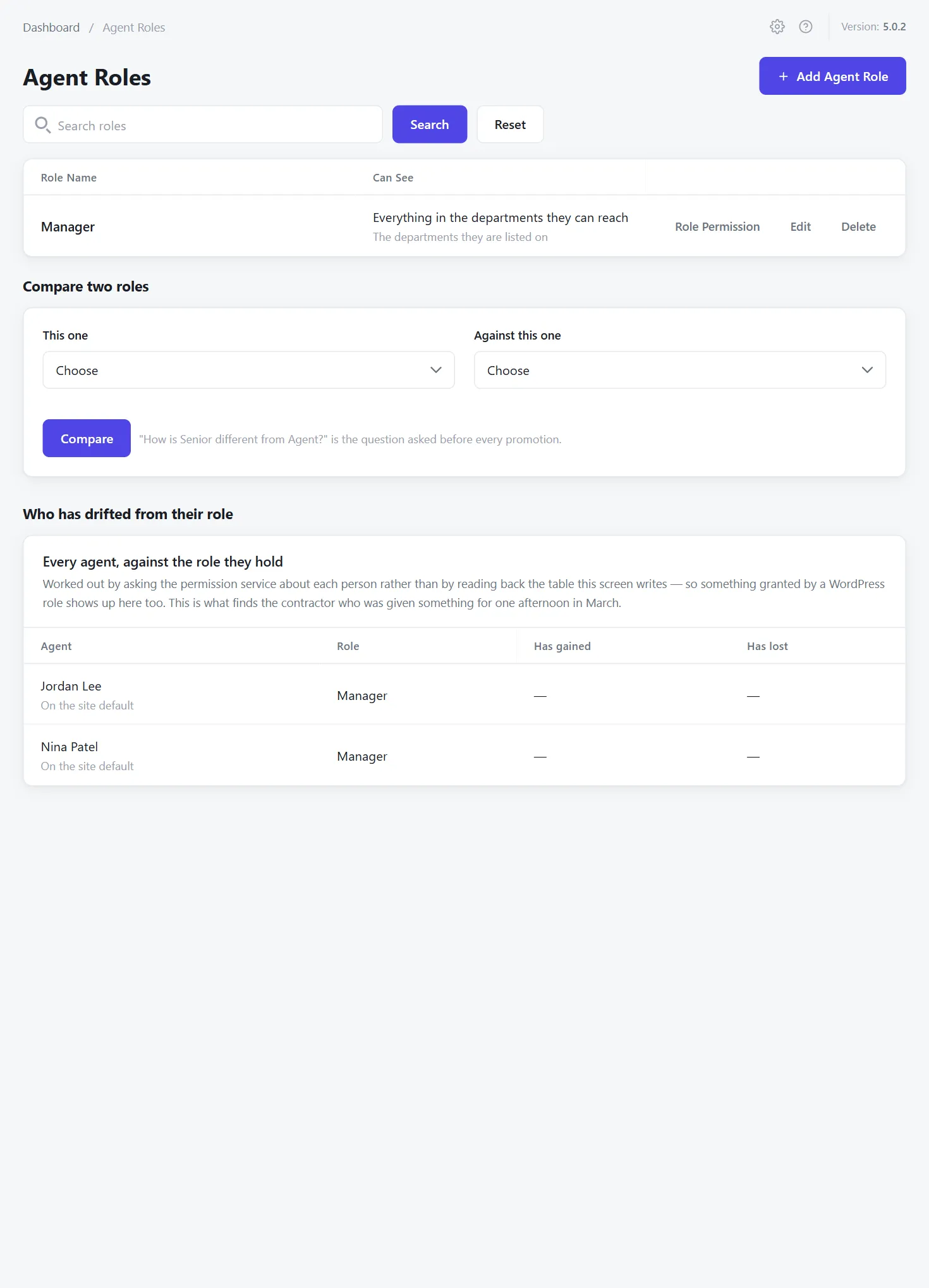
The Can See column summarises each role’s What They May See settings: which tickets, then which departments. On each row:
- Role Permission shows the role’s boxes, read only, with an Edit button.
- Edit opens the role.
- Delete removes it. You can’t delete a role that any agent holds (“The role in use cannot be deleting”). Deleting a role also deletes its What They May See settings.
Adding a role
Section titled “Adding a role”- Click Add Agent Role.
- Under Start from, click the starting point closest to what you want. The form fills in. Nothing is saved yet.
- Type a Name. Names must be unique.
- Adjust the department and permission boxes. Each section heading shows how many of its boxes are ticked, and has Select / Deselect All.
- Set What They May See.
- Click Save Role.
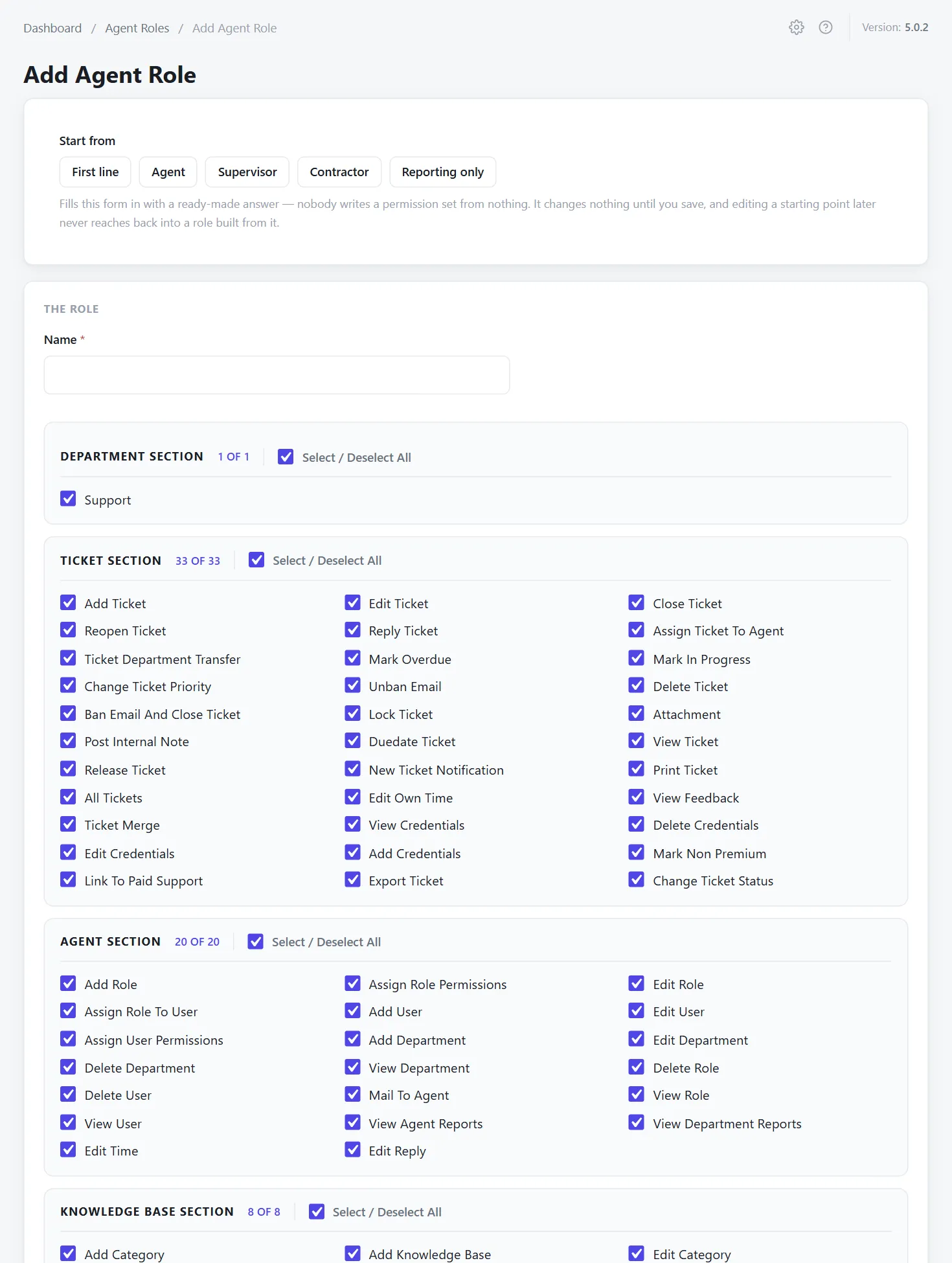
A new role without a starting point starts with every box ticked, so the work is unticking.
Starting points
Section titled “Starting points”Hover over a button to read its summary. A starting point only fills in the form: editing a role later is never affected by it.
| Start from | Meant for | What They May See |
|---|---|---|
| First line | Answers what comes in and picks up unclaimed work. Can reply, note, change status, close, reopen, mark in progress, print, and read canned responses and the knowledge base. | Departments they are listed on; their colleagues’ tickets and the unassigned pile. No customer records or reports. Both desks. |
| Agent | An ordinary full agent. Everything First line can, plus edit tickets and replies, change priority, assign, transfer, merge, use AI replies and see customers. | Everything in the departments they are listed on. Customer records yes, reports no. Both desks. |
| Supervisor | Runs a team. Everything Agent can, plus lock, delete and export tickets, write knowledge base articles and read reports. | Every department, every ticket, customer records and reports. Both desks. |
| Contractor | Someone outside the team working a named list. Can reply, note, change status, mark in progress, and read canned responses and the knowledge base. | No department: only tickets assigned to them. No customer records or reports. Only the front-end desk. |
| Reporting only | Reads reports and nothing else. | No department, only their own tickets, reports yes. Only the desk in WordPress admin. |
A starting point doesn’t touch the department boxes; on a new role they are all ticked. Untick the departments the role shouldn’t cover. Every permission box is described in Role permissions.
What They May See
Section titled “What They May See”The boxes say what someone on the role may do. These settings say how much they may see. Unlike the boxes, they aren’t copied to agents: everyone on the role follows them, so changing them changes every holder at once. An agent with their own Visibility Rules keeps those instead.
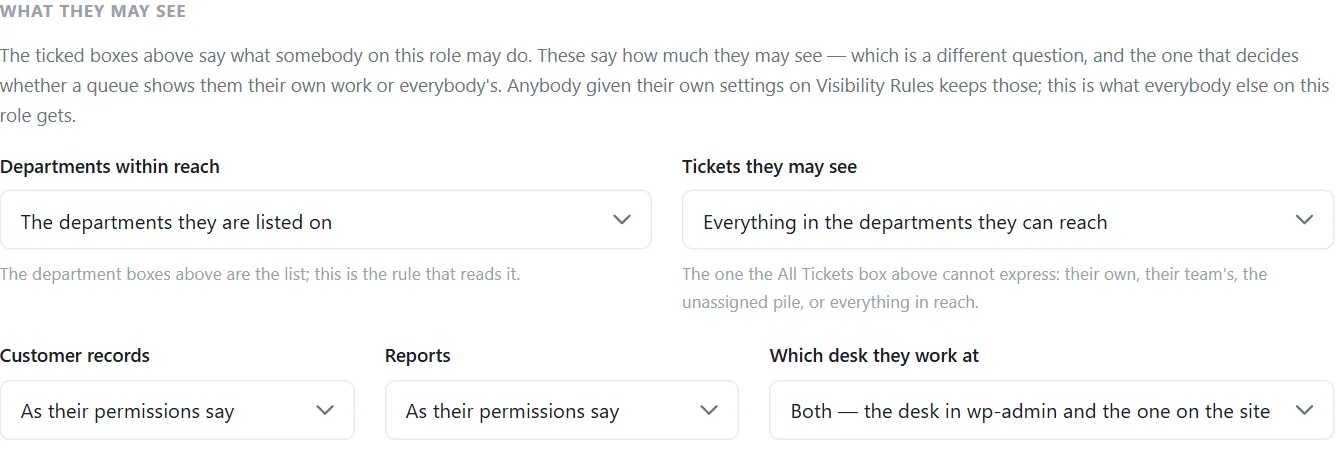
| Setting | Options |
|---|---|
| Departments within reach | No department — only what is assigned to them; The departments of tickets assigned to them; The departments they are listed on; Every department. The department boxes are the list; this is the rule that reads it. |
| Tickets they may see | Of the tickets within reach: Only tickets assigned to them; Theirs, and their colleagues’ in the same departments; The above, and the unassigned pile; The above, and everything from a customer they already deal with; Everything in the departments they can reach. |
| Customer records | As their permissions say, Yes or No. Whether they may browse customer records. |
| Reports | As their permissions say, Yes or No. Whether they may read reports. |
| Which desk they work at | Both — the desk in wp-admin and the one on the site; Only the desk in wp-admin; Only the desk on the site, never wp-admin. Only administrators and people whose WordPress role is Help Desk Agent or Help Desk Light Agent get the desk in wp-admin; anyone else on the role works at the desk on the site. |
| AI reply suggestions come from | All tickets (the default) or Only tickets assigned to them or in their departments. Which past replies the AI may offer while they write a reply. “Their departments” are the ones ticked on their Permissions screen. |
These options are explained in detail, including what “colleagues” means when teams exist, under Visibility Rules.
AI reply suggestions come from is only on the role form in WordPress admin. It replaces the Limit AI Replies to Agent-Assigned Tickets box, which is no longer in the permission list. A role that had that box ticked shows Only tickets assigned to them or in their departments after the update.
Compare two roles
Section titled “Compare two roles”Below the list, choose This one and Against this one, then click Compare. The heading says how many places they differ, for example “Manager and Senior agent differ in 4 places.”
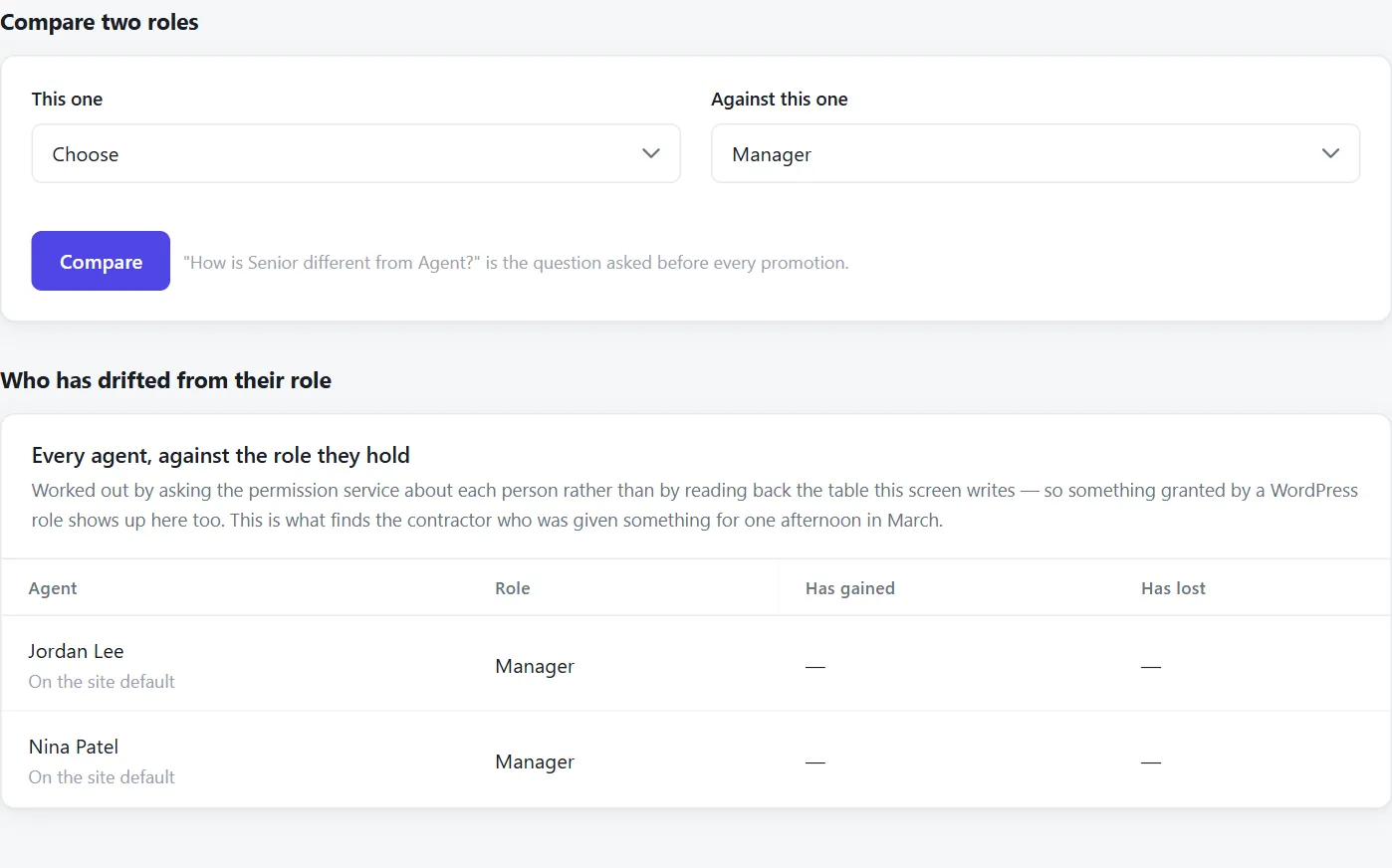
The table lists the five What They May See settings, then every action either role allows, under Can they, with Yes or No for each. Rows that differ are highlighted. Actions neither role allows are left out, and so is AI reply suggestions come from.
Who has drifted from their role
Section titled “Who has drifted from their role”This table lists every active agent against the role they hold:
| Column | Shows |
|---|---|
| Agent | The agent, and where their visibility comes from: Has their own visibility settings, Sees what their role says or On the site default. |
| Role | Their role, linked to it, or No role. |
| Has gained | Actions they can do that their role doesn’t give, and any of their own visibility settings that differ from the role. An agent’s own AI reply suggestions come from isn’t counted. |
| Has lost | Actions their role gives that they can’t do. |
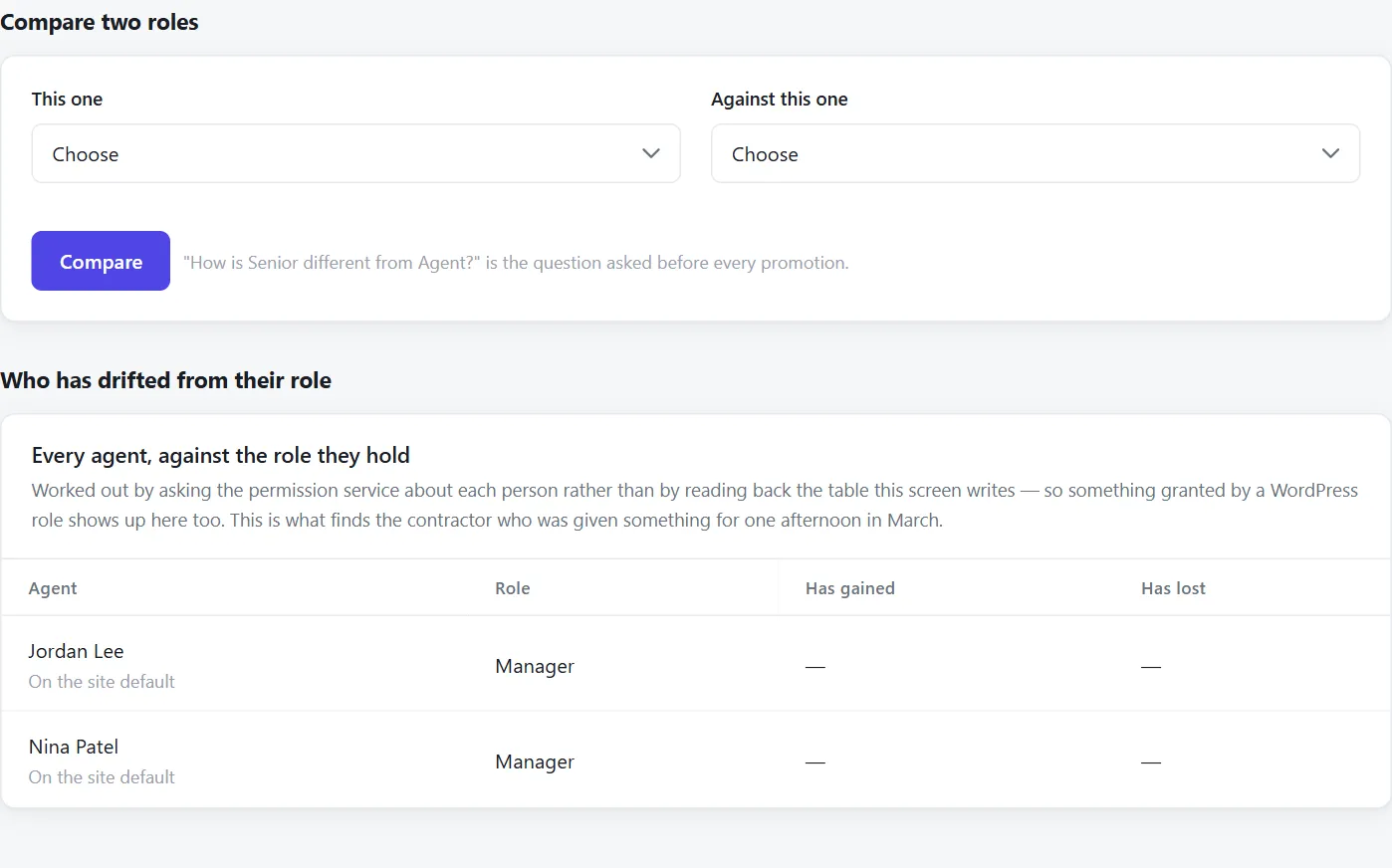
It works this out by asking the help desk what each person can actually do, so access that comes from elsewhere shows up too. Use it to find one-off changes made on someone’s Permissions screen and forgotten. To put an agent back exactly on their role, change their role away and back on the Edit Agent form, or untick the extra boxes on their Permissions screen.