

Your desk
Sign in the way you sign in to your site. What you see next depends on which desk you have (see The agent’s guide).
The WordPress desk
Section titled “The WordPress desk”After signing in to WordPress you see a JS Help Desk menu. It holds:
- Tickets: the queue. This is where the menu opens.
- Canned Responses: your saved answers. Only if you may reply to customers.
- Knowledge Base: with the Knowledge & Self-Service pack, if you may write articles.
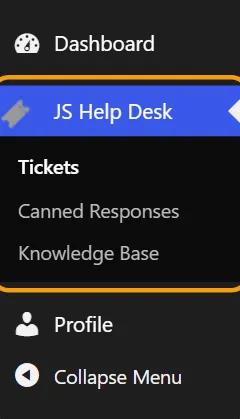
You don’t see the rest of the help desk’s administration screens.
Inside the help desk, the plugin’s own menu runs down the left of every screen.
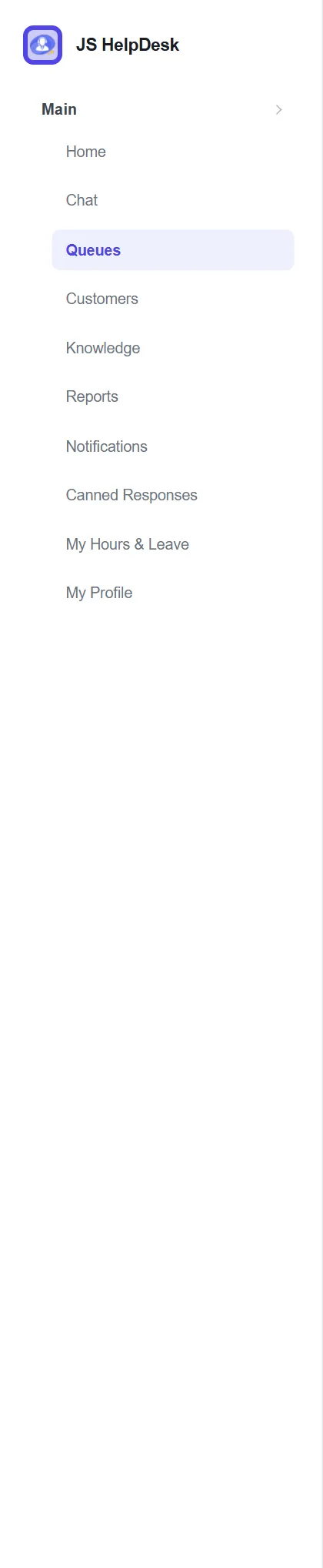
| Entry | Opens |
|---|---|
| Home | What needs you, in the order it needs you. See below. |
| Chat | The live chat console. Customer Experience pack only, and only if you may reply. |
| Queues | The ticket queue. The number beside it is how many tickets are waiting on an agent. |
| Customers | Who has been writing in, and what they have asked before. |
| Knowledge | The knowledge base articles. Knowledge & Self-Service pack only. |
| Reports | The desk-wide figures. |
| Notifications | Everything that concerns you, and how you want to be told. The number beside it is how many you haven’t read. |
| Canned Responses | Your saved answers. |
| My Hours & Leave | Your working hours and time off. Agents & Teams pack, and only if you are on the Agents list. |
| My Profile | Your WordPress profile. |
An entry you have no permission for is simply not there.
The portal desk
Section titled “The portal desk”With the Agents & Teams pack, agents on the Agents list can also work from your site’s help desk page. Sign in there and you get the agent dashboard instead of the customer’s.
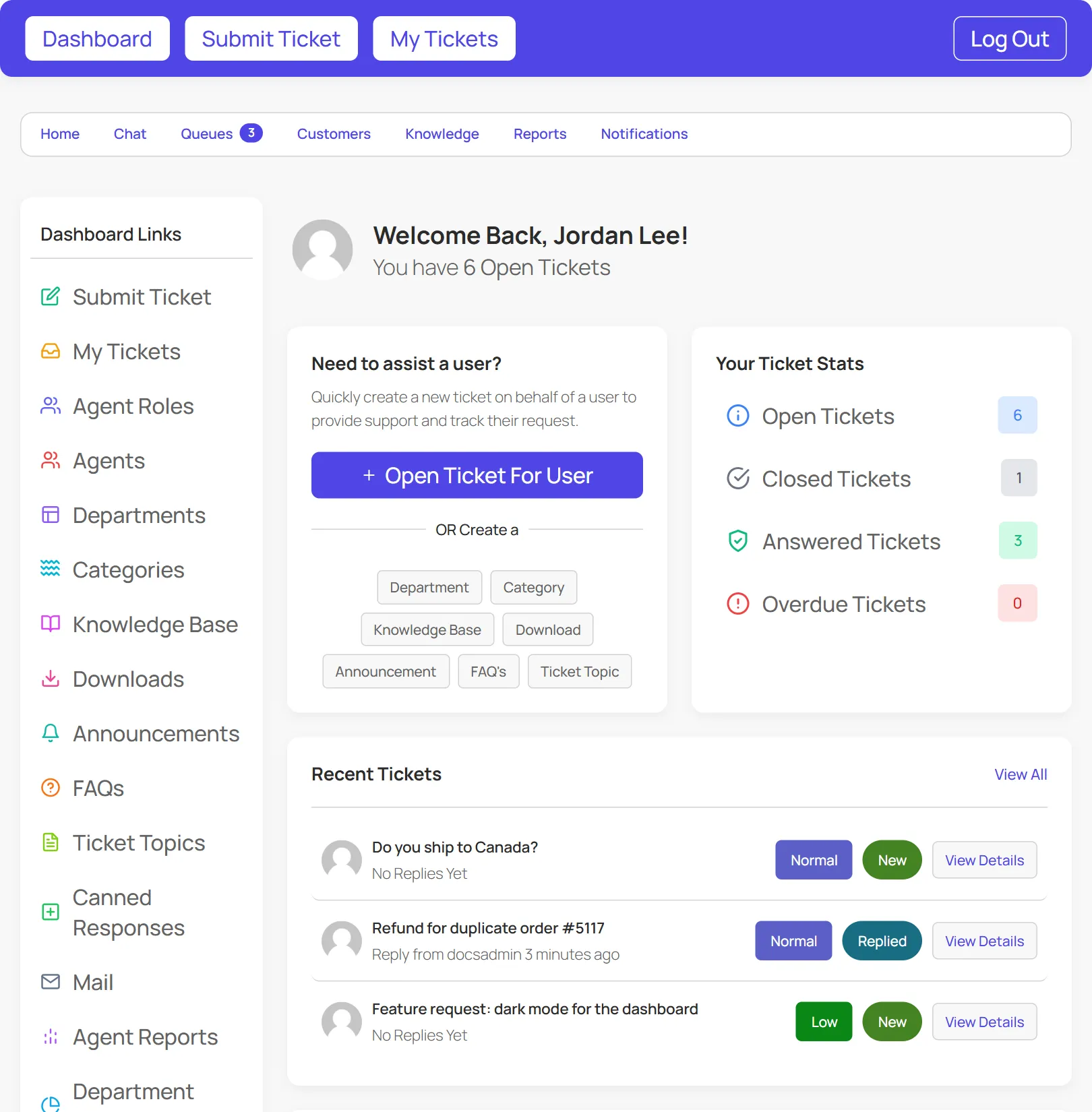
Across the top is the same strip of destinations as the left menu in WordPress: Home, Chat, Queues, Customers, Knowledge, Reports and Notifications. Below it:
- Dashboard Links: shortcuts such as Submit Ticket, My Tickets, Canned Responses, Agent Reports, Department Reports and My Profile. Your administrator chooses which appear.
- Need to assist a user? with Open Ticket For User, to raise a ticket on a customer’s behalf.
- Your Ticket Stats: Open, Closed, Answered, Overdue (with the Service Levels & Automation pack) and All Tickets. Each opens that tab of your queue.
- Recent Tickets, with View All.
My Tickets opens your queue in the portal. It works like the WordPress one: see Working your queue. Clicking a ticket opens it in the portal, with the same reply box, notes and actions you have in WordPress, except for the WordPress-only features listed on The agent’s guide.
Raising a ticket for a customer
Section titled “Raising a ticket for a customer”Open Ticket For User (or Submit Ticket) opens the ticket form. Click Select User to pick the customer, fill in the form, and tick Assign To Me if you’ll work it yourself. Click Submit Ticket.
In WordPress, use the Add button at the top of the Tickets screen.
Home answers “what needs me?” in panels. It is the same in both desks.
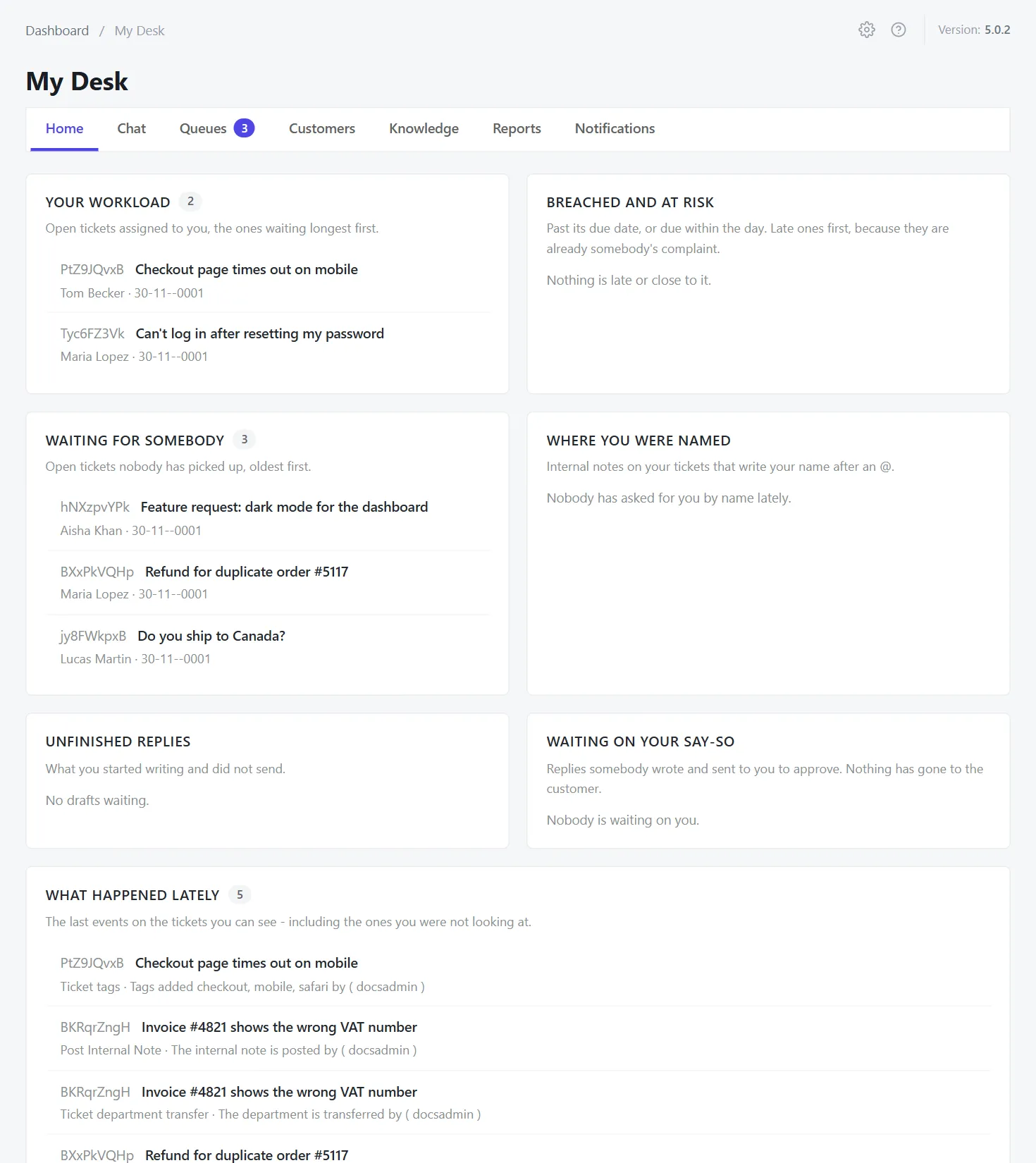
| Panel | Shows |
|---|---|
| Your workload | Open tickets assigned to you, the ones waiting longest first. |
| Breached and at risk | Tickets past their due time, or due within the next 24 hours, late ones first. |
| Waiting for somebody | Open tickets nobody has picked up, oldest first. |
| Where you were named | Internal notes that @mention you. The number is how many you haven’t seen yet. |
| Unfinished replies | Replies and notes you started and didn’t send. |
| Waiting on your say-so | Replies a colleague wrote and asked you to approve. Nothing has gone to the customer. |
| What happened lately | The latest events on the tickets you can see. |
Each panel lists up to five tickets, and See all opens the rest in the queue. A panel you have no permission for says so instead of listing anything.
Assignment, mentions and approvals come from the Agents & Teams pack, and due times from Service Levels & Automation. Without them, those panels stay empty.
A mention stops counting as unseen when you open the ticket on the WordPress desk.