

The customer portal
The customer portal is the help desk on your website. It lives on the page
holding the [jssupportticket] shortcode, created for you as JS Help Desk
at /js-support-ticket-controlpanel/. Every portal screen is an address under
that page.
The dashboard
Section titled “The dashboard”A signed-in customer sees a welcome with their open and answered tickets, a Create New Ticket button, their ticket counts, recent tickets and a chart. The menu down the left links to everything else.
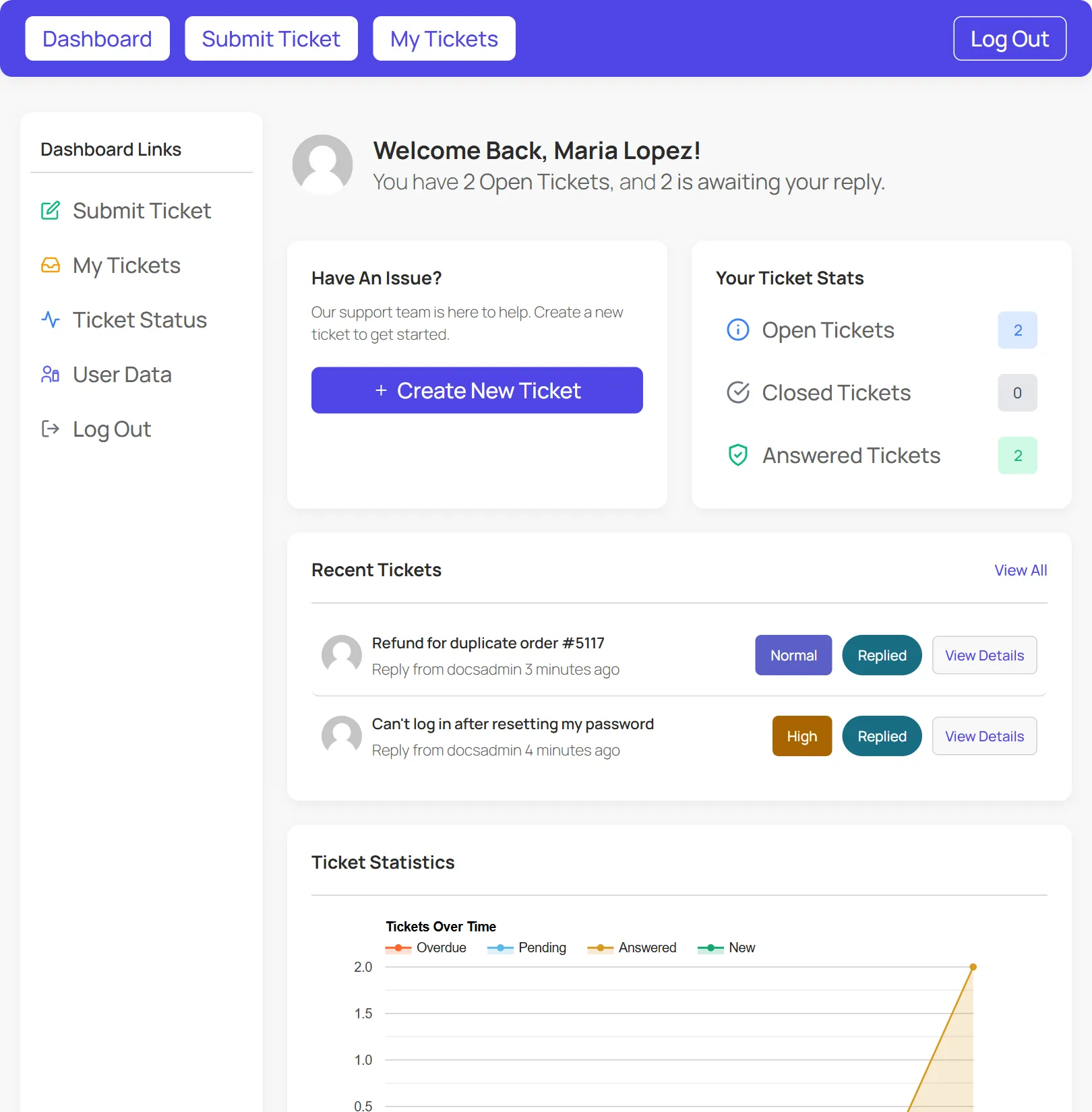
A visitor who isn’t signed in sees Have An Issue? with Create New Ticket (or Log In to Create a Ticket if visitors may not raise tickets), and Check Ticket Status. See Visitors.
Choose which links and panels appear under Portal menu.
The portal’s screens
Section titled “The portal’s screens”| Screen | Address (after the page) | What it is |
|---|---|---|
| Dashboard | control-panel |
The home screen above. |
| Submit Ticket | add-ticket |
The ticket form. |
| My Tickets | my-tickets |
The customer’s tickets, with Open, Closed, Answered and All counts, search and filters. |
| A ticket | ticket/<number> |
One ticket’s conversation, with the reply box. |
| Ticket Status | ticket-status |
The lookup for visitors. |
| Log In / Register | login, userregister |
Shown when the login and register links point at the help desk’s own pages. |
| User Data | gdpr-data-compliance-actions |
Export or erase personal data. See GDPR. |
You can rename every one of these addresses under System → Slug. See Other tools.
A customer’s ticket
Section titled “A customer’s ticket”The customer reads the whole conversation and answers in Reply A Message, with attachments and an optional Close On Reply. The buttons above the conversation are:
| Button | Shown when |
|---|---|
| Close | The ticket is open. |
| Reopen | The ticket is closed, within the Reopen Ticket Within Days period. |
| Ticket History | The ticket is open. |
| User Can Print Ticket is Yes. | |
| Delete | Show Ticket Delete Button is Yes. |
The reply box is hidden on a closed or locked ticket. These options are on the Ticket settings tab.
Taking the portal offline
Section titled “Taking the portal offline”Configurations → General → Offline closes the whole portal and shows your offline message instead. You can still work tickets in WordPress.