

Working with colleagues
Following, approvals and the handover summary need the Agents & Teams pack, and you need to be on the Agents list. They are on the WordPress desk, in the Who else is on this box on the right of a ticket. Seeing who else has a ticket open (the last section) works for every agent on the WordPress desk.
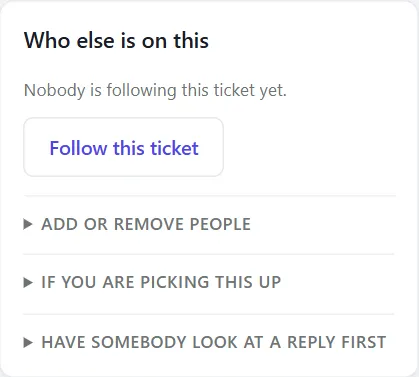
Who else is on this
Section titled “Who else is on this”The box lists everyone following the ticket. Someone marked second pair of hands is working on it alongside the owner; everyone else is kept informed. Followers are told about replies, notes and changes on the ticket (see Notifications).
You follow a ticket on your own when you reply to it, write a note on it, are assigned it, or are named in a note on it. You can also:
- Click Follow this ticket to follow it, or Stop following to stop.
- Open Add or remove people to bring somebody in: choose them under Bring somebody in, choose As Someone to keep informed or A second pair of hands, and click Add. They are told they were added, and that the ticket is not assigned to them.
- Remove someone with Remove and their name.
Anyone who can see the ticket can follow it, add someone to keep informed, and take themselves off. Adding a second pair of hands, or taking somebody else off, needs permission to assign tickets.
Have somebody look at a reply first
Section titled “Have somebody look at a reply first”For a reply you want checked before it goes, such as a refund promise or an answer to an angry customer:
- Open Have somebody look at a reply first.
- Write it in What you would send.
- Under Ask, choose who should approve it, or Nobody — just share it to let colleagues see it without asking anyone.
- Click Share it. Nothing goes to the customer.
The person you asked is told “A reply is waiting on you”, and it appears under Waiting on your say-so on their Home.
Approving or sending back
Section titled “Approving or sending back”Unsent replies are listed under Written but not sent, each with its state: Shared with the desk, Waiting for approval, Approved, not yet sent or Sent back.
If a reply is waiting for you, type an optional note in A word back, optional and click Approve or Send back. The author is told either way, and a note you sent back is shown under their draft.
Approving does not send the reply. The author still sends it, because they know what else needs to go with it: they post it from the reply box as usual. A shared reply stays in the list until its author, or an administrator, clicks Discard.
Picking up a ticket
Section titled “Picking up a ticket”When you take over a ticket from someone, open If you are picking this up. It sums up the ticket from what has actually happened:
- how long ago it was raised, and how long it has been quiet
- how many replies and internal notes it has
- whether it is waiting on us or on the customer
- who has already written notes on it
- how many drafts haven’t been sent
- how many questions asked of somebody by name nobody has looked at yet
Nothing in it is invented or written by AI; every line is counted from the ticket.
Two people on one ticket
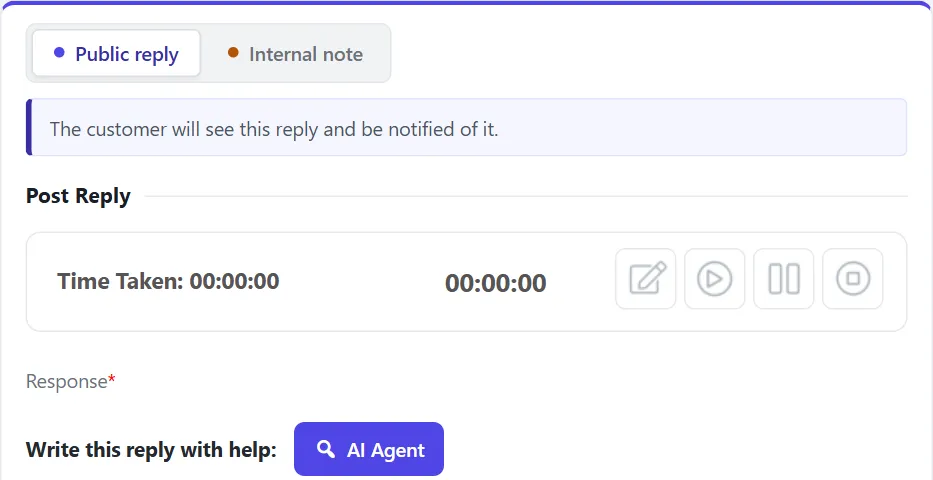
Section titled “Two people on one ticket”On the WordPress desk, a line above the reply box tells you who else has the ticket open: “Nina Patel is viewing this ticket”, “Nina Patel is replying to this ticket”, or how many others are there. It updates every 30 seconds while the tab is in front of you.
If a reply is posted while you are writing yours, you are warned: “Somebody else replied to this ticket while you were writing. Reload before you send, or the customer gets two answers.” Click Reload the ticket to read it. Nothing stops you sending, so read the warning.
Handing over when you go away
Section titled “Handing over when you go away”To pass all your open tickets on before leave, book the time off and choose a cover under My Hours & Leave. See Booking time off. To pass a single ticket on, assign it to a colleague and add a note: see Assigning to someone else.