

Canned responses
A canned response is an answer you write once and reuse: password resets, refund times, shipping countries. Inserting one fills in the customer’s name, the ticket ID and other details for you.
Manage them under Help Desk → Ticket Setup → Canned Responses.
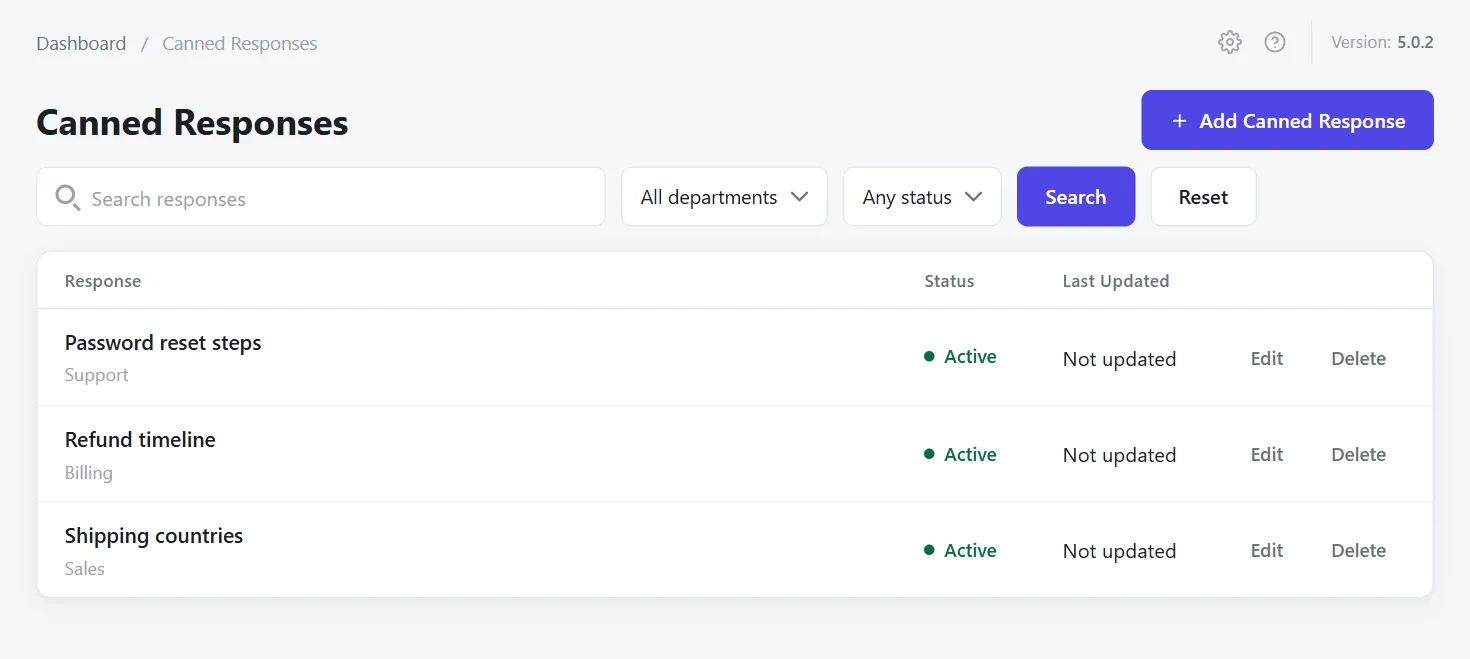
Search by title, or narrow the list by department or status.
Adding one
Section titled “Adding one”Click Add Canned Response.
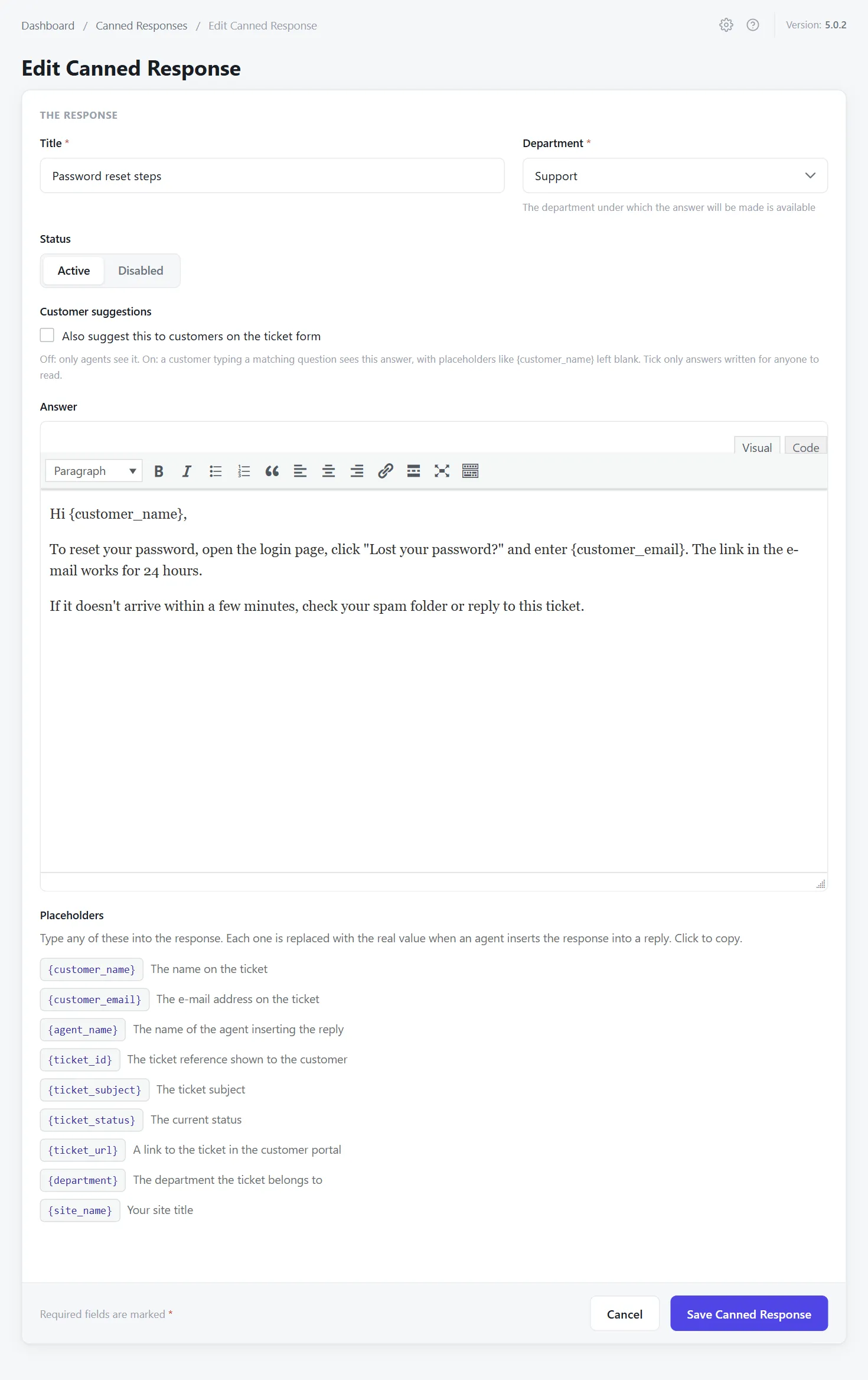
| Field | |
|---|---|
| Title | What you type to find it while replying, so make it easy to guess. |
| Department | The response is offered only on tickets in this department. |
| Status | Disabled hides it from the reply box without deleting it. |
| Customer suggestions | Also show this answer to customers as they fill in the ticket form, when their question matches. Leave it off for answers meant only for your team. |
| Answer | The text that goes into the reply. |
Click Save Canned Response.
Placeholders
Section titled “Placeholders”Type any of these in the answer. Each is replaced with the real value when the response is inserted into a reply. Click one in the Placeholders list to copy it.
| Placeholder | Becomes |
|---|---|
{customer_name} |
The name on the ticket |
{customer_email} |
The e-mail address on the ticket |
{agent_name} |
The name of whoever inserts the response |
{ticket_id} |
The ticket ID the customer sees |
{ticket_subject} |
The ticket’s subject |
{ticket_status} |
The current status |
{ticket_url} |
A link to the ticket in the customer portal |
{department} |
The ticket’s department |
{site_name} |
Your site’s title |
When an answer is shown to customers as a suggestion, {site_name} is filled in
and every other placeholder, such as {customer_name}, is left blank.
What customers see
Section titled “What customers see”On the ticket form, a matching answer appears under Suggested Answers as a Quick answer card with its title and first two lines. Show answer opens the whole answer in the card, with its paragraphs, headings, lists and links; Hide folds it again. Scripts and other unsafe markup are removed.
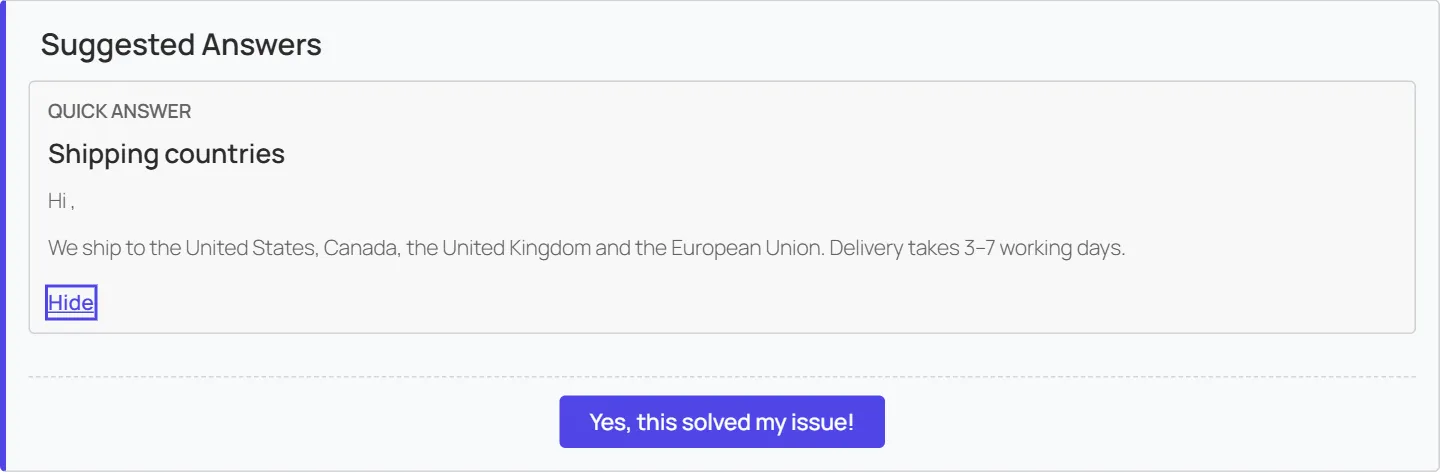
Customers only get these suggestions while Canned responses is ticked Use it under AI Agent → Knowledge Sources. It isn’t ticked on a new install; a site updated from an earlier version keeps it ticked. See Knowledge Sources.
Using one in a reply
Section titled “Using one in a reply”- Open the ticket and start a public reply.
- In Canned response, under Write this reply with help, type part of the title.
- Pick the response from the list.
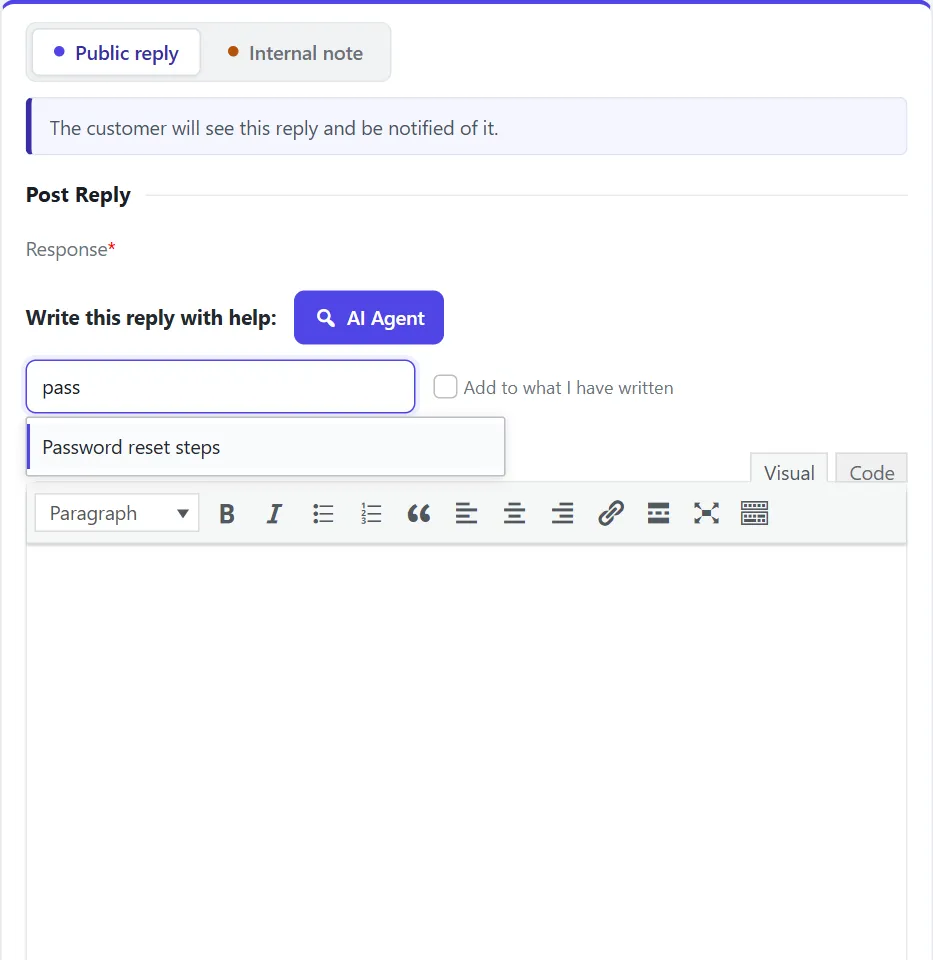
The response replaces whatever is in the editor. To add it after what you have already written instead, tick Add to what I have written first.
The insert box only appears when the ticket’s department has at least one active canned response. Edit the text as you like before clicking Post Reply.