

The ticket form
Help Desk → Ticket Setup → Forms decides what the ticket form asks. The free plugin has one form, called Ticket form; the Customer Experience pack lets you have several.
The questions
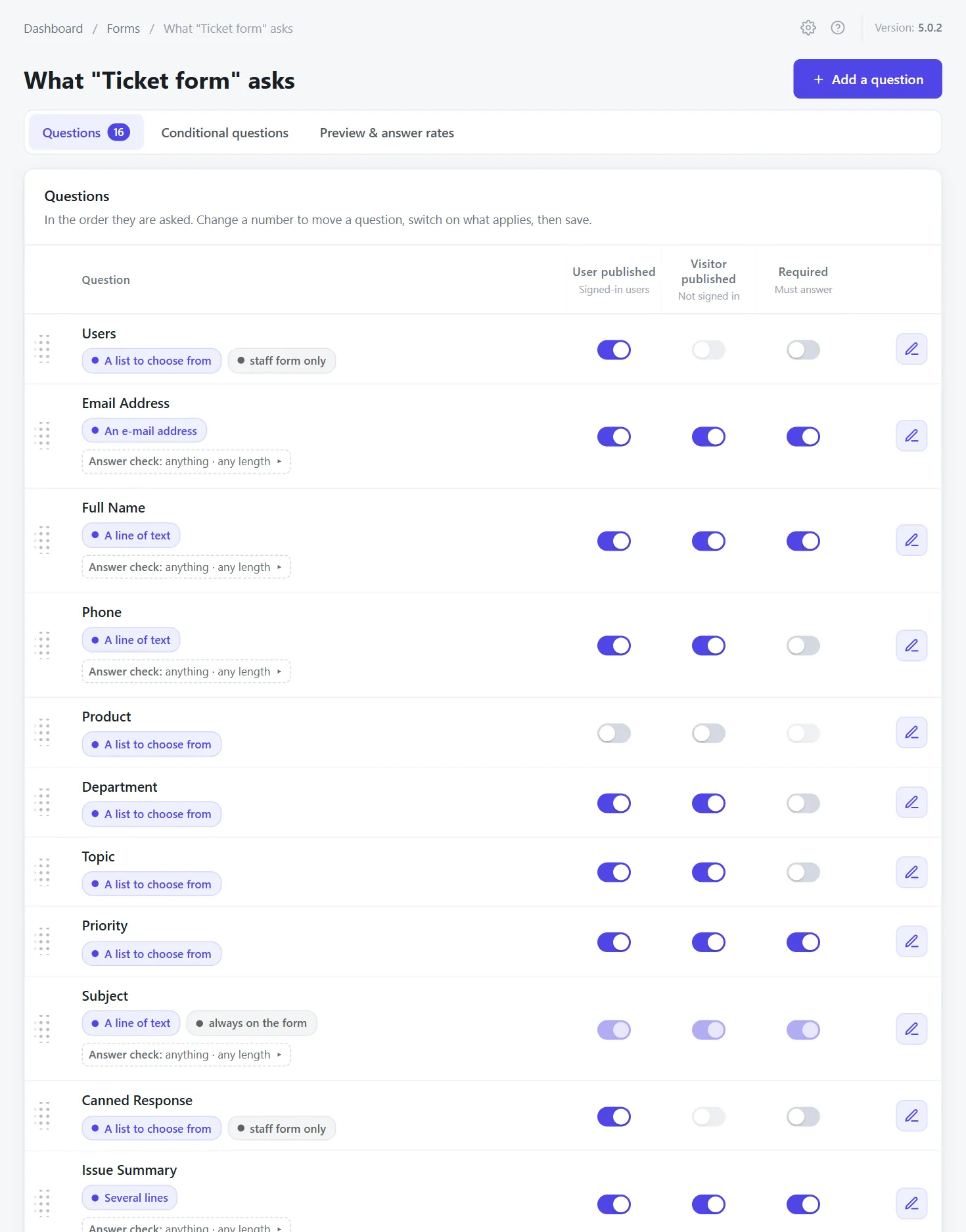
Section titled “The questions”Each row is one question, in the order customers see them. For each one:
| Switch | Means |
|---|---|
| User published | Signed-in customers are asked it. |
| Visitor published | Visitors without an account are asked it. |
| Required | It must be answered. |
Questions marked always on the form, such as Subject, can’t be switched off: a ticket needs them. Questions marked staff form only appear only when you or an agent create a ticket in WordPress. To move a question, change its number in the order. Then click Save the form. The previous version is kept under Versions, so a change can be undone.
The built-in questions are Email Address, Full Name, Phone, Product, Department, Topic, Priority, Subject, Issue Summary, Attachments and three Terms And Conditions boxes. Product and Terms 2 and 3 are switched off on a new install.
Adding your own question
Section titled “Adding your own question”Click Add a question.
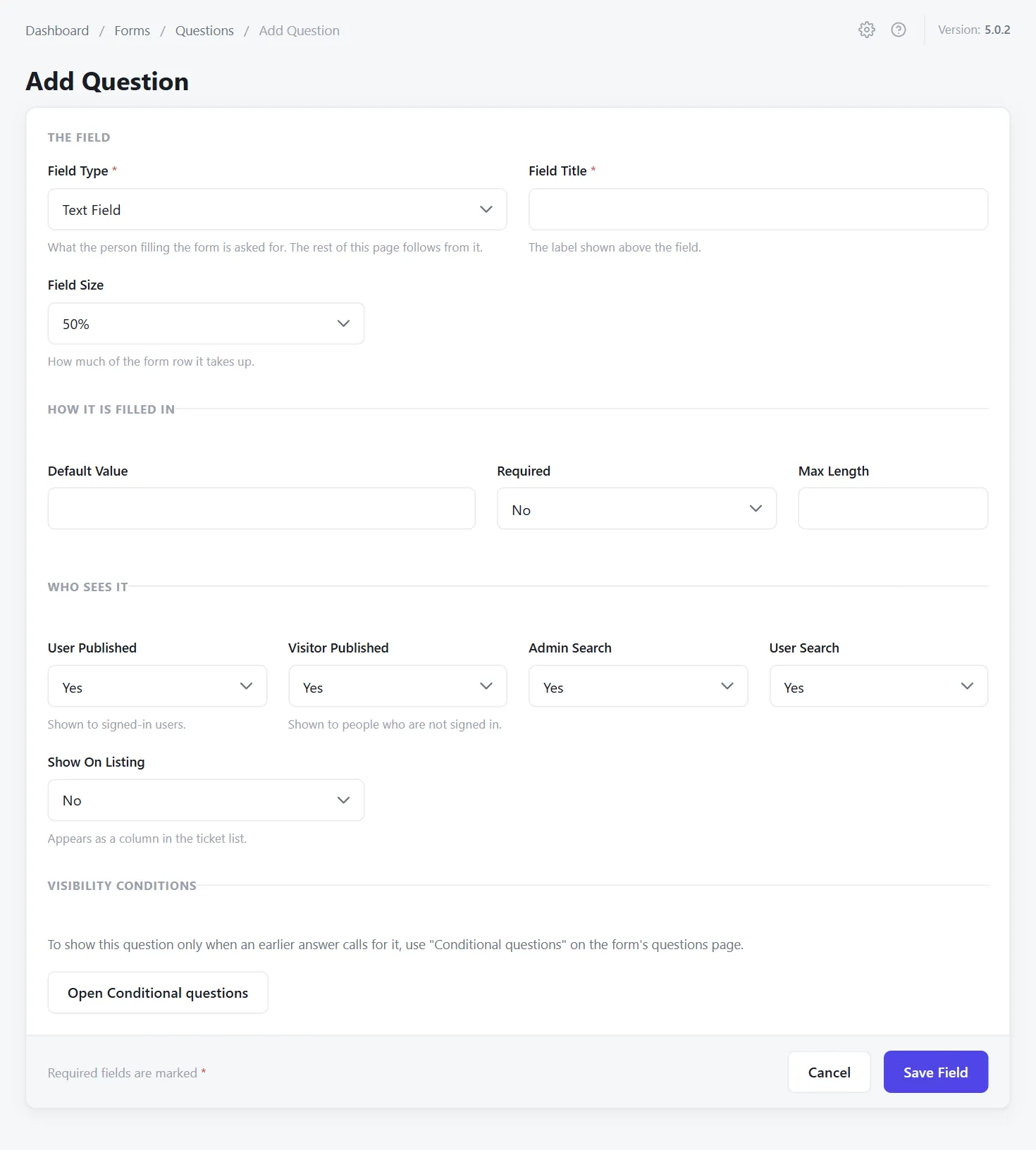
| Field type | |
|---|---|
| Text Field, Text Area | A line or several lines of text |
| Email Address, Date | Checked as an address or a date |
| Drop Down, Radio Button, Check Box, Multi Select | Choices you list under The choices it offers |
| Upload File | A file |
| Terms and Conditions | A box to tick, with a link to your terms |
| Dependent Field | A list whose choices depend on another list’s answer |
Under Who sees it you can also make a question Admin/Agent Only, let your team or the customer search by it, and show it as a column in lists. Upload and tick-box questions can’t be required.
Questions that appear only when they apply
Section titled “Questions that appear only when they apply”The Conditional questions tab shows a question only when an earlier answer calls for it, for example an Order number question that appears only when the department is Billing.
Preview & answer rates shows the form as customers see it, with how often each question is actually answered.
Topics and products
Section titled “Topics and products”Ticket Topics give customers a list of what their ticket is about, and can route it to a department and priority. Products let customers say which product it concerns. Both are described on Topics and products.
Suggested answers while customers type
Section titled “Suggested answers while customers type”As a customer types their subject and message, the form can show Suggested Answers: matching canned responses you have marked Also suggest this to customers on the ticket form, and matching pages and posts from your site. With the Knowledge & Self-Service pack, articles and FAQs are suggested too. Many customers find their answer and never need to send the ticket.
A canned response shows as a Quick answer card with its first two lines; Show answer opens the whole answer in the card. See Canned responses.
Turn this on or off under AI Agent → Settings → Suggestions: Show suggestions, Start searching after (characters, default 15) and How many to show (default 5). Nothing leaves your site.