

How mail becomes tickets
Each time collection runs, the help desk opens every enabled mailbox, reads the messages it hasn’t read yet, and decides for each one: is it a reply to a ticket, a new ticket, or something to ignore. This page explains those decisions.
A mailbox can sign in two ways, set on the Inbox screen: with a password (the default) or with Google or Microsoft OAuth. Most of what follows applies to both; where they differ, it says so.
What is read
Section titled “What is read”- Only unread mail. Messages already marked as read in the mailbox are never looked at, so don’t read the support mailbox in your own mail program and leave messages marked as read.
- Only the inbox. A password mailbox reads
INBOX. An OAuth mailbox reads the Folder set on the Inbox screen,INBOXunless you change it. - Marked as read as it goes. A password mailbox marks each message read (and flagged) as soon as it opens it. An OAuth mailbox marks it read once it has become a ticket, a reply or a deliberate refusal, and takes at most 40 messages per run; a message it couldn’t fetch stays unread for next time.
- Nothing is deleted from the mailbox.
What is ignored
Section titled “What is ignored”Before a message can become anything, it is checked for loops. It is ignored, and recorded as “refused as a loop”, if:
- it carries the help desk’s own header, so it is a notification this desk sent;
- it says it is automatic: an
Auto-Submittedheader other thanno, or out-of-office, auto-reply or mailing-list headers, orPrecedencebulk, junk, list or auto_reply; - it is from the mailbox’s own address, or one of its Also answers to addresses;
- the exact same message (same Message-ID) has already been collected;
- more than twenty messages have come from that address in the last ten minutes.
A mailbox whose address is your Default Admin Email is skipped entirely, because the help desk would be reading its own notifications.
An OAuth mailbox also recognises delivery failures and spam complaints, and applies your Refuse rules. See The Inbox screen.
How a reply finds its ticket
Section titled “How a reply finds its ticket”The help desk tries these in order and stops at the first that matches a ticket:
- The e-mail’s own threading headers. When the help desk sends a
notification through WordPress and the subject contains the ticket ID, it
gives the message an ID of its own and remembers it against the ticket. A
customer’s reply quotes that ID in its
In-Reply-ToandReferencesheaders, which mail programs keep. This is the reliable way. - The hidden marker the help desk adds to the body of its notifications, if the reply still contains it. Some mail programs strip it, and so does a customer who deletes the quoted text. (Password mailboxes only.)
- The ticket ID in square brackets in the subject, for example
[QyNtBx9ZH]. (Password mailboxes only.)
If nothing matches, the message is a new ticket. Whether a reply or a new ticket is then accepted depends on the mailbox’s Ticket Type.
New tickets
Section titled “New tickets”A new ticket gets the sender’s name and address, the e-mail’s subject, and its message: the HTML version where there is one, otherwise the plain text. Styles, scripts and emoji are removed (password mailboxes).
| Password mailbox | OAuth mailbox | |
|---|---|---|
| Department | The department whose Outgoing Email is this mailbox’s address; otherwise your default department | The New tickets go to department on the Inbox screen; otherwise your default department |
| Priority | Your default priority | At priority on the Inbox screen; otherwise your default |
| Agent | Unassigned | Assigned to on the Inbox screen (Agents & Teams) |
| Empty subject | Left empty | “(no subject)” |
The ticket is created like any other, so everything that can stop a customer raising a ticket can stop this one: a banned address, the limit on open tickets per customer, or a required custom field the e-mail can’t fill in. The message is still marked read, and the collection log says “read as a new ticket, but no ticket was created”.
New users by e-mail
Section titled “New users by e-mail”With Create User via email set to Yes (password mailboxes), a sender who has no WordPress account gets one: the user name and e-mail are their address, the password is random, and WordPress sends its usual new-account e-mails to them and to the site administrator.
Replies
Section titled “Replies”A reply is added to the ticket’s conversation. If the sender’s address is an agent’s, the reply is recorded against that agent (password mailboxes).
A reply is not stored when it is empty, or is a duplicate sent twice within seconds.
Replies to closed tickets
Section titled “Replies to closed tickets”Configurations → Ticket Settings → Allow Users To Reply Via Email On Closed Ticket decides what happens when a customer e-mails about a closed ticket:
- Yes: the reply is added to the ticket.
- No: the reply is dropped. If Reply To A Closed Ticket By Email is switched on for the customer under Who is notified, they get an e-mail saying the ticket is closed.
This applies to password mailboxes.
Attachments
Section titled “Attachments”Files attached to an e-mail are stored on the new ticket or on the reply. An OAuth mailbox refuses files whose names hide a script, and records each refusal in the arrival log.
The Email Piping settings tab
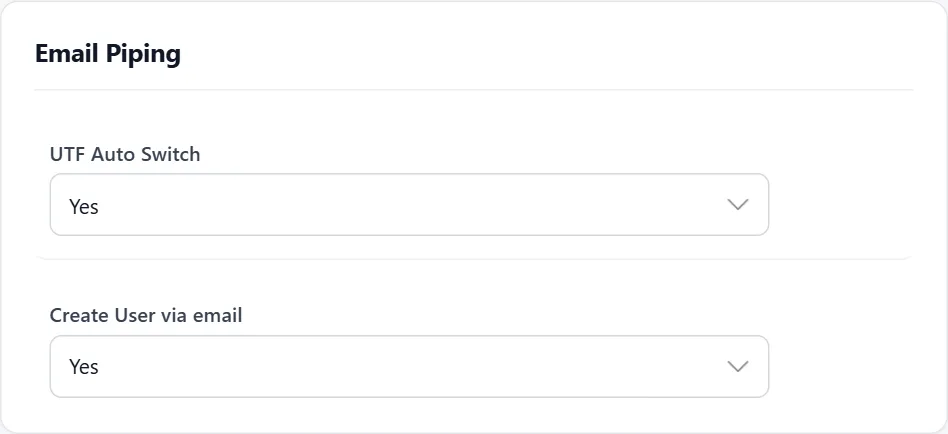
Section titled “The Email Piping settings tab”Configurations → Email Piping has two settings. Click Save Configurations when you’re done.
| Setting | Default | What it does |
|---|---|---|
| UTF Auto Switch | Yes | Decodes encoded subjects and sender names into UTF-8, so subjects written in other alphabets, such as Cyrillic, read correctly. |
| Create User via email | Yes, when the pack is first switched on | Creates a WordPress account for senders who don’t have one. See above. |
Both apply to password mailboxes.
When it is wrong
Section titled “When it is wrong”See Piping troubleshooting, and the free plugin’s summary under Tickets by e-mail.