

Several ticket forms
Without the pack, the help desk has one ticket form. With it, Ticket Setup → Forms can hold as many as you like, each with its own questions: a short one for sales enquiries, a detailed one for bug reports. What a form asks is set exactly as for the single form; see The ticket form.
The Forms list
Section titled “The Forms list”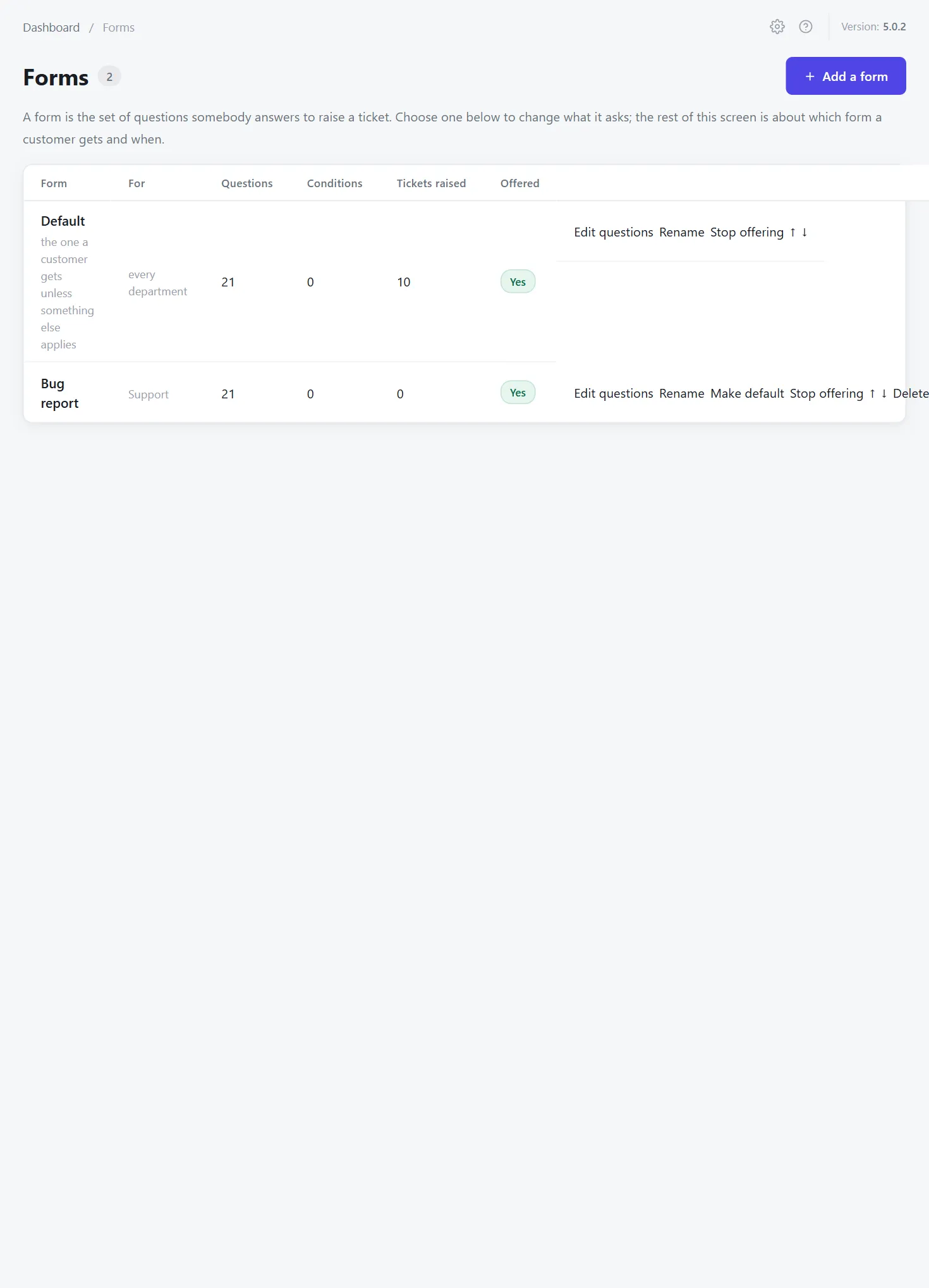
| Column | Shows |
|---|---|
| Form | The form’s title. The default form says the one a customer gets unless something else applies. |
| For | The form’s department, or every department. |
| Questions | How many questions it has. |
| Conditions | How many conditional questions it has. |
| Tickets raised | How many tickets were raised on it. |
| Offered | Yes if customers can be given it, No if it is switched off. |
Each row has these actions:
| Action | What it does |
|---|---|
| Edit questions | Opens the form’s questions, conditions and preview. |
| Rename | Opens the form’s details (below). |
| Make default | Makes this the default form. Not shown on the default form itself. |
| Stop offering / Offer it | Switches the form off or on. The default form can’t be switched off. |
| ↑ and ↓ | Move the form up or down the list. This is the order customers see in the form chooser. |
| Delete | Deletes the form and its questions. Not shown on the default form. |
Adding a form
Section titled “Adding a form”-
Go to Ticket Setup → Forms and click Add a form.
-
Fill in the form’s details.
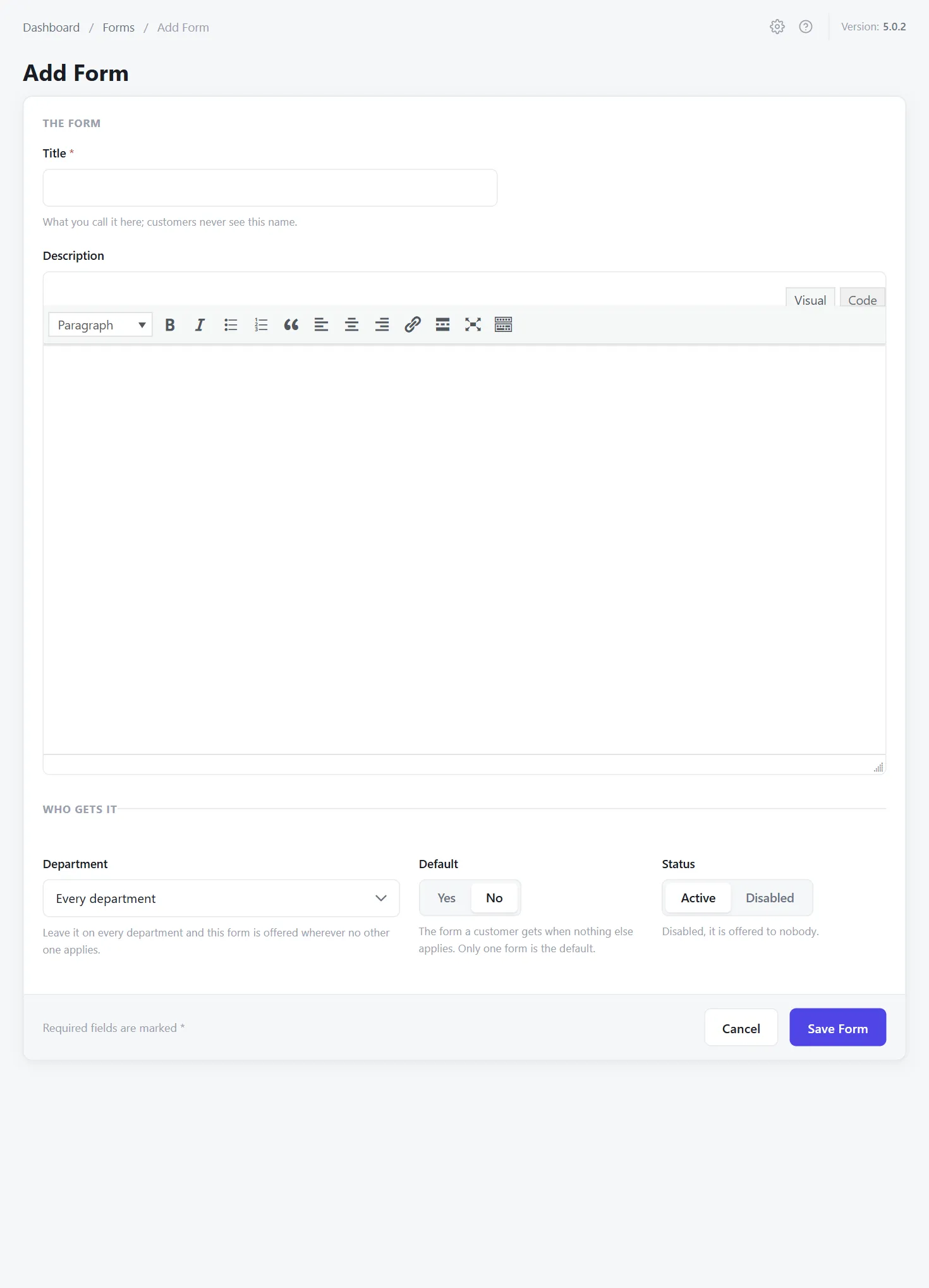
Field What it does Default Title What you call the form. Required. Although the hint under the field says customers never see it, the title is what the form chooser shows them. Description A longer explanation, shown under the title in the form chooser. Empty Department The department the form is for. See Forms and departments. Every department Default Yes makes this the form a customer gets when nothing else applies. Only one form is the default, so saving Yes here takes it away from the old one. No Status Disabled means the form is offered to nobody. Active -
Click Save Form. You return to the Forms list with “Form has been stored”.
-
Click Edit questions on the new form and change what it asks.
A new form starts with a copy of the default form’s questions, so you only need to switch off or add what’s different. Once there are two forms, the Copy tab on a form’s questions screen can also bring over the questions that were added to another form: choose it in Copy from and click Copy its questions here. The standard questions every form has are not copied, and a question this form already asks under the same name is kept as it is.
A disabled form can’t be the default. If you save a form with Default: Yes and Status: Disabled, it is saved as not the default and you see “Disabled form cannot be set as default”.
Forms and departments
Section titled “Forms and departments”When a customer opens a form that has a department, that department is already selected in the form’s Department question. They can still change it. A form for Every department opens with no department selected.
The department does not decide which forms a customer is offered: the form chooser lists every form that is switched on, whatever its department.
How customers choose a form
Section titled “How customers choose a form”Help Desk → Configurations → Ticket Settings → Multiforms Popup For New Tickets decides what happens when someone clicks Submit Ticket in the portal.
| Setting | What happens |
|---|---|
| Show (default) | A Select Form window lists every form that is switched on, in your order, with its title, its department and its description. Clicking one opens it. |
| Hide | The default form opens straight away. |
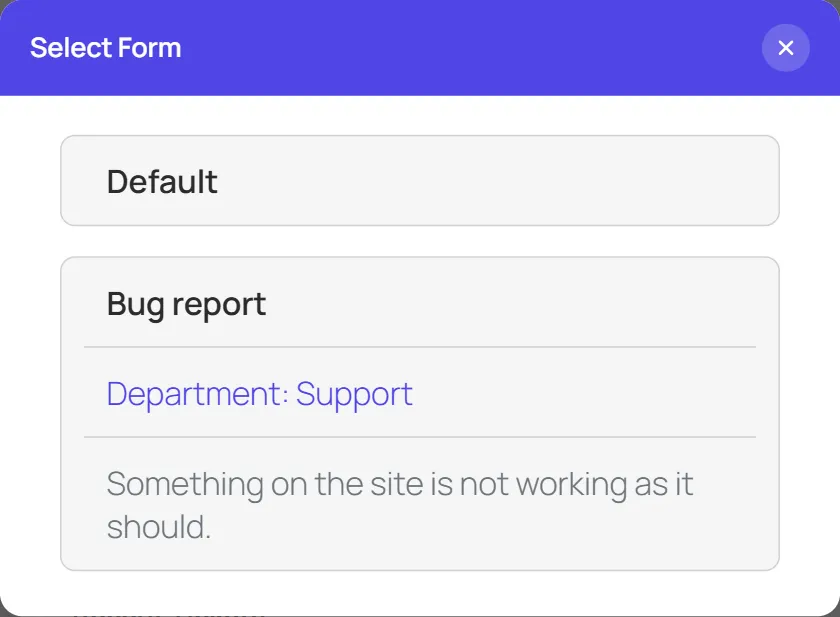
The same window opens when you or an agent click Create Ticket in WordPress. When there is more than one form switched on, it also opens by itself if someone arrives on the Create Ticket screen without choosing a form.
Linking straight to one form
Section titled “Linking straight to one form”To put a particular form on a page of its own, add this shortcode to the page, with the form’s number:
[jssupportticket_addticket_multiform formid="2"]The form’s number is the formid= value in the address bar when you click
Edit questions on it. Appearance → Shortcodes also lists this shortcode
for every form, ready to copy.
Different e-mails for different forms
Section titled “Different e-mails for different forms”On Outgoing Email → Email Templates, any template can have a version for one form. Open the template, use Add a version for a form, choose the Form and click Create Template. That version is sent for tickets raised on that form; the Default version is sent for all the others. See Email templates.