

Articles
An article is an answer you write once and point people at, instead of answering the same question ticket by ticket. Customers read published articles in the portal, the ticket form suggests them while customers type, and the AI Agent answers from them.
The article list
Section titled “The article list”Help Center → Knowledge Base lists your articles in the order customers see them.
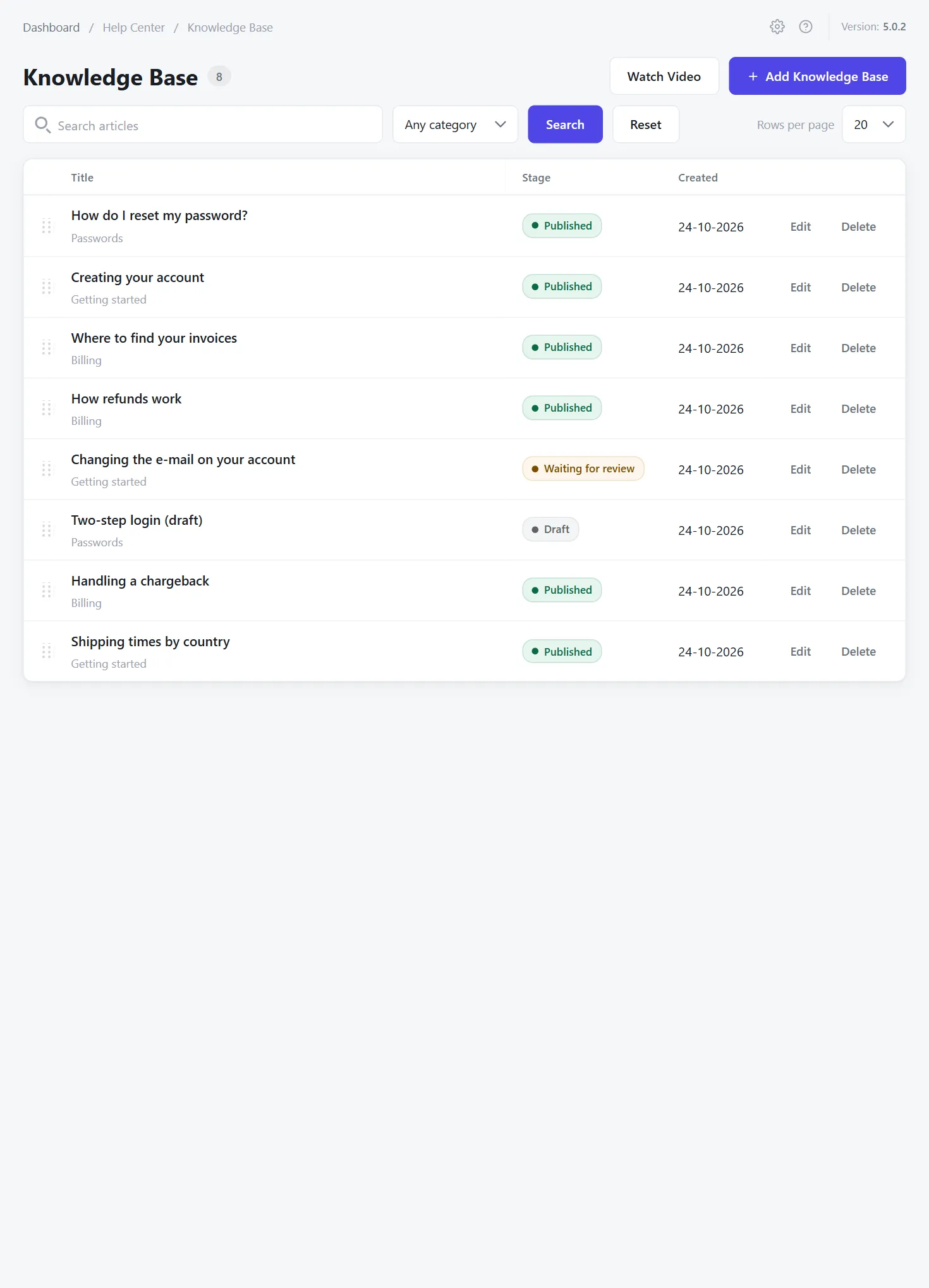
| Column | What it shows |
|---|---|
| (handle) | Drag a row by its handle to move it. See Ordering. |
| Title | The subject, with its category underneath. Click it to edit. |
| Stage | Draft, Waiting for review, Published or Retired. Click it to jump to the article’s Review box. |
| Created | When the article was written. |
To narrow the list, type in Search articles, pick a category from Any category, and click Search. Rows per page shows 20, 50 or 100.
Writing an article
Section titled “Writing an article”Click Add Knowledge Base. Fill in the form and click Save Knowledge Base.
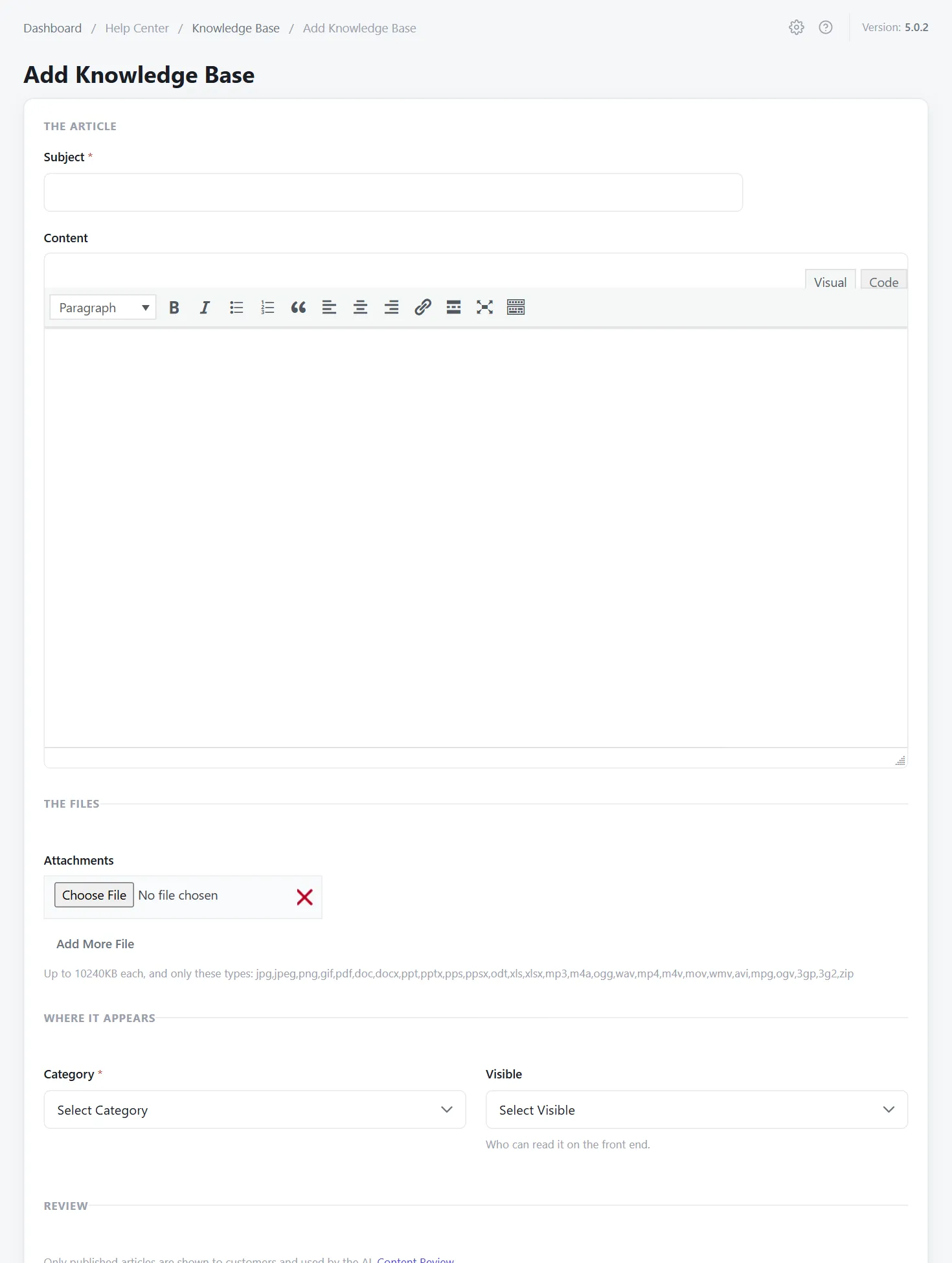
The article
Section titled “The article”| Field | What it does |
|---|---|
| Subject | The title. Required. Customers see it in lists and search results, so phrase it the way a customer would ask. |
| Content | The article, in the WordPress editor. The editor has no Add Media button; attach files below instead. |
The files
Section titled “The files”Attachments adds files to the article. Click Add More File for another box. Under the boxes, the form tells you the largest size and the file types allowed. Both come from Configurations → General → Attachments, and so does how many files you can add at once.
On an article you are editing, the files already attached are listed, each with Delete Attachment.
Customers see the files under the article with a Download button. A file can only be downloaded by someone who may read the article: nobody can fetch the files of a draft or an agents-only article by guessing the address.
Where it appears
Section titled “Where it appears”| Field | What it does | Default |
|---|---|---|
| Category | Which category the article sits in. Required. Only active categories with Knowledge Base ticked are offered. See Categories. | |
| Visible | Who can read it in the portal. Logged-in User / Visitor: anyone. Logged-in Users Only: a visitor who opens it is asked to log in first. | Select Visible, which works like Logged-in User / Visitor |
Review
Section titled “Review”| Field | What it does | Default |
|---|---|---|
| Stage | Whether the article is live. See Stages. | Draft |
| Who it is for | Customers and agents, or Agents only. See Agents-only articles. | Customers and agents |
| Re-read every (days) | How long the article can go before someone should check it is still right. Leave it empty to use the site’s default (365 days unless you change it on Content Review). Any number you type is kept between 7 and 3650. | Empty |
The help text under Stage changes as you choose, to remind you what each stage means.
Meta Data Options
Section titled “Meta Data Options”Click Meta Data Options to unfold Meta Description (the sentence a search engine shows under the title) and Meta Keywords. When an article has a meta description, its page in the portal gives search engines and social sites its title, description and keywords. Customers’ Search Keywords box in the portal matches against Meta Keywords.
Stages
Section titled “Stages”| Stage | What it means |
|---|---|
| Draft | Being written. Not shown to customers and never used to answer anything. |
| Waiting for review | Finished, and waiting for somebody other than its author to agree. Still not shown to customers. |
| Published | Live on the site, and the AI may answer from it and cite it. |
| Retired | Deliberately withdrawn. Kept so its history survives, but answered from by nothing. |
Choosing Published also counts as a re-read: the article’s re-read clock starts again from today. Articles waiting for review show up for approval on Content Review, where you can also send them back to draft or retire them in one click.
Articles that existed before Content Review was added start as Published if they were active, and as Draft if not.
Agents-only articles
Section titled “Agents-only articles”Set Who it is for to Agents only for an internal note, a runbook or an escalation path. An agents-only article is never opened for a customer: anyone who isn’t allowed to work on the knowledge base gets “not found”. The AI never quotes it, and the ticket form never suggests it.
Ordering
Section titled “Ordering”Articles are listed to customers in the order of this list. A new article goes to the end. To move one, drag its row by the handle; a bar appears saying “You changed the order of this list.” Click Save Ordering to keep it.
Editing and deleting
Section titled “Editing and deleting”- Click an article’s title or Edit to change it. The stage, audience and re-read period are all on the form.
- Delete asks you to confirm, then removes the article and its files. This can’t be undone.
Every time an article’s text changes, the plugin keeps a copy of what it said. These copies aren’t shown on any screen; they are there so that, if the AI quoted an article, what the article said at that moment can be established later.
How articles are used elsewhere
Section titled “How articles are used elsewhere”- The ticket form. As a customer types a ticket, published articles that match are offered as suggested answers, with Yes, this solved my issue! underneath. See The ticket form.
- The AI Agent. Published, customers-and-agents articles in an approved source are what the AI answers from. Turn the source on under AI Agent → Knowledge Sources. See Knowledge sources.
- Unanswered questions. A portal search that finds nothing, and questions the AI couldn’t answer, are collected under AI Agent → Knowledge Sources → Unanswered Questions. Write the article there opens this form with the subject filled in. See Unanswered questions.