

Replies and internal notes
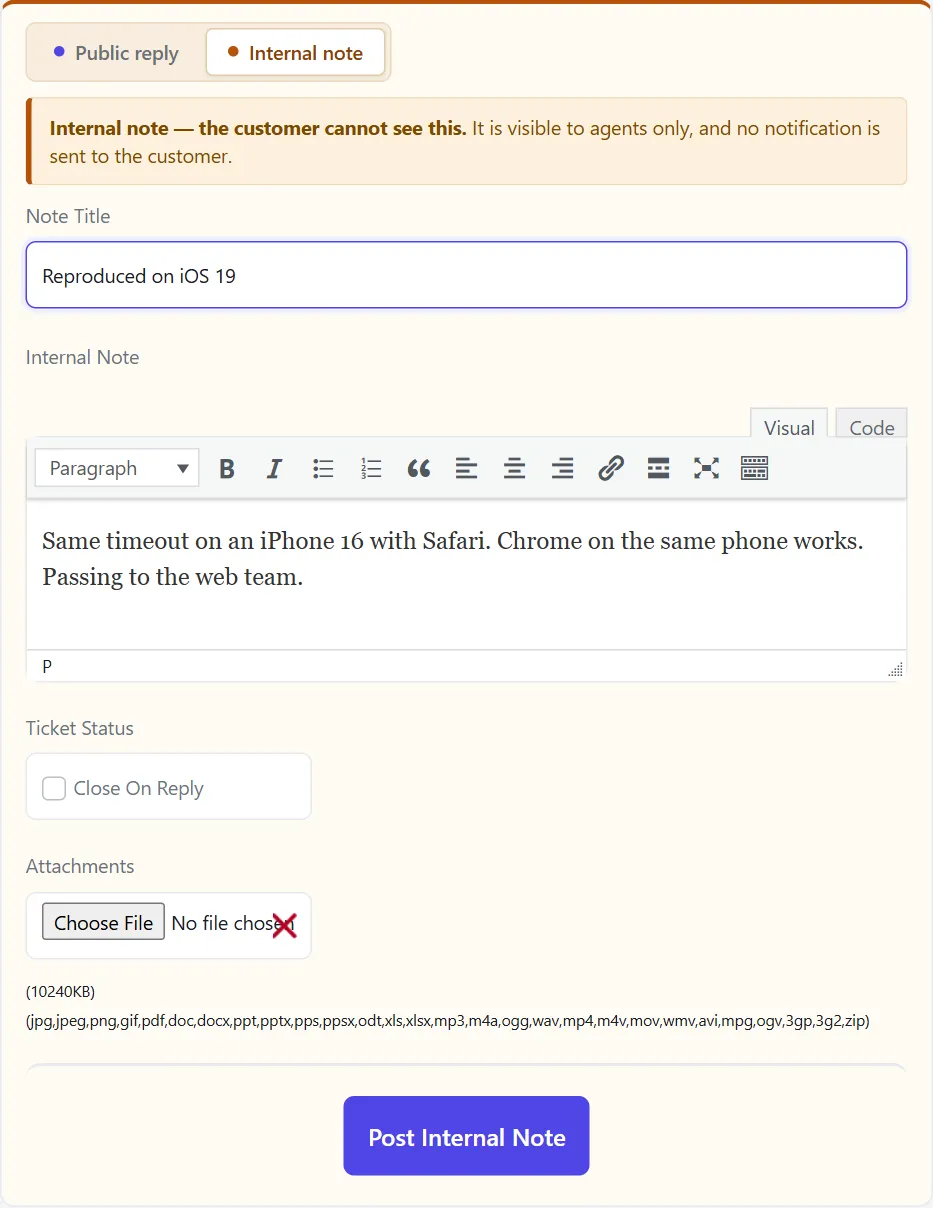
The box at the bottom of every ticket has two tabs: Public reply, which the customer sees and is e-mailed, and Internal note, which they never see. The colour of the box tells you which one you are writing.
Replying to the customer
Section titled “Replying to the customer”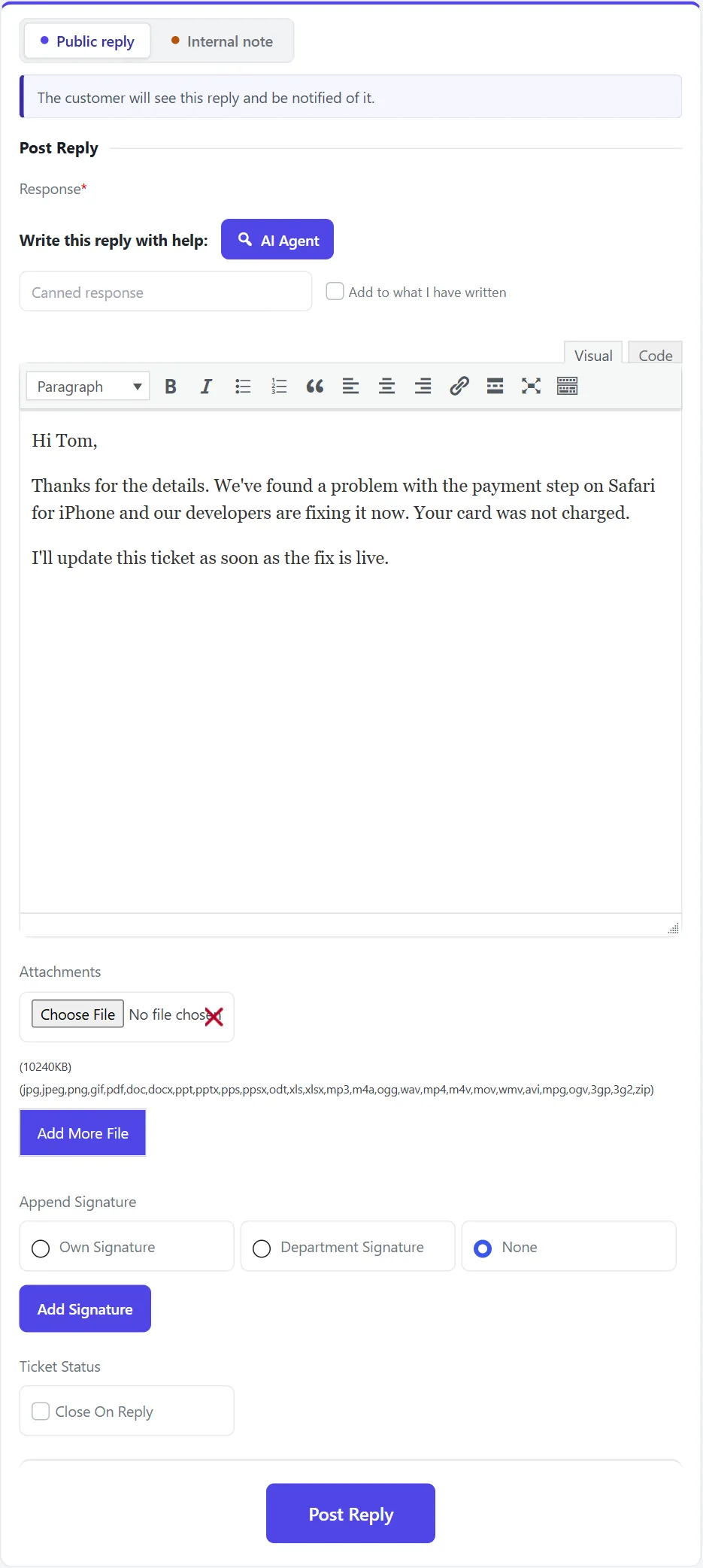
- Write your answer in the editor. Press
Ranywhere on the ticket to jump here. - Attach files if you need to. Add More File adds another attachment box. The size limit and allowed file types are the ones from Quick setup.
- Choose a signature under Append Signature:
- Own Signature: your personal signature. Administrators set it in their WordPress profile under JS Help Desk → Signature (the Add Signature link takes you there). That profile box is shown to administrators only; agents working on the portal’s agent desk set theirs under My Profile. See Your profile.
- Department Signature: the signature of the ticket’s department, set on the department.
- None: no signature. This is the default.
- Tick Close On Reply if your answer settles the matter.
- Click Post Reply.
The ticket’s status becomes Replied, it moves to Waiting on Customer in the queue, and the customer is e-mailed your reply. With Close On Reply the reply is sent first and then the ticket is closed.
Help with writing
Section titled “Help with writing”Above the editor, Write this reply with help offers two shortcuts:
- Canned response: type a few letters of a saved answer’s title and pick it from the list. See Canned responses.
- AI Agent: finds answers already written on your site, from past replies to similar tickets. With the AI Agent pack it also draws on your knowledge base, FAQs and canned responses. Nothing leaves your site.
Internal notes
Section titled “Internal notes”Notes are for your team: what you’ve tried, who you’ve asked, why the ticket was
moved. Switch to the Internal note tab, or press N.
| Field | |
|---|---|
| Note Title | A short heading for the note. |
| Internal Note | The note itself. |
| Close On Reply | Closes the ticket as the note is saved. |
| Attachments | One file. |
Click Post Internal Note. Notes are listed in their own Internal Notes section above the conversation, so they never mix with what the customer sees. The customer is not e-mailed, and notes never appear in their portal.
Notes also come from elsewhere: the reason you give when you move a ticket to another department or edit a ticket is saved as a note.
A note can’t be edited or deleted once posted. It is removed only if the ticket itself is deleted.