

AI Agent overview
The AI Agent menu is part of the free plugin. It gathers everything the help desk does with AI in one place: what the AI may answer from, whether anything leaves your server when it does, and what it has been doing. Only administrators can open its screens.
The AI Agent pack adds the parts that write answers from your content: a written answer on the ticket form, automatic replies to tickets with approval and Shadow Mode, crawled web pages, and resolved tickets as a source.
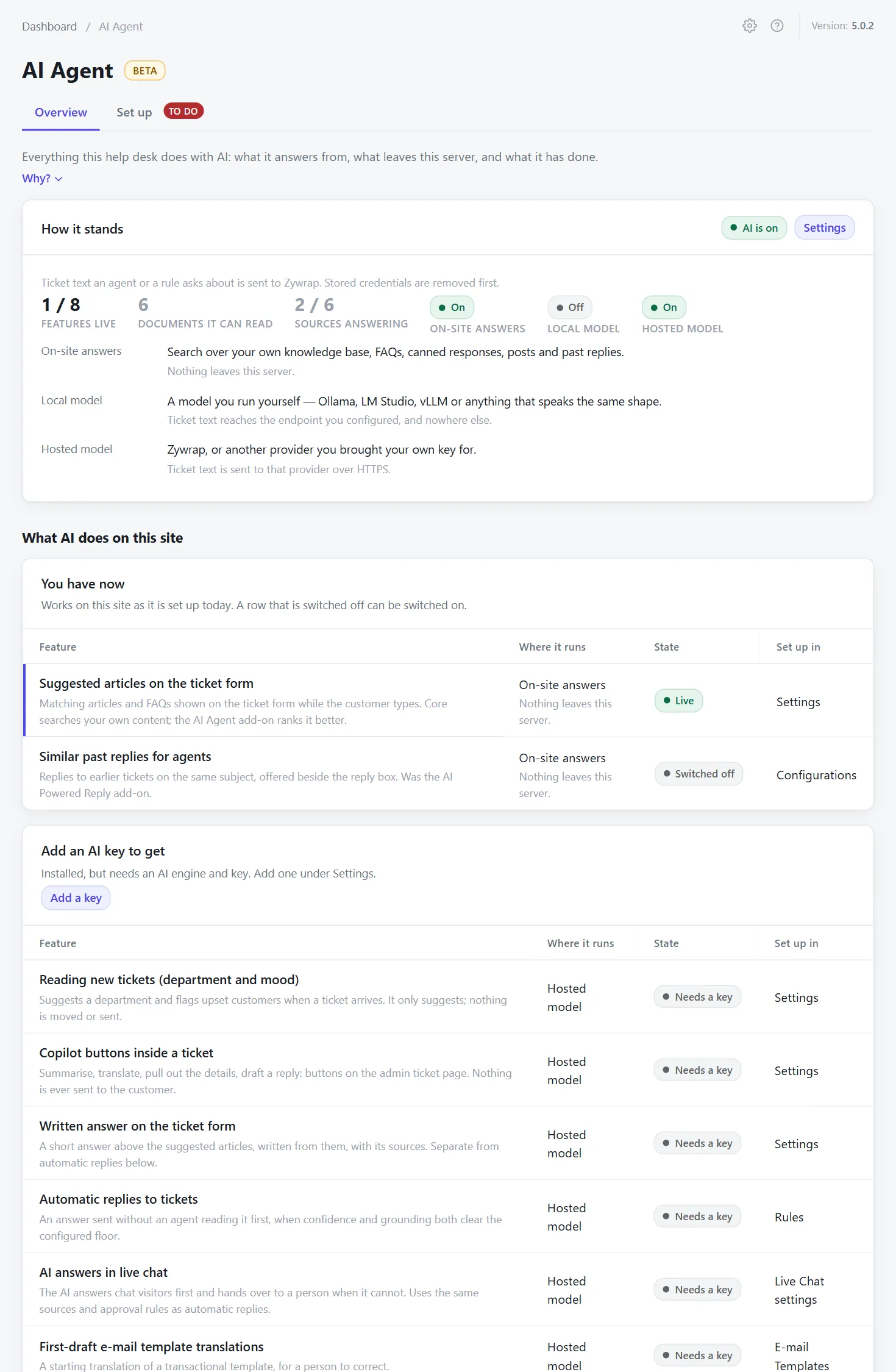
The master switch and the three lanes
Section titled “The master switch and the three lanes”Everything starts from one switch, Allow this help desk to use AI, under AI Agent → Settings → What AI may do. Off means off, everywhere, at once: no lane is open, no engine is asked and no AI button is drawn on any screen. Nothing is deleted, so switching it back on restores what was running before. The menu heading shows an off badge while it is off.
Under the master switch are three lanes. A lane is not a feature: it is an answer to “what leaves the server”. Switching a lane off switches off everything that would have used it.
| Lane | What it covers | Where ticket text goes | Default |
|---|---|---|---|
| On-site answers | Search over your own knowledge base, FAQs, canned responses, posts and past replies. | Nowhere. Nothing leaves this server. | On |
| Local model | A model you run yourself: Ollama, LM Studio, vLLM or anything that speaks the same shape. | Only to the address you configured. | Off |
| Hosted model | Zywrap, or Anthropic with your own key. | To that provider, over HTTPS. | On |
With both model lanes off you still get suggested articles and matching past replies, because those need no model at all.
On the Overview screen, How it stands shows each lane as On (text really goes there now), Allowed, not in use (the lane is open but the working engine is in another lane, or no engine works yet) or Off. The On-site answers lane shows On whenever it is open. What each lane means unfolds the description of each. When an engine works, the card’s heading also shows, for example, AI is on - Zywrap answers.
Before anything is sent to a model, credentials are removed. See What is removed before anything is sent.
What is free and what needs the pack
Section titled “What is free and what needs the pack”The Overview screen lists every AI feature with where it runs and whether it is live on your site, sorted into You have now, Add an AI key to get and Needs an add-on. Only You have now is open; the other two start folded, with a count beside the heading. When an engine is chosen but can’t run (its lane is off, say), the middle group is headed Waiting for a working AI engine instead, gives the same reason as the status line, offers the same fix button, and its rows show Engine not working rather than Needs a key.
| Feature | Lane | Needs |
|---|---|---|
| Suggested articles on the ticket form | On-site | Nothing. The pack ranks results better. |
| Similar past replies for agents | On-site | Nothing. Switched on under Configurations. |
| Reading new tickets (department and mood) | Hosted | An engine. |
| Copilot buttons inside a ticket | Hosted | An engine. See AI help for agents. |
| Written answer on the ticket form | Hosted | The AI Agent pack and an engine. |
| Automatic replies to tickets | Hosted | The AI Agent pack and an engine. |
| AI answers in live chat | Hosted | The AI Agent and Customer Experience packs. |
| First-draft e-mail template translations | Hosted | The multi-language e-mail templates feature and an engine. |
“Hosted” here means the feature asks whichever engine you chose. If you choose a local model, these run in the local lane instead.
Results this month
Section titled “Results this month”The Results this month card on Overview answers “is the AI worth having”:
| Figure | What it counts |
|---|---|
| Tickets solved without a person | Tickets that received an AI answer this month and that no agent then had to reply to, as a percentage of the tickets the AI answered. Below 10 answered tickets it shows the two numbers instead, for example 3 / 4, because a percentage of so few means nothing. |
| Chats answered without a person | Live chats started this month that the AI answered and that never reached a person, out of all chats. |
| Agent time saved (estimate) | 6 minutes for each ticket or chat solved without a person, in hours. |
| AI cost per solved question | This month’s AI spend divided by the tickets and chats solved. If any call this month was included with your licence (Zywrap), it shows Paid from plan credits instead. It shows Unknown while nothing has been solved yet or some call this month has no known price. |
The screens
Section titled “The screens”The plugin’s left menu has an AI Agent heading with up to five entries. Each screen has a row of tabs naming its siblings, and its heading names both, for example Automatic answers: Approvals.
| Menu entry | Tabs | Shown when |
|---|---|---|
| Overview | Overview, Set up | Always. Set up needs the pack. |
| Knowledge Sources | What the AI may read, Web pages, Unanswered Questions | Always. Web pages needs the pack. |
| Automatic answers | Rules, Approvals, Shadow Mode, Results | With the pack. |
| Settings | Settings | Always. |
| Usage & Cost | Usage & Cost, Audit, Zywrap requests, Zywrap errors | Always, even when no engine works, so you can still see what was spent and who changed what. The Zywrap tabs need a stored Zywrap key. |
Set up carries a to do badge until setup is finished, and Approvals shows how many answers are waiting for a person.
The status line
Section titled “The status line”Every AI screen opens with the same one-line status: what is true now, why, and a button to change it. It is worked out in one place, so every screen says the same thing.
| Status | When | Buttons |
|---|---|---|
| AI is switched off. | The master switch is off. | Switch AI on |
| AI is not working yet. | AI is on, but the chosen engine can’t answer. The line names the engine and what is missing: a key, an address and model name (for a local model), or its lane. | Finish the engine or Switch it on, plus Use … instead when another engine would work now |
| AI is ready (Zywrap). | An engine works and automatic answers are off. Agents get suggestions and drafts; nothing is sent to customers by itself. | Automatic answers (with the pack) |
| Automatic answers are paused. | Nothing is written or sent until you resume. | Resume |
| AI writes answers, nothing is sent. | Automatic answers are on and Approvals is set to Never send, only propose (Shadow mode). | Pause automatic answers |
| AI writes answers, a person approves each one. | Automatic answers are on and Approvals is set to Always ask a person first. | Approvals, Pause automatic answers |
| AI is answering customers automatically. | Automatic answers are on and answers that clear your confidence floor are sent; the rest wait for a person. | Pause automatic answers |
The first two add that suggested articles from your own content still work. If automatic answers are reaching customers while Set up is not finished, the last one says “Setup is not finished. Pause until you have checked what it will send.” and adds Finish setup. A button that would only reload the screen you are on is left out.