

Paid Support: customers and tickets
This page follows a credit from the customer’s side and the agent’s. To set Paid Support up, see Paid Support: setting up.
On the new-ticket form
Section titled “On the new-ticket form”While Require credits for new tickets is on, a signed-in customer sees a Support credits bar above the new-ticket form: their balance, and either “Each new ticket uses one.” or, when only some departments use credits, “A new ticket uses one in: Billing, Sales.”
| Balance | The bar |
|---|---|
| Above Low balance warning at | Your theme’s colour. |
| At or below it | Amber, with a Buy support button to your WooCommerce shop page. |
| None, and some departments are free | Red, with Buy support. The form is still there; a ticket to a department that uses credits is refused when they submit. |
| None, and every department uses credits | Titled No support credits left, with your no-credits message and Buy support. The form is not shown. |
If the customer has more than one paid-support purchase, the form also offers Purchase (optional), listing each as “Order #1043 · 10 Support Tickets”, so they can say which purchase the ticket is about. With one purchase, the bar says “Linked to order #1043 · 10 Support Tickets” instead.

Visitors without an account don’t see the bar. When they submit, the same rule is applied to the e-mail address they give.
On My Tickets
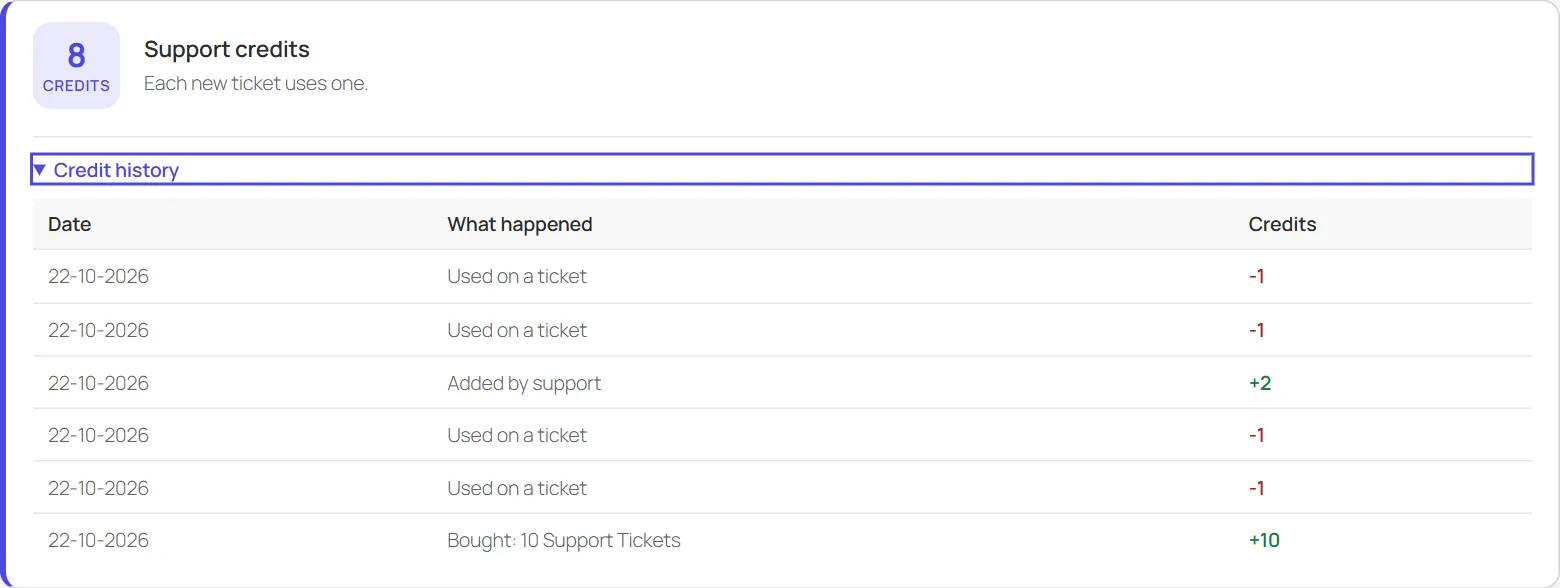
Section titled “On My Tickets”Customers who need credits, or have any credit history, see the same bar at the top of My Tickets, with “Your next credits expire on …” when some will. Credit history opens their last 20 entries: Date, What happened and Credits.
| What happened | Means |
|---|---|
| Bought: … | Credits from an order, with the product name. |
| Used on a ticket | A new ticket used one. |
| Given back for a ticket | You gave a ticket’s credit back. |
| Taken back: order refunded | The order was refunded. |
| Expired | Credits reached their expiry date unused. |
| Added by support / Removed by support | You adjusted the balance by hand. Your note isn’t shown. |
When a credit is used
Section titled “When a credit is used”- When a new ticket is created, one credit is taken from the purchase that expires soonest, so credits about to lapse are used first.
- A ticket raised by you or an agent on the customer’s behalf uses a credit exactly like one the customer raises.
- A ticket uses at most one credit. Replies never use credits.
- Nothing is taken while Require credits for new tickets is off.
The low-balance e-mails
Section titled “The low-balance e-mails”With Email the customer when credits run low and when they run out on, the customer is e-mailed at two moments, each once:
| When | Subject | Says |
|---|---|---|
| A ticket takes the balance down to exactly the warning level | Your support credits are running low | “You have 2 support credits left.” |
| A ticket uses the last credit | You have no support credits left | “Your last support credit has just been used. Buy more to open new tickets — the tickets you already have can still be replied to.” |
Both have a Buy support link to your shop page, and are sent from your help desk’s default sender address.
Refunds and expiry
Section titled “Refunds and expiry”- Refunds. When you refund a WooCommerce order, fully or for one line, the credits still left on the refunded line are taken back. Credits already used stay used, so a balance never goes negative.
- Expiry. Once a day, credits past their expiry date are written off as “expired”. The customer’s purchase stays listed on the Paid Support screen, marked expired.
On the ticket, for agents
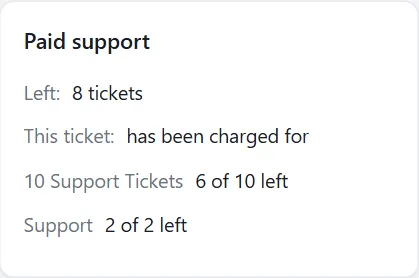
Section titled “On the ticket, for agents”Agents and administrators see a Paid support panel below the ticket’s details whenever the customer has credits or purchases:
| Line | Shows |
|---|---|
| Left | The customer’s balance. |
| This ticket | has been charged for or has not been charged for. |
| One line per purchase | “7 of 10 left”, with “until …” or “lapsed”. |
A ticket that shouldn’t count
Section titled “A ticket that shouldn’t count”When a ticket is linked to a purchase, a Paid Support Details box also shows the order, product, Credits left and, for subscriptions, the subscription, Subscribed On and Support Expiry. Tick Non-premium support (“Check this box if this ticket should NOT apply against the paid support”) to give the ticket’s credit back. Untick it to charge it again. Administrators, and agents allowed to Mark Non Premium, can do this.
A ticket not linked to a purchase shows Link ticket to paid support instead: pick the purchase and click Link. Linking records which purchase the ticket belongs to; it doesn’t change the customer’s balance.