

Setting up AI step by step
With the AI Agent pack, AI Agent → Overview → Set up is a checklist of the six steps between “AI is off” and “AI answers customers by itself”. It reads your site each time you open it and says what is done, what is next and what is in the way. Nothing reaches a customer until the last step.
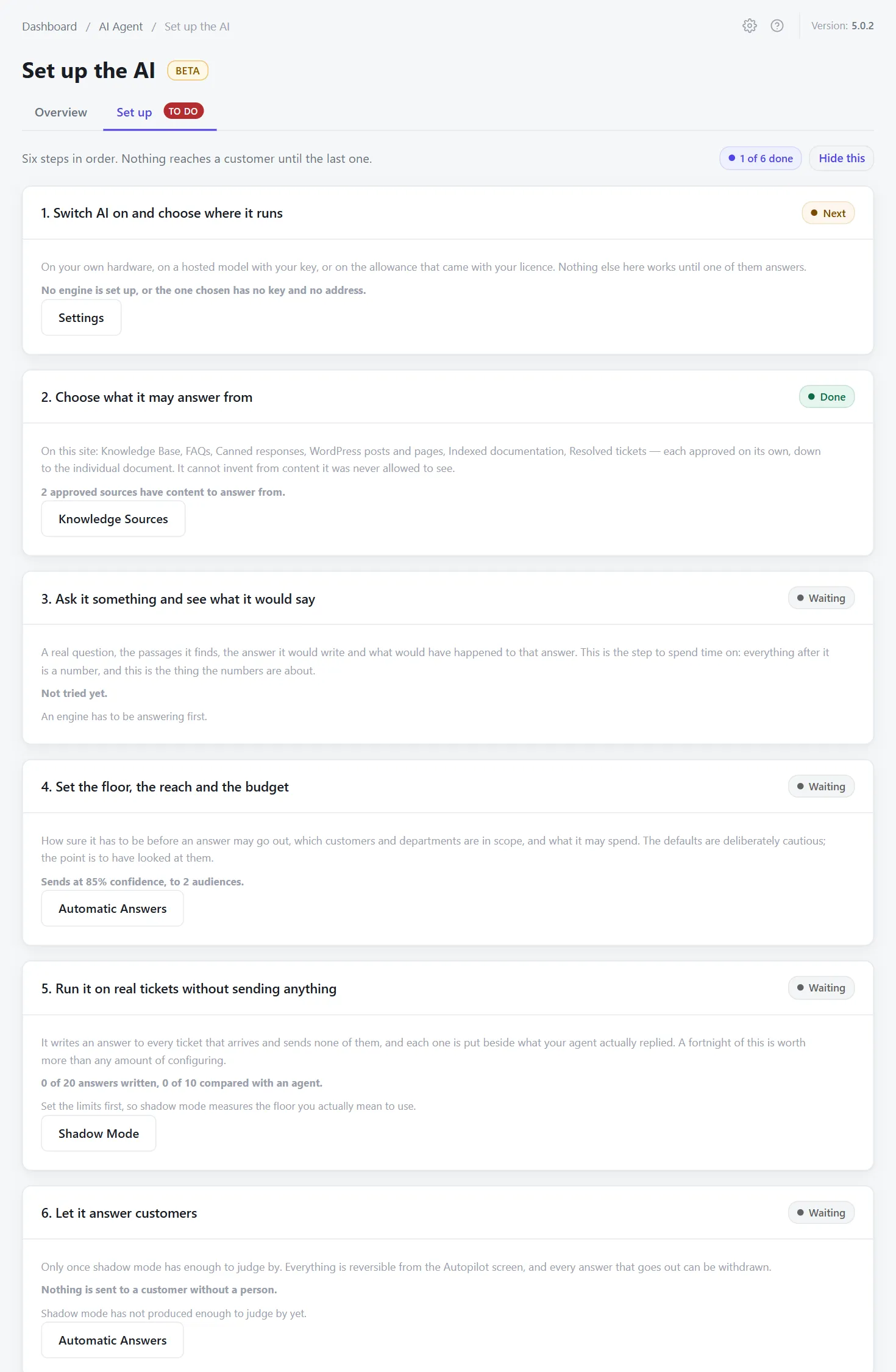
Each step shows a badge: Done, Next for the first unfinished one, or Waiting for those after it. Under each step is what the site actually has, for example “2 approved sources have content to answer from”.
Hide this puts the checklist away. It stays under Overview → Set up if you want it later.
The steps
Section titled “The steps”-
Switch AI on and choose where it runs.
Open AI Agent → Settings. On What AI may do, tick Allow this help desk to use AI and the lane your engine runs in, then Save switches. On Engine & key, pick an engine, fill in what it needs, click Save engine and then Test connection. See Engines.
The step is done when AI is on and the chosen engine has what it needs and its lane is open. It then says, for example, “Zywrap is answering.” Until then it gives the same reason as the status line, for example “Your engine is Anthropic, but it has no key yet.”
-
Choose what it may answer from.
Open AI Agent → Knowledge Sources and tick Use it for each source the AI may read, then Save sources. Exclude any document that is out of date or internal. See Knowledge Sources.
The step is done when at least one approved source actually has content in it. “Sources are approved but none of them has any content the AI can read yet” means you approved empty sources: publish an article or FAQ first.
-
Ask it something and see what it would say.
Type A question one of your customers would ask and click See what it would say. You see What it would write, the documents it was Written from, and What would have happened to it: Sent or Held, with the reason.
This asks the model, so it costs what one answer costs, and it is listed on Usage & Cost as a preview. The step needs step 1 done first. Trying one question is enough to complete it; it records the date you last tried.
-
Set the floor, the reach and the budget.
Open Automatic answers → Rules and decide how confident an answer must be before it may go out, which customers and departments are in scope, and what it may spend. The step shows the current floor and how many audiences are chosen, and it is marked done once you have saved that screen: it says “Checked and saved on Automatic Answers.” or, before that, “Not checked yet: the defaults are in use.” It needs step 2 done first. See Automatic answers.
-
Run it on real tickets without sending anything.
Click Start shadow mode (the same button is on the Shadow Mode tab). This switches automatic answering on and sets approvals to propose only, so the AI writes an answer for every ticket that arrives and sends none of them. Each one is put beside what your agent actually replied. See Reviewing answers.
The step counts towards two targets: 20 answers written, and 10 of them compared with an agent’s reply. It shows, for example, “12 of 20 answers written, 4 of 10 compared with an agent.” It needs step 4 done first.
If automatic answers went live without a trial run, this step is marked done with “Skipped: automatic answering went live without a trial run.”
-
Let it answer customers.
Once shadow mode has reached both targets, Let it answer customers appears. Clicking it sets approvals to send answers that clear the confidence floor and turns automatic answers on. Until then the button is not shown, and the action is refused even from a bookmarked link.
The step is done only while answers can really go out. If automatic answers are on but no engine is answering, it says “Switched on, but nothing can go out until an engine is answering (step 1).”
Everything is reversible. While automatic answers are on, the status line at the top of every AI screen has a Pause automatic answers button, and any answer that goes out can be withdrawn from Approvals.
What the preview tells you
Section titled “What the preview tells you”What would have happened to it gives one of these:
| Result | Meaning |
|---|---|
| Nothing would have been written | The question is not covered by your approved sources. |
| Never answered automatically | The question is the kind that always goes to a person, whatever the AI thought of its answer. |
| Held: this site proposes only | Approvals are set to propose only, so the answer would wait on Approvals. |
| Held: a person approves first | Approvals are set to Always ask a person first, so the answer would wait on Approvals for someone to approve it, with the confidence shown. |
| Held: below the floor | The answer’s confidence was below your floor, for example 62% against 85%. |
| Held: automatic answering not on | It cleared the floor, but automatic answers are not switched on. |
| Sent | It would have gone to the customer, at the confidence shown. |
If the preview says No preview, the reason is given: AI is switched off, or no engine on the site can compose an answer (the pack is what writes them).