

Check a ticket without an account
If you raised a ticket without signing in, there is no My Tickets list for you. Instead you have three ways back to your ticket.
Use the link in your e-mail
Section titled “Use the link in your e-mail”Every e-mail the help desk sends you about your ticket has a link to it. Click the link and the ticket opens, ready to read and reply to. This is the easiest way.
Use Check Ticket Status
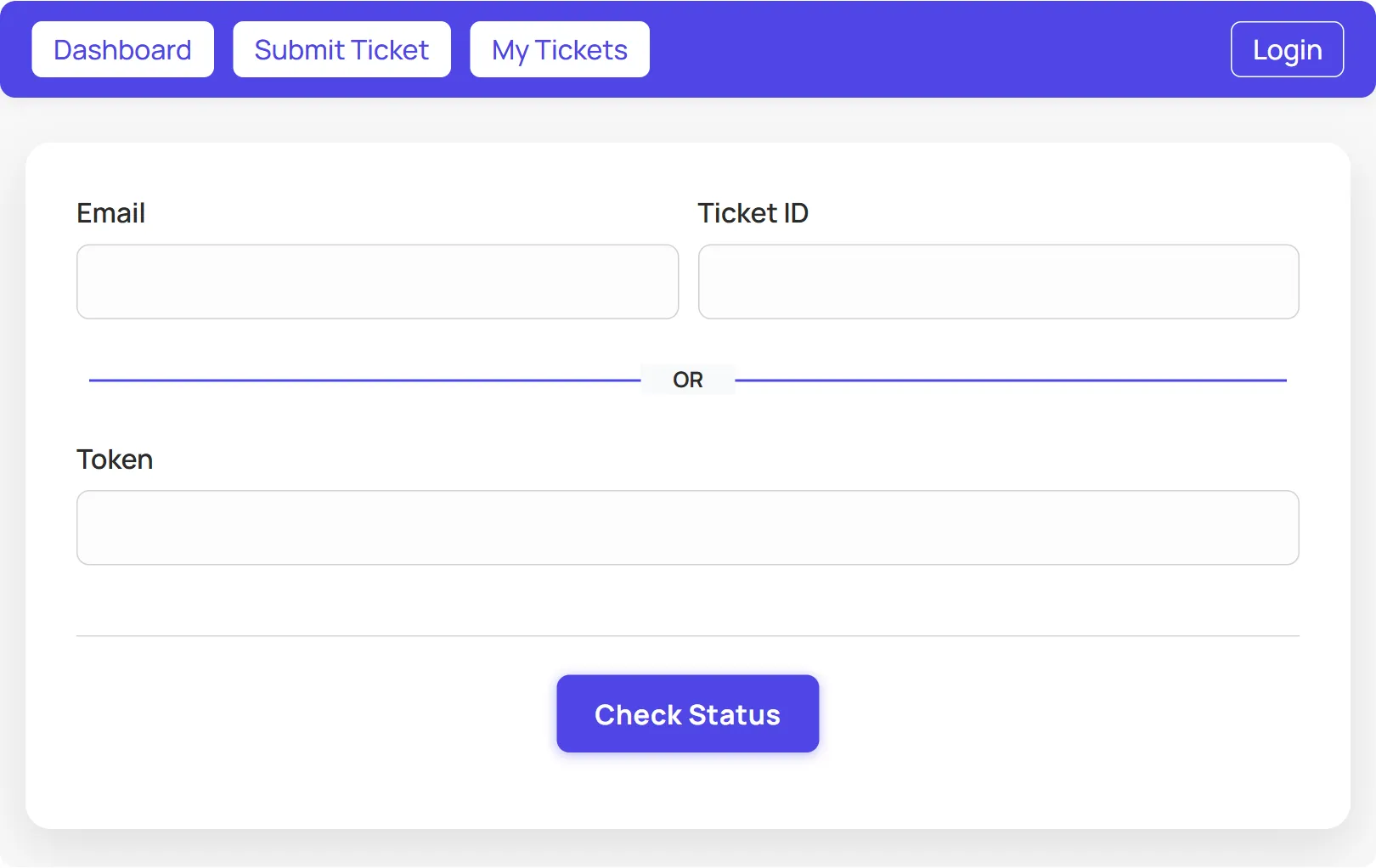
Section titled “Use Check Ticket Status”- Open the help desk and click Check Ticket Status on the dashboard (or Ticket Status).
- Either type the Email address you used and your Ticket ID, or type just your Token.
- Click Check Status.
| What you need | Where to find it |
|---|---|
| Ticket ID | In the confirmation e-mail, and on the ticket page. |
| Token | Shown once, under Remember Your Ticket Token for Tracking (Save It!), right after you sent the ticket. It’s a one-time code, so keep it safe. |
If nothing matches, you see “Record not found”. Check that you used the same e-mail address as on the ticket, and that the Ticket ID is complete.
Once you are in, you can read the ticket, reply, add files, close it and reopen it, just like a signed-in customer. See Follow and reply to your tickets.
How long you stay in
Section titled “How long you stay in”Access lasts until you close your browser. After that, use the e-mail link or Check Ticket Status again.
Keep your details private
Section titled “Keep your details private”Anyone with your token, or with your e-mail address and Ticket ID, can open your ticket. Don’t share them, and don’t forward ticket e-mails to people who shouldn’t see the conversation.
If you raise tickets often, ask whether you can create an account: all your tickets are then in one list, under My Tickets.