

Connectors
The Integrations screen lists every connector: an outside service the help desk talks to. Each one keeps its settings, hides its keys, reports its health and retries failed work in the same way, so what you learn about one is true of the next.
Integrations → Integrations.
In this version the connectors are the five team chat services: Slack, Microsoft Teams, Google Chat, Telegram and Discord.
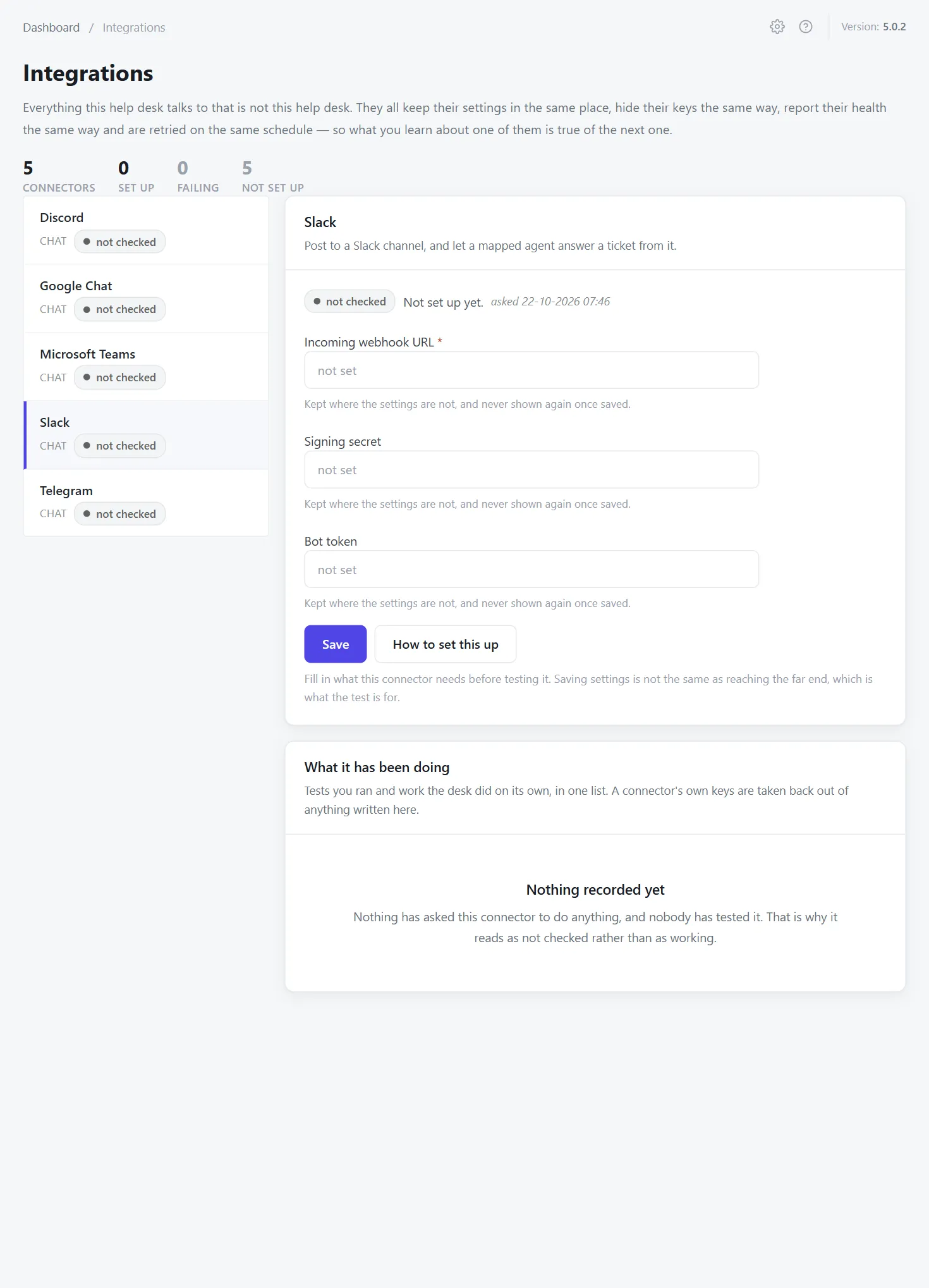
The counts
Section titled “The counts”| Figure | Counts |
|---|---|
| Connectors | Every connector. |
| Set up | Connectors with every required field filled in, whose last check didn’t fail. |
| Failing | Set-up connectors whose last check or test failed. Also shown as a number beside Integrations in the menu. |
| Not set up | Connectors missing a required field. |
Setting one up
Section titled “Setting one up”Click a connector in the list to open it. Its fields depend on the service; see Team chat. A required field is marked with an asterisk.
Keys and webhook addresses are secret fields. Once saved, they’re never shown again: the box stays empty, with the last four characters as a hint.
- To keep a secret as it is, leave the box empty when you save.
- To replace it, type the new one and click Save.
- To remove it, click Forget it beside it. The connector can’t reach anything until you give it a new one.
Click Save. Saving doesn’t prove anything works; that’s what the test is for.
Testing and health
Section titled “Testing and health”Once every required field is filled in, two buttons appear:
| Button | What it does |
|---|---|
| Test it | Does something real. For a chat service it posts a test message into the channel. The result becomes the connector’s state. |
| Ask how it is | Asks the service how it is, without posting anything. |
A chat service reached by a webhook address can’t be asked how it is without posting into the channel, so it reads not checked until you test it or it sends something. Telegram can be asked: the help desk checks that the bot token is accepted.
The state beside each connector:
| State | Means |
|---|---|
| working | The last check or test succeeded. |
| warning | It worked, with something to look at. |
| failing | The last check or test failed. The message says why. |
| not checked | Nobody has asked yet, or it isn’t set up. A connector is never shown as working just because nothing has failed. |
How to set this up opens the JS Help Desk website’s guide to chat connectors, in a new tab.
What it has been doing
Section titled “What it has been doing”The activity log under each connector lists, newest first, the tests you ran
and the work the help desk did on its own, such as posting a message: When,
What, Result and how long it Took. The latest 200 entries are kept
per connector. Any of the connector’s own keys that turn up in a log entry are
replaced with [redacted].
When a piece of work fails, it is queued again after 1, 2, 4, 8 and 16 minutes. Each retry is logged as “trying again in … seconds”, and the last as “given up after 6 attempts”.
Who can use it
Section titled “Who can use it”The screen needs the WordPress Administrator role.