

Piping troubleshooting
Collection runs unattended and marks mail read as it goes, so when it goes wrong the mailbox looks empty and nothing says why. Start with the collection log.
The collection log
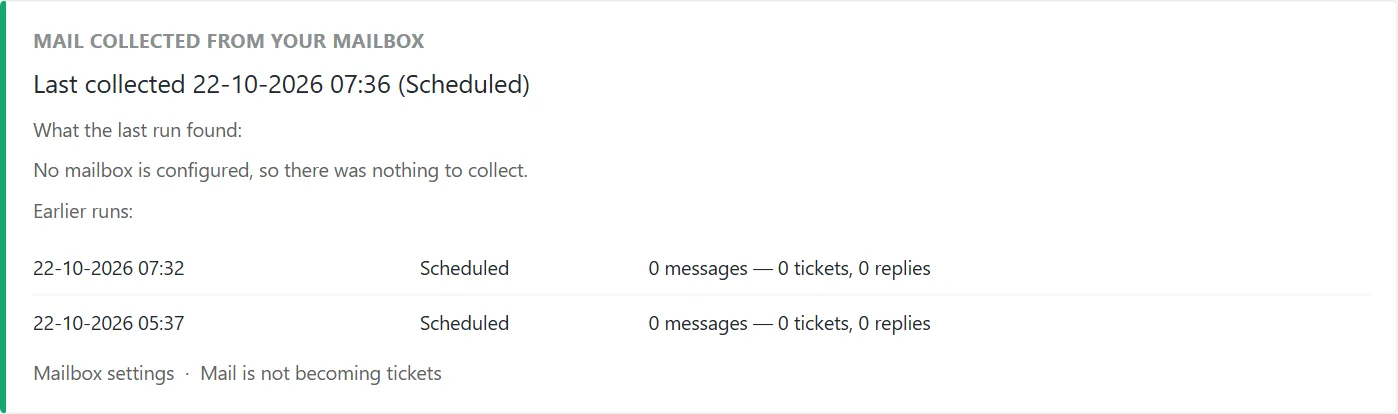
Section titled “The collection log”Outgoing Email → Email Health has a card, Mail collected from your mailbox, that records every collection run. The Email Piping screen shows its first line, and Read the collection log brings you here.
| You see | What it means |
|---|---|
| Collection has never run | Piping is set up but no run has happened. If that doesn’t change within the hour, collection isn’t scheduled. |
| Last collected date (how) | The last run, and what started it: Scheduled (WordPress’s scheduler), Called by URL (the Cron Job URLs address) or Started by hand (the address on the Email Piping form). |
| “That run started and never finished. …” | Something ended the run while a mailbox was open, such as a PHP error or a timeout. Some mail may have been marked read without becoming a ticket. |
| “A mailbox could not be read. …” | The mail server’s reason is shown under the mailbox. |
For each mailbox in the last run:
- Could not be read, with the reason;
- Not collected: switched off, or it is the address the help desk sends from;
- how many messages it read, and how many tickets and replies they became; a red “n produced nothing” means some were read and dropped.
What the last run found: lists up to ten lines explaining dropped messages, then “and n more like it”. Earlier runs: shows the runs before, so you can tell a fault that comes and goes from one that has always been there.
The arrival log on the Inbox screen adds one line per message for mailboxes on OAuth.
Nothing is ever collected
Section titled “Nothing is ever collected”- Collection isn’t running. Check Scheduled work on Email Health. If
your
wp-config.phpsetsDISABLE_WP_CRON, or the site gets few visitors, set up a real cron job: see The cron job and Scheduled jobs. - The mailbox isn’t enabled. Enabled must be Enabled on the Email Piping form.
- There is no mailbox. The log says “No mailbox is configured, so there was nothing to collect.”
A mailbox could not be read
Section titled “A mailbox could not be read”Read the reason the log gives. The usual ones:
| Reason | Fix |
|---|---|
| “PHP’s IMAP extension is not installed on this server, …” | Ask your host to enable PHP’s IMAP extension, or move the mailbox to Google or Microsoft OAuth, which doesn’t need it. |
| The server says the password or login is wrong | Retype it on Email Piping and use Check Settings. For Gmail, Google Workspace, Outlook.com and Microsoft 365, switch to OAuth: passwords no longer work there. |
| “The mail server refused the connection and gave no reason.” | Check the host name and port. Your host may block outgoing IMAP connections. |
| “No host is set for this mailbox. …” | Host Type is Other with no Host Name. |
| “This mailbox has no refresh token, …” or “The provider would not give a token: …” | OAuth: paste a valid refresh token, and check the client ID, secret and tenant. |
| “The mail server refused the sign-in: …” or “The mail provider refused the OAuth token: …” | OAuth: the mailbox didn’t accept the sign-in. Check that IMAP is on for that mailbox and that the token was issued for the mailbox’s own account. |
| “Could not open the folder …” | OAuth: the Folder on the Inbox screen doesn’t exist. |
Mail is read but nothing appears
Section titled “Mail is read but nothing appears”The log names the reason for each dropped message:
- “read as a new ticket, but this mailbox is set to collect replies only.” (or the other way round): change Ticket Type to Both.
- “read as a new ticket, but no ticket was created. …”: the sender is on the banned list, has reached the open-ticket limit, or your ticket form has a required field the e-mail can’t fill in.
- “read as a reply to ticket …, but no reply was stored. …”: the ticket is closed and replies to closed tickets are off (see Replies to closed tickets), the same reply arrived twice within seconds, or the message was empty.
- A loop: the sender is the mailbox itself or one of its Also answers to addresses, the message is an automatic reply, or the same address sent more than twenty messages in ten minutes.
Customer replies become new tickets
Section titled “Customer replies become new tickets”- The ticket ID isn’t in the subject. Add
[{TRACKINGID}]to the subjects of the notifications customers reply to. Without it, a notification isn’t stamped for threading and the subject can’t be matched either. See How a reply finds its ticket. - Check the threading card on the Inbox screen. “Messages stamped on the way out” at 0 means nothing is being stamped.
- Mail sent through the legacy SMTP fields isn’t stamped. If an address uses Send Email By: SMTP, its notifications can’t thread on their headers. See SMTP (legacy).
Messages vanish from the mailbox
Section titled “Messages vanish from the mailbox”- Someone reads the mailbox. Collection only takes unread mail. If a person or another program opens messages first, they are skipped.
- A run didn’t finish. A password mailbox marks each message read as soon as it opens it. If the run then stops, find those messages in the mailbox and mark them unread; the next run collects them.
Odd characters in subjects or names
Section titled “Odd characters in subjects or names”Set Configurations → Email Piping → UTF Auto Switch to Yes.