

Assignment
Automation & SLA → Assignment decides who gets the next ticket. It only chooses among people who qualify: whether someone may take a ticket comes from their permissions and visibility, and whether they’re there to take it comes from Hours & Leave.
You can always assign by hand on the ticket with Assign To Agent. Its window shows a Suggested agent and the reasoning, using the same ranking as automatic assignment.
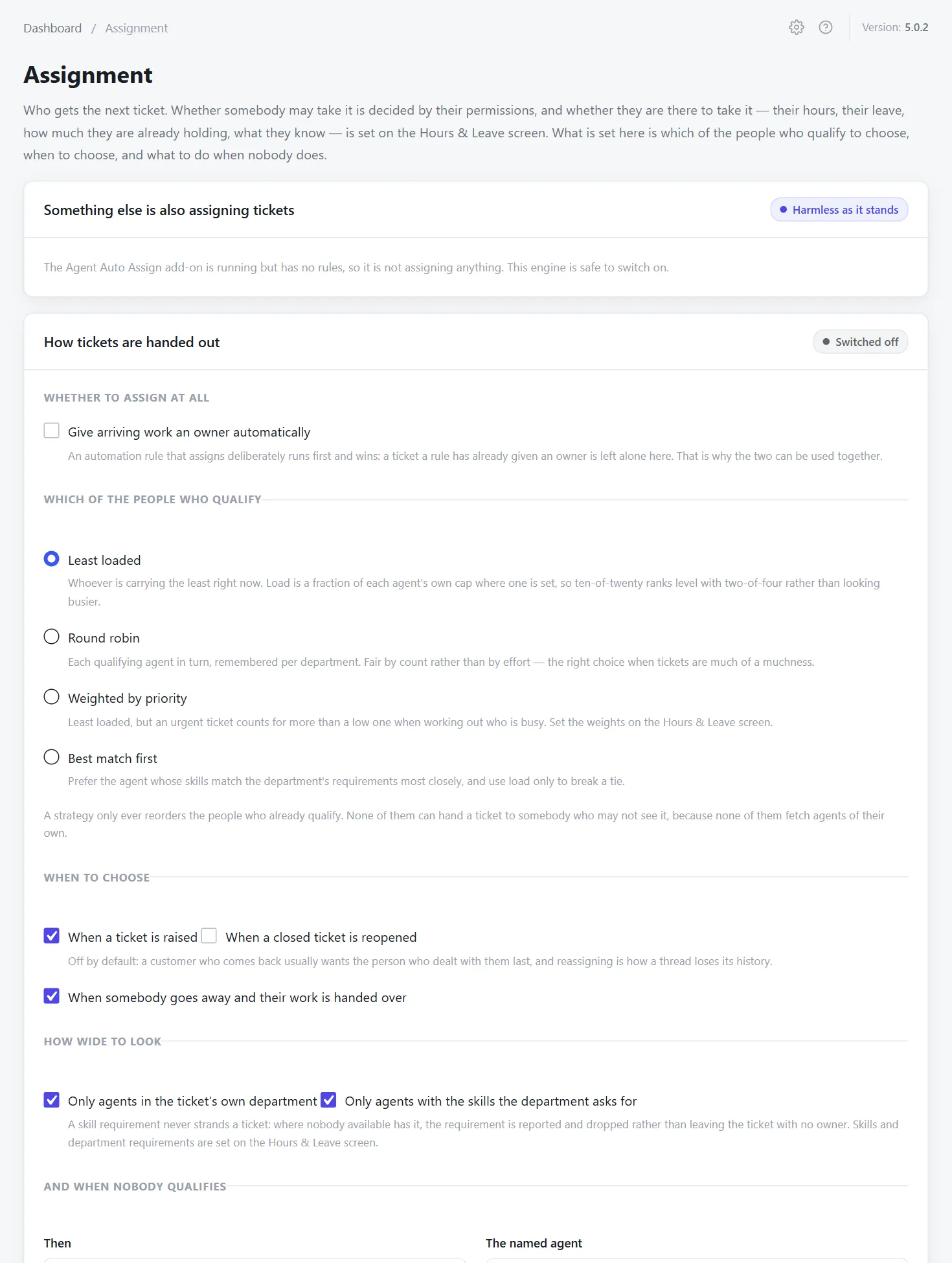
Switching it on
Section titled “Switching it on”Tick Give arriving work an owner automatically and click Save. It is off when the pack is installed. The badge at the top of the card says Assigning or Switched off.
Automatic assignment only ever fills an empty seat: a ticket that already has an agent is left alone. Rules under Automation & SLA → Automation that assign a ticket run first, so a rule’s choice always wins and the two can be used together.
Who qualifies
Section titled “Who qualifies”For each active agent, in this order, the first of these that fails rules them out:
- Taken out of automatic assignment: their Consider them when working out who should get the next ticket box is unticked.
- Their permissions do not let them see this ticket.
- Not available: away, off hours, not at the desk, or full.
- Does not have the skills the ticket’s department asks for.
If nobody available has the skills, the skill requirement is dropped and everyone else who qualified is considered, so a ticket is never stranded for want of a skill.
Which of the people who qualify
Section titled “Which of the people who qualify”| Strategy | Chooses |
|---|---|
| Least loaded (default) | Whoever holds the least open work, as a share of their own limit where they have one (10 of 20 ranks level with 2 of 4). Ties go to whoever holds fewer tickets. |
| Round robin | Each qualifying agent in turn, remembered separately for each department. Fair by count rather than effort. |
| Weighted by priority | Least loaded, counting each ticket by its priority’s weight from Workload rules. |
| Best match first | The agent whose skills match most of what the department asks for. Load breaks a tie. |
When to choose
Section titled “When to choose”| Box | Default | Effect |
|---|---|---|
| When a ticket is raised | On | Choose an agent for every new ticket that arrives without one. |
| When a closed ticket is reopened | Off | Choose again when a ticket with no agent is reopened. Off because a returning customer usually wants the person who helped them last. |
| When somebody goes away and their work is handed over | On | In this version this box has no effect. Handover always goes to the absent agent’s cover; see Handover. |
How wide to look
Section titled “How wide to look”| Box | Default | Effect |
|---|---|---|
| Only agents in the ticket’s own department | On | In this version this box has no effect. Whether an agent qualifies depends on whether they may see the ticket, which for most roles already means its department. |
| Only agents with the skills the department asks for | On | Untick to let agents without the department’s skills be chosen too. |
Skills are set on Hours & Leave.
And when nobody qualifies
Section titled “And when nobody qualifies”Choose under Then:
| Option | Does |
|---|---|
| Leave it unassigned, and say why on the ticket (default) | Leaves the ticket unassigned. |
| Give it to the department’s manager | Gives it to the department’s manager. No screen sets a department manager in this version, so in practice the ticket is left unassigned. |
| Give it to one named agent | Gives it to the agent chosen under The named agent. |
| Give it to whoever may see it, even if they are away or full | Gives it to the first agent allowed to see the ticket, ignoring hours, leave and limits. Never someone who can’t see it. |
An automatic assignment goes through the same steps as one made by hand, so it appears in the ticket’s history like any other assignment. In this version the reason for the choice isn’t shown on the ticket; use the rehearsal below to see it.
Who would get this one?
Section titled “Who would get this one?”Rehearse before you switch on, or whenever an assignment surprises you.
- Under Who would get this one?, type a ticket’s reference, or the number in its address, in Ticket.
- Click Rehearse it.
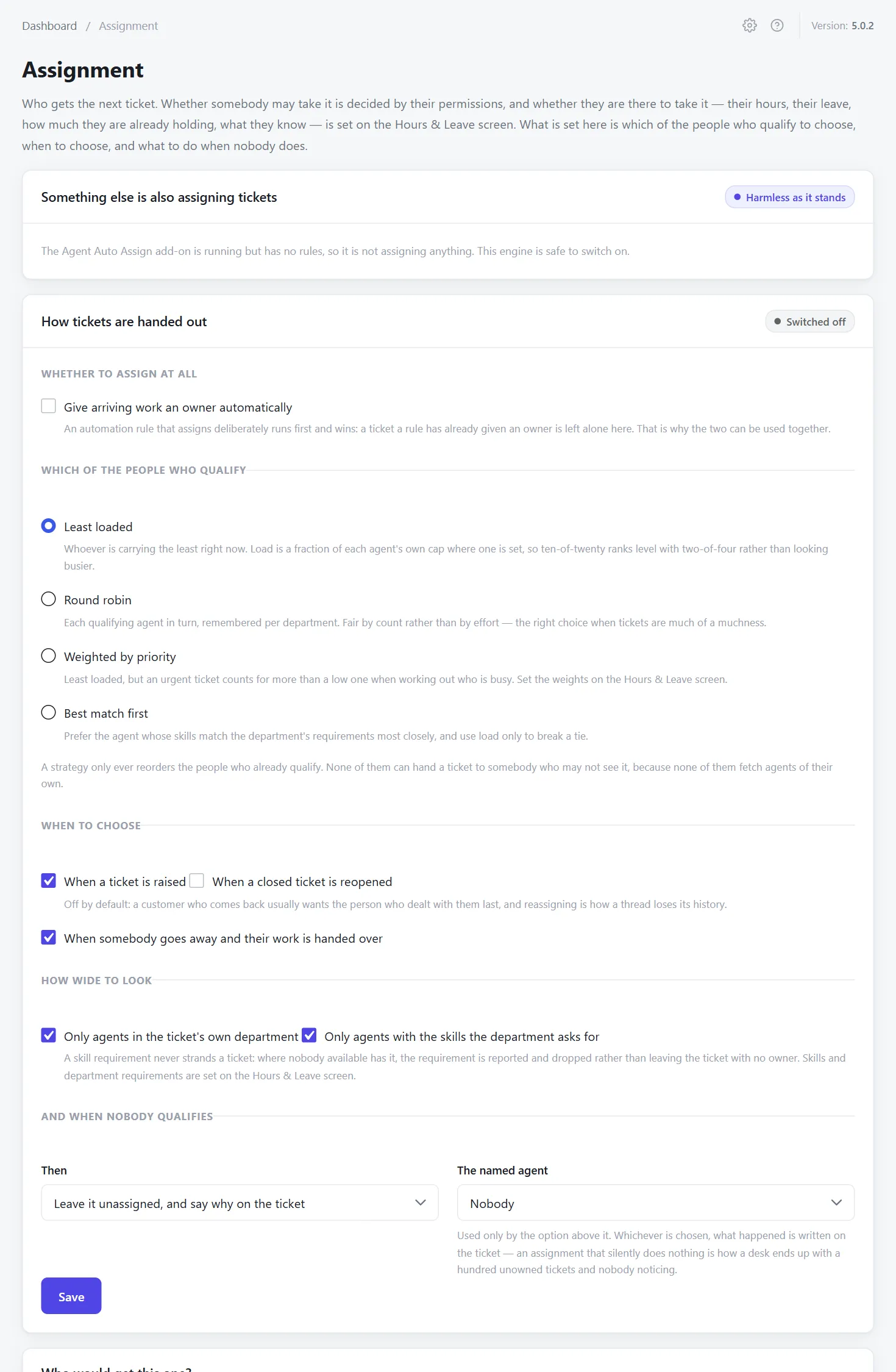
You see It would go to, Because, any Falling back option used, and And why not the others: every agent passed over with the one fact that ruled them out. Nothing is assigned, and a round-robin turn isn’t used up. The rehearsal runs with your saved settings even if the master switch is off.
Something else is also assigning tickets
Section titled “Something else is also assigning tickets”This card appears at the top of the screen. When it reads Harmless as it stands, nothing else is assigning. When it reads Both would act, rules from the older Conditions screen (below) exist; switch one of the two off.
The older Conditions rules
Section titled “The older Conditions rules”Before this screen existed, assignment rules lived on a Conditions screen
(wp-admin/admin.php?page=agentautoassign&jstlay=agentautoassign). It is no
longer in the menu.
- With the Service Levels & Automation pack, its rules are moved into Automation, the old address redirects there, and the old rules stop running while Automation is switched on. Edit them in Automation.
- Without that pack the screen still works. Each rule has a Rule Title, one or more conditions (Full Name, Subject, Email Address or Description that Contain or are Matched; User, Department, Priority or Submit Type that Equal a value), Hand the ticket to an agent, and a Status. A matching rule assigns the ticket the moment it arrives, before this screen’s automatic assignment looks at it.