

Overdue tickets
An overdue ticket carries a red Overdue flag. It is a single yes-or-no on the ticket, older than service levels and still used by the queue, filters, reports and exports. With this pack, four things can set it:
| Set by | When | Sends the overdue e-mail |
|---|---|---|
| You or an agent | Mark Overdue on the ticket. | Yes |
| A due date | The ticket’s Due Date has passed. Checked once a day. | Yes |
| A priority’s Ticket Overdue time | The ticket has waited that long for an answer. Checked every 30 minutes and daily. | Yes |
| A missed service level | The SLA sweep records a miss and Keep the old overdue flag up to date as well is on. | No |
Closing a ticket clears the flag.
Where you see it
Section titled “Where you see it”- Tickets queue: the Overdue tab lists open tickets with the flag (closed and merged tickets are left out), and flagged rows carry an overdue icon (“This ticket is marked as overdue”). See The queue.
- The ticket screen: an Overdue badge beside the ticket’s other states.
- Reports and the dashboard count overdue tickets, and Export can filter on Ticket Overdue.
Marking a ticket overdue by hand
Section titled “Marking a ticket overdue by hand”- Open the ticket.
- Click More actions → Mark Overdue.
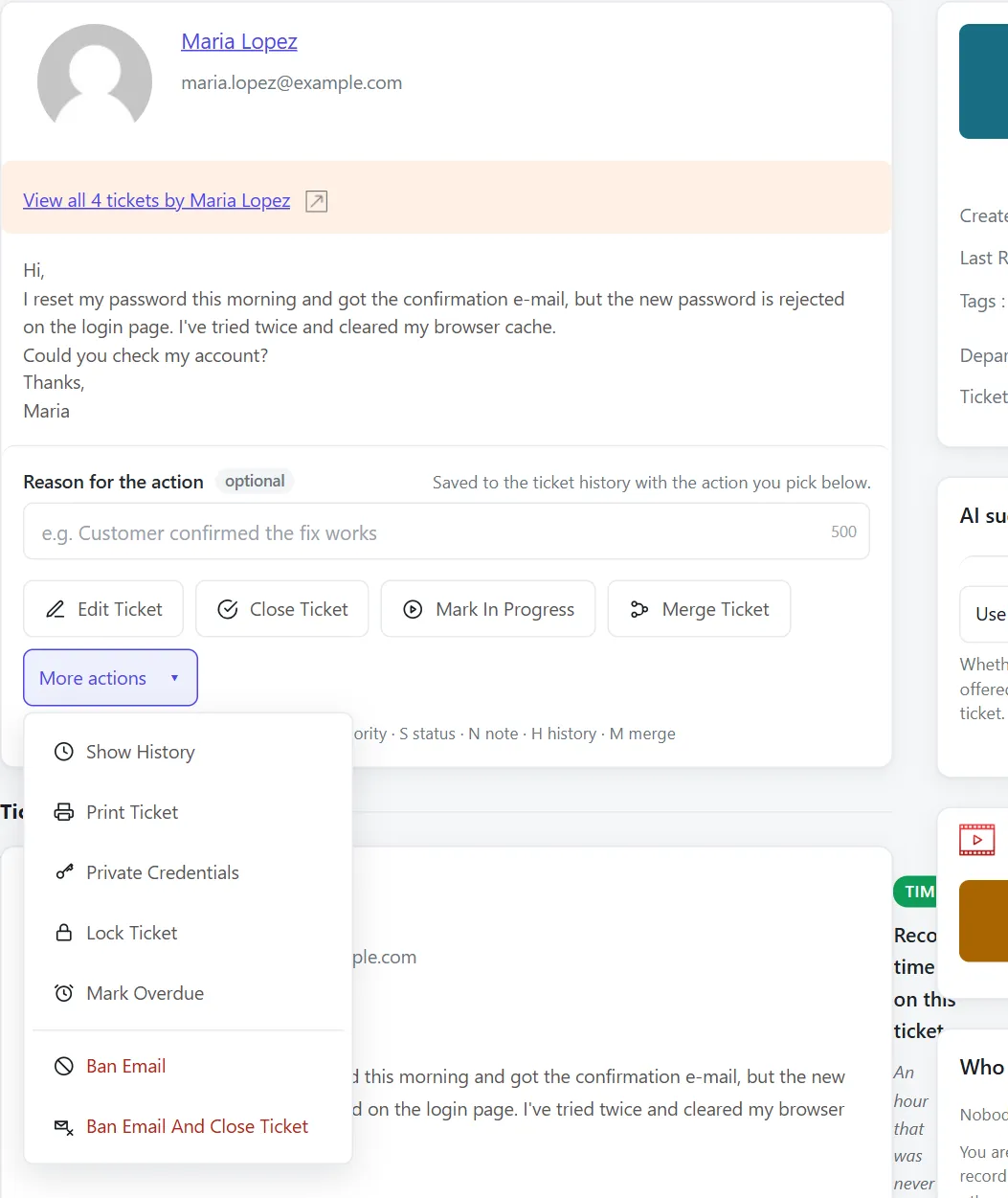
The ticket is flagged, the change is written to its history (“The ticket is marked as overdue by …”), and the overdue e-mail goes out. On a ticket that is already overdue the same place offers Unmark Overdue, which clears the flag without e-mailing anyone.
With the Agents & Teams pack, an agent needs the Mark Overdue permission in their role to do either. Without it they see “You are not allowed”.
Due dates
Section titled “Due dates”The ticket form your team uses has a Due Date field (agents and administrators only). Set a date and, once a day, the help desk flags the ticket overdue when that date has passed, as long as it is still open and not answered.
The queue can show a Due column with this date: click Columns above the list and add it. The Due column shows the date you typed, not service level due times; those are on the Service Levels screen under Due soon.
Each priority’s Ticket Overdue time
Section titled “Each priority’s Ticket Overdue time”Ticket Overdue on each priority (Help Desk → Ticket Setup → Priorities, edit a priority, under When it becomes overdue) is the older way of saying “late”. Give a number and Days or Hours. See Statuses and priorities.
Only enabled priorities are checked. A ticket of that priority is flagged overdue when it has waited that long for an answer from your team, counted from:
- when it was raised, while it is still New;
- its last reply, once a conversation has started and the customer is waiting on you.
It counts every hour of the week, and has one target only. Service level policies do this better: separate first-response and resolution targets, your working hours, pauses and a record of each promise.
The overdue e-mail
Section titled “The overdue e-mail”Who gets it is set under Help Desk → Configurations → Email Settings, on the row Ticket Marked As Overdue, with Enabled or Disabled for Admin, Agent (the assigned agent; needs Agents & Teams) and User (the customer). Activating the pack sets Admin and User to Enabled, unless it finds settings kept from an earlier Ticket Overdue add-on. See Who is notified.
The wording is the Mark Overdue template under Help Desk → Outgoing Email → Email Templates. See Email templates.
Coming off Ticket Overdue
Section titled “Coming off Ticket Overdue”If any priority has a Ticket Overdue time, the Service Levels screen shows a card at the bottom, Coming off Ticket Overdue. It writes those times out as policies that promise exactly the same, so you can move to service levels without changing what you promise on day one.
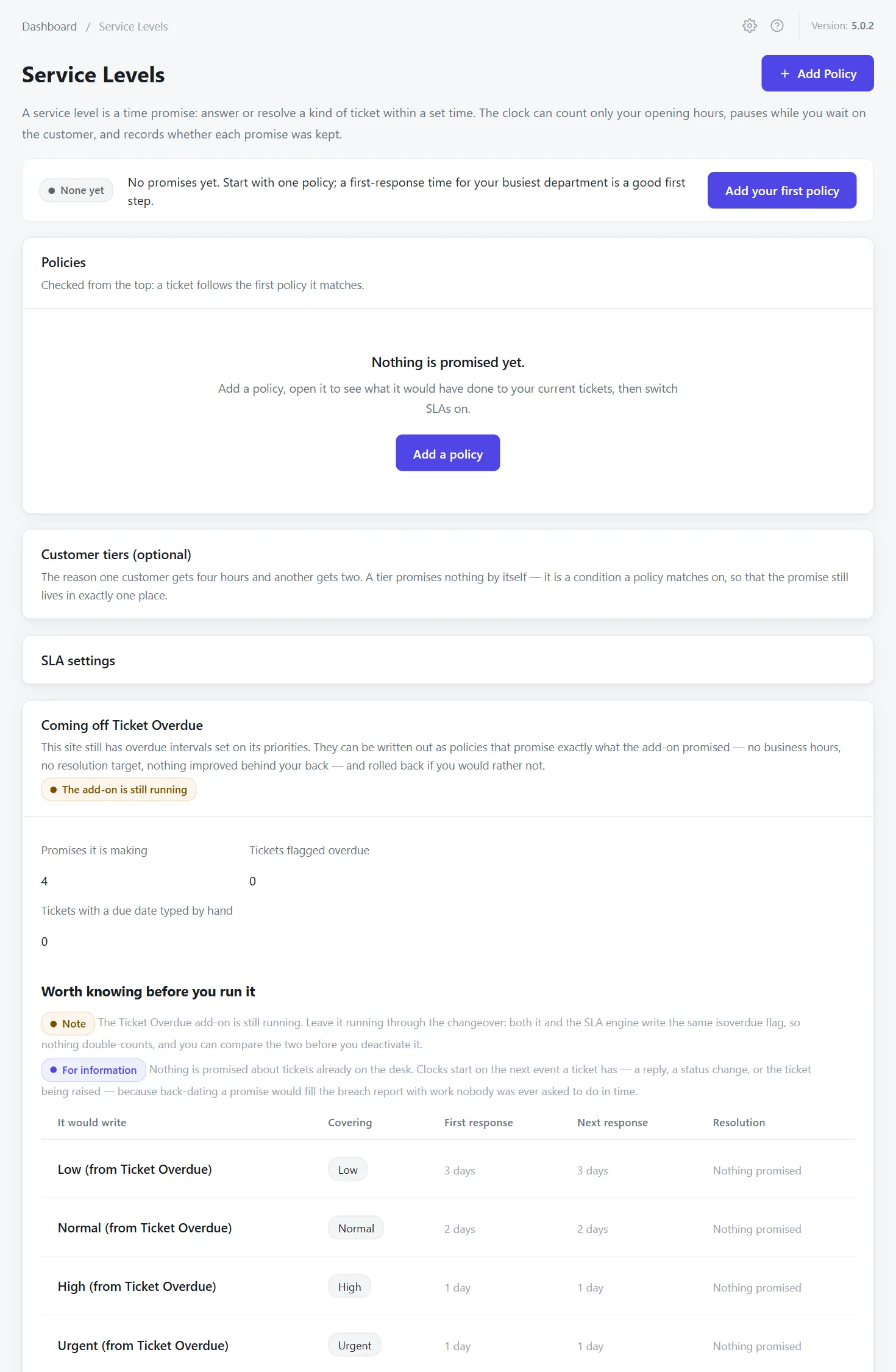
The card shows:
- Promises it is making (priorities with a time), Tickets flagged overdue and Tickets with a due date typed by hand.
- Worth knowing before you run it: notes marked Stop, Note or For information.
- It would write: one policy per priority, named for example “Urgent (from Ticket Overdue)”, covering that priority, with First response and Next response both set to the priority’s time and no Resolution. It counts 24/7, pauses on nothing and has no escalations. A policy for a disabled priority is written but not included.
Click Write these policies. They are written, and SLAs are switched on if they were off. Nothing is promised about tickets already on the desk, the priority times are left as they are, and tickets you flagged stay flagged. Due dates typed by hand keep working as before.
Once done, the card shows how many policies it wrote and Roll it back, which removes them again. A policy you have changed since (its name, targets, hours, pause statuses or escalations) is left alone and named in the message.