

The Inbox screen
Incoming Email → Inbox answers three questions: is mail coming in, is it landing on the right conversation, and is what you send getting there. The mailboxes themselves (address, host, password) stay on Email Piping; add one there first.
Only administrators can open this screen.
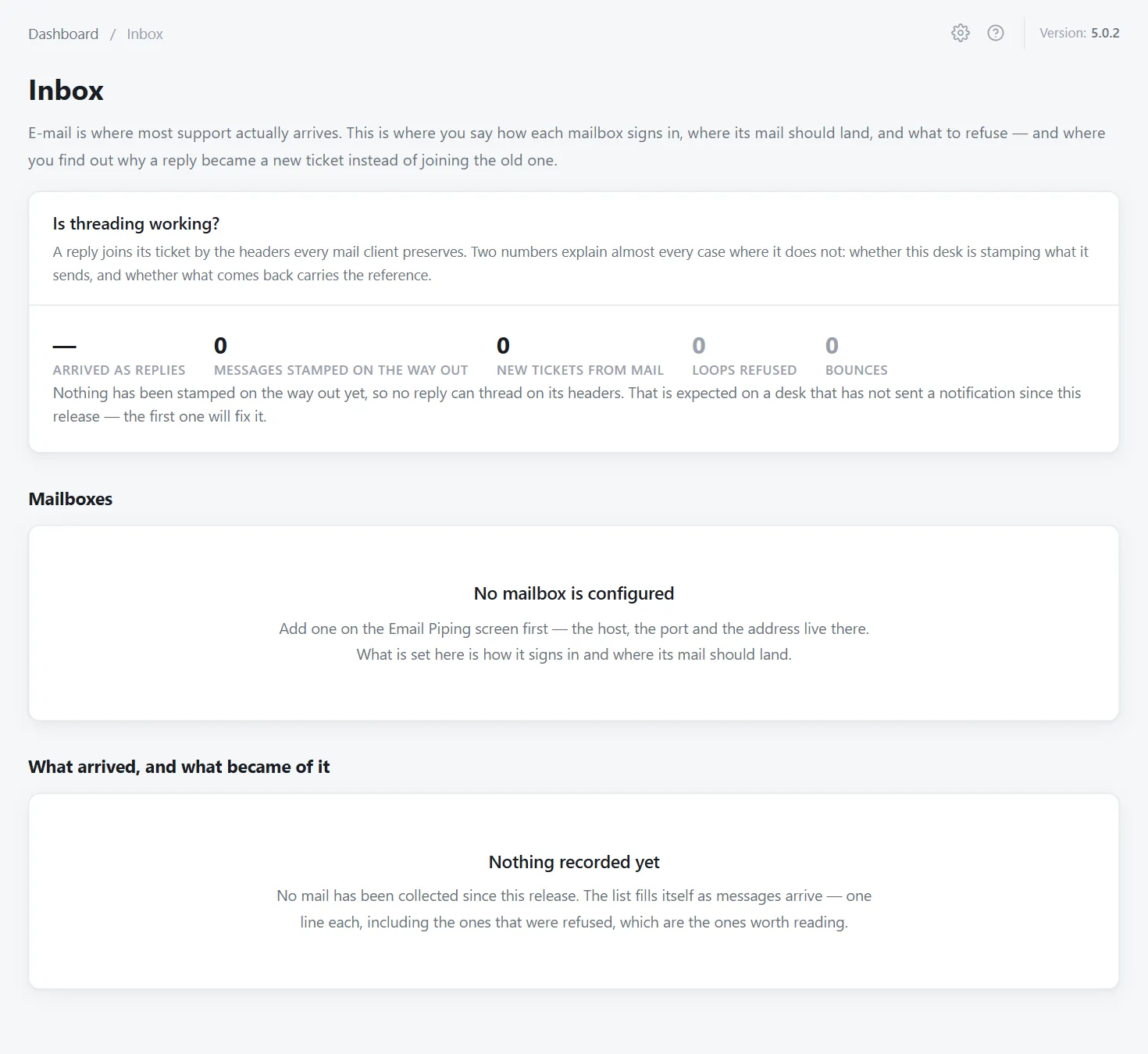
Is threading working?
Section titled “Is threading working?”The card at the top counts what collection has done:
| Number | What it counts |
|---|---|
| Arrived as replies | Of the messages from people, the share that joined an existing ticket. |
| Messages stamped on the way out | Notifications sent with an ID the help desk remembers against the ticket. Replies thread on these. |
| New tickets from mail | Messages that became new tickets. |
| Loops refused | Messages ignored as loops or automatic mail. |
| Bounces | Delivery failure reports. |
The sentence under the numbers reads them for you:
- “Nothing has been stamped on the way out yet, …”: no notification has been stamped, so no reply can thread on its headers.
- “Outgoing mail is being stamped and very little is coming back threaded. …”: fewer than 30% arrived as replies. Usually customers are replying to older notifications, or something between you and them rewrites the Message-ID.
- “Outgoing mail is being stamped, which is what lets a customer’s reply find its ticket.”
A notification is only stamped when its subject contains the ticket ID. See How a reply finds its ticket.
Mailboxes
Section titled “Mailboxes”Every mailbox from Email Piping, with what it Signs in with (a password, Google OAuth or Microsoft OAuth) and whether it is On. Click an address to open its settings below the table.
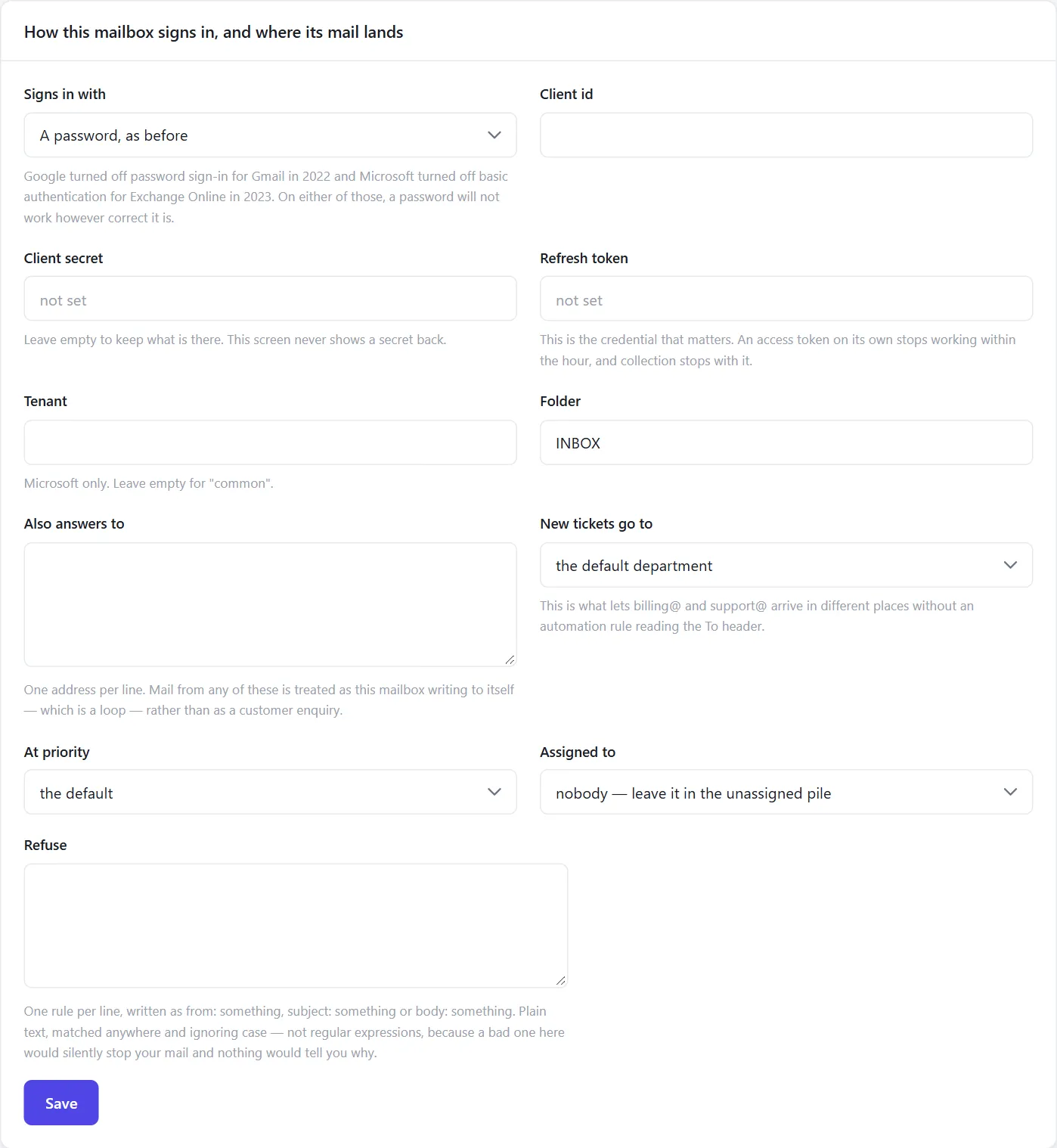
How a mailbox signs in
Section titled “How a mailbox signs in”| Field | What it does |
|---|---|
| Signs in with | A password, as before uses the password on Email Piping. Google OAuth (Gmail, Workspace) and Microsoft OAuth (Outlook, Microsoft 365) sign in with the three values below instead. |
| Client id | Your OAuth app’s client ID. |
| Client secret | Your OAuth app’s client secret. Never shown back; “kept” in the box means one is saved. |
| Refresh token | “This is the credential that matters.” The help desk uses it to get a fresh access token, which lasts an hour. Never shown back. |
| Tenant | Microsoft only. Your directory (tenant) ID or domain. Leave empty for common. |
A Google mailbox connects to imap.gmail.com and a Microsoft one to
outlook.office365.com, both on port 993, whatever Host Type says on Email
Piping. For Microsoft, the help desk asks for the scopes
https://outlook.office.com/IMAP.AccessAsUser.All and offline_access.
The help desk has no “Connect” button: you create the OAuth app with Google or Microsoft yourself, then paste its values here.
Saving with Client secret or Refresh token left empty keeps the saved one: “Saved. A secret left empty is kept as it was — this screen cannot show you one, so an empty box is never read as a deletion.”
Check Settings on Email Piping only tests passwords. For an OAuth mailbox, look at the collection log after the next run.
Where new tickets land
Section titled “Where new tickets land”| Field | What it does |
|---|---|
| Folder | The folder to read. INBOX if left empty. |
| Also answers to | Other addresses that deliver into this mailbox, one per line. Mail from any of them is treated as the mailbox writing to itself, a loop, rather than a customer. |
| New tickets go to | The department for new tickets, or the default department. “This is what lets billing@ and support@ arrive in different places.” |
| At priority | The priority for new tickets, or the default. |
| Assigned to | With Agents & Teams: an agent for every new ticket, or nobody — leave it in the unassigned pile. |
| Refuse | Rules for mail to drop. See below. |
Click Save.
Refuse rules
Section titled “Refuse rules”One rule per line, written as a field, a colon and some text:
| Rule | Refuses a message when |
|---|---|
from: something |
the From line contains the text |
subject: something |
the subject contains the text |
body: something |
the message body contains the text |
The text is matched anywhere and ignores case. It is plain text, not a regular expression. Lines with any other field, or with nothing after the colon, are ignored. For example:
from: noreply@subject: [SPAM]body: unsubscribe from this newsletterA refused message is marked read and recorded in the log as “A rule on this mailbox refused it: …” with the rule that matched.
Addresses in trouble
Section titled “Addresses in trouble”Shown only when there is something in it: addresses that have bounced or reported your mail as spam in the last 30 days, with What (bounced or reported as spam), How many and Last.
It is “Recorded, not enforced”: the help desk still writes to these addresses. Use the list to decide whether to contact the customer another way or correct their address.
An OAuth mailbox recognises delivery failure reports and spam complaints when they arrive. When the failure can be matched to the ticket whose message bounced, an internal note is added to that ticket, for example “Mail to … could not be delivered. The receiving server said: …”. Temporary failures, such as a full mailbox, are logged but don’t add a note.
What arrived
Section titled “What arrived”What arrived, and what became of it lists the latest 40 messages: When, From, Subject and What happened, with the reason underneath.

| What happened | Meaning |
|---|---|
| became a ticket | A new ticket was created. |
| joined its ticket | Added as a reply. |
| refused as a loop | Ignored as a loop or automatic mail. The reason says which check. |
| a delivery failure | A bounce. |
| a spam complaint | A recipient reported your mail as spam. |
| refused | A refuse rule, no usable sender address, a ticket the help desk wouldn’t create, or an attachment refused for its name. |
Password mailboxes only add loops to this list. For everything else they do, read the collection log on Email Health.