

Recurring tickets
Some work isn’t a customer asking for help: it’s the desk remembering to do something. A monthly backup check, a quarterly licence renewal, an annual audit. A schedule raises that ticket for you, so it isn’t missed the week somebody is on leave.
Automation & SLA → Recurring Tickets lists your schedules: Schedule, How often (with the time), Next ticket and Running. The strip above says how many are running, when the next ticket is due and how many tickets have been raised so far. Click Add Schedule, or Edit on a row.
The schedule form
Section titled “The schedule form”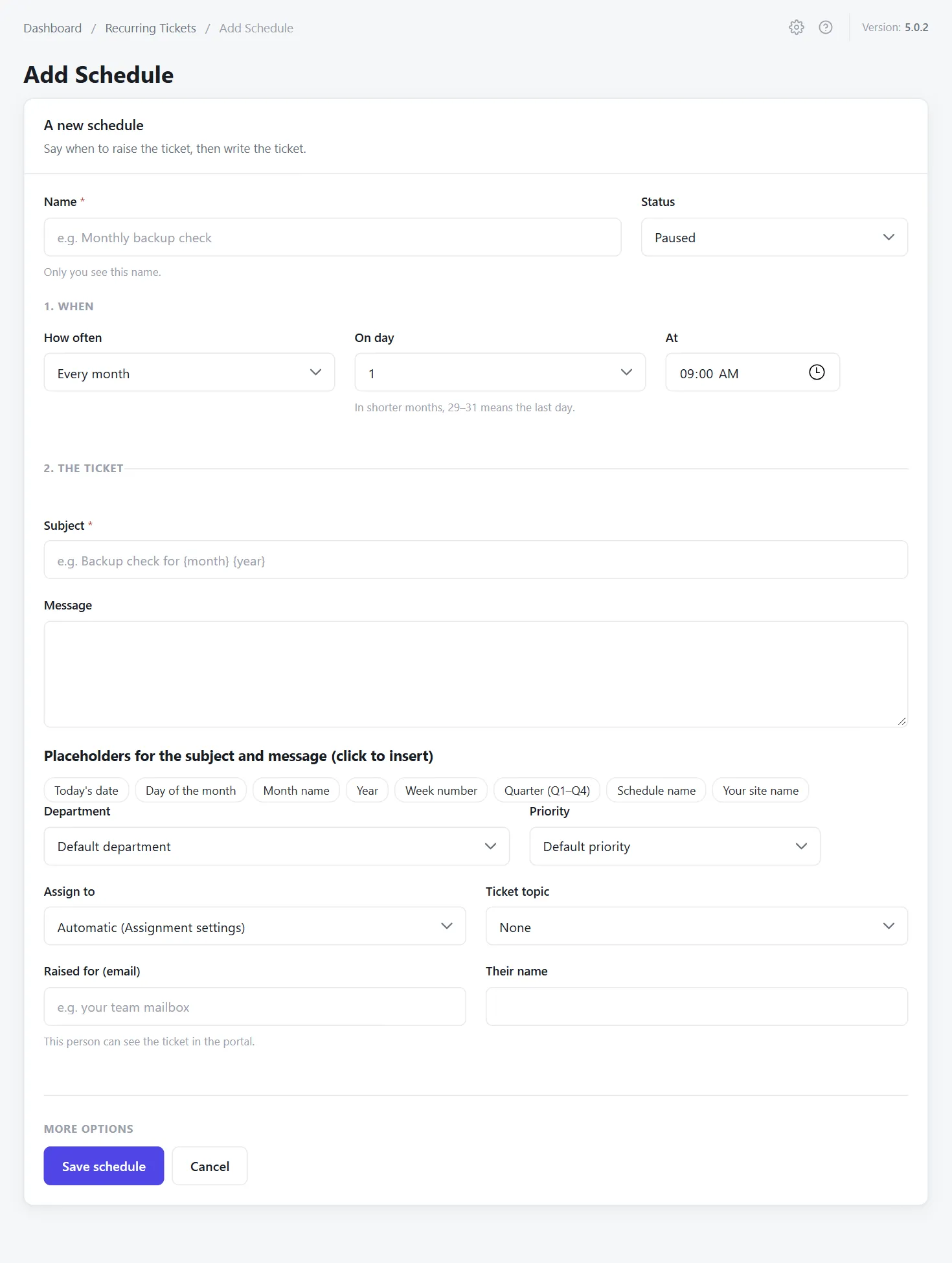
| Field | What it does | Default |
|---|---|---|
| Name | For you only; the ticket doesn’t show it (unless you use {schedule}). Up to 140 characters. |
Required |
| Status | Paused or Running. Nothing is raised while paused. | Paused |
1. When
Section titled “1. When”| Field | What it does | Default |
|---|---|---|
| How often | Every day, Every week, Every two weeks, Every month, Every three months, Every year or Every N days. | Every month |
| Every … days | For Every N days: 1 to 365. | 1 |
| On | For weekly and two-weekly schedules: the day of the week. | |
| On day | For monthly, three-monthly and yearly schedules: the day of the month, 1 to 31. In shorter months, 29–31 means the last day. | 1 |
| At | The time of day. | 09:00 |
When you edit a schedule, Next tickets shows the next five dates it will raise a ticket (Next tickets, once it is running while it is paused).
2. The ticket
Section titled “2. The ticket”| Field | What it does | Default |
|---|---|---|
| Subject | The ticket’s subject. Placeholders allowed. | Required |
| Message | The ticket’s message. Placeholders allowed; line breaks are kept. | Empty |
| Department | The ticket’s department. | Default department |
| Priority | The ticket’s priority. | Default priority |
| Assign to | An agent to assign it to (needs Agents & Teams). | Automatic (Assignment settings) |
| Ticket topic | The ticket’s help topic. | None |
| Product | Shown only if you have products. | None |
| Raised for (email) | Whose ticket it is: the person or mailbox the work is for, such as your team mailbox. | Required |
| Their name | The name on the ticket. Empty uses the e-mail address. | Empty |
More options
Section titled “More options”| Field | What it does | Default |
|---|---|---|
| Time zone | What At and the date placeholders mean. | The site’s own |
| Start date | No ticket before this date. | Empty (from now) |
| End date | No ticket after this date. | Empty (no end) |
| Stop after (tickets) | Stop after this many tickets. 0 = no limit. | 0 |
| Missed runs to catch up | If the site was asleep and several dates were missed, how many of the missed tickets to raise. 0 to 50; 0 acts as 1. | 1 |
| Send the usual “we have your ticket” email when it is raised | Ticked, the help desk sends its normal new-ticket e-mails. Unticked, no e-mail of any kind goes out while the ticket is raised and assigned. | Unticked |
Click Save schedule. Saving stops with a message if the name, subject or e-mail address is missing.
When an End date passes or Stop after is reached, the schedule switches itself to Paused at its next due time.
Placeholders
Section titled “Placeholders”Click a chip under Message to insert one into the subject or message. They are filled in when the ticket is raised, in the schedule’s time zone.
| Placeholder | Becomes | Example |
|---|---|---|
{date} |
Today’s date, in WordPress’s date format (Settings → General) | November 1, 2026 |
{day} |
Day of the month | 1 |
{month} |
Month name | November |
{year} |
Year | 2026 |
{week} |
Week number (ISO) | 44 |
{quarter} |
Quarter | Q4 |
{schedule} |
The schedule’s name | Monthly backup check |
{sitename} |
Your site name | Acme Support |
“Backup check for {month} {year}” becomes “Backup check for November 2026”.
When the ticket is raised
Section titled “When the ticket is raised”Schedules are checked once an hour, so a ticket due at 09:00 arrives with the first check after 09:00. If the check isn’t scheduled, the screen warns you; see Background jobs.
If the site was asleep and several dates went by, the schedule raises up to Missed runs to catch up tickets and moves on to the next future date. If it skipped some and has an agent in Assign to, that agent gets a notification saying how many were missed. The next date is always worked out from the schedule, not from when the last ticket happened to arrive, so a late ticket doesn’t shift the ones after it.
Changing how often, the day, time, time zone or start date works out a fresh next date. Changing only the ticket’s wording doesn’t move it. Switching a paused schedule back on whose next date has passed works out a new one rather than raising the missed ticket straight away.
What the raised ticket looks like
Section titled “What the raised ticket looks like”It is an ordinary ticket, raised through the same route as any other:
- It belongs to the Raised for address and name, with your subject and message (placeholders filled in), department, priority and topic.
- It counts as A ticket was raised: service level clocks start, automation rules see it, and automatic assignment runs if you use it.
- If Assign to names an agent, it is then assigned to them, with the reason “Raised by the recurring schedule “name”.” in its history.
Deleting a schedule leaves every ticket it raised.
Testing a schedule
Section titled “Testing a schedule”- Save the schedule and open it with Edit.
- Click Test: raise one now and confirm.
This raises one real ticket from the template straight away (“Raised as ticket #12. It did not count against this schedule and its next firing has not moved.”). It doesn’t count towards Stop after and works even while the schedule is paused. Close or delete the test ticket afterwards.
Delete schedule removes the schedule; the tickets it raised stay.