

Setup checklist
The Setup checklist shows what is left before your help desk is ready for real customers. Open it from Help Desk → Dashboard, then Setup in the plugin’s menu. The number beside Setup is how many items are still open.
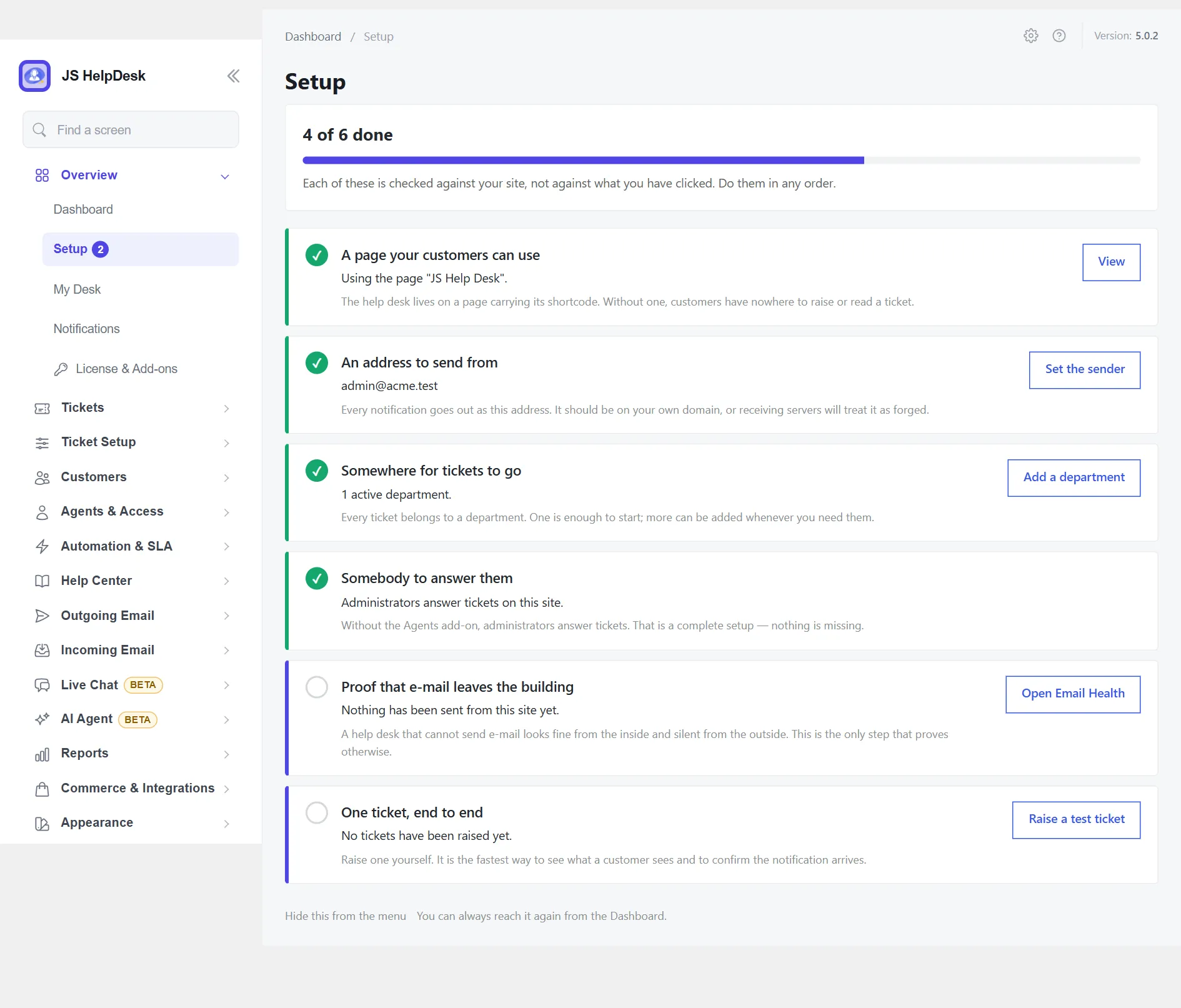
Each item is checked against your site every time you open the screen, not against what you have clicked. If you delete the help desk page later, its item turns back to open. You can do them in any order.
The six items
Section titled “The six items”1. A page your customers can use
Section titled “1. A page your customers can use”The customer portal lives on a page containing the [jssupportticket]
shortcode. The plugin creates one called JS Help Desk when you activate it,
so this item starts out done. Click View to open it.
If no published page has the shortcode, for example because the page was moved to the trash, the item offers Create the page. That restores the page, or creates a new one if it is gone.
2. An address to send from
Section titled “2. An address to send from”Every notification goes out from this address. It starts as your WordPress administration e-mail address. Click Set the sender to change it.
3. Somewhere for tickets to go
Section titled “3. Somewhere for tickets to go”Every ticket belongs to a department. The plugin creates one, Support, so this item starts out done. Use Add a department when you want more, such as Billing or Sales.
4. Somebody to answer them
Section titled “4. Somebody to answer them”With the free plugin, site administrators answer tickets, and this item is done from the start. With the Agents & Teams pack it asks you to add at least one agent.
5. Proof that e-mail leaves the building
Section titled “5. Proof that e-mail leaves the building”This is the only item that proves your customers will actually hear from you. Click Open Email Health. In the Send a test message box at the bottom of that screen, enter an address and click Send test.

Send the test to an address with a different provider from your own, for example a personal Gmail address if your site uses Microsoft 365. Delivery problems show up there.
The item is done once your mail service accepts the message. If it refuses it, Email Health explains why. Who sends your e-mail at the top of the screen tells you which plugin is in charge of your site’s mail.
6. One ticket, end to end
Section titled “6. One ticket, end to end”Raise a test ticket yourself. It is the quickest way to see what your customers see and to check that the notification arrives. Click Raise a test ticket, or follow Your first ticket to do it from the customer’s side.
Hiding the checklist
Section titled “Hiding the checklist”Once you are done, or if you would rather not see it, click Hide this from the menu at the bottom of the screen. You can still reach the checklist from the Dashboard.