

The Configurations screen
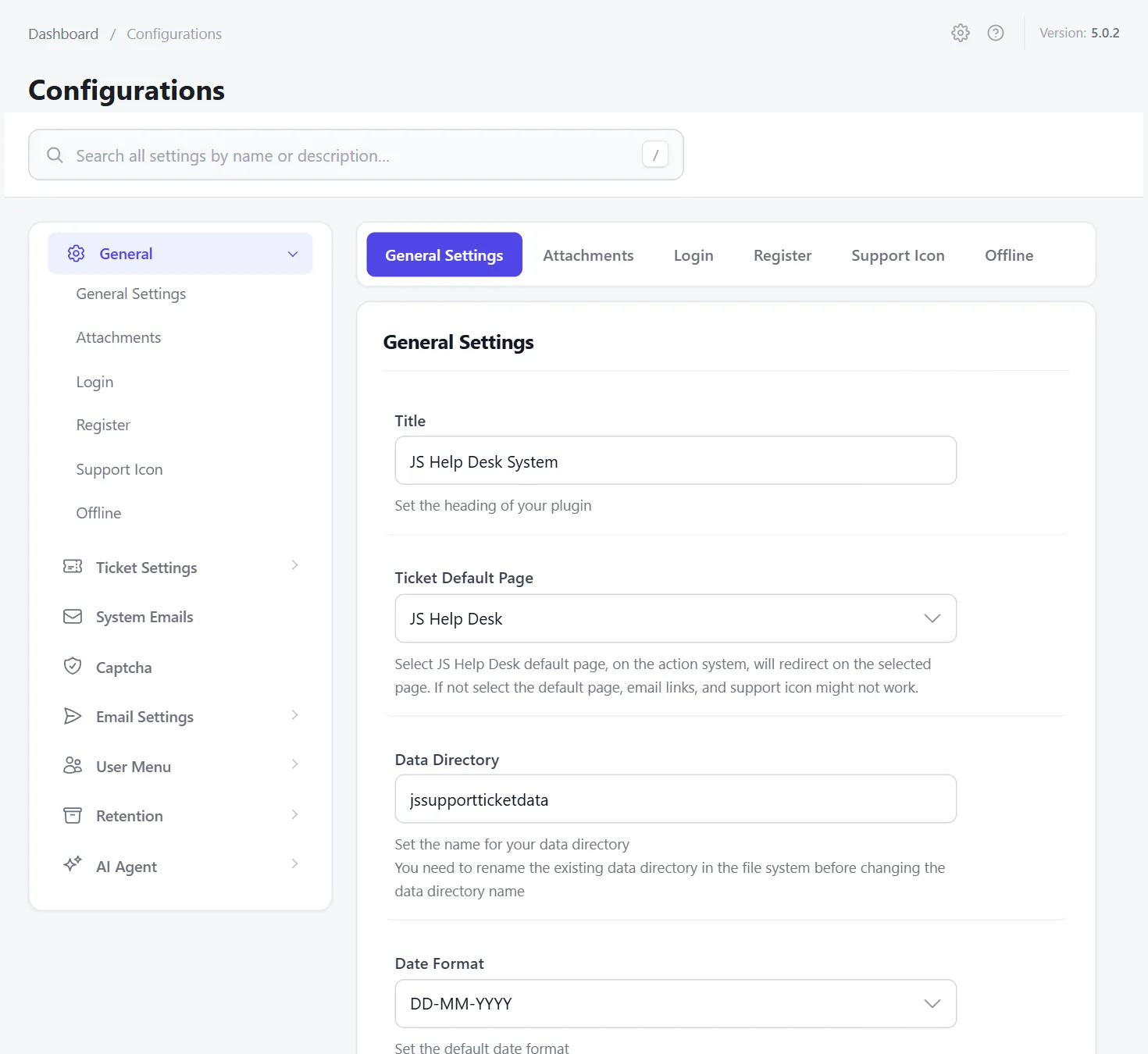
Most of the help desk’s behaviour is set on one screen: Help Desk → Configurations (also under System → Configurations in the plugin’s own menu).
The tabs
Section titled “The tabs”| Tab | What it covers | Page |
|---|---|---|
| General | The help desk’s title and page, dates, attachments, login and register links, the floating support icon, offline mode | General |
| Ticket Settings | Ticket IDs, limits per customer, reopening, what customers see on a ticket, the queue’s default order, visitor tickets | Ticket settings |
| System Emails | Which address sends notifications, and which receives the administrator’s copies | Sending address |
| Captcha | Spam protection on the visitor and registration forms, and submission limits | Spam protection |
| Email Settings | Which notification goes to whom | Who is notified |
| User Menu | Which links customers see in the portal | Portal menu |
| Retention | Deleting old attachments and closed tickets automatically | Retention |
| AI Agent | Only a pointer: AI settings live under AI Agent → Settings | AI Agent |
Click a tab to open it; the sub-links under it, and the row of links at the top of each tab, jump to a section. Switching tabs doesn’t reload the page, so nothing you have typed is lost. The add-on packs add more tabs, such as Agent Menu, Feedback and Email Piping.
Finding a setting
Section titled “Finding a setting”The search box at the top looks through every setting on every tab, by its
name and its description. Press / to jump to it.
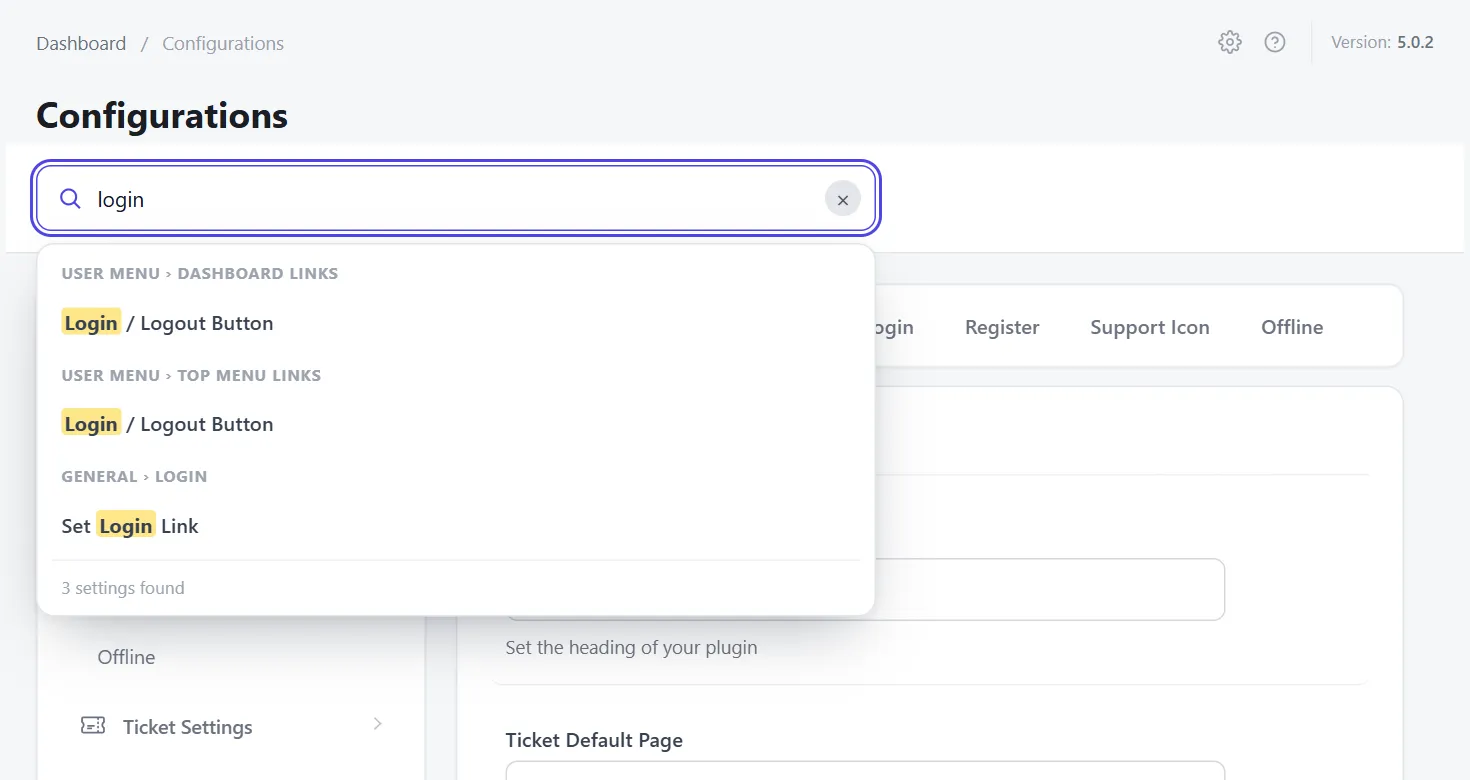
Type at least two letters, then click a result, or use the arrow keys and
Enter. The screen opens the right tab and briefly highlights the setting.
Saving
Section titled “Saving”The whole screen is one form with one Save Configurations button, in the bar along the bottom. It saves every tab at once, so you can change settings on several tabs and save once. A counter beside the button shows how many changes are not saved yet, and your browser warns you if you try to leave with unsaved changes.
After saving, the screen confirms “The configuration has been stored” and opens on the General tab.
Only administrators can change these settings. A few are checked as you save: the page size can’t be below 3, and the data directory must be a plain folder name that the server can write to.