

Quick setup
Right after activation, JS Help Desk opens a welcome screen with a short wizard. It asks for the handful of settings most sites want to change on day one. Every one of them can be changed later under Help Desk → Configurations, so there is no wrong answer.
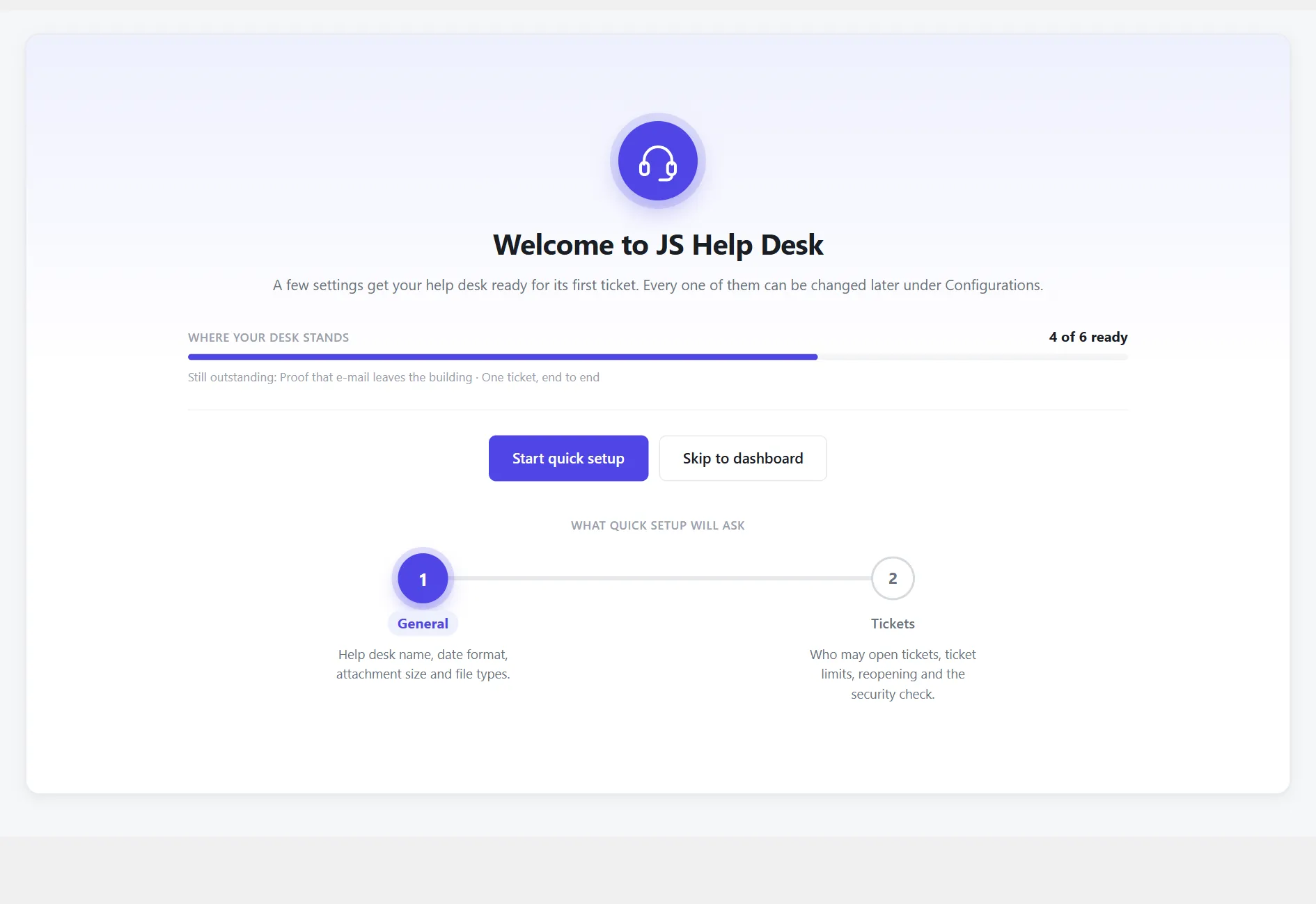
The bar under Where your desk stands is the same progress as the Setup checklist. On a new install it reads 4 of 6 ready: the last two items need you to send an e-mail and raise a ticket.
Click Start quick setup to begin, or Skip to dashboard to keep the
defaults. To come back to the wizard later, open
wp-admin/admin.php?page=postinstallation&jstlay=wellcomepage.
Step 1: General
Section titled “Step 1: General”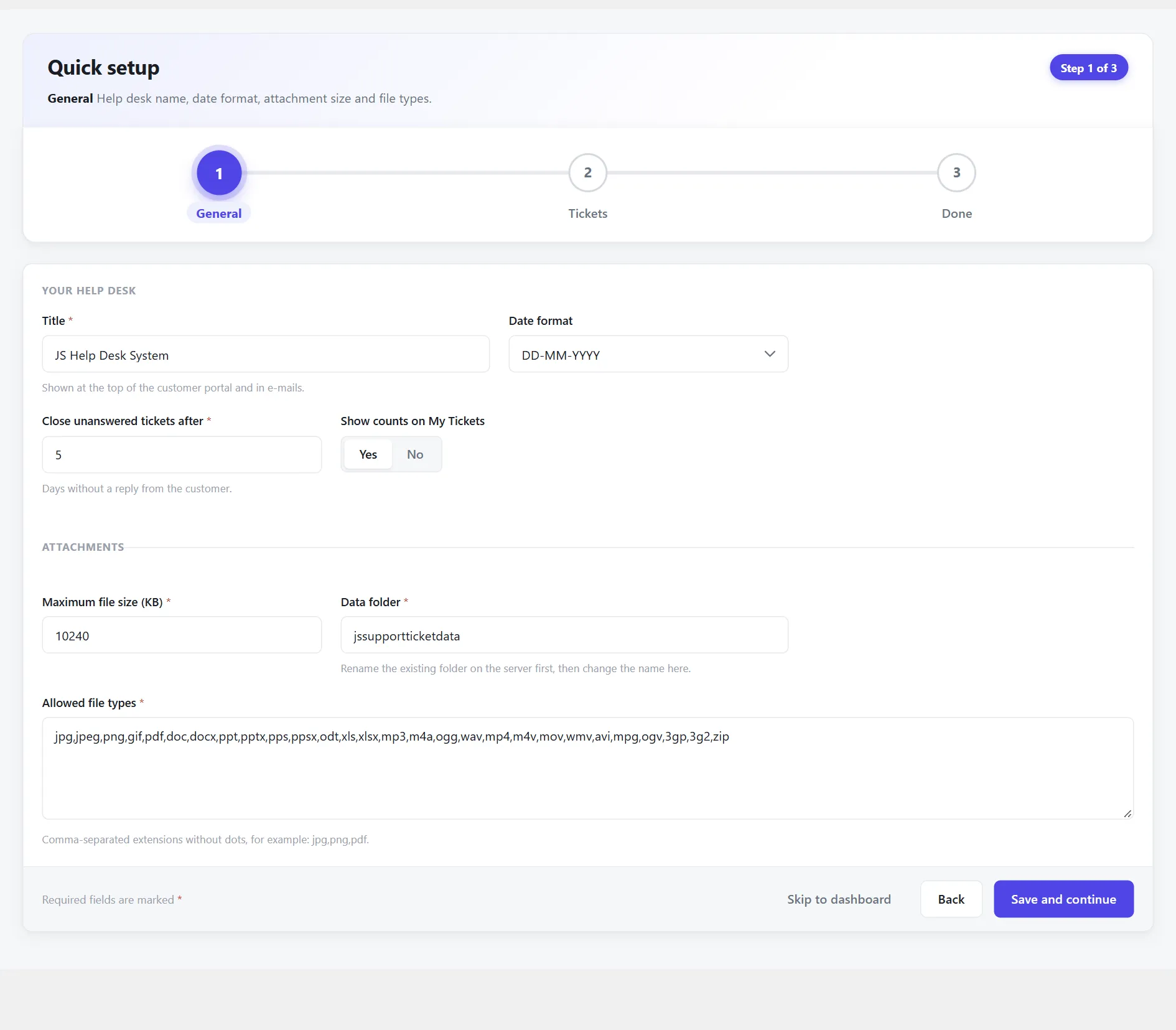
| Setting | What it does | Default |
|---|---|---|
| Title | The help desk’s name, shown at the top of the customer portal and in e-mails. | JS Help Desk System |
| Date format | How dates are written on tickets: DD-MM-YYYY, MM-DD-YYYY or YYYY-MM-DD. | DD-MM-YYYY |
| Close unanswered tickets after | Days without a reply from the customer before a ticket is closed automatically. | 5 |
| Show counts on My Tickets | Whether customers see how many tickets they have under each tab (Open, Closed, Answered, All). | Yes |
| Maximum file size (KB) | The largest attachment a customer can upload. | 10240 (10 MB) |
| Data folder | The folder attachments are stored in. To change it, rename the folder on the server first, then change the name here. | jssupportticketdata |
| Allowed file types | File extensions customers may attach, separated by commas, without dots. | Images, PDF, Office documents, audio, video and zip |
Click Save and continue.
Step 2: Tickets
Section titled “Step 2: Tickets”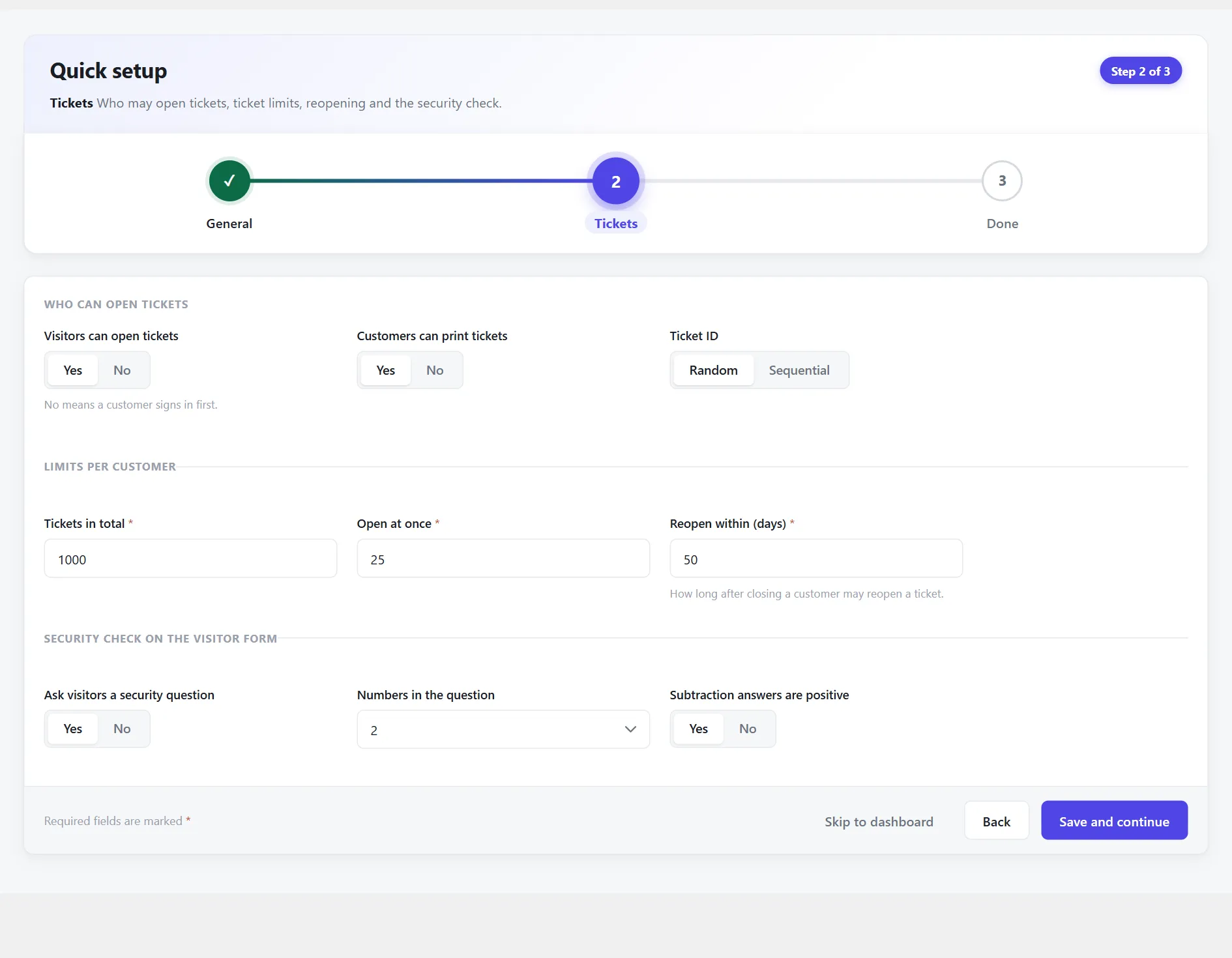
Who can open tickets
| Setting | What it does | Default |
|---|---|---|
| Visitors can open tickets | Yes lets people raise a ticket without an account, using only their name and e-mail address. No means a customer signs in first. | Yes |
| Customers can print tickets | Shows a Print button on the customer’s ticket. | Yes |
| Ticket ID | Random gives each ticket an ID such as QyNtBx9ZH. Sequential numbers them in order. |
Random |
Limits per customer
| Setting | What it does | Default |
|---|---|---|
| Tickets in total | The most tickets one customer can ever raise. | 1000 |
| Open at once | The most tickets one customer can have open at the same time. | 25 |
| Reopen within (days) | How long after a ticket closes the customer can still reopen it. | 50 |
Security check on the visitor form
The visitor form is protected from spam by a built-in check. It runs in the visitor’s browser without asking anything: the form shows Checking your browser… for a moment. Only a visitor whose browser has JavaScript turned off is asked a short sum instead, such as 7 + 4.
| Setting | What it does | Default |
|---|---|---|
| Ask visitors a security question | Turns the check on the visitor form on or off. Signed-in customers are never checked. | Yes |
| Numbers in the question | How many numbers the sum uses, for visitors without JavaScript. | 2 |
| Subtraction answers are positive | Makes sure a subtraction never has a negative answer. | Yes |
To use Cloudflare Turnstile, hCaptcha or Google reCAPTCHA instead, go to Help Desk → Configurations → Captcha after setup.
Click Save and continue.
Step 3: Done
Section titled “Step 3: Done”The last screen confirms Your settings are saved and links to the Setup checklist, which shows what is left to do before your first real ticket.