

Answering chats
Agents answer live chat from Live Chat → Conversations. The same screen is on the agents’ desk in the portal. For the settings and what visitors see, see Live chat.
Who can answer
Section titled “Who can answer”Only people on the agents list (Agents & Teams) whose agent record is switched on, and who are allowed to reply to tickets, can take chats. Being a WordPress administrator isn’t enough: an administrator who isn’t also an agent sees You are not set up to take chats. at the top of the screen and is never offered a conversation.
The Conversations screen
Section titled “The Conversations screen”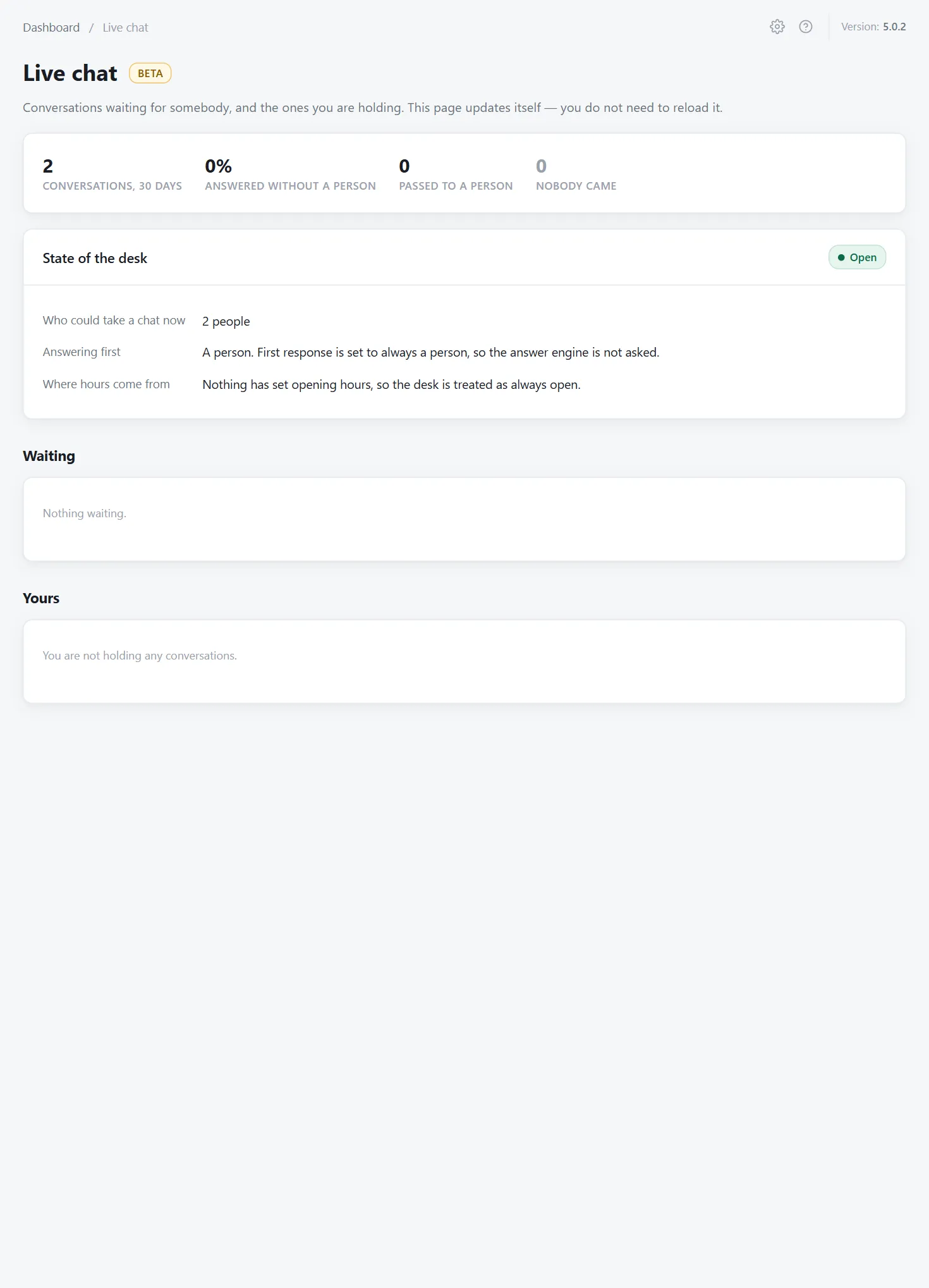
The page updates itself; you don’t need to reload it.
The figures cover conversations started in the last 30 days:
| Figure | Counts |
|---|---|
| Conversations, 30 days | Every conversation started. |
| Answered without a person | The share answered by the answer engine where nobody asked for a person. |
| Passed to a person | Conversations where a person was asked for, by the visitor or by the answer engine. |
| Nobody came | Conversations where a person was asked for and nobody took it. |
State of the desk shows Open, Outside hours or Widget switched off, then:
- Who could take a chat now: how many agents are available. Nobody means visitors are offered the message form instead of waiting.
- Answering first: the answer engine, or a person (with the reason the answer engine isn’t answering).
- Where hours come from: your team calendars, or Nothing has set opening hours, so the desk is treated as always open.
Waiting lists conversations where someone asked for a person and nobody has taken it yet, oldest first. Yours lists the ones you are holding. A conversation with something new since you last looked is marked New.
Nothing e-mails or notifies you about a waiting chat. On the agent desk, the chat item in the navigation shows a number: the chats waiting for a person plus your own chats with something new in them.
Taking and answering a chat
Section titled “Taking and answering a chat”-
In Waiting, click Take it. If someone else took it a moment before you, you see Somebody else took that one.
-
The visitor sees A person has joined the conversation. The conversation moves to Yours, and the answer engine stops replying in it.
-
Type in Reply and click Send. Enter sends; Shift+Enter starts a new line. The visitor sees your message straight away, labelled Agent.
Beside the conversation you can see the visitor’s Past tickets (the last five), and with WooCommerce support from the Commerce pack, their Orders and what they have Spent.
When you’re done, click End. To keep the conversation as a ticket first, click Keep as a ticket.
When a chat becomes a ticket
Section titled “When a chat becomes a ticket”A conversation becomes a ticket in three cases:
- An agent clicks Keep as a ticket.
- The visitor leaves a message through the message form.
- A person was asked for, nobody took it, the conversation ended, and Keep unanswered conversations as tickets is on.
The ticket is raised in the visitor’s name, with the conversation’s first message (up to 90 characters) as its subject and the whole transcript as its message, each line marked Customer, Agent, Automated assistant or as a system note. It goes through the same steps as any new ticket, so notifications, auto-assignment and service levels all apply. The conversation gets the line This conversation was kept as ticket # and the ticket’s number.
A conversation can only become a ticket if it has an e-mail address: a signed-in customer’s own address, or one the visitor typed. Otherwise you see No email address on this conversation, so it cannot become a ticket.
When a conversation ends
Section titled “When a conversation ends”A conversation ends when an agent clicks End, when the visitor leaves a message, or when nothing has been said in it for an hour (checked once an hour). A quiet conversation that was waiting for a person nobody came to ends as Nobody came.
History
Section titled “History”Live Chat → History lists finished conversations, newest first, 25 at a time. Newer and Older move through them.
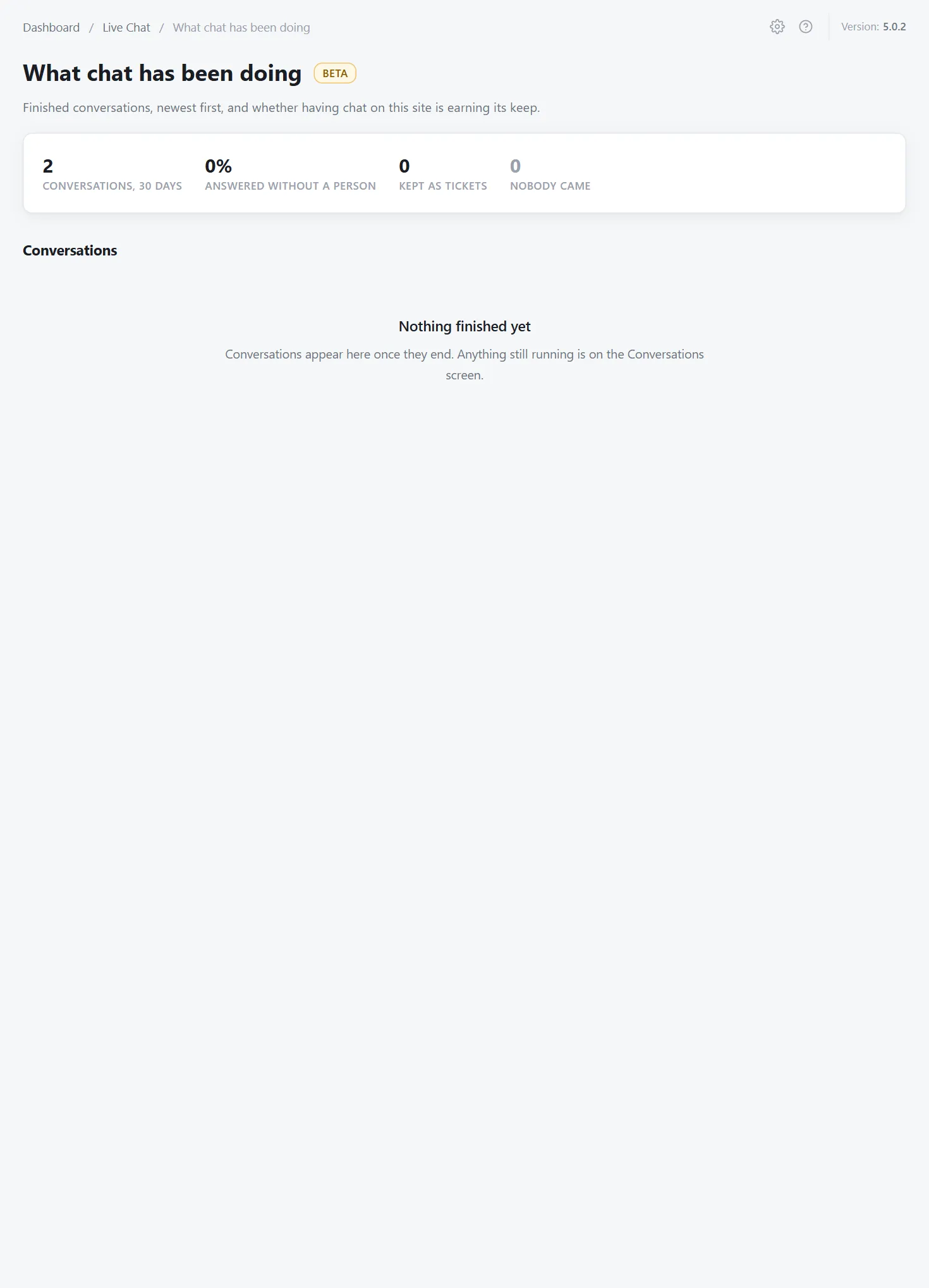
| Column | Shows |
|---|---|
| Who | The visitor’s name and e-mail address, or Guest. |
| How it ended | Nobody came, Passed to a person, Answered automatically or Left without asking. |
| Started | When the conversation began. |
| Ticket | The ticket it became, as a link, or none. |
The figures at the top add Kept as tickets. History doesn’t show transcripts; a conversation’s words are kept in its ticket, if it became one.
How long transcripts are kept
Section titled “How long transcripts are kept”Once an hour, conversations that ended more than Delete transcripts after (days) ago are deleted, messages and all. 0 keeps them for ever. This is separate from the ticket retention rule in Configurations → Retention, and a ticket made from a chat is kept or deleted under that rule, not this one.