

AI settings
AI Agent → Settings opens AI Agent Settings. It has up to six tabs:
Engine & key, What AI may do, Spending, Suggestions, and, with
the AI Agent pack, Written answers and Advanced. Each tab is its own
address (#AIEngine, #AISwitches, #AISpend and so on), so you can bookmark
one.
The screen holds several separate forms, each with its own save button. The three big ones are Save switches, Save engine and Save behaviour; the small cards on Spending and the Agents’ Translate button card have their own Save limits or Save. Saving one does not save the others.
What AI may do
Section titled “What AI may do”This tab decides whether anything may happen at all, and where data may go. Click Save switches when you are done.
The master switch
Section titled “The master switch”| Setting | Default | What it does |
|---|---|---|
| Allow this help desk to use AI | On | Off stops every AI feature at once: no lane is open, no engine is asked and no AI control is shown on any screen. Nothing is deleted, and switching it back on restores what was running. |
The master switch is saved after everything else on the form, so a save that fails part-way can never leave AI on with a half-finished setup behind it.
The three lanes
Section titled “The three lanes”| Setting | Default | What it does |
|---|---|---|
| On-site answers | On | Search over your own knowledge base, FAQs, canned responses, posts and past replies. Nothing leaves this server. |
| Local model | Off | Lets a model you run yourself be used. Ticket text reaches the address you configured, and nowhere else. |
| Hosted model | On | Lets Zywrap or Anthropic be used. Ticket text is sent to that provider over HTTPS. |
The engine you choose on Engine & key belongs to one lane. If that lane is off, the lane itself is marked Off, but your engine (Local model) needs it (with your engine’s name), and on Engine & key the engine shows Hosted model is switched off (or Local model is switched off) with a Turn it on link. Nothing is sent until the lane is on.
What is removed before anything is sent
Section titled “What is removed before anything is sent”Applies to the local lane as well as the hosted one: a model on your own hardware still writes a log file.
| Choice | What it removes |
|---|---|
| Credentials only (default) | Stored credentials and anything shaped like an API key or password. |
| Credentials and contact details | Also masks e-mail addresses, telephone numbers and IP addresses. |
| Strict | Also masks card-shaped numbers and long digit runs. Safest, and the most likely to lose a detail the answer needed. |
At every level, text such as password: hunter2 or api key = abc123 keeps its
label and loses its value, and common key formats are replaced with
[redacted key]. Credentials kept in the credential vault are never put in a
prompt at any level.
Choose Credentials and contact details if your customers often paste their details into tickets and you use a hosted model. Be aware the AI then cannot notice, for example, that the address in the message differs from the one on the account.
Reading new tickets as they arrive
Section titled “Reading new tickets as they arrive”A card of its own below the lanes, saved with the same Save switches button. Everything else the AI does starts with somebody pressing a button. These two do not: when on, every new ticket is sent to your engine as it arrives.
| Setting | Default | What it does |
|---|---|---|
| Suggest which department a new ticket belongs to, and how urgent it looks | Off | Reads each new ticket and suggests a department and urgency. |
| Read how the customer sounds, and flag the ones about to give up | Off | Reads the customer’s mood and flags those who seem about to give up. The mood is only shown to agents. |
These are mostly suggestions. A department or priority the customer chose is never changed and nobody is reassigned. If the customer left the department or priority empty, the AI’s reading fills it in, and the ticket history says the AI did it. Each run costs one short request and appears on Usage & Cost as Reading new tickets (routing and mood).
Engine & key
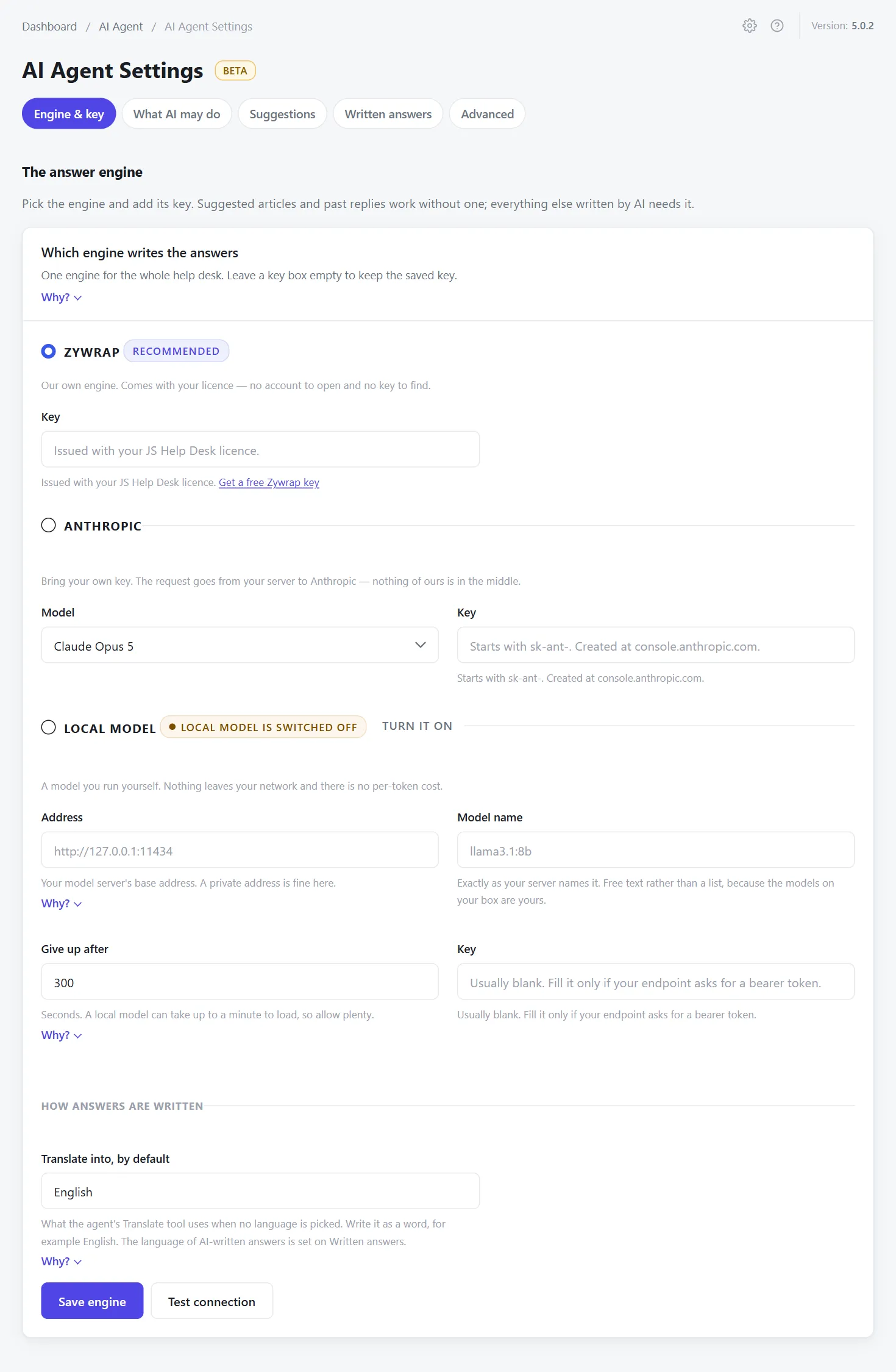
Section titled “Engine & key”Choose Which engine writes the answers: one engine for the whole help desk. The Copilot, written answers and automatic replies all use it. The chosen engine is marked In use when it works, or Chosen, not working when something is still missing.
| Setting | Default | What it does |
|---|---|---|
| Engine | Zywrap | Zywrap, Anthropic or Local model. See Engines for what each needs. |
| Key (per engine) | Empty | The engine’s key. The box is always shown empty: leave it empty to keep the stored key. Forget it deletes a stored key. |
| Model (Anthropic only) | Claude Haiku 5.5 | Which model to ask. Each choice shows its price per million tokens. |
| Address, Model name, Give up after (Local model only) | Empty, empty, 300 | Where your model server is, the model’s name and how long to wait. |
When an engine’s lane is off, its card also has a box, Also switch on the “Hosted model” lane when I save with this engine chosen (with that engine’s lane). It is already ticked for the engine currently chosen. With it ticked, Save engine opens that one lane and changes nothing else. It only works while the master switch is on.
Click Save engine, then Test connection. The test sends a one-word request through the same path a real answer takes, lane check and redaction included. A good result shows Answered in 412 ms beside the card title and a Last test line; a failure shows Last test failed and the reason.
Without the AI Agent pack, the Agents’ Translate button card (see Written answers) is on this tab instead.
Spending
Section titled “Spending”Caps on what AI may spend, and the engine to try when the main one cannot answer. What was actually spent is on Usage & Cost, which shows these settings with a Change in Settings link back here.
Spending limits
Section titled “Spending limits”| Limit | What it does | Default |
|---|---|---|
| Spend per day ($) | Stops calls on your own key once today’s spend reaches it. | 0 (no limit) |
| Spend per month ($) | The same, for the calendar month. | 0 (no limit) |
| Requests per day | Stops all model calls, on any engine, once reached. | 0 (no limit) |
| Requests per ticket | The most model calls one ticket may ever use, on any engine. | 0 (no limit) |
| E-mail the site administrator at 80% of a limit, and again when it is reached | Sends to the address in Settings → General, once per limit per period. | On |
Money limits only govern your own key: requests included with your licence, and requests to your own hardware, are never stopped by a budget. The request limits count every engine, so they still work on a model nobody has priced. Changing a limit clears earlier warnings. Click Save limits.
When a limit stops a call, the feature says so, for example “The daily AI budget of $5.00 has been spent.”
When the engine cannot answer
Section titled “When the engine cannot answer”Try this engine instead picks a second engine, or Nothing — report the failure. Click Save.
The spare is tried only when the main engine is unreachable, rate limited, overloaded or over budget. A local model here keeps the desk answering once the month’s budget is spent. It is never tried for a rejected key, an unknown model or a refusal from the model, which would fail the same way and be charged twice. The spare must itself be set up and allowed by your lanes.
Cost of each reply
Section titled “Cost of each reply”With the pack.
| Setting | Default | What it does |
|---|---|---|
| Token budget per reply | 1500 | Most tokens of your content sent with one reply, 200 to 8000. This is what controls cost: the weakest passages are dropped first. |
Click Save on this card. It saves only this field.
Suggestions
Section titled “Suggestions”Shown on the ticket form while a customer types, so they can find the answer without opening a ticket. This tab works without the pack. Test a question opens the retrieval console on Knowledge Sources.
| Setting | Default | What it does |
|---|---|---|
| Show suggestions | Yes | Search your content as the customer types and offer matching answers. |
| Start searching after | 15 | Characters typed across the subject and message before searching begins (1 to 200). It then searches 0.8 seconds after the customer stops typing. |
| Search these | The approved sources present on your site | Shows which sources are approved. You change them on Knowledge Sources, not here. |
| How many to show | 5 | Most suggestions in total, from all sources together, 1 to 10. Weak matches are left out, so fewer may show. |
| Record what was shown (pack) | Yes | Tracks which suggestions customers saw and opened. Set it to No and the Unanswered Questions list stops collecting too. |
Canned responses are only suggested to customers when the saved reply has Also suggest this to customers ticked.
Written answers
Section titled “Written answers”With the pack. The written answer on the ticket form and the automatic replies. Who gets automatic replies, and when, is set on Rules. If AI is not working, a warning at the top gives the same reason as the status line, says “Nothing on this tab will run until it is fixed.” and links to the fix.
| Setting | Default | What it does |
|---|---|---|
| Write an answer on the ticket form | No | Show a short written answer above the suggested links, based only on the content that was found. |
| Passages for the ticket-form answer | 3 | How many matching passages the AI may use for that answer, 1 to 8. |
| Passages for automatic replies | 4 | How many pieces of your content the AI may be shown when replying to a ticket, 1 to 8. |
How the AI writes
Section titled “How the AI writes”Tone and language for every answer the AI writes for a customer: on the ticket form and in automatic replies.
| Setting | Default | What it does |
|---|---|---|
| Tone | Professional | Professional, Friendly, Concise or Empathetic. |
| Answer language | The customer’s own language (recommended) | Reply in whichever language the customer wrote in, or always in one language picked from the list (English, Arabic, Chinese, Dutch, French, German and others). A language typed into this box before 5.0.3 that is not on the list stays as its own choice. |
These, and the settings above them, are saved with Save behaviour.
Agents’ Translate button
Section titled “Agents’ Translate button”For agents inside a ticket. Customers never see it.
| Setting | Default | What it does |
|---|---|---|
| Translate into, by default | English | What the agent’s Translate tool uses when no language is picked. Write it as a word, for example English. This is not the language of answers written for customers; that is Answer language above. |
Click Save on this card. It saves only this box.
Advanced
Section titled “Advanced”With the pack. How strictly the AI sticks to your content. Ask a real question on Set up before and after changing anything here.
| Setting | Default | What it does |
|---|---|---|
| Where answers may come from | Only answer from my content (recommended) | Also Prefer my content, allow drafts without it and Let the AI answer freely (not recommended). Answering freely is how an AI invents steps that do not exist. |
| Match needed for a suggestion | 25 | How much of the question (10 to 100) a page must cover to be suggested. Loose is fine: a customer can ignore a poor suggestion. |
| Match needed for a reply | 50 | The same, for content the AI may state as fact (20 to 100). Keep it above the suggestion value. |
| Require sources | Yes | Reject replies that cite nothing, or cite something they were not given. |
| Minimum grounding overlap | 65 | Share of a reply’s specifics (button names, menu paths, time limits) that must appear in your content, 0 to 100. A reply below it is held as a draft instead of being sent. |
Passage sizes (rarely changed) opens four more:
| Setting | Default | What it does |
|---|---|---|
| Largest passage (characters) | 6000 | Largest passage taken from one document, 1000 to 20000. |
| Prefer variety | 70 | 30 to 100. Lower values skip passages that repeat each other. |
| Passage size | 900 | Characters per indexed passage, 300 to 2400. |
| Passage overlap | 150 | Characters shared by neighbouring passages. |
Click Save behaviour to save Suggestions, Written answers (except the Agents’ Translate button card) and Advanced together.
Who may change these
Section titled “Who may change these”Only administrators (WordPress users who can manage options) can open any AI Agent screen. Every switch, lane, redaction and engine change is recorded in the Audit journal with who made it and when.