

Automatic answers
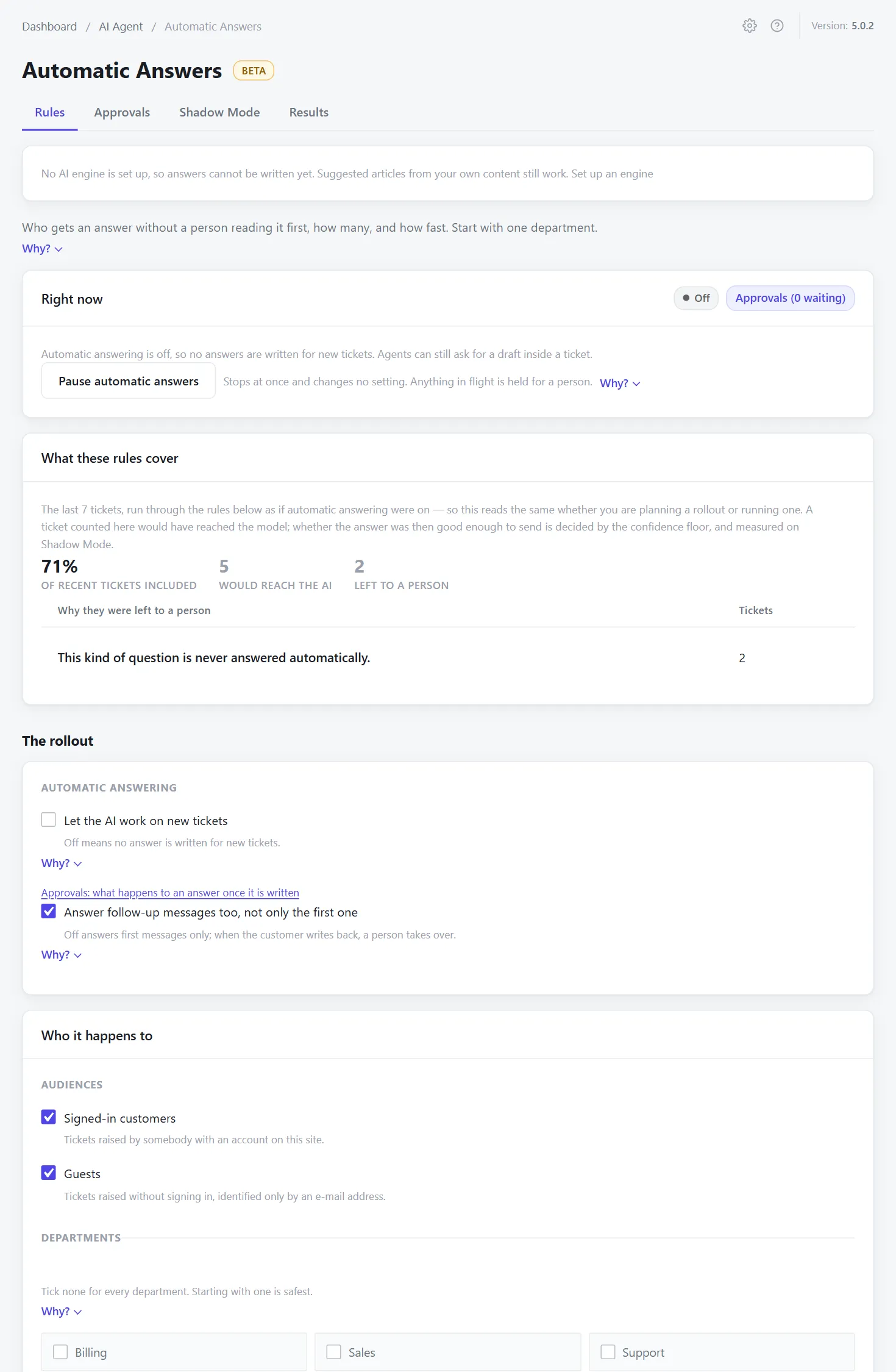
With the AI Agent pack, the AI can write an answer to a new ticket from your approved content and, if you allow it, send that answer without a person reading it first. The rules live under AI Agent → Automatic answers → Rules. Only WordPress administrators can save them.
Pausing and resuming
Section titled “Pausing and resuming”What automatic answers are doing right now is on the status line at the top of every AI screen, for example AI is answering customers automatically. While they are on, it has a Pause automatic answers button; while they are paused, it says Automatic answers are paused. with a Resume button. The Approvals tab shows how many answers are waiting for a person.
Pause automatic answers stops everything at once and changes no setting, so Resume restores exactly what was running. Answers that were in flight when you paused stay on Approvals; resuming does not release them.
What these rules cover
Section titled “What these rules cover”This band runs your last 50 tickets through the rules below, as if automatic answering were on, and shows Of recent tickets included, Would reach the AI and Left to a person. A table then lists Why they were left to a person, with a count per reason. Use it to see what a rule change really means before you save it. Whether an answer would actually be good enough to send is a separate question, answered on Shadow Mode.
The rollout
Section titled “The rollout”| Setting | What it does | Default |
|---|---|---|
| Let the AI work on new tickets | The main switch for automatic answers. Off means nothing is written for new tickets at all. Agents can still use the Copilot. | Off |
| Answer follow-up messages too, not only the first one | Off answers first messages only: when the customer writes back, a person takes over. | On |
To have answers written but never sent, leave the first switch on and set Approvals to Never send, only propose. Under the switches the screen names the current approval choice, for example “Once an answer is written: Always ask a person first.”, with a Change it on Approvals link.
Whatever you choose, automation stands down for good on a ticket once an agent or administrator has replied to it. It also never answers a reply that came in by e-mail, or one of its own.
Who it happens to
Section titled “Who it happens to”| Setting | What it does | Default |
|---|---|---|
| Audiences | Signed-in customers (tickets raised by someone with an account) and Guests (raised without signing in). Untick one to leave it to people. | Both |
| Departments | Tick the departments it may answer. Tick none to include every department. | None (all) |
| Never answer these customers | Addresses and domains, one per line. An address matches exactly. A domain such as acme.com or @acme.com also matches its subdomains. A word with no dot matches any address containing it. |
Empty |
| Never answer if it mentions | Words, separated by commas or one per line. A ticket containing any of them always goes to a person. | — |
| Channels a person must answer | Shown only when customers reach you more than one way. Tick a channel to keep automatic answers off it. | None ticked |
| Signed as | The name customers see on automatic replies and on suggested answers on the ticket form. | AI Assistant |
Start with one department: the one whose answers are already written down.
A ticket raised without a department counts as your default department, and the screen says so under Departments: “A ticket sent without a department counts as Support, your default department.” If you have ticked departments and there is no default department, it warns instead that tickets sent without a department are not answered; set a default under Departments, or tick no department. A ticket raised without a department is also checked again once ticket reading gives it one.
Questions it never answers
Section titled “Questions it never answers”Your Never answer if it mentions words are added to a list built into the plugin, never used instead of it. Emptying the box does not weaken it. The built-in list covers money, law, identity and credentials, for example “refund”, “chargeback”, “cancel”, “lawyer”, “delete my account”, “gdpr request”, “api key”, “credentials” and “change my card”.
A word or phrase matches where a word starts, and may run on: “cancel” also catches “cancelling” and “refund” catches “refunds”. It never matches inside another word, so “liable” does not catch “reliable”.
A message shorter than 15 characters is also never answered: it is too short to hold a question.
How often, and how fast
Section titled “How often, and how fast”| Setting | What it does | Default |
|---|---|---|
| Minimum confidence to send | The AI scores each answer from 1 to 100. Only an answer at or above this number may be sent on its own. It only applies while Approvals is set to Send when it is confident enough; otherwise the box says “Not used right now”. | 85 |
| Automatic answers per ticket | The most automatic answers one ticket can receive, from 0 to 20. Answers a person approved count too. | 2 |
| Send | Straight away, or after 1, 2, 5, 10, 15 or 30 minutes. A delay gives an agent time to reach the ticket first. | Straight away |
“Straight away” still happens in the background, a few seconds after the ticket is saved, so the customer’s form returns at once.
When an answer may not be sent
Section titled “When an answer may not be sent”When an answer is held back, choose what happens on the ticket:
- Leave a draft on the ticket (default): the agent opening the ticket finds the answer already written and can send, edit or discard it. The draft does not count as a reply: the ticket is not marked as replied and nobody is e-mailed. See A draft left by automatic answers.
- Nothing on the ticket: the answer is kept on the Approvals screen only.
Click Save. Changes take effect on the next ticket, and answers already being written are checked against the new rules again before anything is sent.
What decides whether an answer goes out
Section titled “What decides whether an answer goes out”For each ticket that passes the rules above, in this order:
-
The ticket’s channel is checked against Channels a person must answer.
-
The AI searches your approved content. If a message of several sentences finds nothing, it searches once more on the subject and the sentences that ask a question (or the last sentence, when none does), so a greeting and a long story don’t drown the question. That second search only runs when it still has at least three words found in your content. If nothing is relevant enough and grounding requires content, it stops here and the question is added to Unanswered Questions.
-
The engine writes an answer with a confidence score and the sources it used. If citations are required and they don’t check out, or the answer is not supported well enough by its sources, the confidence is set to zero.
-
The answer is recorded on Approvals, and the site’s rules decide: it is held if AI was switched off, if the question is one it never answers, if automatic answers were paused, if the ticket reached its answer limit, or if Approvals is set to ask a person or only propose. Otherwise it is sent when its confidence reaches Minimum confidence to send.
What the customer sees
Section titled “What the customer sees”A sent answer is posted as a reply under the Signed as name. Under it, the customer sees:
- “This answer was written automatically from our documentation. Reply to this ticket and a person will pick it up.”
- A sentence about how sure it is: “This closely matches something in our documentation.” (85 or more), “This is our best match, but it may not cover your exact case.” (60 to 84), or “We are not certain this answers your question.”
- This answer was written from: and the titles of the sources, linked where they have an address.
- A link: This did not answer my question - pass it to a person.
When the customer clicks the link, the ticket is reopened if the answer had closed it, put back among unanswered tickets, and any answer still waiting for it on Approvals is rejected. Where ticket history is available, it records Person requested, and the question is noted on Unanswered Questions. The customer is told “Thank you - your ticket has been passed to a member of our team.”
If you need to undo it
Section titled “If you need to undo it”The screen ends with a folded card, If you need to undo it. Click it to see the ways back, fastest first:
| Step | What it does | What it does not fix |
|---|---|---|
| Pause automatic answers | One click. Nothing is written or sent; in-flight answers are held. Settings are untouched. | Answers already sent. |
| Require a person to approve every answer | On Approvals, choose Always ask a person first. Answers are still written, but stop at a person. | Answers already sent. |
| Withdraw an answer that went out | On Approvals, Withdraw strikes the reply through on the ticket and reopens the ticket if the answer closed it. | The customer already has the e-mail. Consider sending a correction. |
| Switch AI off for the whole site | The master switch. Nothing talks to a model on any lane. | Answers already sent. |