

Categories
A category is the shelf an article, an FAQ, a download or an announcement sits on. One set of categories serves all four, and each category says which of them it holds. Customers browse by category in the portal.
The category list
Section titled “The category list”Help Center → Categories lists every category, with sub-categories indented
under their parent (shown as |--).
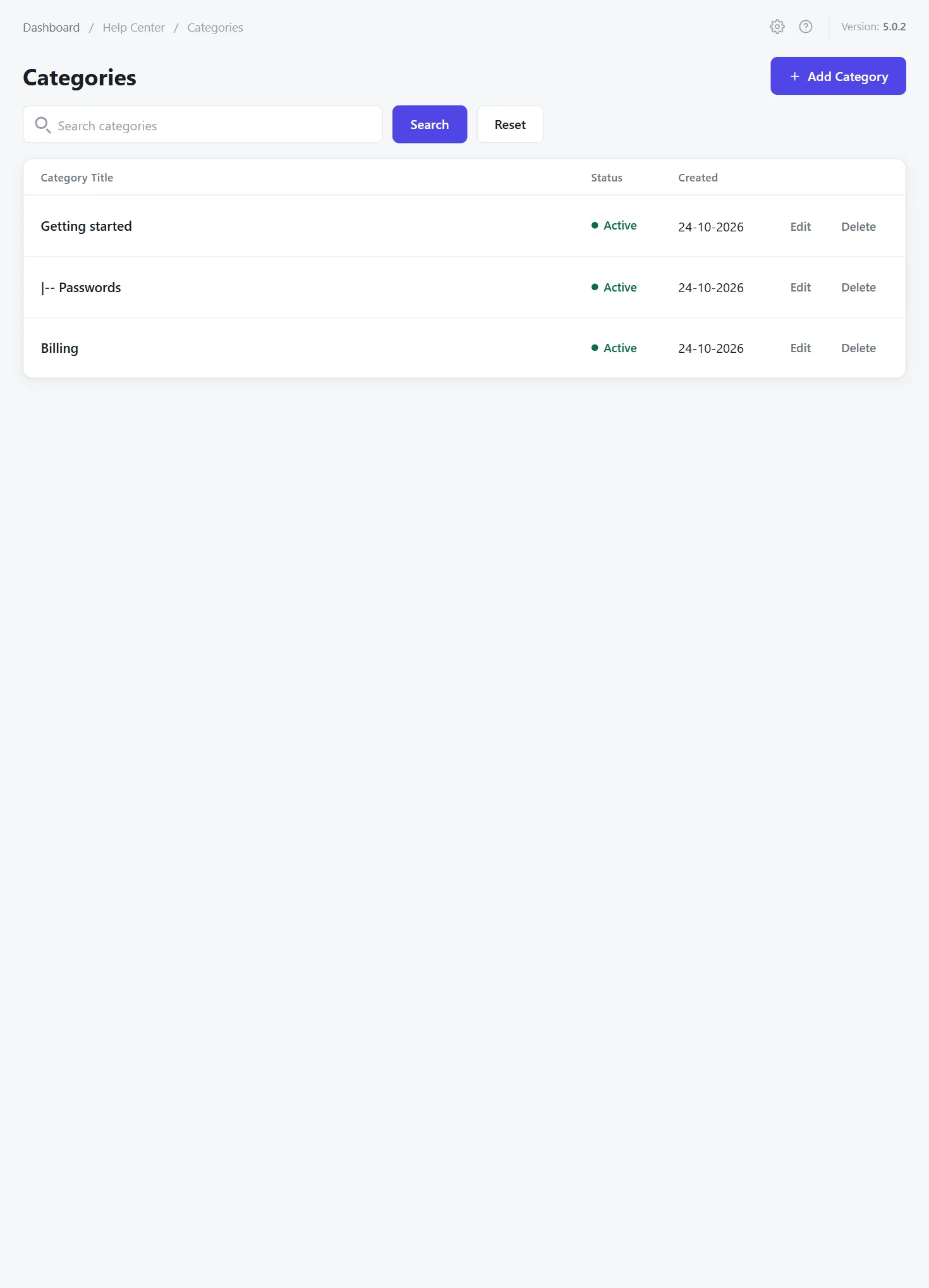
| Column | What it shows |
|---|---|
| Category Title | The name. Click it to edit. |
| Status | Active or Disabled. Click it to switch. |
| Created | When the category was added. |
Type in Search categories and click Search to find a category by part of its name. Reset clears the search.
Adding a category
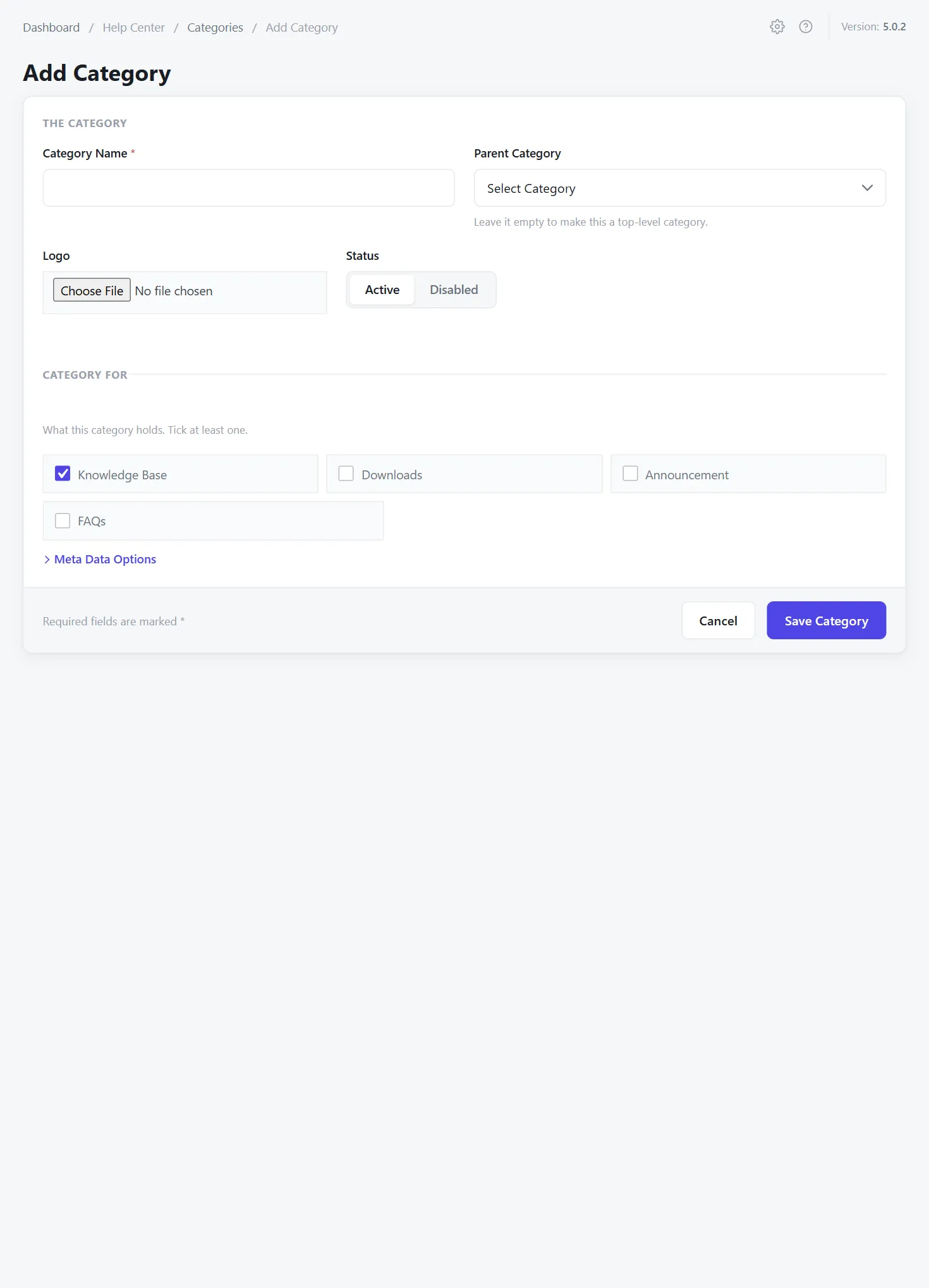
Section titled “Adding a category”Click Add Category. Fill in the form and click Save Category.
The category
Section titled “The category”| Field | What it does | Default |
|---|---|---|
| Category Name | The name customers see. Required. | |
| Parent Category | Puts this category inside another one. Leave it empty to make a top-level category. | Empty |
| Logo | An image shown beside the category in the portal. Without one, the portal shows a standard icon. The file must be one of the types allowed under Configurations → General → File Extension. | None |
| Status | Disabled takes the category out of the portal’s category lists and out of the category menus on every form. | Active |
Category For
Section titled “Category For”What this category holds. Tick at least one: if you tick none, the form says “Please select at least one category for” and won’t save.
| Box | What it does |
|---|---|
| Knowledge Base | The category can hold articles. Ticked by default on a new category. |
| Downloads | The category can hold downloads. |
| Announcement | The category can hold announcements. |
| FAQs | The category can hold FAQs. |
A category only appears in the Category menu of the matching form, and on the matching page in the portal. For example, a category with only FAQs ticked isn’t offered when you write an article.
Meta Data Options
Section titled “Meta Data Options”Click Meta Data Options to unfold two search-engine fields.
| Field | What it does |
|---|---|
| Meta Description | The sentence a search engine shows under the title. |
| Meta Keywords | Keywords for the category. Customers’ Search Keywords box in the portal also matches against these. |
Nesting categories
Section titled “Nesting categories”Pick a Parent Category to put one category inside another. You can nest as deep as you like.
When you pick a parent, the Category For boxes change to match the parent’s. Adjust them if you need to.
If you tick a box the parent doesn’t have, a message says “The parent category does not have this type. Would you like to add this type to Parent Category?”
- No unticks the box again.
- Yes adds that type to the parent and the categories above it.
If you untick a box on a category whose sub-category still has it, the message “Child category has this type, You cannot unmark it.” appears. Untick it on the sub-category first.
In the portal, a top-level category’s page lists its sub-categories, and the knowledge base’s front page shows up to four sub-categories under each top-level category when the pointer is over it. See What customers see.
Editing, disabling and deleting
Section titled “Editing, disabling and deleting”- Edit opens the same form. Choosing a new Logo replaces the old one.
- Click the Status in the list to switch between Active and Disabled. A disabled category disappears from the portal’s category lists and from the forms’ category menus. Articles already in it are still listed in the portal’s article list.
- Delete asks you to confirm, then removes the category and its logo. A category that still has sub-categories, articles, FAQs, downloads or announcements can’t be deleted: you see “The category in use cannot be deleting”. Move or delete what’s in it first.