Envato purchase codes
If you sell on Envato Market (ThemeForest, CodeCanyon), the Commerce pack can ask customers for their purchase code and check it with Envato when they submit. A code that Envato doesn’t recognise, or that is for an item that isn’t yours, stops the ticket.
Setting it up
Section titled “Setting it up”-
Make an API token. Go to System → Configurations → Envato Validation. Under API Key, the link Click here to generate an api key opens Envato’s token page (build.envato.com). Create a personal token on the Envato account that sells your items, and copy it.
-
Fill in the settings. Paste the token into API Key. Under Product ID, list the Envato item IDs you give support for, separated by commas, for example
1234567, 7654321. Choose License Mandatory (see below). Click Save Configurations.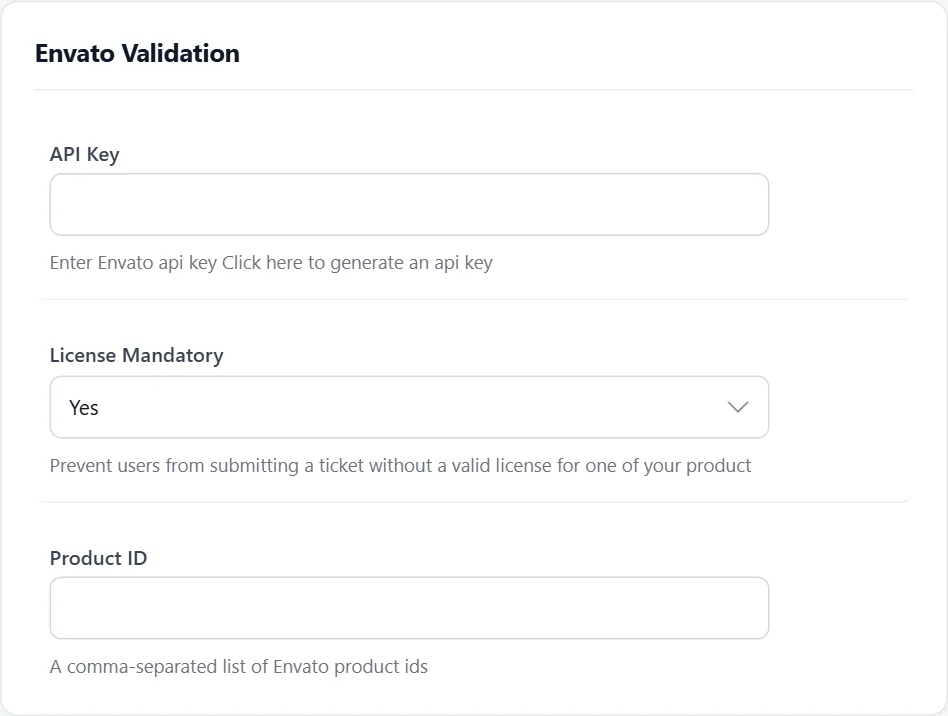
-
Put the question on the form. Go to Ticket Setup → Forms. Find Envato Purchase Code: it is switched off on a new install. Turn on User published, and Visitor published if visitors can raise tickets. To make a code compulsory, turn on Required as well. Click Save the form.
-
Try it. Open the new-ticket form in the portal, enter a real purchase code for one of your items and submit. Then try a made-up code: the form should refuse it with “No purchase found with that code”.
The settings
Section titled “The settings”| Setting | Default | What it does |
|---|---|---|
| API Key | Empty | Your Envato personal token. The help desk sends it to Envato to look the code up. |
| License Mandatory | Yes | Described as “Prevent users from submitting a ticket without a valid license for one of your product”. In this version it doesn’t make the code compulsory on its own: a ticket with an empty box is accepted unless the question is Required on the form. Leave it on Yes and use Required. |
| Product ID | Empty | “A comma-separated list of Envato product ids”. Only codes for these items are accepted. |
What the customer experiences
Section titled “What the customer experiences”A customer types their purchase code into Envato Purchase Code and submits. The help desk asks Envato about the code:
- Envato finds the sale, and it is for one of your items: the ticket is created and the purchase details are stored with it.
- Envato doesn’t find it, the item isn’t in Product ID, or Envato can’t be reached: the ticket is not created, and the customer sees “No purchase found with that code”. What they typed is kept so they can correct it.
Whether an empty box is allowed depends on the form: with Required off, a customer can leave it empty and the ticket is created without a code. Any code that is entered is always checked. Tickets that arrive by e-mail are never checked.
When a customer later opens a ticket whose support period has ended, the portal shows “Support for this Envato license has expired”. The ticket still works as normal.
On the ticket
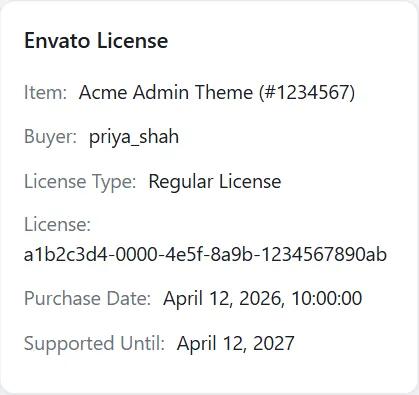
Section titled “On the ticket”In WordPress, a ticket with a checked code shows an Envato License box below the ticket’s details:
| Line | From Envato |
|---|---|
| Item | The item’s name and ID. |
| Buyer | The buyer, as Envato names them. |
| License Type | The licence Envato says was bought. |
| License | The purchase code. |
| Purchase Date | Shows the support end date, not the purchase date. See the note below. |
| Supported Until | When the buyer’s support period ends. |