

Raise a ticket
- Open the help desk and click Submit Ticket in the top menu (or Create New Ticket on the dashboard).
- Fill in the form. Questions marked with an asterisk (*) must be answered.
- Add any files that help explain the problem. See Attachments.
- Tick any terms you are asked to agree to.
- Click Submit Ticket.
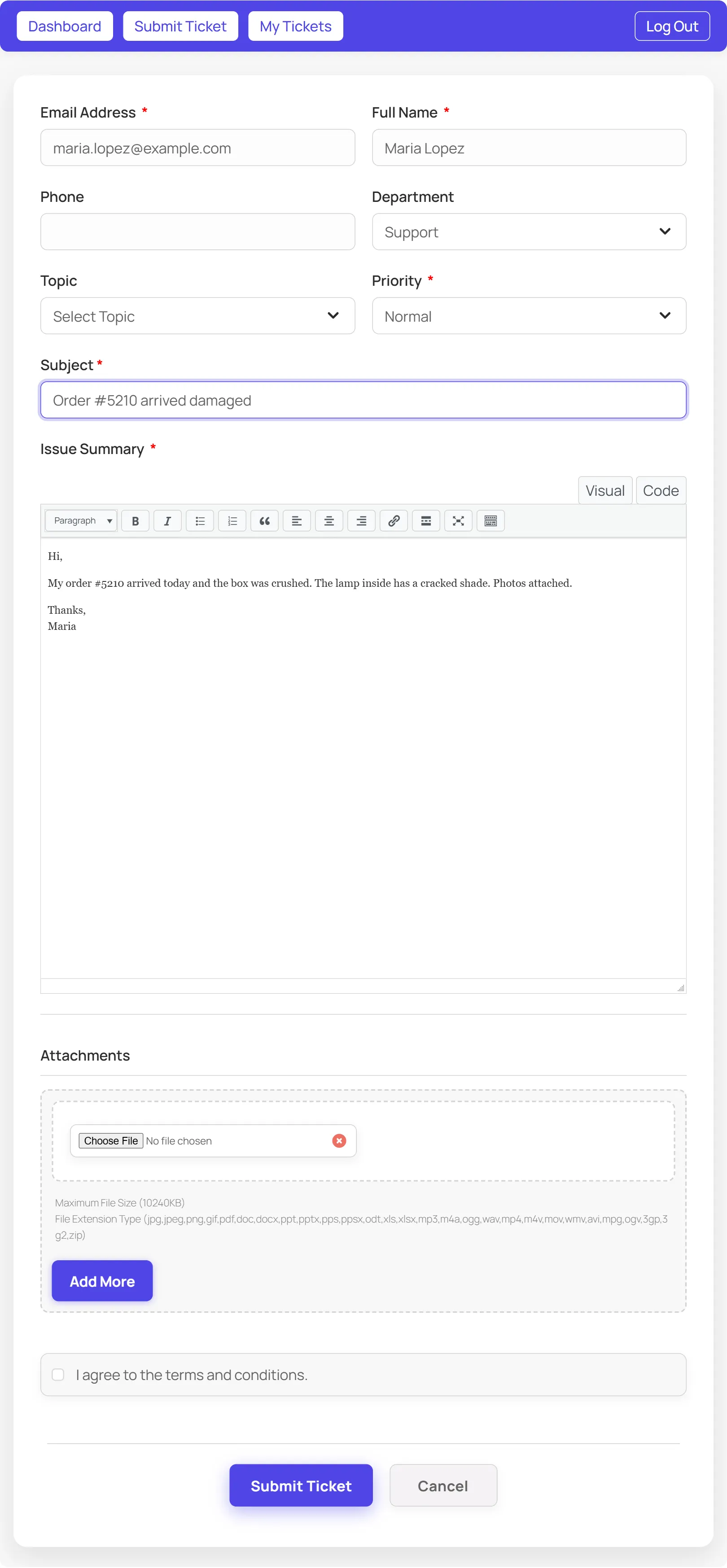
The form
Section titled “The form”The questions depend on the site, but usually include:
| Question | What to put |
|---|---|
| Email Address and Full Name | Where the team should write to you. If you are signed in, these are filled in from your account. |
| Department | Which team should handle it, for example Billing or Sales. |
| Topic | What the ticket is about. Choosing one can fill in the department and priority for you; you can still change them. |
| Priority | How urgent it is for you. |
| Subject | A short line that sums up the problem. |
| Issue Summary | The details: what you were doing, what you expected, what happened instead, and any order or account numbers. |
The site may ask other questions too, and some appear only when an earlier answer calls for them.
Suggested Answers. As you type your subject and message, the form may show answers that match. A Quick answer shows its first lines; click Show answer to read all of it. If one solves your problem, click Yes, this solved my issue! and you don’t need to send the ticket.
Security check. If you are not signed in, the form checks that a person is filling it in. Usually this happens by itself, with “Checking your browser…”; on some sites you are asked to tick a box or solve a puzzle.
Attachments
Section titled “Attachments”Under the attachments question you can see the largest file allowed and the file types accepted, for example “Maximum File Size (10240KB)” and “File Extension Type (jpg,jpeg,png,…)”. Click Add More for another file. There is a limit to how many files you can attach at once; going over it shows “File upload limit exceeds”.
A file that is too large, of a type that isn’t allowed, or that looks unsafe (for example a picture that contains program code) is left off. Your ticket is still sent, and a message names the file that wasn’t attached and why. Shrink it, or save it in another format, and attach it to a reply.
Only you and the support team can open your attachments.
After you send it
Section titled “After you send it”If you are signed in, you are taken to My Tickets, where your new ticket is listed. You are also sent an e-mail confirming it.
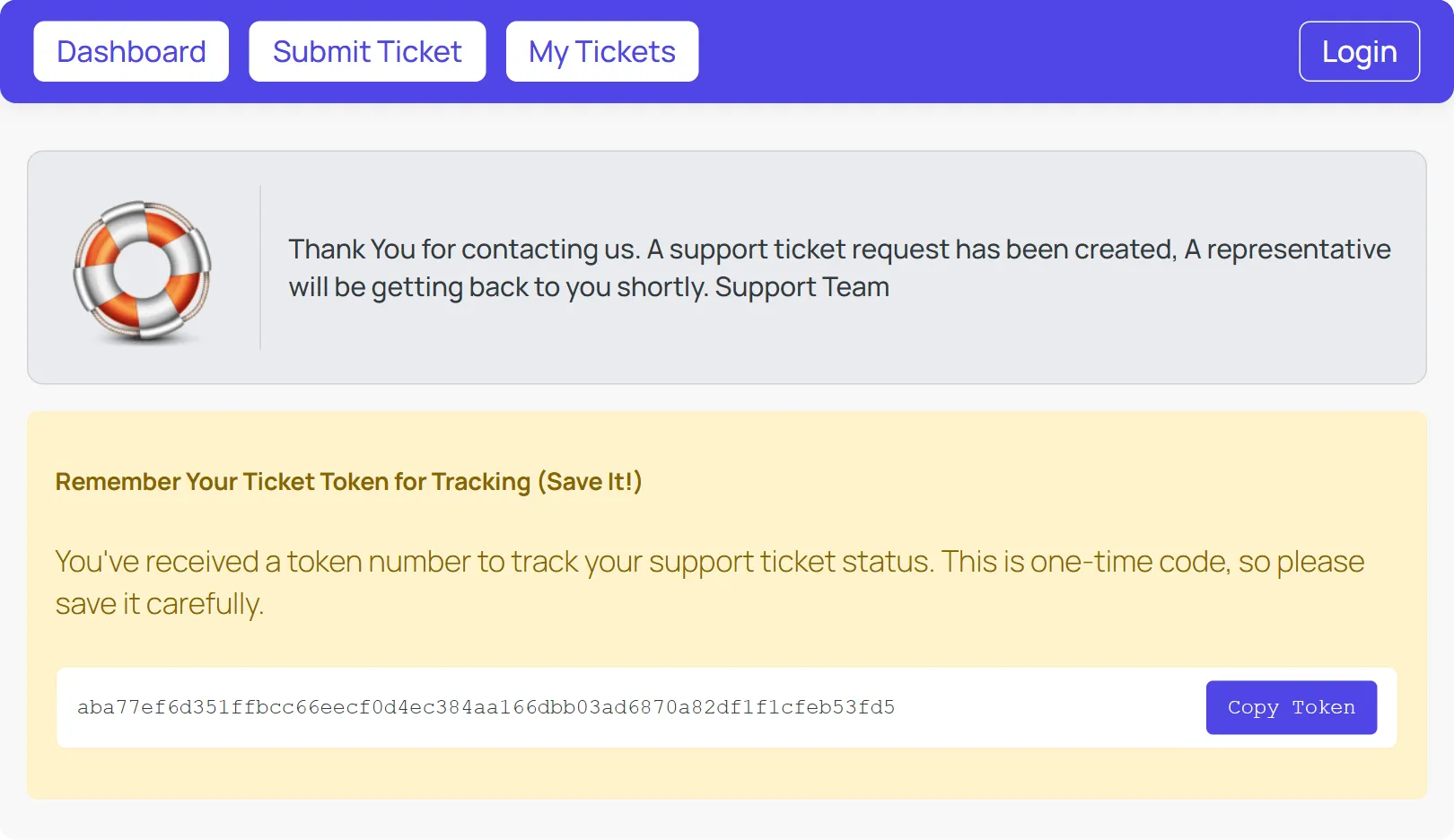
If you are a visitor, you see a thank-you message and, under Remember Your Ticket Token for Tracking (Save It!), your ticket’s token. Click Copy Token and keep it somewhere safe: the token alone opens your ticket again. You are also sent an e-mail with your Ticket ID and a link to the ticket.
Clicking Submit Ticket twice by accident won’t create two tickets. The help desk recognises the same subject and message sent again within ten minutes and tells you “We already received this ticket, so it was not created twice.”
If your ticket isn’t accepted
Section titled “If your ticket isn’t accepted”| Message | What it means |
|---|---|
| “You are not logged In” | This site only takes tickets from signed-in customers. Click Login, or Register if you have no account. |
| “You already have N tickets open. Please wait until one is closed before opening another.” | You have reached the site’s limit of open tickets. Reply on an existing ticket instead, or close one that is solved. |
| “You have reached the limit of N tickets on this account.” | You have raised as many tickets as the site allows. |
| “You have reached the limit of N submissions in N minutes. Please wait a little before submitting again.” | Too many tickets were sent in a short time. Wait a few minutes. |
| “Banned email cannot create ticket” | The site does not accept tickets from this e-mail address. |
| “Your session expired before the ticket was sent. Please check the details below and submit again.” | The page was open too long. Check your details and click Submit Ticket again. |
| “Subject cannot be empty” or “Message field cannot be empty” | Fill in the subject and the message. |
When a ticket is refused, you go back to the form with what you typed still in it. If the help desk is closed for a while, you see the site’s offline message instead of the form; try again later.