

Connecting a mailbox
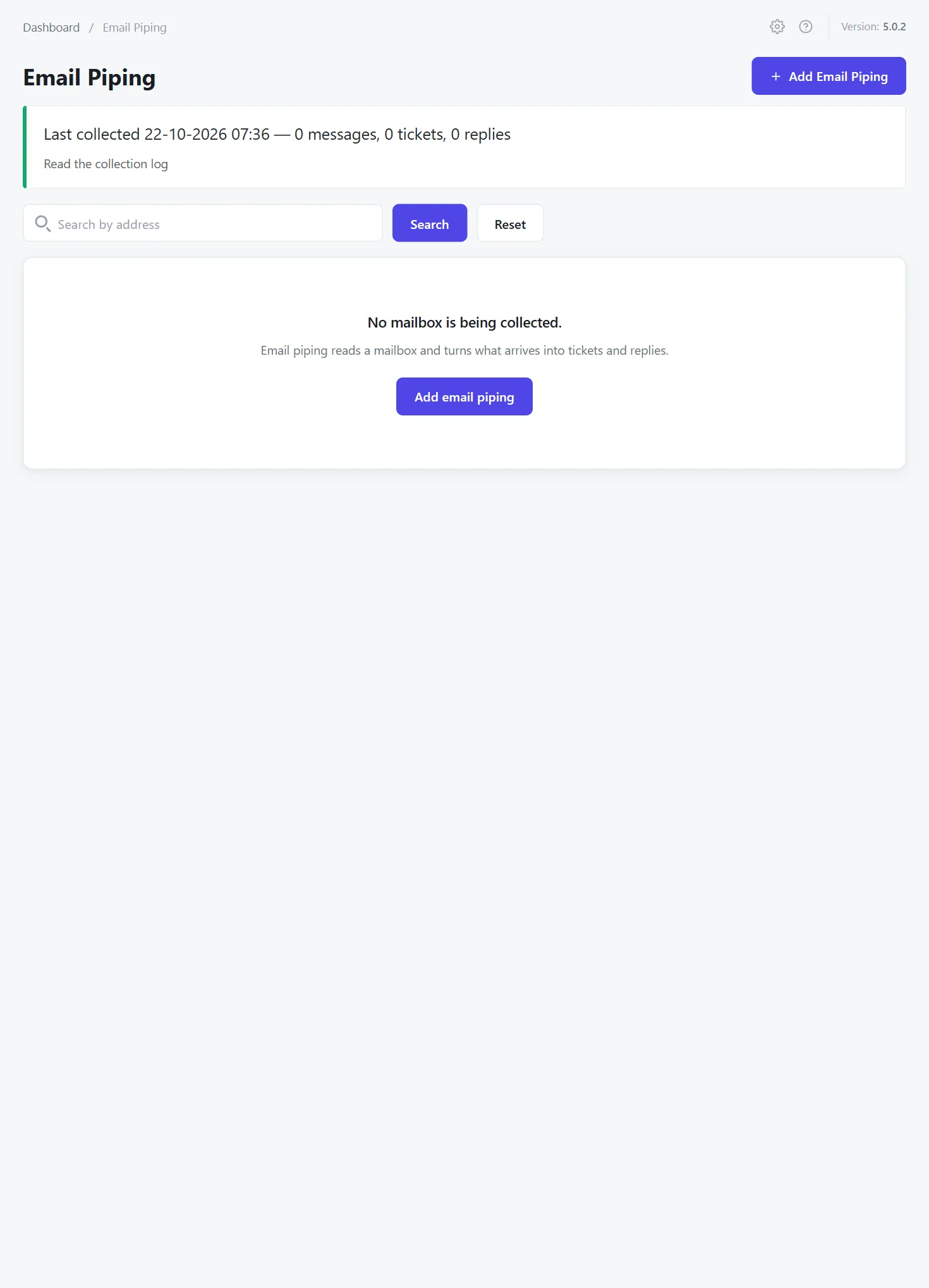
Incoming Email → Email Piping lists the mailboxes the help desk reads. Each row shows the address and its provider, what it Collects (Only New Tickets, Only Replies or Both) and whether Attachments are Kept or Skipped.
Above the list, a card says what the last collection did: “Nothing has been collected yet.”, “Last collected …” with the number of messages, tickets and replies, or that a run could not read a mailbox, with the mail server’s reason. Read the collection log opens Email Health.
Adding a mailbox
Section titled “Adding a mailbox”-
Click Add Email Piping.
-
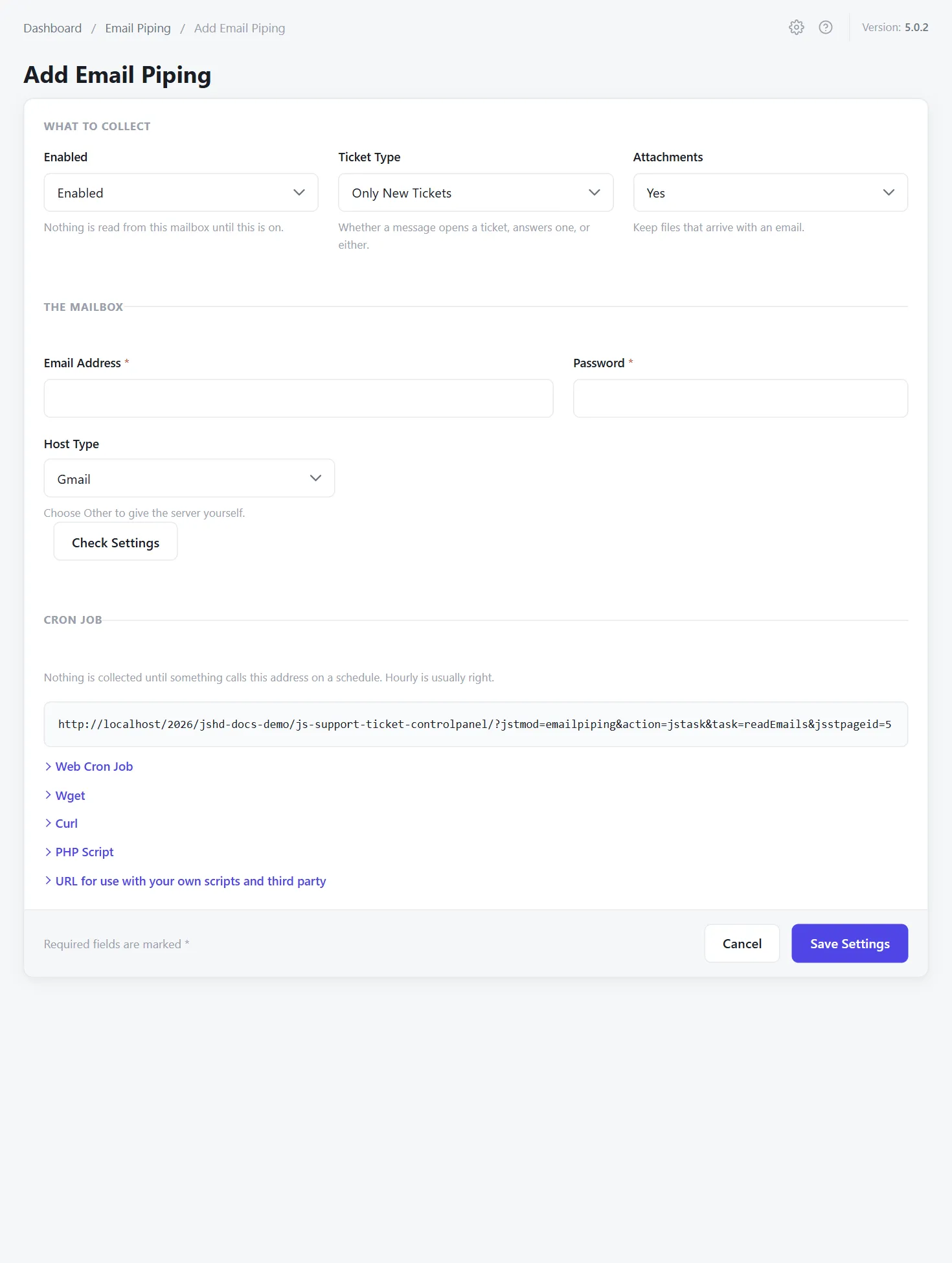
Fill in What to collect and The mailbox (see the tables below).
-
Click Check Settings to test the connection before you save. Give it up to 30 seconds.
-
Click Save Settings.
-
Make sure collection is scheduled: see The cron job.
-
If the mailbox is on Gmail, Google Workspace, Outlook.com or Microsoft 365, switch it to OAuth on the Inbox screen.
What to collect
Section titled “What to collect”| Field | Options | What it does |
|---|---|---|
| Enabled | Enabled, Disabled | Nothing is read from this mailbox until this is Enabled. Disabled keeps the settings but skips the mailbox. |
| Ticket Type | Only New Tickets, Only Replies, Both | Whether a message may open a ticket, answer one, or either. A message of the other kind is read and dropped, and the log says why. |
| Attachments | Yes, No | Whether to keep files that arrive with an e-mail. See the caution below. |
The mailbox
Section titled “The mailbox”| Field | What it does |
|---|---|
| Email Address * | The mailbox’s address. It is also the user name used to sign in. |
| Password * | The mailbox’s password. The form always asks for one; a mailbox you later switch to OAuth doesn’t use it. |
| Host Type | The provider: Gmail, Yahoo, Aol, Hotmail, or Other to give the server yourself. |
| Host Name | Only for Other. Your IMAP server, for example mail.example.com. |
| Enabled SSL | Only for Other. Yes connects over SSL, which is what most servers want. |
| Port | Only for Other, and only used with Enabled SSL set to Yes. Usually 993. |
Which server each Host Type connects to, over SSL, reading the INBOX
folder:
| Host Type | Server |
|---|---|
| Gmail | imap.gmail.com, port 993 |
| Yahoo | imap.mail.yahoo.com, port 993 |
| Aol | imap.aol.com, port 993 |
| Hotmail | imap-mail.outlook.com |
| Other, SSL Yes | Your Host Name and Port |
| Other, SSL No | Your Host Name, without encryption and on the server’s default port; Port is not used |
Addresses you can’t use
Section titled “Addresses you can’t use”The help desk refuses a mailbox address that would make it read its own mail. Saving a new mailbox fails with “Email address already exist” when the address is:
- already a piped mailbox;
- an agent’s e-mail address;
- the Outgoing Email of a department whose Receive Email is Yes;
- the Default Admin Email (Configurations → System Emails).
Check Settings also warns about the last one. If you change the Default Admin Email to a piped address later, that mailbox is skipped at every collection.
Check Settings
Section titled “Check Settings”Check Settings signs in with what is on the form, without saving it, and reports one of these:
| Result | What it means |
|---|---|
| “Your setting is working please this.” | It signed in and found mail in the inbox. |
| “Connection established but the system cannot read any email” | It signed in, but the inbox has no messages at all. An empty mailbox gives this result too. |
| “The mailbox could not be opened. The mail server said: …” | The server refused. Its own words follow: a wrong password, a blocked sign-in or a wrong host each say something different. |
| “The mailbox could not be opened and the mail server gave no reason. …” | Usually a wrong host name or port, or your web server isn’t allowed to make outgoing IMAP connections. |
| “IMAP is either not installed or not enabled in your server. Contact to hosting company” | PHP’s IMAP extension is missing. Your host has to enable it. |
| “Admin email address and email piping address cannot be the same, …” | The address is your Default Admin Email. Use another mailbox. |
Two checks happen before it starts: Enabled must be Enabled (“Please enable email piping setting first”), and Other needs a Host Name (“Please enter the host name first”).
Check Settings only tests password sign-in. For a mailbox on OAuth, look at the collection log instead.
Provider notes
Section titled “Provider notes”What the plugin itself says: Google turned off password sign-in for Gmail in 2022, and Microsoft turned off basic authentication for Exchange Online in 2023. “On either of those, a password will not work however correct it is.” Use Google OAuth or Microsoft OAuth on the Inbox screen for Gmail, Google Workspace, Outlook.com and Microsoft 365.
The cron job
Section titled “The cron job”Nothing is collected until something runs collection. There are two ways it happens:
- WordPress’s own scheduler runs the help desk’s Ticket via email job every 30 minutes, whenever your site has visitors. See Scheduled jobs.
- A real cron job calls the address shown under Cron Job on this form. The form says: “Nothing is collected until something calls this address on a schedule. Hourly is usually right.”
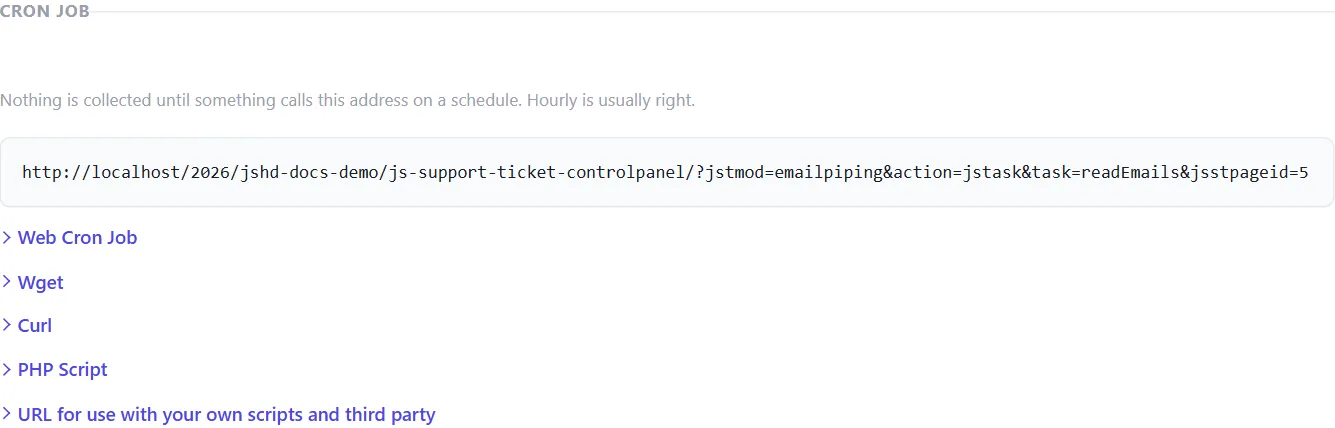
Under the address, folded sections give ready-made ways to call it: Web Cron Job (settings for a web cron service: leave login and password blank, a timeout of 180 seconds or more), Wget, Curl, PHP Script, and URL for use with your own scripts and third party.
System → Configurations → Cron Job URLs has a second address for the same job. Either works; the collection log records which one started each run.
On sites where the help desk’s background queue runs, each mailbox is collected as its own background job, so one slow mail server doesn’t hold up the others.
Editing and deleting
Section titled “Editing and deleting”Click the address or Edit to change a mailbox. Delete asks first. A mailbox that has already created tickets can’t be deleted (“Email in use cannot deleted”); set Enabled to Disabled instead.
A mailbox’s other settings, such as how it signs in and what to refuse, are on the Inbox screen.