

Answering a ticket
Click a ticket’s subject in the queue to open it. The customer’s message is at the top, the conversation runs down the middle, the reply box is at the bottom, and the ticket’s details are on the right. Everything on the ticket screen is described in Working a ticket; this page is the agent’s path through it.
Taking the ticket
Section titled “Taking the ticket”With the Agents & Teams pack, a ticket can have an owner. On the right, the Ticket Assign and Transfer box says Ticket assigned to and who, or Not assigned to agent. There are three ways to make it yours:
- Tick Assign To Me in the reply box as you answer. In the portal, it is already ticked when the ticket has no owner.
- Click Assign it to me on a notification.
- Click Change in Ticket Assign and Transfer and pick yourself.
Assigning to someone else
Section titled “Assigning to someone else”Change opens Assign To Agent.
- Choose the Agent.
- Suggested shows who the desk itself would pick, and why: who is available, who has room, who has the skills. It is advice; you decide.
- Optionally write an Internal Note for the new owner.
- Click Assign.
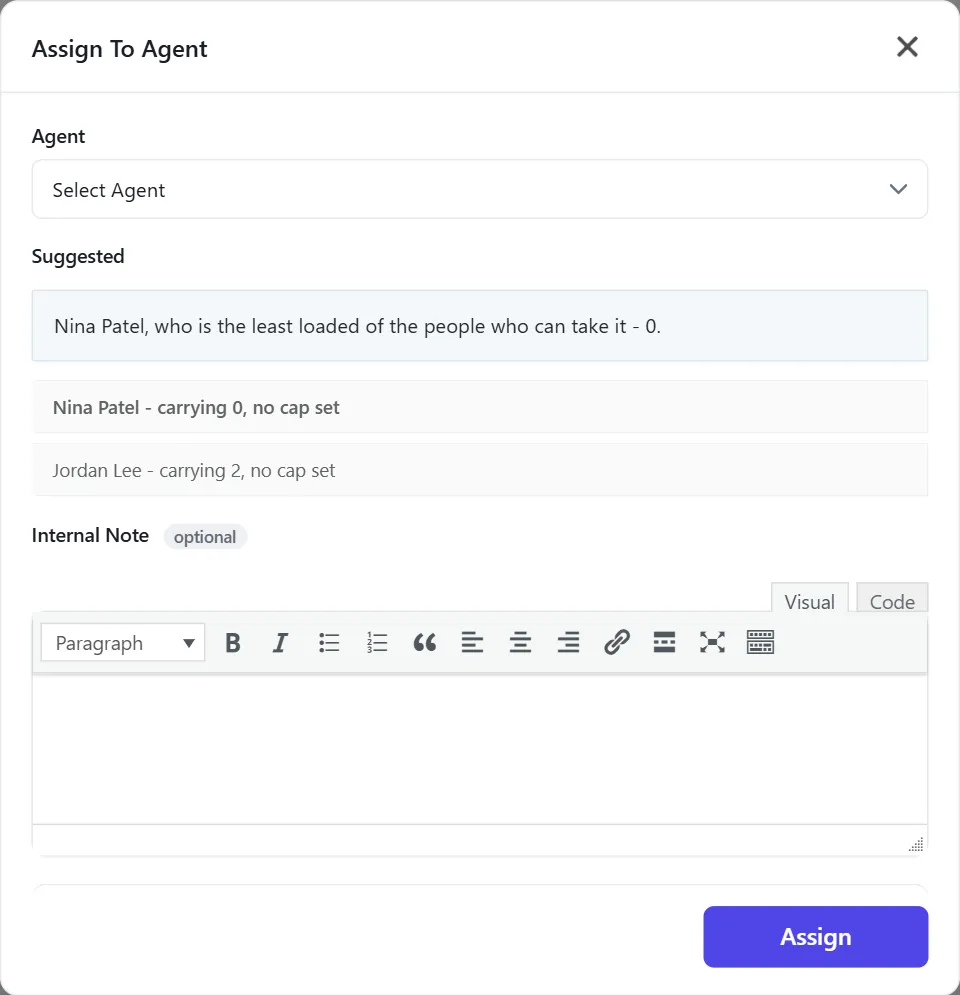
The new owner is told, and starts following the ticket.
Giving a ticket back
Section titled “Giving a ticket back”If a ticket is assigned to you and you can’t take it further, release it so someone else can pick it up. This is on the portal desk, and needs the Release Ticket permission (Agents & Teams pack).
- Open the ticket in the portal.
- In Assigned To Agent, beside Ticket assigned to, click Release.
The ticket is no longer assigned to anyone, and you see “The ticket has been released”. You are taken back to My Tickets, because the ticket may now be outside what you can see. No assignment e-mail is sent. Where ticket history is available, it records “Ticket is released by” and your name.
Release only appears on tickets assigned to you. To hand a ticket to a particular colleague instead, use Change (it needs permission to assign tickets).
Writing the reply
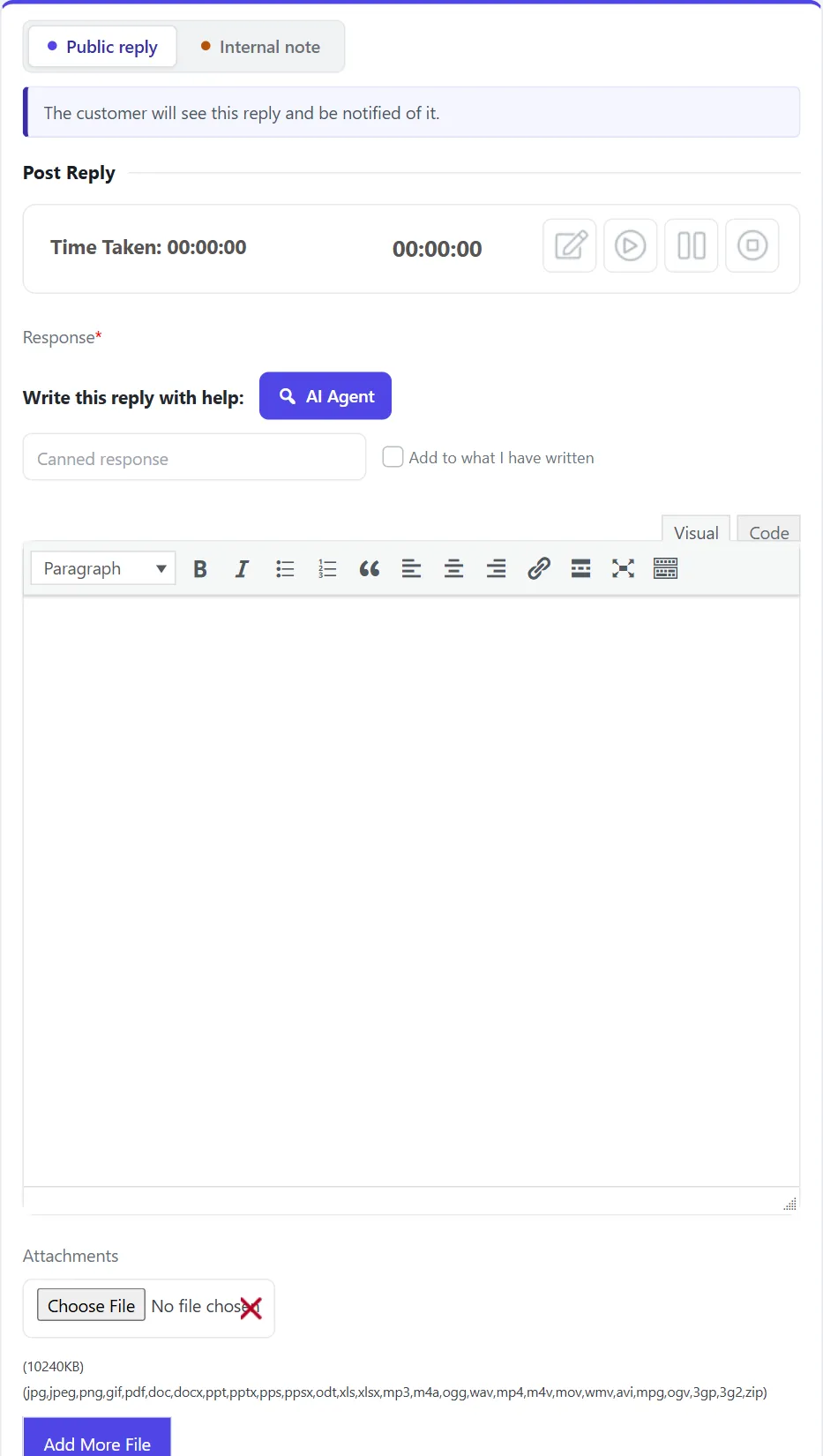
Section titled “Writing the reply”The reply box has two tabs: Public reply, which the customer sees and is
e-mailed, and Internal note, which they never see. The banner and the colour
of the box tell you which you are on. Press R for a reply and N for a note.
Notes are covered in Notes and mentions.
-
Write your answer. For help, see Help while writing.
-
Attach files if you need to. Add More File (Add More in the portal) adds another. With the Agents & Teams pack this needs the Attachment permission: without it the portal leaves the Attachments field out, and files sent from the WordPress desk are dropped with “Your files were not attached. You are not allowed to attach files.” The reply itself is still posted.
-
Under Append Signature, choose:
- Own Signature: your personal sign-off. See Your signature.
- Department Signature: the signature of the ticket’s department.
- None: the default.
-
Tick Close On Reply if your answer settles it. The reply is sent first, then the ticket is closed.
-
Click Post Reply.
The customer is e-mailed, and the ticket moves to Waiting on Customer. You start following the ticket, so you hear when the customer answers.
Your signature
Section titled “Your signature”There are two signatures called Own Signature, one for each desk:
- On the WordPress desk, it is the Signature box in the JS Help Desk section of your WordPress user profile. Only an administrator can see and fill that box, so ask yours to set it on your user. Until it is set, the reply box shows an Add Signature link.
- In the portal, it is the signature on your agent record, which you can change on your profile.
Drafts are saved for you
Section titled “Drafts are saved for you”On the WordPress desk, what you type is saved on the server every 20 seconds. If you leave and come back, even from another computer, the reply box offers “You have an unsent reply from…” with Restore it or Discard. Nothing is put back without you asking. Replies and notes are kept separately, and so are yours and your colleagues’.
Posting a reply clears your drafts on that ticket. A draft nobody comes back to is dropped after 30 days. Unsent drafts are also listed under Unfinished replies on Home.
Somebody else is here
Section titled “Somebody else is here”On the WordPress desk, a line above the reply box tells you when a colleague has the same ticket open, and whether they are replying. If somebody posts a reply while you are writing, you see “Somebody else replied to this ticket while you were writing. Reload before you send, or the customer gets two answers.” Click Reload the ticket to read it first. Your text is saved on the server every 20 seconds, so you can restore it after reloading; wait a moment after your last change before you reload.
Moving the ticket on
Section titled “Moving the ticket on”| To | Do |
|---|---|
| Change the status | Change status on the right, or press S. |
| Change the priority | Change beside the priority, or press P. The customer is e-mailed. |
| Move it to another department | Change beside the department in Ticket Assign and Transfer. Give an optional Reason For Department Transfer, which is saved as an internal note, and click Transfer. |
| Show you are working on it | Mark In Progress, or press I. |
| Close it | Close Ticket. |
| Reopen it | Reopen Ticket on a closed ticket. |
Moving a ticket to a department you can’t see takes it out of your queue.
What a Light Agent can do
Section titled “What a Light Agent can do”If you are a Help Desk Light Agent, you advise in the background:
| You can | You can’t |
|---|---|
| Read every ticket in your queue | Reply to the customer: the reply box has only the Internal note tab |
| Write internal notes, and name colleagues in them | Change status, priority or department, or close, reopen, lock or assign |
| See the ticket’s history | Edit a ticket, merge tickets or use bulk actions |
| Print a ticket | Use canned responses |
With the Agents & Teams pack, your role on the Agents list decides instead, and may be different. Close On Reply appears on the note form for Light Agents too, but closing is refused.