

Feedback form
The feedback form is a page in your portal where a customer rates a closed ticket with one of five faces, adds a comment, and answers any questions you add. A link to it reaches the customer by e-mail. What they send lands in the same place as the satisfaction survey’s answers, and counts in the same score.
How the customer gets there
Section titled “How the customer gets there”Two e-mails carry a link to the form:
- The feedback e-mail. Some time after a ticket closes, the help desk’s scheduled job sends the Feedback Email To User template. It goes only for tickets with the status Closed; a ticket closed because it was merged into another one isn’t asked. Each ticket gets it once.
- The Close Ticket e-mail. With the pack active, the
{FEEDBACKURL}placeholder in that template becomes a Click here to give us feedback link.
Switch the feedback e-mail on or off with Send Feedback Email To User under Help Desk → Configurations → Email Settings (enabled on a new install). See Who is notified, and change its wording under Email templates.
Feedback settings
Section titled “Feedback settings”Help Desk → Configurations → Feedback.
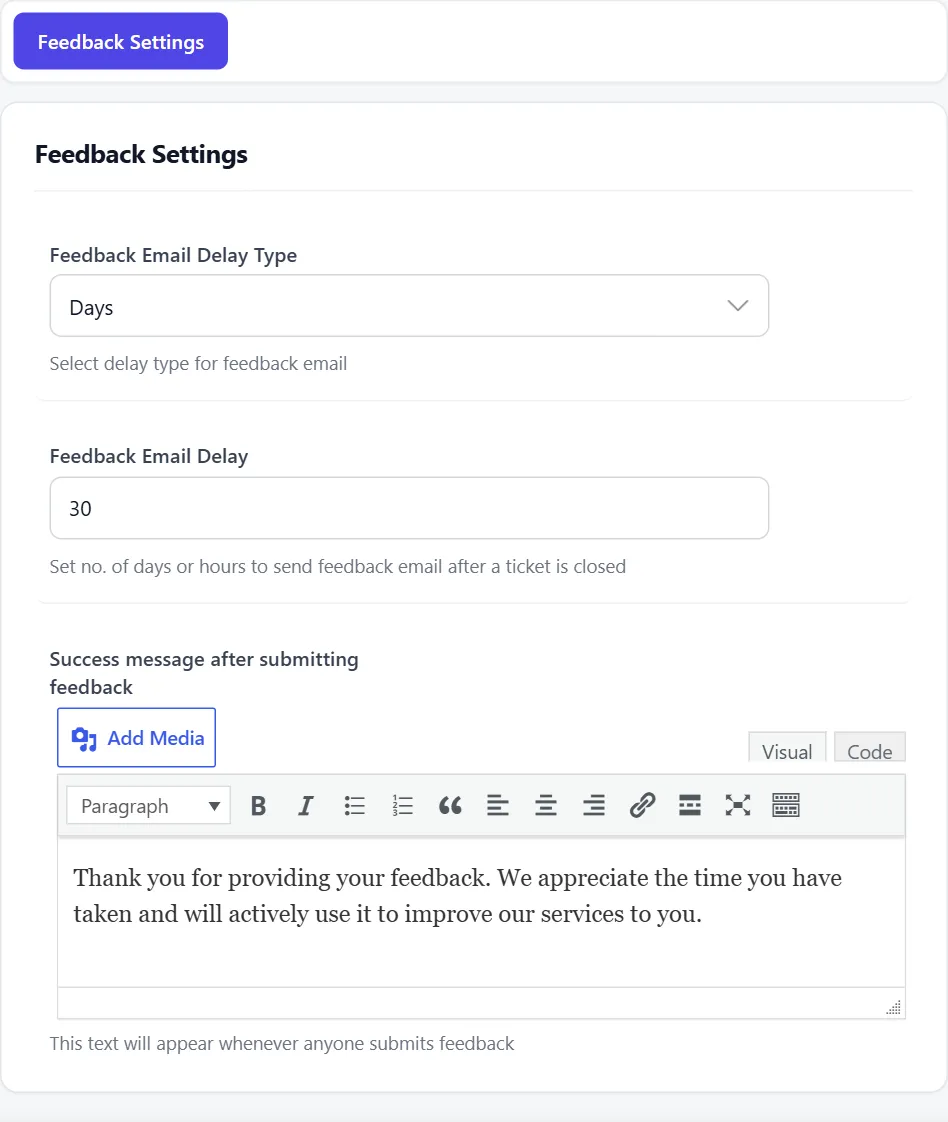
| Setting | Default | What it does |
|---|---|---|
| Feedback Email Delay Type | Days | Whether the delay below is in Days or Hours. |
| Feedback Email Delay | 30 | How long after the ticket closed the feedback e-mail is sent. In days, it goes out on the first scheduled run after that many whole days have passed. |
| Success message after submitting feedback | Thank you for providing your feedback… | Shown under Thank you so much for your feedback once the form is sent. |
What the customer sees
Section titled “What the customer sees”The form shows Rating as five faces, scored 1 (left) to 5 (right), then Remarks, then any questions you have added, and a Submit Feedback button. Without a rating, nothing is saved.
If the ticket already has an answer, the form isn’t shown. In this version the customer then sees User is not allowed to view this page rather than the plugin’s You have already given the feedback for this ticket message. If the link doesn’t match a ticket, they see Ticket not found.
A rating from the form always counts on the 1–5 scale. If the ticket was also sent a satisfaction survey that hasn’t been answered yet, the form’s answer fills that survey in rather than adding a second answer. If that survey has already been given up on, the form’s answer isn’t saved. The customer sees Feedback has not been stored, though the thank-you message appears beneath it all the same.
Your own feedback questions
Section titled “Your own feedback questions”Ticket Setup → Feedback → Feedback Fields lists what the form asks, in order.
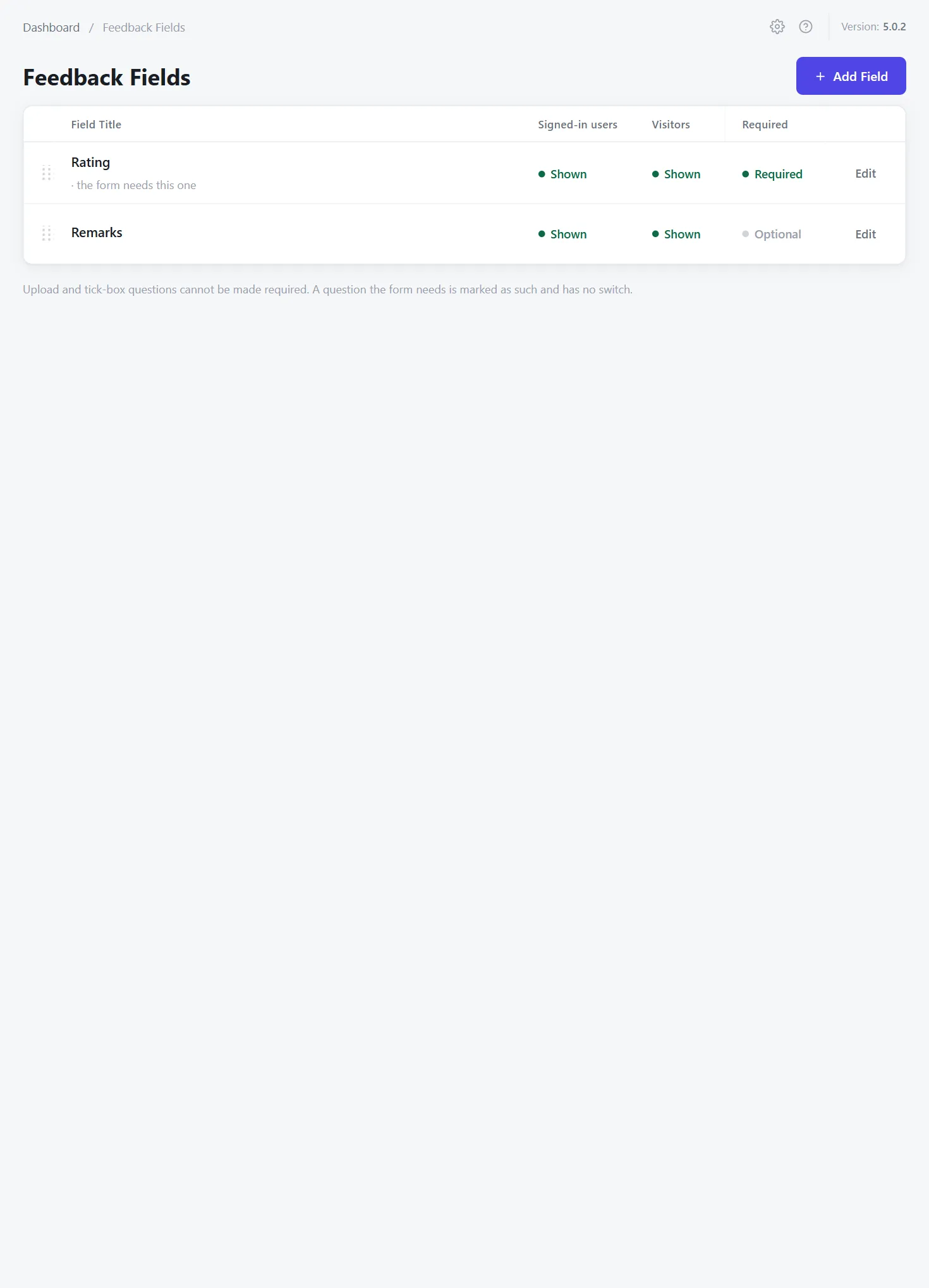
| Column | What it does |
|---|---|
| Field Title | The question. Click it to edit it. Under it is the field type. |
| Signed-in users | Shown or Hidden for customers who are logged in. Click to switch. |
| Visitors | Shown or Hidden for customers without an account. |
| Required | Required or Optional. Upload and tick-box questions can’t be made required. |
Rating is marked the form needs this one and can’t be switched off: it is the score.
Click Add Field to add a question. The form is the same as for the ticket form’s own questions, with the same field types; see Adding your own question. To change the order, drag the rows, then click Save Ordering.
Reading the answers
Section titled “Reading the answers”Ticket Setup → Feedback → Feedback lists every answer, from the form and from the satisfaction survey alike. Surveys that haven’t been answered aren’t listed.
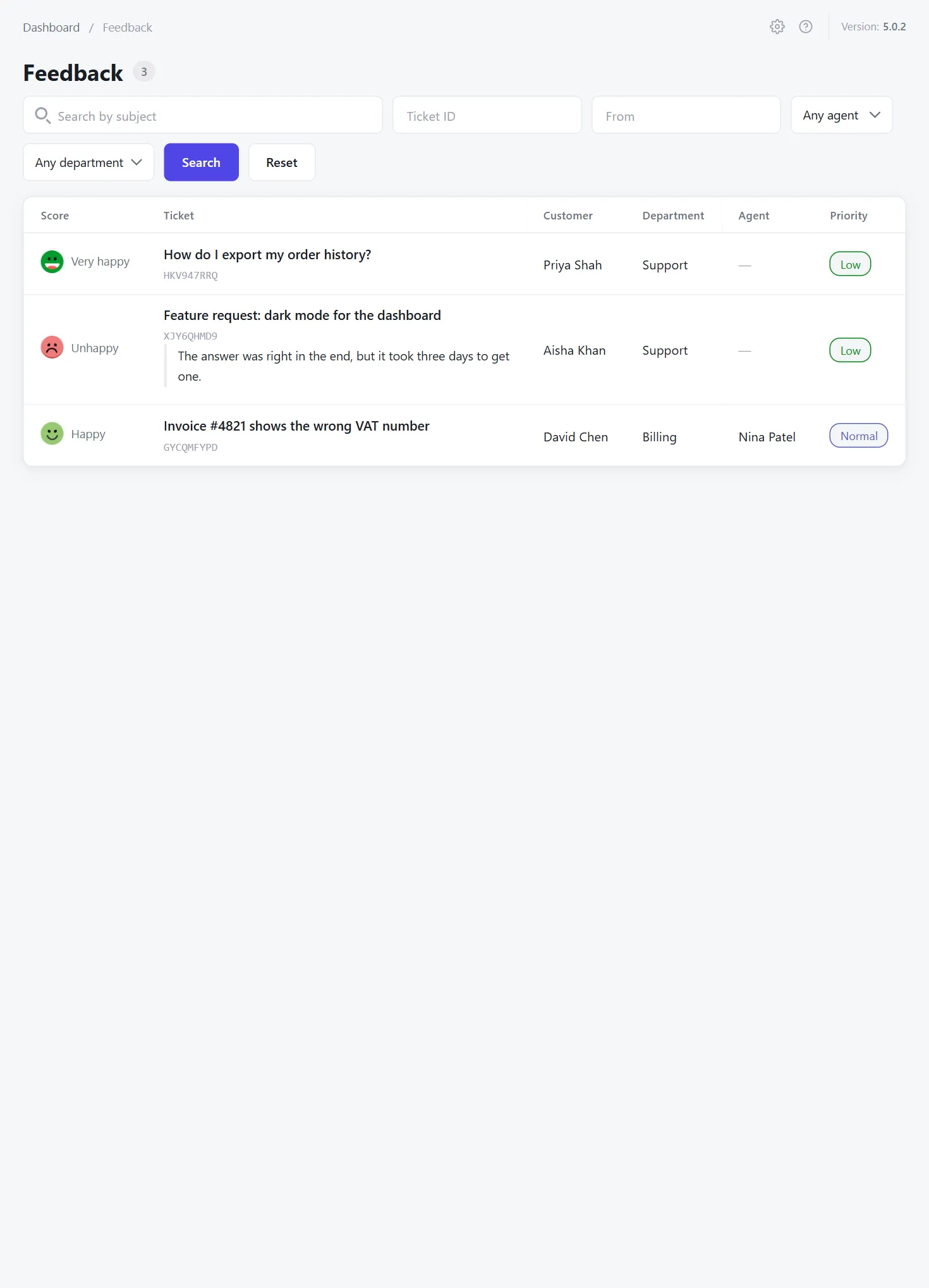
| Column | Shows |
|---|---|
| Score | A face and a word: Very unhappy, Unhappy, Neutral, Happy or Very happy for 1 to 5. |
| Ticket | The subject (click it to open the ticket) and the ticket ID. Under it, the customer’s comment and their answers to your own questions. |
| Customer | The name on the ticket. |
| Department | The ticket’s department. |
| Agent | Who the ticket is assigned to. Only with the Agents & Teams pack. |
| Priority | The ticket’s priority. |
Narrow the list with Search by subject, Ticket ID, From (the customer’s name), Any agent and Any department, then click Search. Reset clears them.
For agents in the portal
Section titled “For agents in the portal”Agents can have a Feedback link on their portal dashboard, listing the same answers. It is hidden on a new install; switch it on with Feedback under Help Desk → Configurations → Agent Menu → Dashboard Links. With the Agents & Teams pack, an agent also needs the View Feedback permission.