

Live chat
Live chat puts a chat button in the corner of every page of your site. A visitor types a question; the answer engine from the AI Agent pack can reply first, and a person from your team can take over. Agents answer from Live Chat → Conversations; see Answering chats.
Most of what a chat needs is already set elsewhere, and this screen doesn’t repeat it:
- Who is working comes from the agents list and their availability, in the Agents & Teams pack.
- When you are open comes from your teams’ calendars, in the same pack.
- What the AI may say is set under AI Agent. See AI Agent.
Settings
Section titled “Settings”Live Chat → Settings. Click Save at the bottom when you are done.
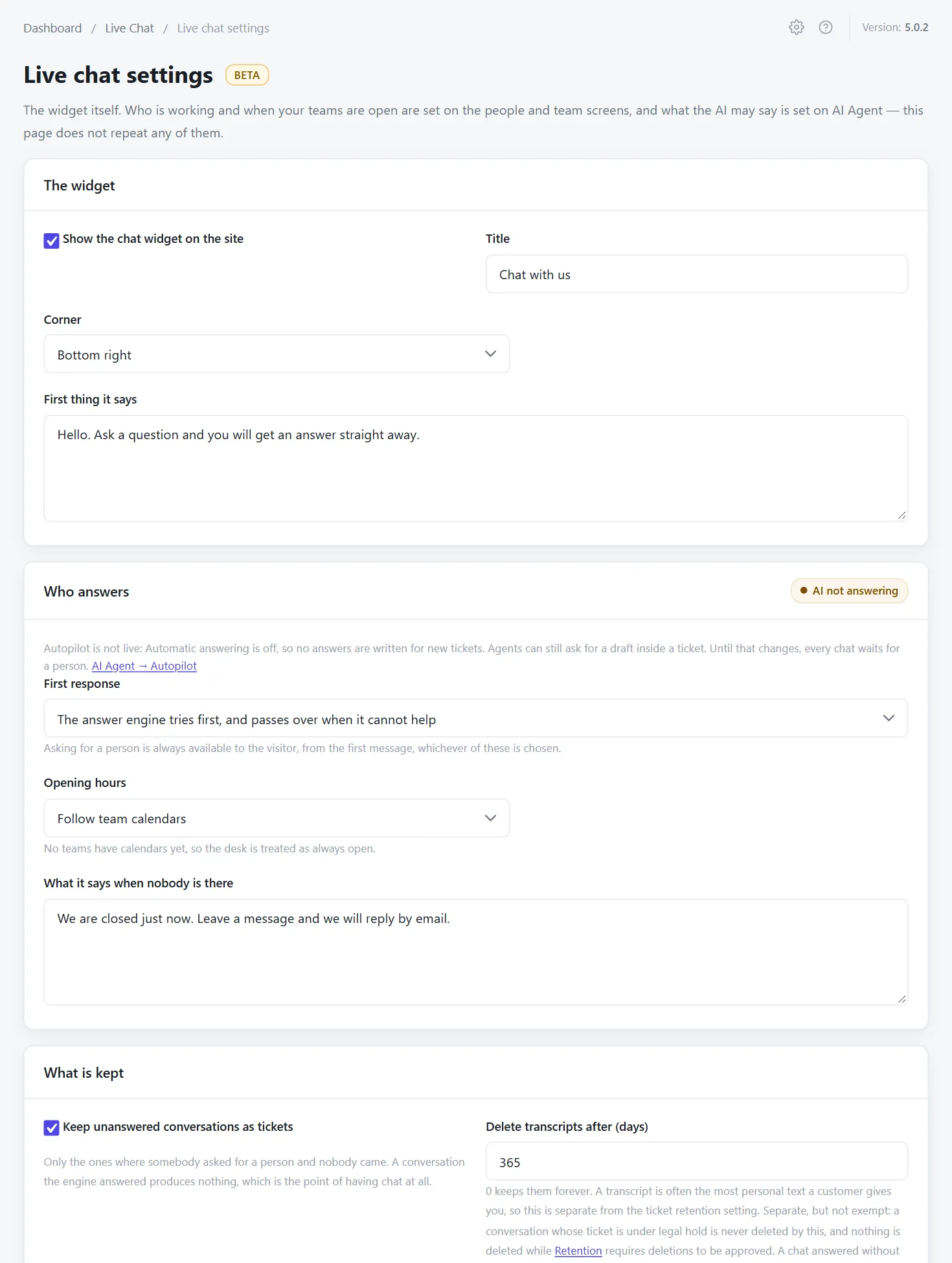
The widget
Section titled “The widget”| Setting | Default | What it does |
|---|---|---|
| Show the chat widget on the site | On | Turns the chat button on or off everywhere. |
| Title | Chat with us | The words on the button and at the top of the chat window. |
| Corner | Bottom right | Bottom right or Bottom left. |
| First thing it says | Hello. Ask a question and you will get an answer straight away. | Posted as the first line of every new conversation. Leave it empty for none. |
The button takes its colour from Color 1 on Themes.
Who answers
Section titled “Who answers”The badge beside the heading says how things stand: AI answers chat, People answer chat, or AI not answering. When it says AI not answering, a line underneath names the one setting that is stopping it, with a link to where you change it.
| Setting | Default | What it does |
|---|---|---|
| First response | The answer engine tries first, and passes over when it cannot help | Or Always a person. Visitors can ask for a person from their first message either way. |
| Opening hours | Follow team calendars | Or Always open. With team calendars, chat is open while at least one team is open, each in its own time zone. If no team has a calendar, chat is treated as always open. |
| What it says when nobody is there | We are closed just now. Leave a message and we will reply by email. | Shown above the message form when nobody can take the chat. |
What is kept
Section titled “What is kept”| Setting | Default | What it does |
|---|---|---|
| Keep unanswered conversations as tickets | On | When a visitor asked for a person and nobody came, the conversation becomes a ticket. See When a chat becomes a ticket. |
| Delete transcripts after (days) | 365 | From 0 to 3650. 0 keeps them for ever. See How long transcripts are kept. |
| Check for new messages every (seconds) | 5 | From 2 to 60. The chat window asks the server for new messages this often. Lower is quicker but costs more requests. |
| Offer the message form after (seconds) | 90 | From 15 to 900. How long a visitor waits for a person before the chat offers to take a message instead. |
What a visitor sees
Section titled “What a visitor sees”The chat button is shown on every front-end page, but not to you or your agents: anyone with an agent record, and administrators, don’t see it. To try it, open your site in a private window or log in as a customer.

-
The visitor clicks the button. The chat window opens with your greeting.
-
They type into Type your question and press Send (or Enter; Shift+Enter starts a new line).
-
If the answer engine is answering, it replies, labelled Automated assistant. Once it has answered twice, the visitor’s next message is passed to a person instead.
-
Talk to a person asks for someone straight away. The chat says You asked for a person. Somebody from the team will join shortly. and the button disappears. While they wait, the window shows Waiting for a person to join….
-
When an agent takes the chat, A person has joined the conversation. appears, and the agent’s replies are labelled Agent.
If the answer engine isn’t available, the visitor’s first message goes straight to a person.
When nobody can come
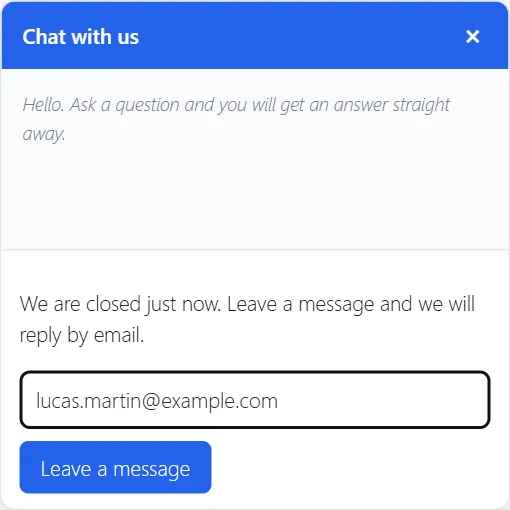
Section titled “When nobody can come”If chat is outside opening hours, or nobody is available to take it, the visitor isn’t asked to wait. Opening the chat shows What it says when nobody is there and the message form straight away, in place of the question box. If a conversation is already under way when that happens, asking for a person says There is nobody available just now. Leave your email address and we will reply.
The message form also appears if the visitor has been waiting for a person for longer than Offer the message form after (seconds).
The visitor types their e-mail address into Your email address and clicks Leave a message. The form has no box for the message itself: the ticket holds whatever was said in the chat so far. The conversation becomes a ticket straight away, whatever Keep unanswered conversations as tickets says, and the window shows Thank you. We will reply by email.
Limits
Section titled “Limits”- A browser can start five conversations an hour. After that the visitor sees You have opened several chats recently….
- A conversation takes at most 20 messages a minute, and one message is at most 4,000 characters.
- If the visitor moves to another page and opens the chat again, the same conversation carries on, until they close the browser tab. Closing the chat window only hides it.
- While the browser tab is in the background, the chat stops checking for new messages, and catches up when the visitor comes back.