

Knowledge Sources
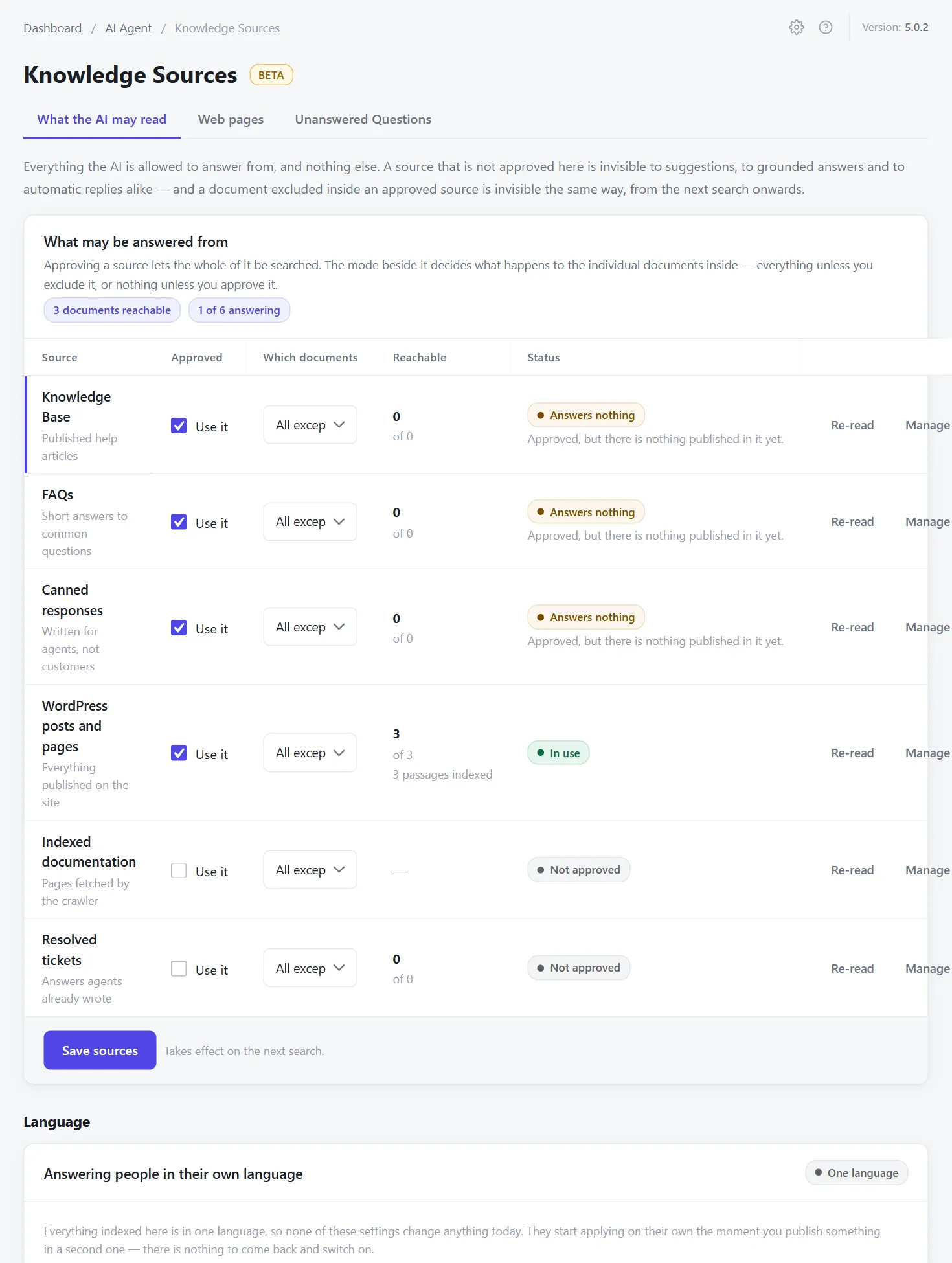
AI Agent → Knowledge Sources is everything the AI is allowed to answer from, and nothing else. A source that is not approved here is invisible to suggestions on the ticket form, to written answers and to automatic replies alike. A document excluded inside an approved source is just as invisible, from the next search on.
The screen has three tabs: What the AI may read, Web pages (with the AI Agent pack) and Unanswered Questions.
The sources
Section titled “The sources”| Source | What it is | Needs |
|---|---|---|
| Knowledge Base | Published help articles. | The Knowledge & Self-Service pack |
| FAQs | Short answers to common questions. | The Knowledge & Self-Service pack |
| Canned responses | Written for agents to send, not for customers to read. | Nothing |
| WordPress posts and pages | Everything published on the site. | Nothing |
| Indexed documentation | Pages and videos fetched by the crawler from Web pages. | The AI Agent pack |
| Resolved tickets | Answers agents have already written. | The AI Agent pack |
Some content is always kept out, whatever you approve:
- Knowledge Base: only published articles, and never an article whose audience is Agents only. See Articles.
- Canned responses: only enabled ones, and, where canned responses need approval, only approved ones.
- WordPress posts and pages: only published posts and pages, and never one protected by a password.
- Resolved tickets: only tickets an agent has actually replied to.
Until this screen is saved for the first time, which sources are approved depends on how the help desk started:
- A help desk where AI had never been set up when the plugin was activated (a new install, for example): only Knowledge Base and FAQs, where present. Canned responses are written for agents, and posts and pages are mostly blog and site text, so neither starts as something customers are answered from.
- A help desk updated from an earlier version: Knowledge Base, FAQs, Canned responses and WordPress posts and pages, where present, as before.
Indexed documentation and Resolved tickets are off until you approve them.
What may be answered from
Section titled “What may be answered from”The first card is a table with one row per source. Its head shows how many documents the AI can reach and how many sources are answering, for example 3 of 6 answering.
| Column | What it shows |
|---|---|
| Source | The source’s name. Click it to open its documents below. |
| Approved | Use it: tick to let the AI read this source. A source whose pack is missing is greyed, with Needs and the pack’s name. A source whose pack is here but whose database table is not installed is greyed too, marked Kept as saved until it can be used: saving the screen leaves its choice as it was. |
| Which documents | All except excluded or Only approved. See below. |
| Reachable | How many of the source’s documents the AI can use, out of the total, plus passages indexed and documents excluded by hand. |
| Status | In use, Answers nothing, Unavailable or Not approved, with the reason where it matters. |
Answers nothing is the case to look out for: the source is approved, but it is empty, or every document in it is excluded, or it is set to Only approved and nothing is approved yet.
Each row has two actions:
- Re-read rebuilds that source’s part of the search index in the background. With the pack, the source stays searchable while it is rebuilt. Approving and excluding take effect straight away without it; use it after an import, a restore or a crawl that stopped half-way.
- Manage content opens the screen where that content is edited.
Click Save sources when you are done. It takes effect on the next search. If nothing is approved, the save says so: nothing can be answered from your content at all.
All except excluded, or only approved
Section titled “All except excluded, or only approved”| Choice | What it means | Use it for |
|---|---|---|
| Everything, except what I exclude (All except excluded) | New content can be answered from the moment it is published. | A knowledge base written for customers. |
| Only what I approve (Only approved) | Nothing can be answered from until somebody approves it, including anything published later. | Posts and pages, and resolved tickets. |
Documents
Section titled “Documents”Under the table, one tab per source opens its documents. The card repeats what the source is and how it is governed. Search by title with Search titles.
| Column | What it shows |
|---|---|
| Title | The document’s title and number. |
| The AI can | quote this or never see this. |
| Decision | Follows the source, Approved or Excluded. |
| Action | Approve, Exclude or Reset (back to Follows the source). |
A decision on one document is saved as soon as you click it, and you are taken back to the same page and search. Clear decisions removes every individual decision in that source at once, after asking you to confirm.
A document can show never see this even when you approved it: an article that is not published or is for agents only, or a canned response that is switched off, is never used.
Language
Section titled “Language”When your indexed content is written in more than one language, the Language card, Answering people in their own language, decides which of it answers a question. The card starts folded; its heading says how many languages your content is in. Open it to see the passages counted per language (passages too short to tell are counted separately) and to change the rules. With one language it changes nothing, and starts applying by itself once you publish in a second.
| Setting | Default | What it does |
|---|---|---|
| When somebody asks in one language and your answer is in another | Prefer the customer’s language | Ignore language ranks on wording alone. Prefer the customer’s language ranks material in the customer’s language higher but still uses the rest. Only the customer’s language answers only from material in that language, so some questions get no answer. |
| When a question is too short to tell | Use this site’s own language | The language assumed for very short questions. An account holder’s own profile language is always used first. |
Click Save. This changes which documents are used, not what is sent anywhere.
Text in Arabic script is told apart as Arabic, Urdu or Persian by the letters each language uses.
If the card says Searching cannot reach your … content, the content is in a language written without spaces between words, which the database search cannot split. Ask support and quote the message.
Test what a question reaches
Section titled “Test what a question reaches”The Retrieval console at the bottom runs the same search a real ticket runs, with your rules applied. It calls no model and costs nothing. The card is folded until you have asked a question; click its heading to open it.
- Type a Question the way a customer would.
- Choose Judged as: Something the AI may state as fact (strict) or A suggestion the customer can ignore (relaxed).
- Click Search.
With the pack you see the sources reached, the passages considered, what your rules Kept out, the Best match and the score it needed, and The text it would be given, with the token count. Without the pack you see what the ticket form would suggest, the words searched on, the Sources searched and why each result matched. If nothing would be suggested, the console names the sources it searched, or says no approved source could be searched at all.
Two notes can appear under the free search’s results:
- “… is approved but was not searched: its search index is not ready yet.” The index is built the next time an administrator opens the admin area after an update.
- “Your … table uses an older storage format.” Suggestions still work, but words under four letters cannot be found in that source. Open Storage Engine takes you to System Status → Storage Engine to convert it.
If Nothing was good enough to answer from, a real ticket asking this would be handed to a person. Writing content that answers the question directly is usually a better fix than lowering the threshold.
How the pack’s search matches words
Section titled “How the pack’s search matches words”With the AI Agent pack, the search does more than look for the exact words typed:
- Common customer wordings are matched to the words articles tend to use, for example “money back” to “refund”, “receipt” to “invoice”, “parcel” to “order”, “two factor” to “2FA” and “sign in” to “login”.
- Words of up to five letters match only themselves with an ordinary ending (“ship”, “ships”, “shipped”), so “card” no longer matches “cardboard”. Longer words also match words that start with them (“export”, “exporting”).
- Short terms that carry meaning, such as AI, IP, EU and UK, are kept as search words.
- A question with a single meaningful word is searched, but only a document with that word in its title can answer it.
- A suggestion on the ticket form must contain at least half of the question’s meaningful words, weighted by how rare each word is in your content, and must score close to the best match. Fewer, stronger suggestions are shown.
Web pages and videos
Section titled “Web pages and videos”With the pack, the Web pages tab lets the AI read pages from other sites, such as your documentation, and YouTube videos. See Web pages and videos.