

Retention and legal holds
The free plugin deletes old closed tickets on a rule you set under Configurations → Retention. GDPR → Retention, added by this pack, governs that rule:
- Approval: deletions wait until somebody approves them.
- Thinning: old tickets lose their attachments but stay readable.
- Legal hold: chosen tickets survive every rule.
- The log: every proposal, who decided it and when.
This screen never deletes anything by itself. The deleting is still done by the free plugin’s clean-up, using the months, departments and priorities you set there.
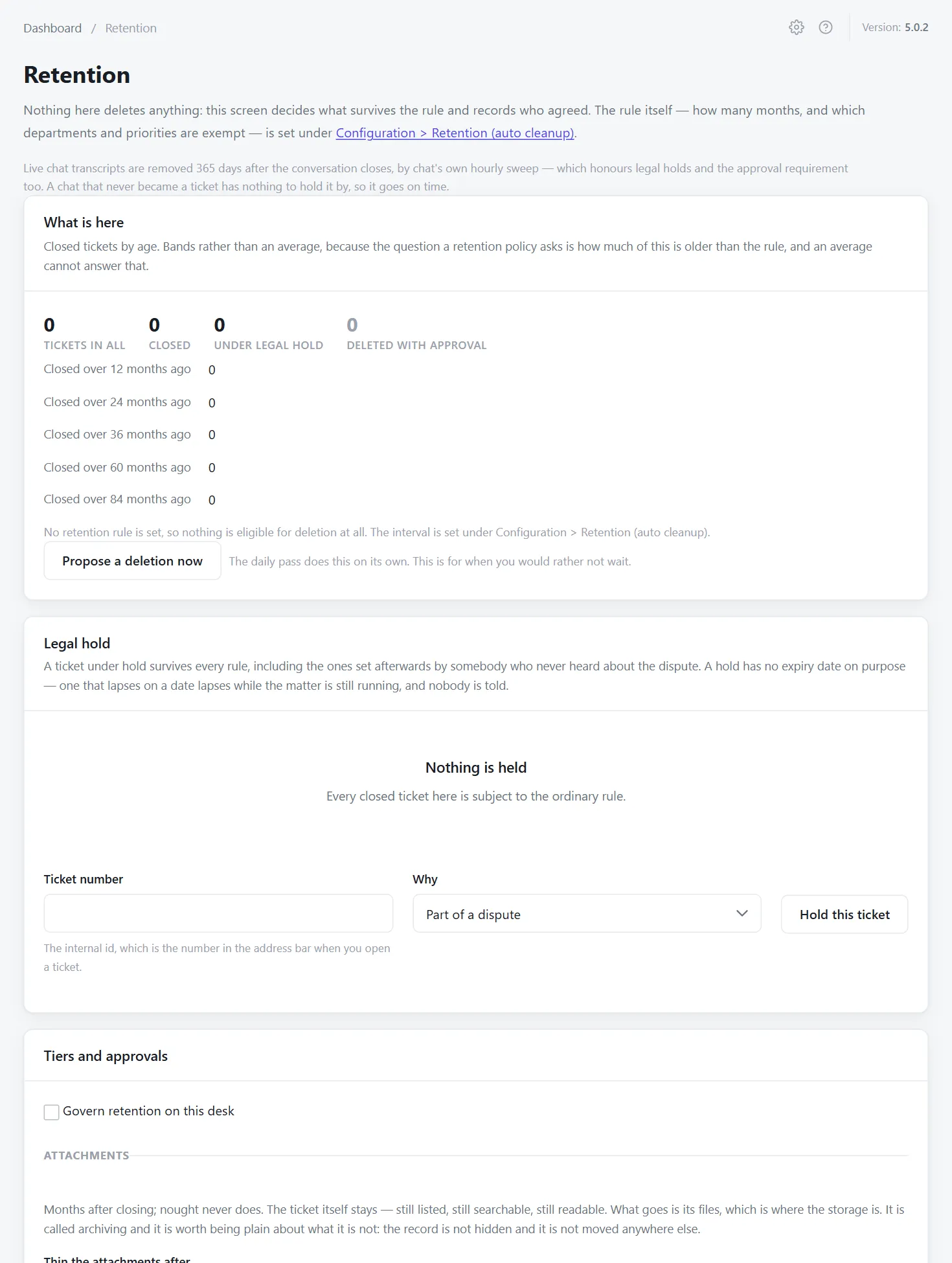
Switching governance on
Section titled “Switching governance on”-
Go to GDPR → Retention and scroll to Tiers and approvals.
-
Tick Govern retention on this desk. Approvals and thinning do nothing until this is ticked. Legal holds work either way.
-
Under Approvals, tick A deletion has to be approved by somebody before it happens. It is ticked on a new install.
-
Under Tell, enter the addresses to e-mail when a deletion is waiting, separated by commas, spaces or new lines.
-
Optionally set Thin the attachments after (see below) and edit the hold reasons.
-
Click Save this.
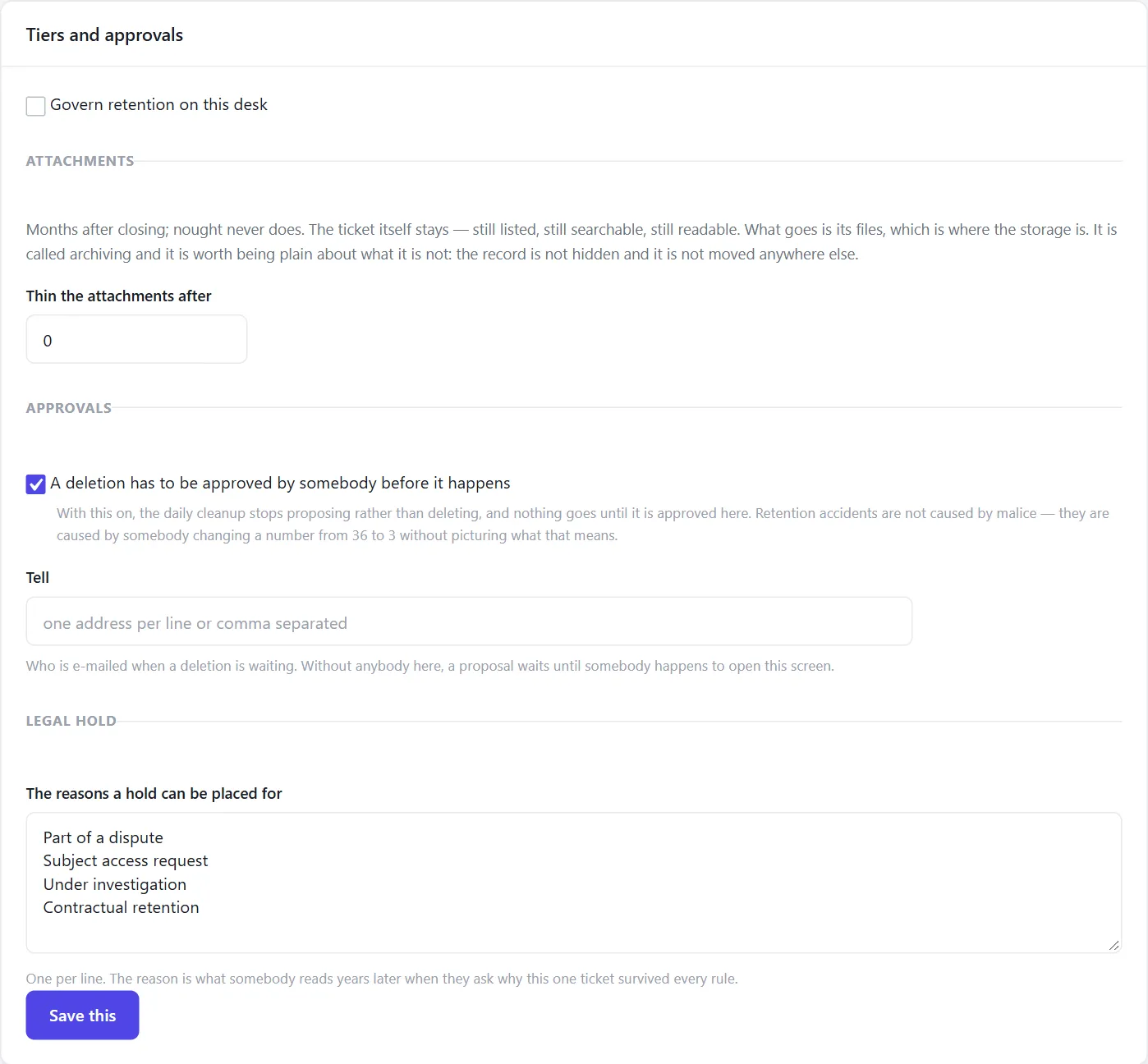
| Setting | Default | What it does |
|---|---|---|
| Govern retention on this desk | Off | Turns on approvals and thinning, and the daily retention pass. |
| Thin the attachments after | The value of Delete Old Attachments | Months after closing before a closed ticket’s attachments are removed, from 0 to 240. 0 never thins. |
| A deletion has to be approved by somebody before it happens | On | With governance on, the free plugin’s clean-up stops deleting tickets and attachments on its own; proposals wait for approval instead. |
| Tell | Empty | Who is e-mailed when a deletion is waiting. With nobody here, a proposal waits until someone happens to open this screen. |
| The reasons a hold can be placed for | Part of a dispute, Subject access request, Under investigation, Contractual retention | One per line, up to 12, each up to 120 characters. These are the choices when you place a hold. |
Turning governance off again gives you the free plugin’s behaviour back: the clean-up deletes on its own schedule, without approval.
Approving a deletion
Section titled “Approving a deletion”With approval on, a daily pass looks at what your rule would delete. If there is anything, and no proposal is already waiting, it writes a proposal and e-mails the Tell addresses: “A deletion is waiting to be approved”. The menu item Retention shows a 1 while a proposal waits.
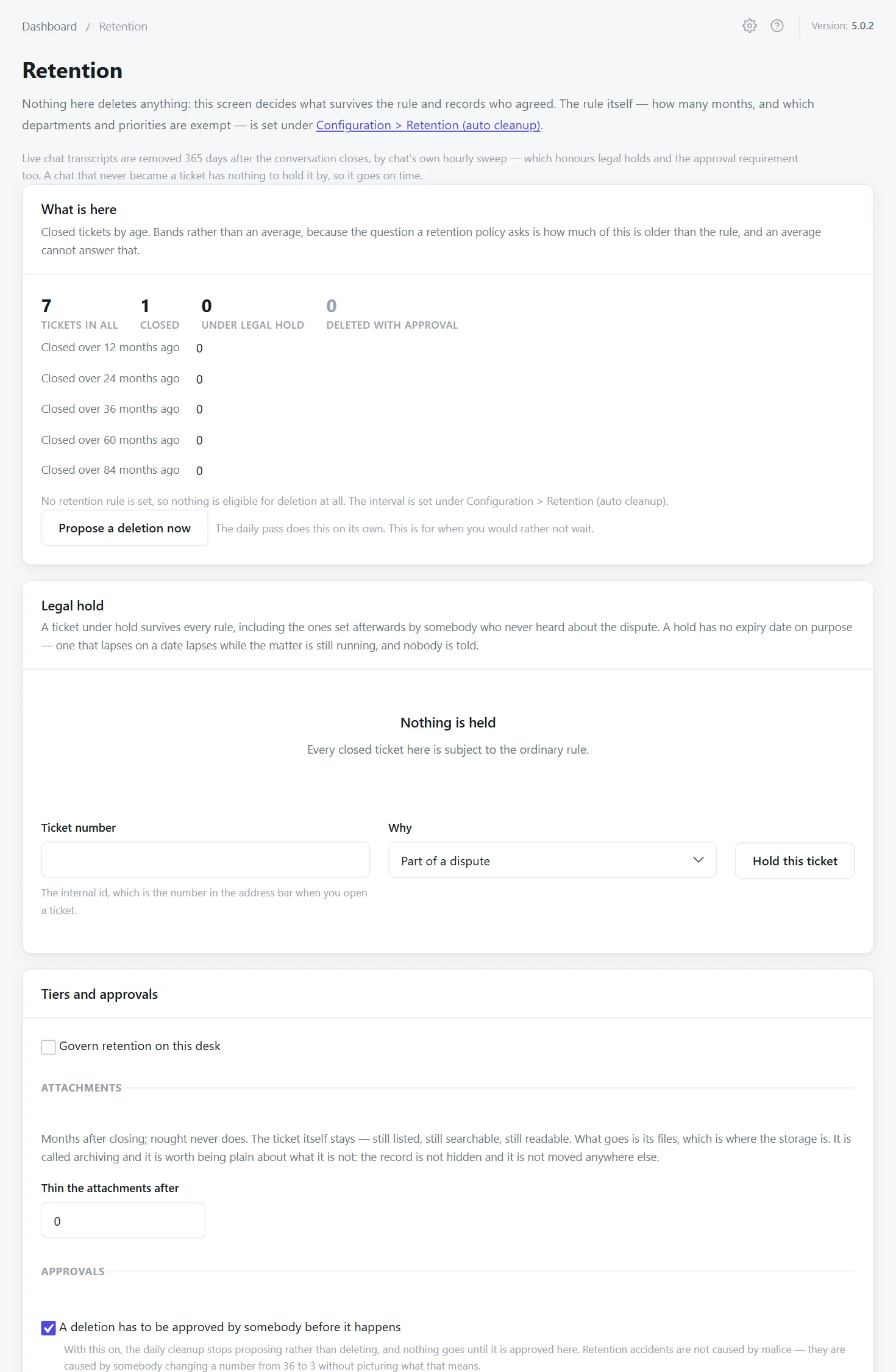
You don’t have to wait for the daily pass. Click Propose a deletion now under What is here. The button is there while the approval box is ticked and no proposal is waiting.
-
Open GDPR → Retention. Waiting to be approved is at the top.
-
Read the proposal: how many Tickets, the Storage freed, All closed on or before (the cut-off date), and the oldest ten tickets as a sample with their Reference, Subject and Closed date.
-
Click Approve this deletion to go ahead, or Refuse it to leave everything as it is.
The figures in a proposal are counted when it is made, not when you read it, so what you are approving can’t change while you look at it. Tickets under legal hold are never in a proposal.
Approving happens at once, without a confirmation, and hands the deletion to the free plugin’s clean-up, in the background. The clean-up works to your rule as it stands when it runs, and handles up to 100 tickets and 100 attachments at a time. If your rule matches more than that, the next daily pass proposes the rest.
Refusing deletes nothing, but the daily pass proposes again next time. To stop deletions, change the rule on Configurations → Retention, not by refusing.
Only one proposal can wait at a time.
Thinning attachments
Section titled “Thinning attachments”Thin the attachments after is the “archive” tier. A closed ticket older than this keeps everything except its files: it is still listed, searchable and readable. Nothing is hidden or moved anywhere else.
This is the same setting as Delete Old Attachments on Configurations → Retention. Change it on either screen and the other shows the new value. Here you can enter any number of months; the Configurations tab only offers Never, 1, 3, 6 or 12 months. If you enter another number here, the Configurations tab can’t show it, so saving that tab afterwards may replace it with one of its own choices.
Under the box, the screen tells you what that would mean as things stand: how many tickets, how many files and how much space. Held tickets are never thinned. Thinning runs in the daily pass, up to 200 attachments at a time, and only while Govern retention on this desk is ticked. It doesn’t need approval.
Legal hold
Section titled “Legal hold”A ticket under hold survives every retention rule, including rules set later by someone who never heard about the dispute. Its attachments are kept too. A hold has no expiry: it lasts until somebody releases it.
To place a hold:
-
Open the ticket in WordPress admin and note the number at the end of the address (
jssupportticketid=…). This is the internal id, not the ticket’s reference. -
On GDPR → Retention, under Legal hold, enter it in Ticket number.
-
Choose a reason under Why.
-
Click Hold this ticket.
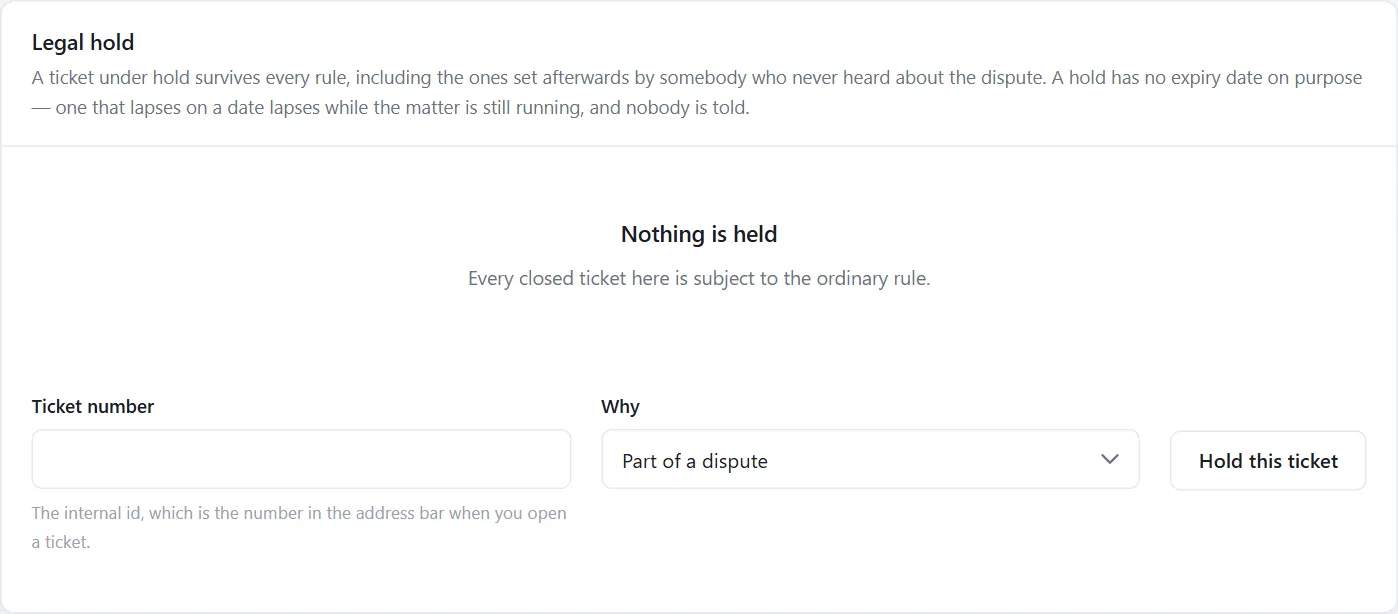
The list shows each held Ticket (reference and subject), Why and Since. “That ticket is either held already or is not a ticket” means the ticket already has a hold. The number isn’t checked against your tickets, so a mistyped number is accepted and listed with the ticket is no longer here under it; release that hold and place it again on the right number.
To end a hold, click Release it. The ticket is subject to the ordinary rule again from then on. The release takes effect at once, without a confirmation.
Holds apply whether or not Govern retention on this desk is ticked.
What is here
Section titled “What is here”A summary of your tickets as they stand:
| Figure | What it counts |
|---|---|
| Tickets in all | Every ticket. |
| Closed | Tickets that are closed (including merged). |
| Under legal hold | Holds not yet released. |
| Deleted with approval | Tickets deleted by approved proposals, all time. |
| Closed over 12 / 24 / 36 / 60 / 84 months ago | Closed tickets older than each age. |
Below it, the screen says how many tickets your rule matches now and how much space it would free, or that no rule is set.
What has been deleted
Section titled “What has been deleted”The log of the last 20 proposals: when it was Proposed and why (by the daily pass, or by hand), how many tickets it Matched, What happened (waiting, approved, running, refused or carried out, with who decided and when), and how many were Deleted.
Deletions made by the free plugin’s clean-up before governance was switched on aren’t here; they are in the log on Configurations → Retention.