

Export and import tickets
Export
Section titled “Export”Tickets → Export downloads tickets as a CSV file, one row per ticket, that opens in Excel, LibreOffice, Numbers or Google Sheets.
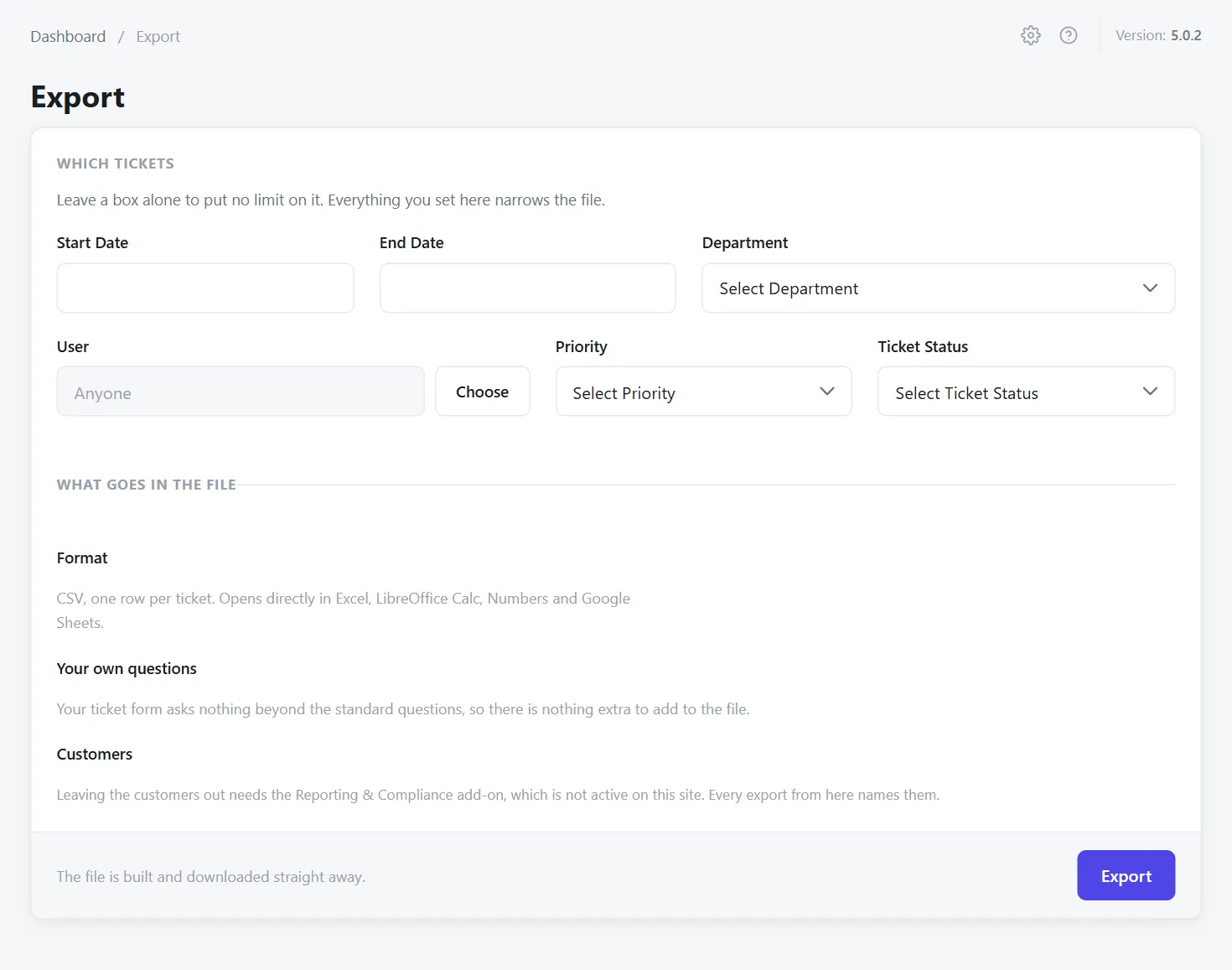
Under Which tickets, narrow the file by dates, department, user, priority, status, overdue or form. Leave a box empty to put no limit on it. Under What goes in the file, choose how answers to your own questions are laid out: all in one column, or a column for each form.
Click Export. Each row holds the ticket’s ID and reference, subject, message, status, priority, department, dates, the customer’s details, and how many replies and attachments it has.
With the Reporting & Compliance pack you can also export spreadsheets and PDFs, and replace customers with consistent pseudonyms.
Import from CSV
Section titled “Import from CSV”Tickets → Import from CSV creates tickets from a spreadsheet, for example when moving from a shared inbox.
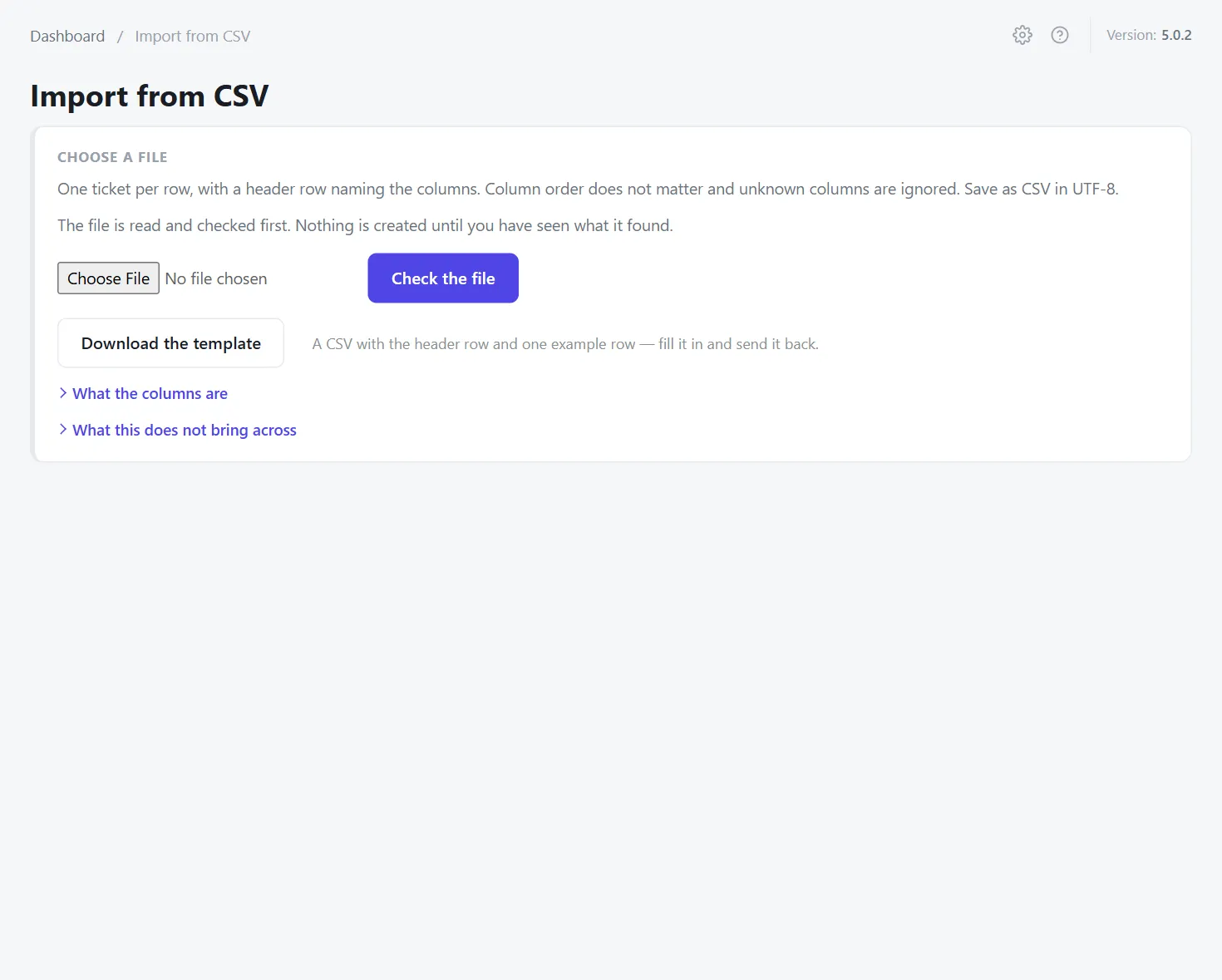
- Click Download the template for a file with the right headings and one example row.
- Fill it in and save it as CSV, UTF-8.
- Choose the file and Check the file. Nothing is created yet: you see what the file says, the rows that can’t be imported and why, and the first few tickets as they will be created.
- Click Create to import.
| Column | |
|---|---|
| subject, message, email | Required. |
| name, phone | The customer’s name and phone. |
| status, priority, department | Matched by name. Empty uses New, the default priority and the default department. |
| created | YYYY-MM-DD or YYYY-MM-DD HH:MM:SS. Empty uses the import time. |
Up to 5,000 rows per file. Column order doesn’t matter, and unknown columns are ignored, so a file exported from JS Help Desk can be imported again. Replies and attachments aren’t imported, no accounts are created, and nobody is e-mailed.
If you change your mind, the finished import has a button that deletes exactly what that file created, and nothing else.
To move from another help desk plugin, use Import from another help desk instead, which brings replies, attachments and more.