

Mailchimp
With the Integrations pack, the help desk’s registration form shows a Subscribe to the newsletter box. When someone ticks it and registers, the help desk records their consent and can add them to a Mailchimp audience.
Connecting Mailchimp
Section titled “Connecting Mailchimp”-
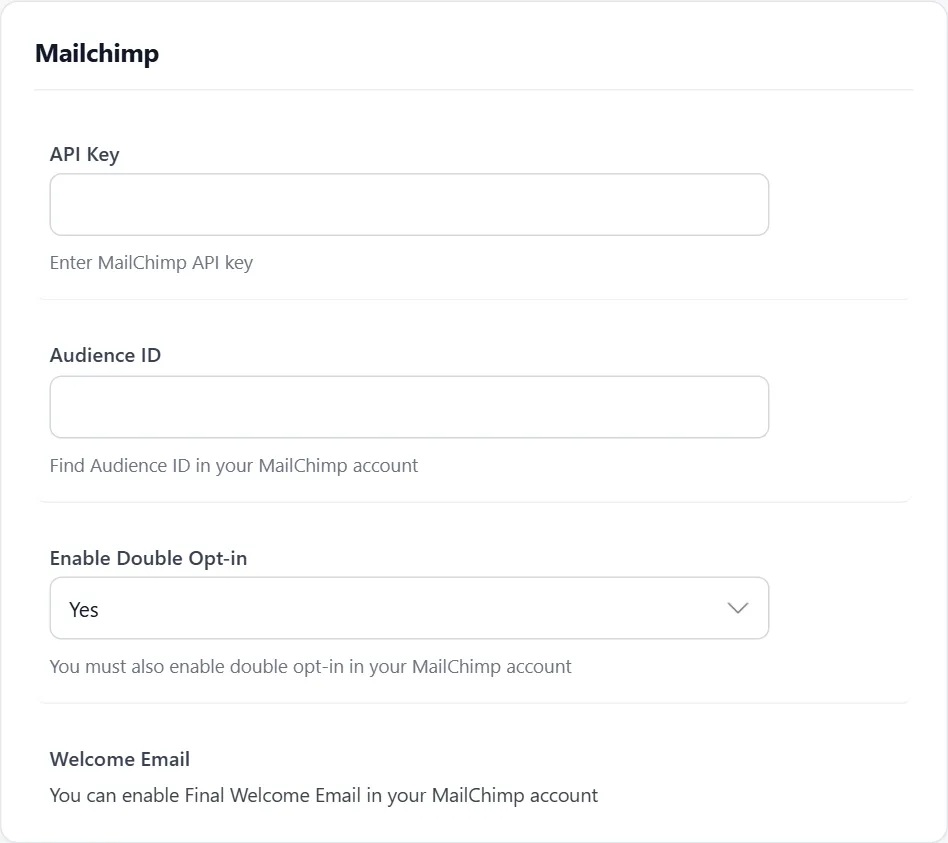
Open Help Desk → Configurations → Mailchimp.
-
Fill in the settings:
Setting Default What it does API Key Empty Your Mailchimp API key. The part after the last hyphen tells the help desk which Mailchimp data centre to use, so paste the whole key. Audience ID Empty The audience (list) people are added to. It’s in your Mailchimp account. Enable Double Opt-in Yes Yes adds people as pending, so Mailchimp sends them a confirmation e-mail first. No subscribes them straight away. You must also enable double opt-in in your Mailchimp account. Welcome Email is a reminder only: the final welcome e-mail is switched on in your Mailchimp account, not here.
-
Click Save Configurations.
-
Open GDPR → Marketing Consent and check that Carry it onward with is set to Mailchimp. On a site with an API key saved, it is unless someone has chosen otherwise. Click Save if you change it.
What happens when someone ticks the box
Section titled “What happens when someone ticks the box”- They register through the help desk’s registration form with Subscribe to the newsletter ticked.
- Their consent is recorded on GDPR → Marketing Consent: when, who, their answer, and the sentence set under The sentence beside the box.
- The
consent.recordedevent fires, which webhooks and automation can act on. - With the Mailchimp recipe chosen, they’re added to your audience with their first and last name, as pending or subscribed depending on Enable Double Opt-in.
People who don’t tick the box aren’t sent anywhere. Nothing is ever removed from your Mailchimp audience by the help desk.
Marketing Consent
Section titled “Marketing Consent”GDPR → Marketing Consent shows how many people have said yes and how many answers are recorded, and lets you set:
| Setting | What it does |
|---|---|
| The sentence beside the box | What people are agreeing to. Each consent keeps the sentence as it was when that person agreed; changing it only affects people from now on. In this version the registration form itself still shows Subscribe to the newsletter, whatever you write here. |
| Carry it onward with | Nothing — just record it and announce it, FluentCRM (if installed) or Mailchimp (once an API key is saved). |
| FluentCRM list | List ids for the FluentCRM recipe only. Mailchimp uses the Audience ID above. |
What people have answered lists every answer. A withdrawn consent is kept as a withdrawal, not deleted.