

Automation rules
A rule does routine work for you. It has three parts, in the order you say them: when it runs, which tickets it applies to, and what to do. Automation & SLA → Automation lists your rules; click Add Rule to write one, or Edit on a row.
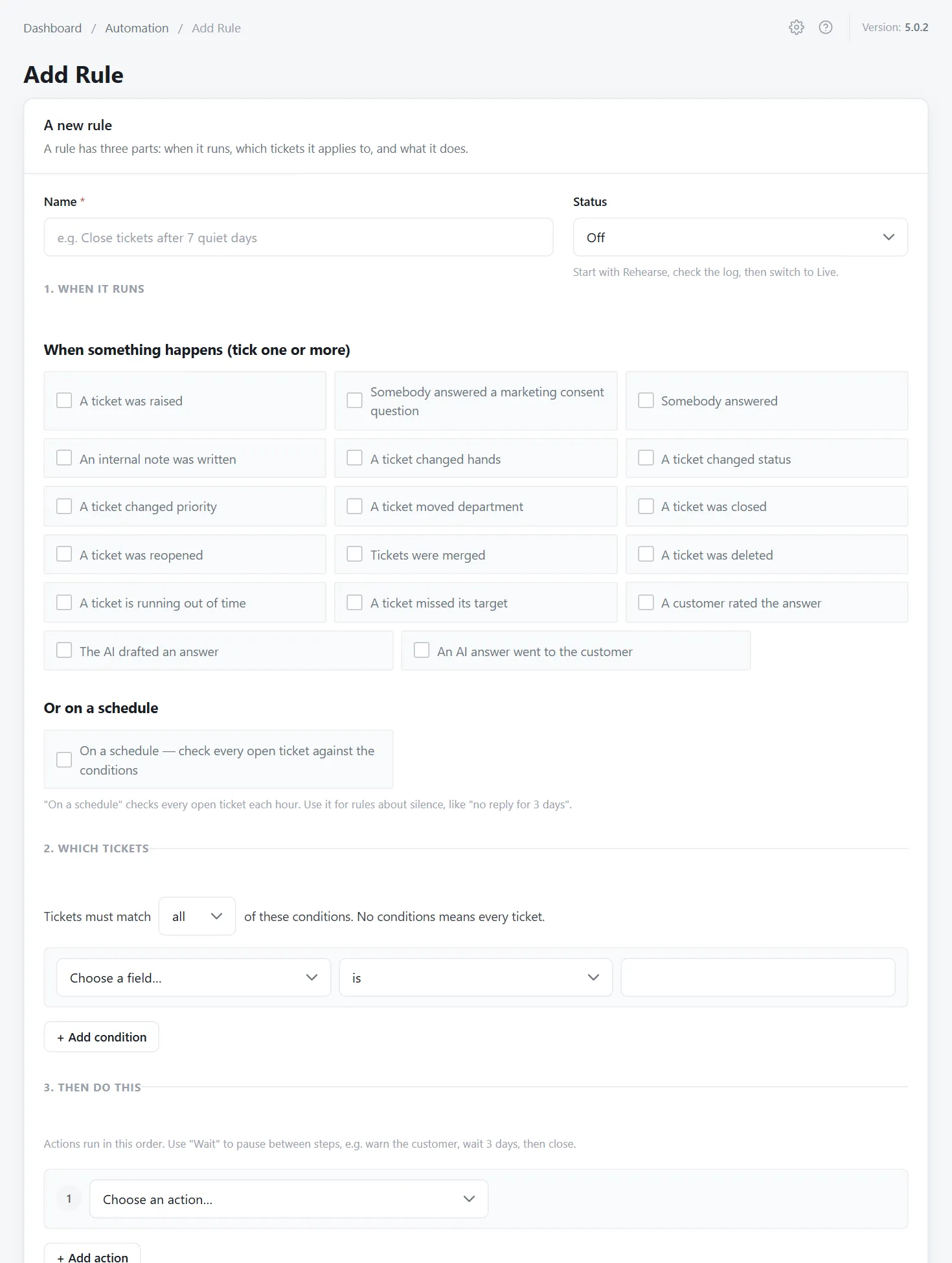
Name and status
Section titled “Name and status”| Field | What it does | Default |
|---|---|---|
| Name | What the run log calls the rule. Up to 140 characters. | Required |
| Status | Off; Rehearse: only log what it would do; or Live: really do it. | Off |
Start with Rehearse, check the log, then switch to Live. See Rehearse and Live.
1. When it runs
Section titled “1. When it runs”Tick one or more events under When something happens:
| Trigger | Fires when |
|---|---|
| A ticket was raised | A new ticket arrives, however it came in (portal, e-mail, recurring schedule, API). |
| Somebody answered a marketing consent question | A customer answers a consent question. |
| Somebody answered | Anyone replies: the customer or your team. |
| An internal note was written | A note is added. |
| A ticket changed hands | The ticket is assigned or reassigned. |
| A ticket changed status | The status changes. |
| A ticket changed priority | The priority changes. |
| A ticket moved department | The ticket is transferred. |
| A ticket was closed | The ticket is closed. |
| A ticket was reopened | A closed ticket is reopened. |
| Tickets were merged | Tickets are merged (Agents & Teams). |
| A ticket was deleted | A ticket is deleted. |
| A ticket is running out of time | A service level clock reaches its warning point. |
| A ticket missed its target | A service level clock misses its due time. |
| A customer rated the answer | A satisfaction rating comes in. |
| The AI drafted an answer | The AI agent proposes an answer. |
| An AI answer went to the customer | An AI answer is sent. |
Or tick On a schedule — check every open ticket against the conditions under Or on a schedule. Use this for rules about silence, such as “no reply for 3 days”: nothing happens on a quiet ticket, so no event would ever fire.
A scheduled rule is checked once an hour against the 1,000 newest open tickets (closed and merged tickets are skipped). It acts on every ticket that matches, every hour that it still matches. Make sure what the rule does changes something its conditions look at (closing the ticket, changing its status), or it will act on the same ticket again an hour later.
If you tick On a schedule together with events, the rule only runs on the schedule.
2. Which tickets
Section titled “2. Which tickets”Choose Tickets must match all or any of the conditions. A rule with no conditions applies to every ticket its trigger sees. The form shows one condition row; + Add condition adds more.
Each row is a field, a comparison and a value. Fields that choose from a list (statuses, agents and so on) show that list; yes-or-no fields show Yes and No.
| Group | Field | Kind |
|---|---|---|
| The ticket | Status, Priority, Department, Help topic, Product, Assigned agent | List |
| Nobody is assigned, Has been answered, Flagged overdue, Arrived by e-mail | Yes/No | |
| What it says | Subject, First message, Latest reply | Text |
| Who raised it | Customer e-mail, Customer name, Customer e-mail domain | Text |
| Customer’s user id | Number | |
| Customer has an account | Yes/No | |
| Customer tier | List | |
| Timing | Hours since it was raised, Hours since anybody wrote on it, Hours since the customer wrote, Number of replies | Number |
| Service level | SLA state (Running, Paused, Met, Breached, No longer applies) | List |
| Minutes left on the SLA | Number | |
| SLA policy | Text |
Other packs add fields: the free plugin’s company records add Company, Company tier and Company contract; the Commerce pack adds WooCommerce fields such as Lifetime value and Days since their last order.
The Service level fields and Customer tier are only filled in while SLAs are switched on. They describe the ticket’s tightest running or paused clock: the one with the fewest minutes left (negative once late).
Comparisons
Section titled “Comparisons”| Comparison | For |
|---|---|
| is, is not | Every kind |
| is one of, is not one of | Lists. The form offers one choice per row. |
| contains, does not contain, starts with | Text |
| is more than, is less than | Numbers |
| is empty, is not empty | Text and lists. A value of 0 (for example no agent) counts as empty. |
Text is compared without regard to capitals or spaces at either end. Hours since… fields are in hours with decimals: 72 is three days.
3. Then do this
Section titled “3. Then do this”Actions run in order, top to bottom. The form shows one action row; + Add action adds more. Each row shows only the boxes its action needs.
| Group | Action | Needs | What it does |
|---|---|---|---|
| Change the ticket | Assign to an agent | An agent | Assigns the ticket. |
| Route it to whoever is best placed | Nothing | Automatic assignment picks the agent (Agents & Teams). | |
| Change the status | A status | Sets the status. | |
| Change the priority | A priority | Sets the priority. | |
| Move it to another department | A department | Transfers the ticket. | |
| Close it | Nothing | Closes the ticket. | |
| Reopen it | Nothing | Reopens a closed ticket. | |
| Say something | Write an internal note | Text | Adds a note. |
| Reply to the customer | Text | Posts a reply from the desk. | |
| Tell an agent | An agent and text | Sends the agent a notification, titled with the rule’s name. You must pick an agent: Whoever it is assigned to tells nobody. | |
| Reach outside | Call a webhook | An address | Queues a call to the address with the rule’s name and the ticket (Integrations pack). |
| Announce it, so other rules can act | Nothing | Records an announcement. In this version no trigger listens for it. | |
| Control the rule | Wait | Minutes | Pauses the run, then carries on with the next action. 1440 minutes is a day. |
| Ask somebody to approve the rest | An agent (optional) and text | Stops until someone approves or refuses. See Approvals. | |
| Stop here | Nothing | Ends the run. Later actions are skipped. |
Every change is made as the system (“Automation rule: rule name” is the reason recorded), obeys the same checks as an agent’s click, and is written to the ticket’s history. A change that is already true (“already closed”) is logged as “Nothing to do — it was already that way”, not as a failure.
Placeholders
Section titled “Placeholders”Notes, replies, notifications and approval requests can use these. Click a chip under the actions to insert it.
| Placeholder | Becomes |
|---|---|
{reference} |
Ticket ID |
{subject} |
Ticket subject |
{customer} |
Customer’s name |
{email} |
Customer’s email |
{agent} |
Assigned agent’s name |
{status} |
Ticket status |
{priority} |
Ticket priority |
{department} |
Department |
{sitename} |
Your site name |
More options
Section titled “More options”| Field | What it does | Default |
|---|---|---|
| Order | Rules run in order, lowest number first. 0 to 9999. | One more than the number of rules |
| Description (for your team) | A note for whoever edits the rule next. | Empty |
| When this rule runs, skip the rules after it | If this rule matches, rules further down the order are not asked about this event (or, on a schedule, about this ticket this hour). | Off |
Click Save rule. Open it again with Edit to see how it would have handled your recent tickets. Delete rule removes it; what it already did stays in the log, and any run of it that was waiting is stopped.
Saving stops with a message if the rule has no name, no trigger (“A rule needs at least one thing to watch for.”) or no action (“A rule has to do something.”).