

Hours & Leave
Agents & Access → Agents → Hours & Leave answers one question: should this person be given new work right now? It never changes what anyone may do. An agent on leave can still open every ticket they could open yesterday; the desk just stops handing them new ones, and can pass their work to whoever covers.
Agents see this screen as My Hours & Leave and can edit their own entry. Administrators can edit anyone’s.
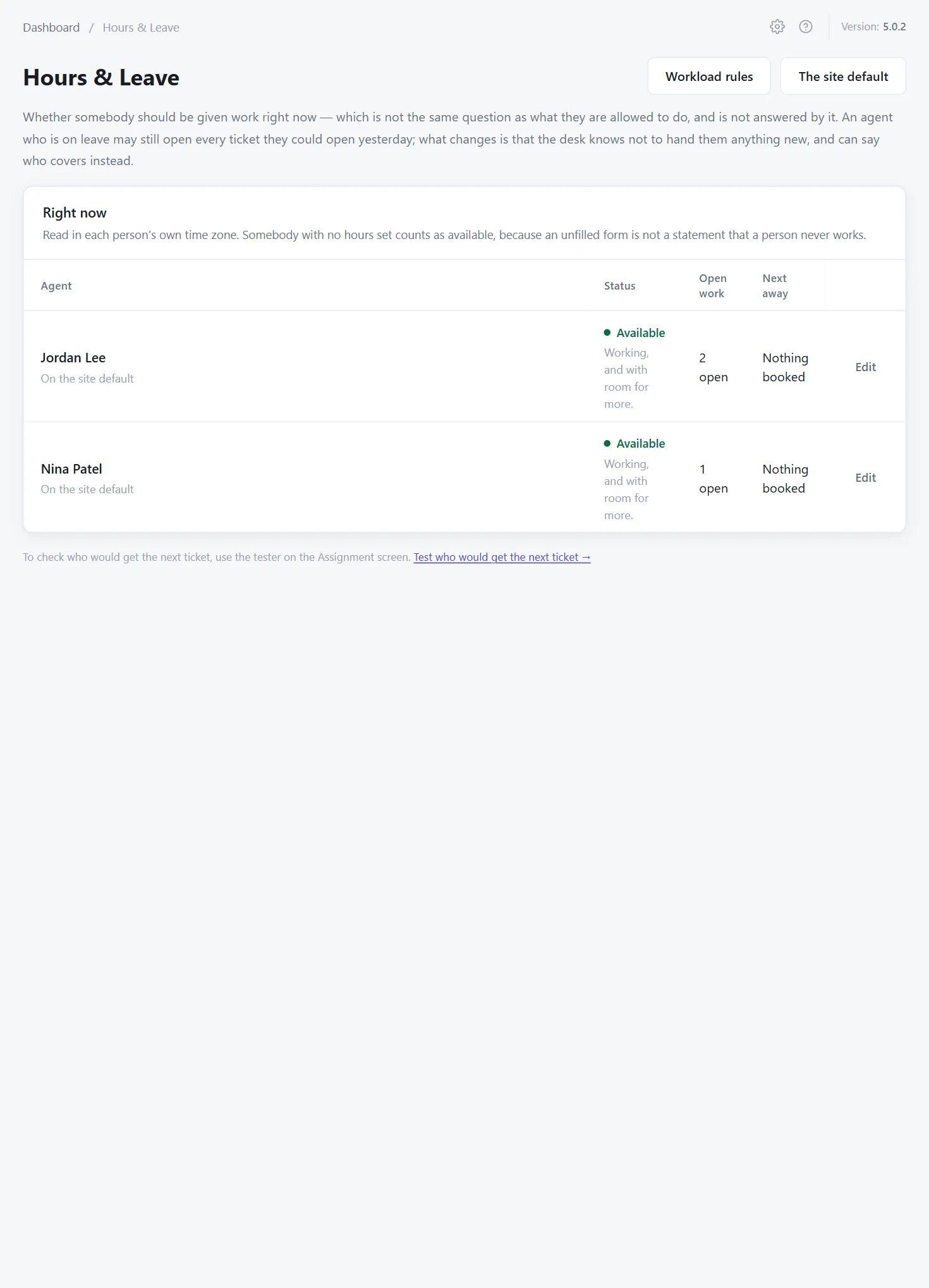
The list
Section titled “The list”| Column | Shows |
|---|---|
| Agent | The agent, and whether they have Their own settings or are On the site default. |
| Status | Their state right now (see below). |
| Open work | How many open tickets they hold, against their limit if they have one. |
| Next away | Their next booked time off, or Nothing booked. |
At the top, Workload rules and The site default open the shared settings, and Test who would get the next ticket goes to the rehearsal on the Assignment screen.
Status
Section titled “Status”The first of these that applies is shown:
| Status | Means |
|---|---|
| Away | They have time off booked for today. Shows when they are back. |
| Off hours | Outside their working hours. |
| Not at the desk | They have set themselves to Away from the desk or Not working. |
| Full | They hold as much open work as their limit allows. |
| Available | Working, and with room for more. |
Only Available agents are chosen by automatic assignment.
One agent’s settings
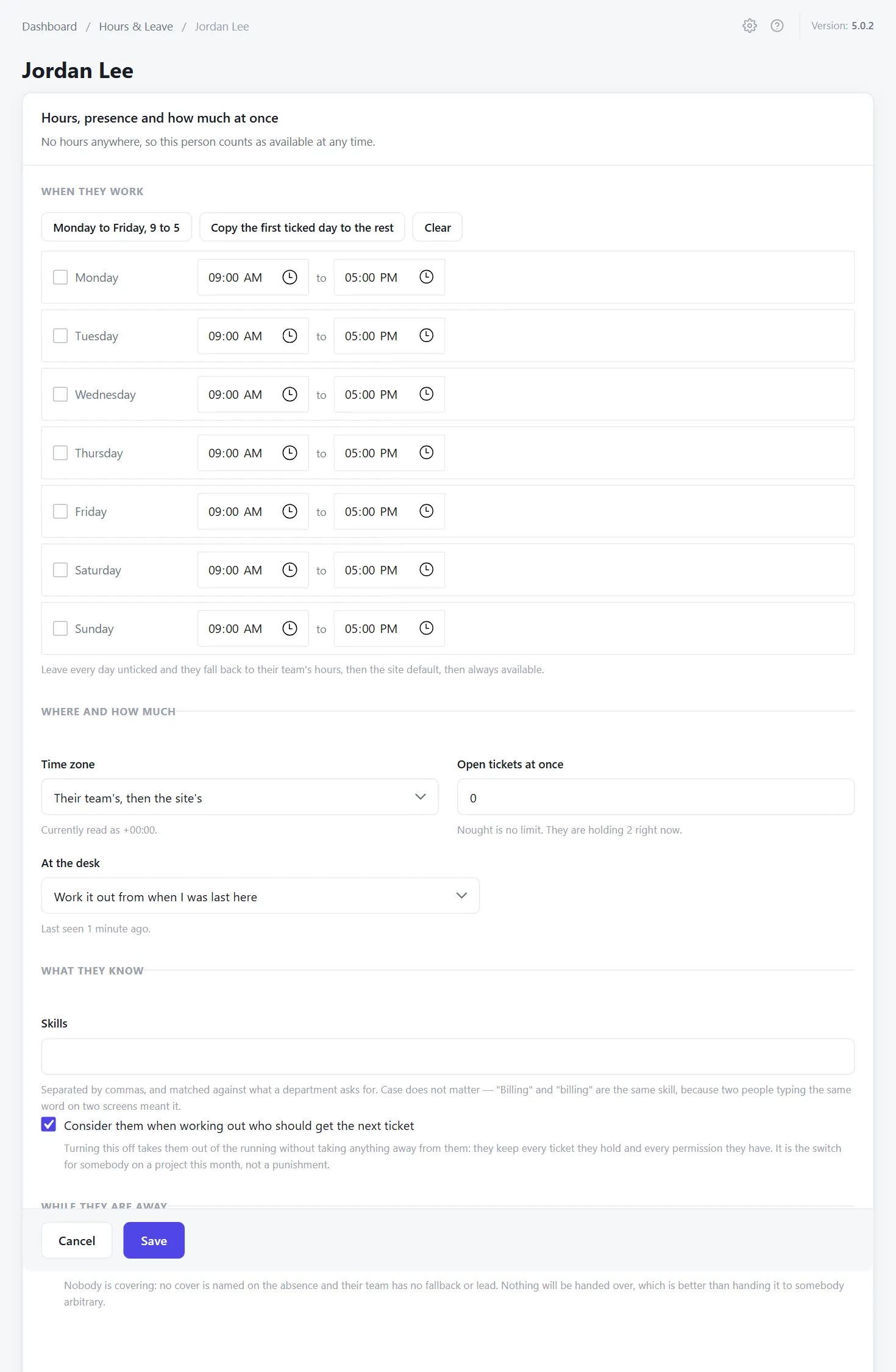
Section titled “One agent’s settings”Click Edit on their row. The form is headed Hours, presence and how much at once.
| Setting | What it does |
|---|---|
| When they work | Their own working days and hours. Leave every day unticked and they use their team’s hours, then the site default, then always available. The note above the days says where their hours currently come from. A closing time earlier than the opening time is a night shift that ends the next morning (22:00 to 06:00). |
| Time zone | The zone their hours and time off are read in. Their team’s, then the site’s by default. |
| Open tickets at once | Their workload limit. 0 is no limit. The note shows how many they hold now. |
| At the desk | Work it out from when I was last here (the default), At the desk, Away from the desk or Not working. Only the last two, set by hand, stop them being given work. |
| Skills | What they know, separated by commas, for example billing, spanish. Matched against the skills a department asks for. Case doesn’t matter. |
| Consider them when working out who should get the next ticket | Untick to take them out of automatic assignment. They keep every ticket and permission. |
| Hand their open tickets to whoever is covering when an absence starts | See Handover. |
Click Save. Use the site default removes this agent’s own settings.
With Work it out from when I was last here, the help desk notes when the agent last loaded a page, on the site or in WordPress admin. The note under At the desk says when they were last seen.
Time off
Section titled “Time off”The Time off card lists booked absences with their dates, reason and cover, and marks Handed over once their work has been passed on. Cancel removes one.
- Under Book time off, set First day, and Last day if it’s more than one day. Days are whole days, in the person’s time zone.
- Optionally add a Reason. Only other agents see it.
- Choose Cover: a named agent, or Whoever their team says.
- Click Book it.
Booking time off never changes what somebody may do, only what they are given.
Handover
Section titled “Handover”Who covers an absent agent is worked out in this order:
- The cover named on the absence.
- Their team’s Covers when a member is away person.
- Their team’s Lead.
If none is set, nobody covers and nothing is handed over. The While they are away section says who the cover is now and why.
If Hand their open tickets to whoever is covering when an absence starts is ticked, an hourly job moves the agent’s open tickets to the cover once their time off begins. Each absence is handed over once. Hand over now does it immediately and reports how many tickets were moved, refused or failed. Moves are recorded on each ticket like any other assignment.
Workload rules
Section titled “Workload rules”Click Workload rules at the top of the list.
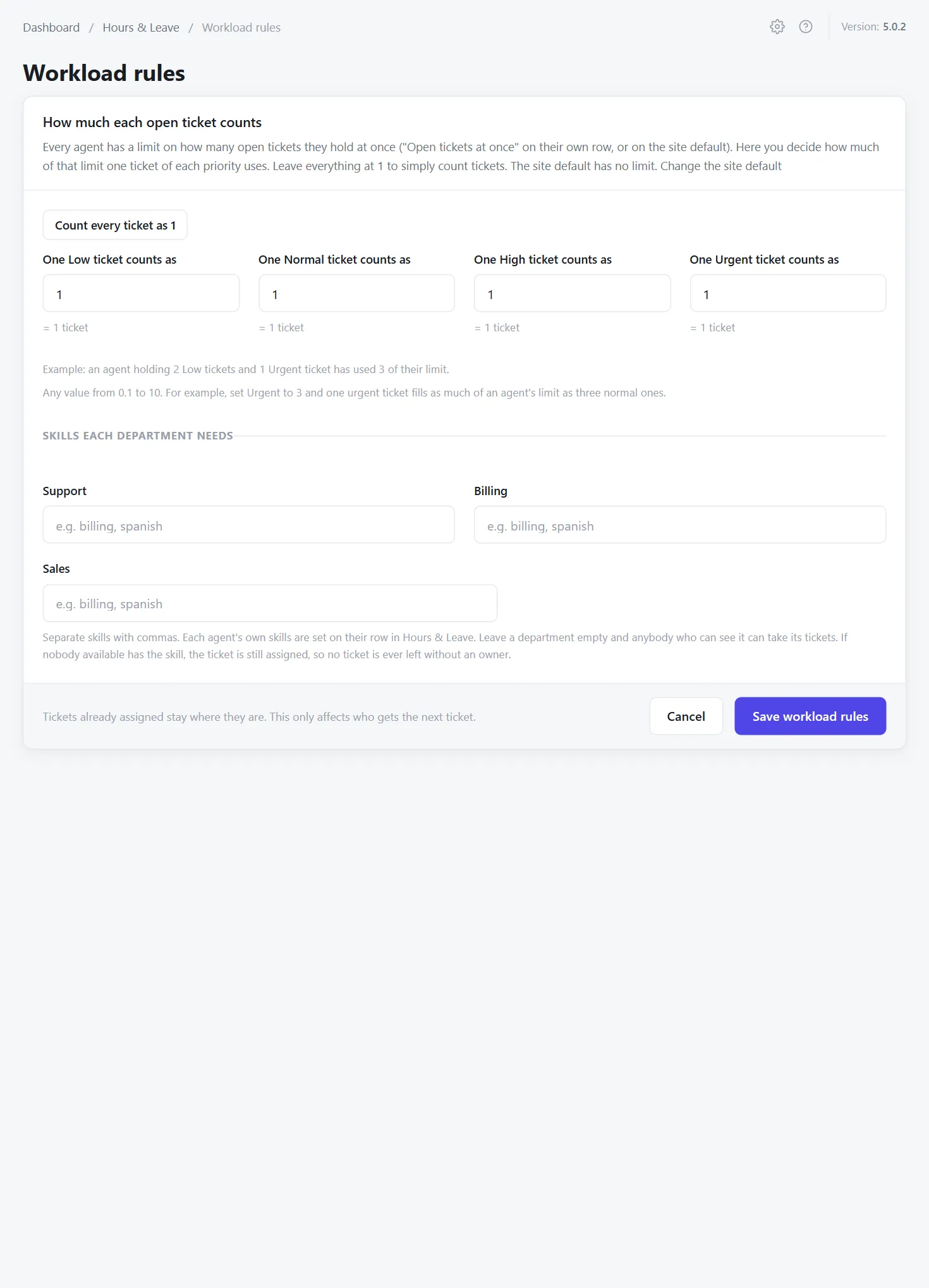
How much each open ticket counts sets a weight for each priority, from 0.1 to 10. With Urgent at 3, one urgent ticket uses as much of an agent’s limit as three normal ones. Leave everything at 1 (or click Count every ticket as 1) to simply count tickets.
Skills each department needs takes a comma-separated list per department. Leave a department empty and anyone who can see it can take its tickets. Agents’ own skills are set on their row. If nobody available has the skill, the ticket is still assigned.
Click Save workload rules. Tickets already assigned stay where they are; the rules apply to the next ticket.
The site default
Section titled “The site default”Click The site default to set When they work, Time zone and Open tickets at once for everyone without their own settings, then Save the default. It ships empty: always available, no limit.