

SLA reports and testing
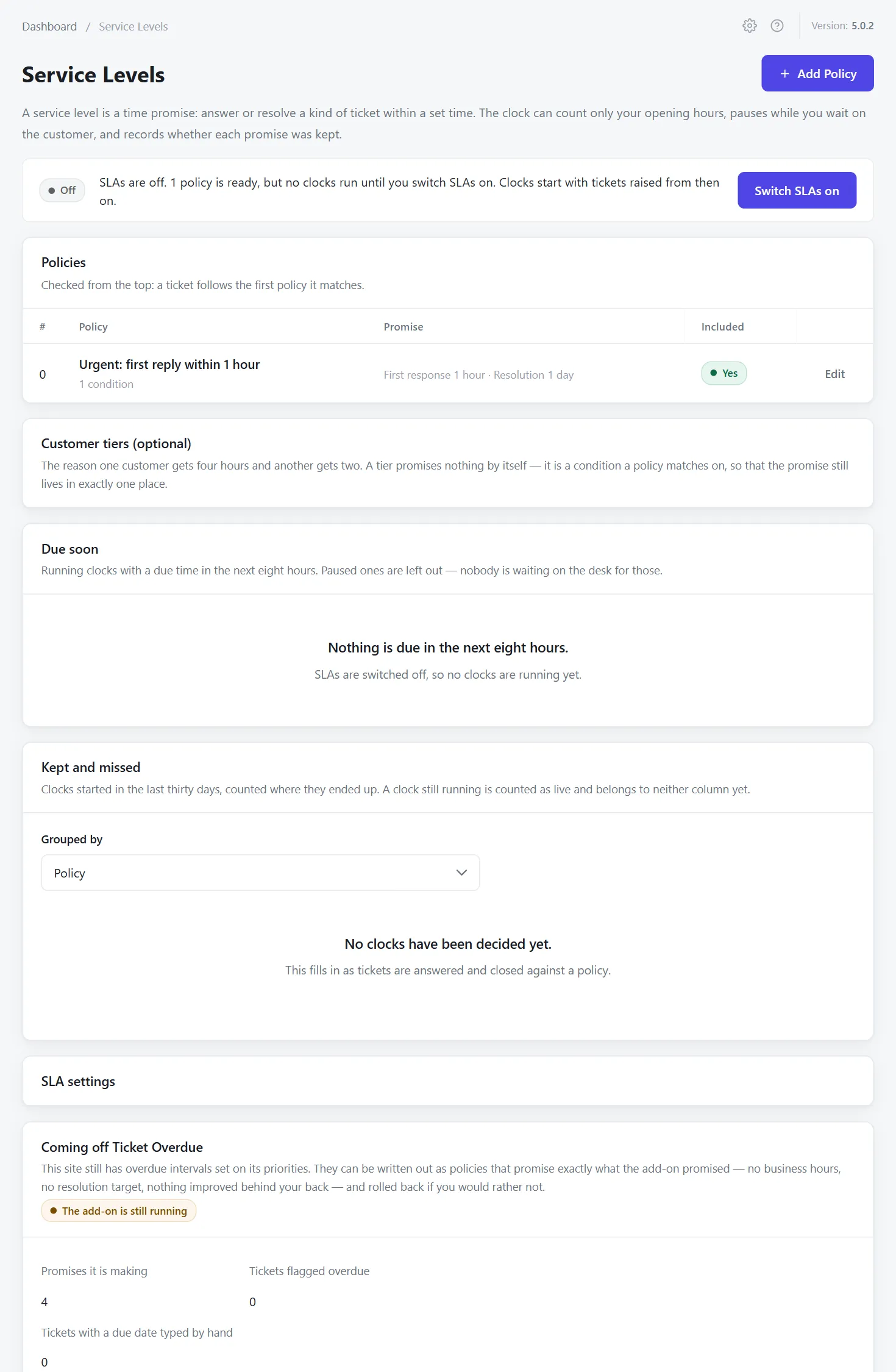
Automation & SLA → Service Levels is arranged in the order you ask about it: how the desk is doing, what it has promised, what is due soon and how the last month went.
The status strip
Section titled “The status strip”Says On or Off, how many policies you have and how many clocks are running, with the Switch SLAs on / Switch SLAs off button. While SLAs are on it also counts, over all time:
| Count | Means |
|---|---|
| Clocks running | Promises being counted down now. |
| Paused, waiting on the customer | Clocks stopped by a pause status. |
| Kept | Promises met. |
| Missed | Promises missed. Highlighted when above 0. |
A yellow notice under the strip means the five-minute sweep is not scheduled.
Policies
Section titled “Policies”Your policies in checking order: # (the Order), Policy with how many conditions it has (or Every ticket), Promise (for example “First response 1 hour · Resolution 3 days”) and Included (Yes or No). Click Edit to open one.
Due soon
Section titled “Due soon”Running clocks that are due in the next eight hours, soonest first, up to 25. Paused clocks are left out, because nobody is waiting on the desk for those.
| Column | Shows |
|---|---|
| Ticket | The ticket’s ID (click to open it) and the start of its subject. |
| Promise | Which promise, and the policy. |
| Left | “2 hours 15 minutes left.” in green, or amber once 80% of the time is used; “Overdue by …” in red. |
Kept and missed
Section titled “Kept and missed”Clocks started in the last thirty days, counted by how they ended. Choose Grouped by: Policy, Agent, Department, Priority, Customer tier or Promise.
| Column | Shows |
|---|---|
| Kept, Missed | Clocks met and missed. |
| Live | Clocks still running or paused, not decided yet. |
| Attainment | Kept as a share of kept plus missed: green at 95% or more, amber from 80%, red below. “Nothing decided yet” when there is nothing to divide. |
Clocks that stopped as no longer applying (closed without an answer, merged, deleted, policy withdrawn) count in no column. Withdrawn policies stay in the report under their name.
Test against your recent tickets
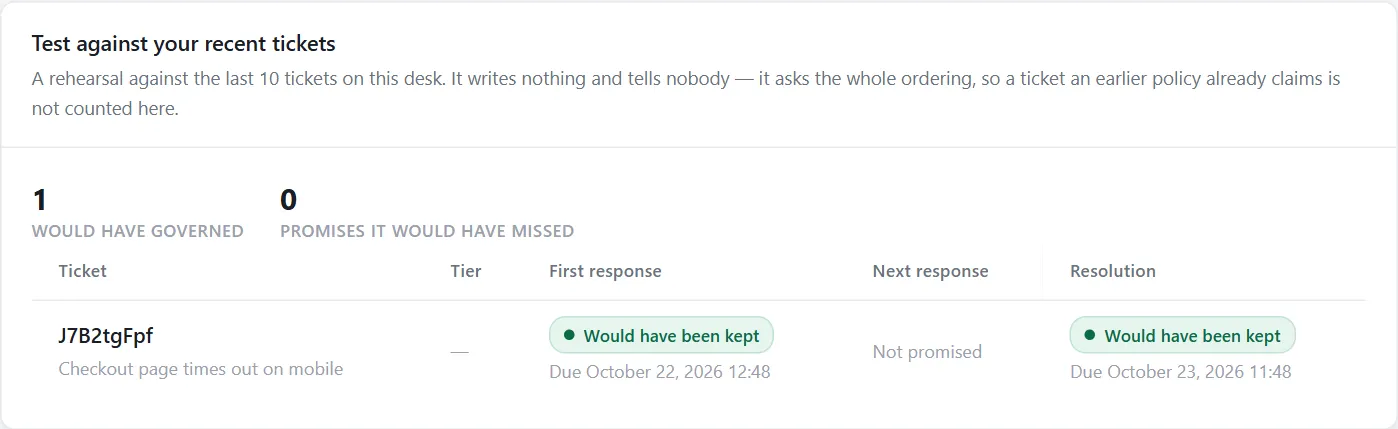
Section titled “Test against your recent tickets”Open a saved policy with Edit. A notice at the top sums it up, for example “Tested against the last 500 tickets: this policy would cover 12 and would have missed 3 promises”, and Test against your recent tickets below the form gives the details. It writes nothing and tells nobody.
How it works:
- It looks at your 500 most recent tickets, as they are now (current priority, department, status and so on).
- It asks the whole checking order, so a ticket an earlier policy already claims is not counted for this one.
- For each ticket it works out when First response and Resolution would have been due, from when the ticket was raised, using this policy’s working hours and holidays. Pauses are not taken into account.
- First response is judged by the ticket’s latest reply, and resolution by when it was closed. A ticket with no reply or still open is judged against now.
Each cell shows Would have been kept or Would have been missed (with Still in time and Already past it for tickets not answered or closed yet), No due date if the policy’s calendar never opens, or Not promised. The table shows up to 15 tickets. Next response is not tested and always shows Not promised.
Use it to sanity-check a new policy before you switch SLAs on. Because first response is judged by the latest reply, a busy ticket can show as missed when its first answer was on time.
Worked example: urgent tickets answered within 1 hour, in business hours
Section titled “Worked example: urgent tickets answered within 1 hour, in business hours”Acme Support promises that an Urgent ticket gets a first reply within one working hour, Monday to Friday, 9 to 5.
-
Go to Automation & SLA → Service Levels and click Add Policy.
-
Under The promise:
- Name:
Urgent: first reply within 1 hour - First response:
1hours - Leave Next response and Resolution empty.
- Warn at (% of the time): leave at
80, so the warning comes with 12 minutes left.
- Name:
-
Under Which tickets, tick Urgent under Priorities. Leave everything else unticked.
-
Under Working hours, set The clock counts to Only our business hours (set below). Choose your Time zone, click Monday to Friday, 9 to 5, and add your closed days under Days you are closed, for example
2026-12-25 Christmas Day. -
Optionally, open Escalations (optional) and add a level: At (%)
100, Do this Write an internal note, NoteUrgent first reply missed. Pick this up now. -
Open More options and set Order to
0, so this policy is checked before any general one. -
Click Save policy, then Edit on the new row and read Test against your recent tickets. The checkout-timeout ticket (Urgent) should be listed.
-
Back on the list, click Switch SLAs on.
From now on, an Urgent ticket raised at 10:15 on a Tuesday is due at 11:15. One raised at 16:30 on a Friday is due at 09:30 on Monday: 30 minutes on Friday, 30 on Monday. At 80% of the time its assigned agent is told “This is about to be late”; if nobody has replied by the due time, it shows under Missed, the note is written and, with the overdue flag setting on, the ticket moves to the Overdue tab.