

Sending address
The help desk sends its notifications through WordPress, from addresses you list under Help Desk → Outgoing Email → System Emails. A new install has one: your WordPress administration e-mail address.
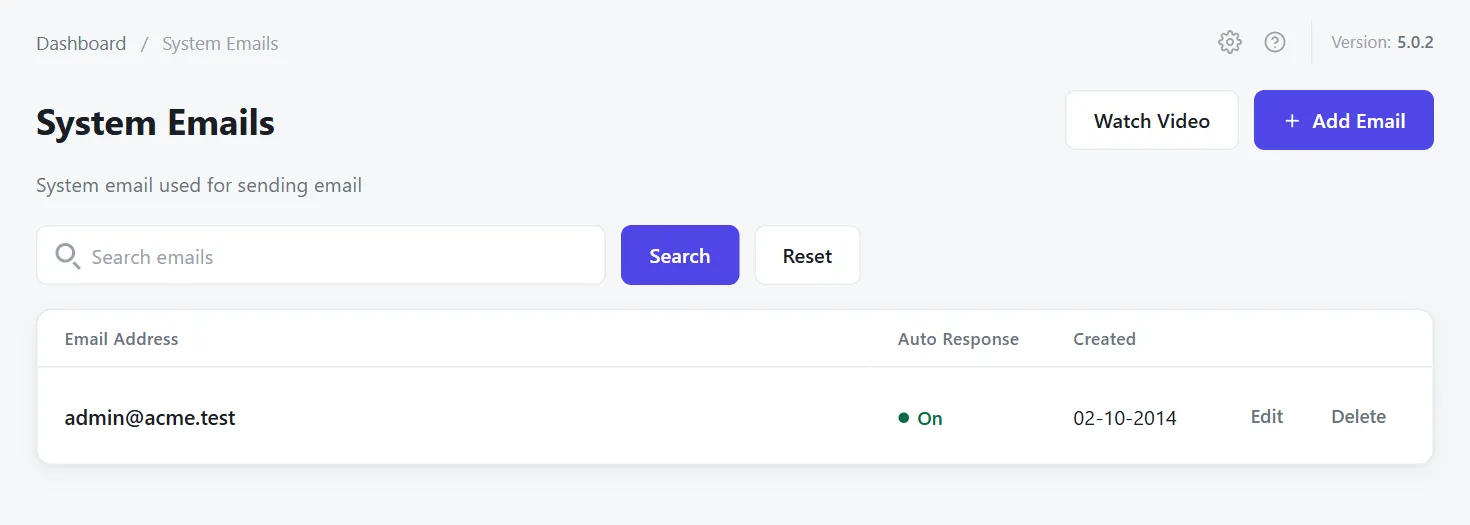
Adding an address
Section titled “Adding an address”Click Add Email.
| Field | |
|---|---|
The address. Use one on your own domain, such as support@yourcompany.com. |
|
| Auto Response | Yes makes the address available as the help desk’s default sender and admin address (below). |
| Status | Active or Disabled. |
Click Save Email. An address that a department or the defaults below still use can’t be deleted.
Which address is used
Section titled “Which address is used”A message about a ticket is sent from:
- the ticket’s department’s Outgoing Email, set on the department; or, if it has none,
- the Default Alert Email under Configurations → System Emails.
Messages meant for the administrator go to the Default Admin Email on the same tab. Both lists offer your active addresses with Auto Response on, and Add New Email beside each takes you to the form above.
The name the message comes from is the help desk’s Title (Configurations → General).
How mail leaves your site
Section titled “How mail leaves your site”JS Help Desk does not run its own mail server. It hands messages to WordPress, and whatever handles your site’s mail sends them. On most hosts that should be a dedicated SMTP plugin connected to a real mail service, such as WP Mail SMTP, FluentSMTP or Post SMTP. Email Health shows which one is in charge.