

Team chat
Team chat tells a channel your team already uses when something happens on the desk. All five services can be told. One of them, Slack, can also answer back: a linked agent can reply to a ticket without leaving Slack.
Integrations → Team Chat.
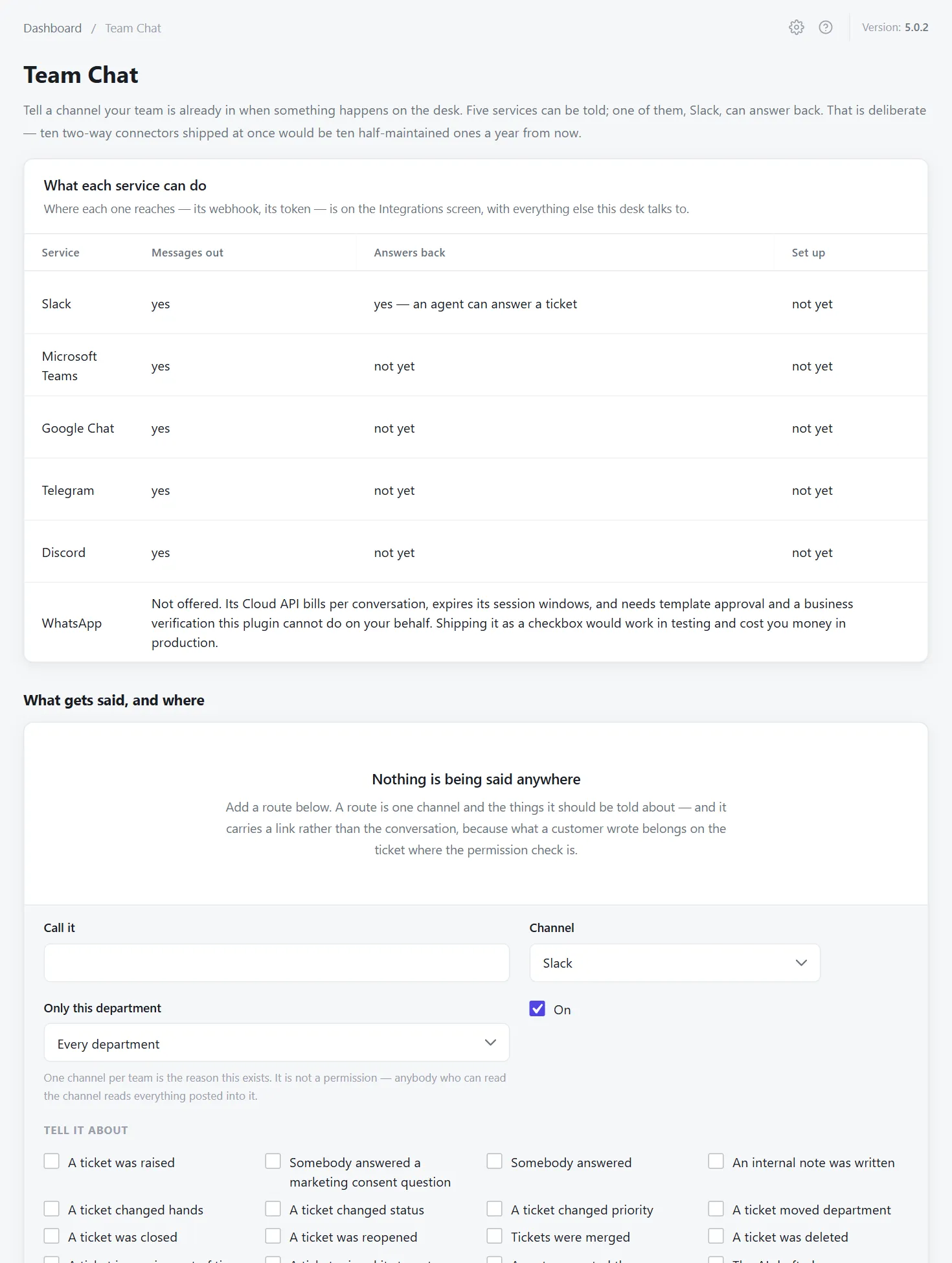
What each service needs
Section titled “What each service needs”What each service can do lists the services, whether each answers back, and whether it is ready. Click ready or not yet to open that service on the Connectors screen, where you enter its details.
| Service | Messages out | Answers back | Fields on its connector |
|---|---|---|---|
| Slack | Yes | Yes: an agent can answer a ticket | Incoming webhook URL (required), Signing secret, Bot token |
| Microsoft Teams | Yes | Not yet | Incoming webhook URL (required) |
| Google Chat | Yes | Not yet | Webhook URL (required) |
| Telegram | Yes | Not yet | Bot token (required), Chat id (required) |
| Discord | Yes | Not yet | Webhook URL (required) |
- Slack: the Incoming webhook URL comes from a Slack app with the Incoming Webhooks feature turned on. Anyone holding it can post into your channel, so it is kept as a secret. The Signing secret is only needed for answering from Slack. The Bot token field is offered, but this version doesn’t use it.
- Microsoft Teams: the incoming webhook address for the channel. Messages are sent as a card with an Open the ticket link.
- Google Chat: the webhook address for the space. Messages are plain text.
- Telegram: the bot’s token and the Chat id of the group or channel the bot posts into (a negative number for a group). Messages are plain text.
- Discord: the channel’s webhook address. Messages are an embed linking to the ticket.
WhatsApp is not offered.
After entering the details, click Test it on the connector. It posts “JS Help Desk test message” into the channel. Check the channel itself: a service accepting a message isn’t quite the same as it appearing where you expected.
Routes: what gets said, and where
Section titled “Routes: what gets said, and where”A route is one channel and the events it should hear about. Nothing is posted anywhere until you add one.
-
Under What gets said, and where, fill in the form below the list:
Field What it does Call it A name for the route. Channel Which service to post to. Only this department Only events on this department’s tickets. Every department for all. Events not about a ticket are always posted. On Untick to pause the route. -
Under Tell it about, tick the events. At least one is required. They are the same events webhooks use; see the list.
-
Click Save the route.
Saving a route doesn’t post anything. Click a route’s name to edit it, or Delete to remove it; the channel itself is untouched.
What a message says
Section titled “What a message says”Each message names the event and the ticket ID, for example A ticket was raised — kX7bQ2mtw, gives the ticket’s subject, and links to the ticket. The customer’s message itself is never posted: what they wrote stays on the ticket, behind the help desk’s permission checks.
Messages are sent in the background through the job queue. If a service doesn’t answer, the help desk tries again after 1, 2, 4, 8 and 16 minutes, then gives up. Every attempt is written in that connector’s activity log.
Answering from Slack
Section titled “Answering from Slack”Linked agents can reply to a ticket by typing in Slack:
/jshd <ticket ID> <your answer>for example /jshd kX7bQ2mtw Thanks, the refund went out today.
That is the only thing that can be done from Slack: not closing, assigning, deleting or reading. The reply is posted as that agent, added to the ticket’s history and e-mailed to the customer exactly as if they had used the desk. Slack shows the result only to the person who typed it.
-
In your Slack app, add a slash command (for example
/jshd) and set its request URL to the address shown under Point your Slack app’s slash command at:. It looks likehttps://example.com/wp-admin/admin-ajax.php?action=jsst_chat_slack. -
Copy the app’s signing secret into Signing secret on the Slack connector (Integrations → Integrations, Slack) and click Save. Until it is there, every request is refused.
-
Back on Team Chat, under Answering from Slack, enter the person’s Slack account id. This is the account id from their Slack profile, such as
U01ABCDEFGH, not their @name. -
Choose who they are in Is and click Link them.
To unlink someone, enter their Slack account id, choose — nobody, unlink them — and click Link them. The Is list needs the Agents & Teams pack.
What a linked person may answer is decided by their own help desk permissions. The answers they might see in Slack:
| Slack says | Why |
|---|---|
| Answering from Slack is not switched on for this help desk. | No signing secret is saved. |
| That request could not be verified. | The request wasn’t signed with your signing secret, or its timestamp is more than five minutes off. |
| Your Slack account is not linked to an agent on this help desk. … | Nobody has linked their Slack account id. |
Use: /jshd <ticket reference> <your answer> |
The command had no answer after the ticket ID. |
| No ticket on this desk has that reference. | The ticket ID is wrong. |
| You are not allowed to answer that ticket. | Their permissions don’t allow it. |
| Answered … | Done. |
Failed and refused attempts are written in the Slack connector’s activity log.