

Time tracking
Reports → Time → Time shows the time spent on your desk, what of it is chargeable and what it is worth. Time timed with the stopwatch on a ticket and time typed in afterwards are the same kind of record here.
Nothing is counted until you switch recording on.
Switching it on
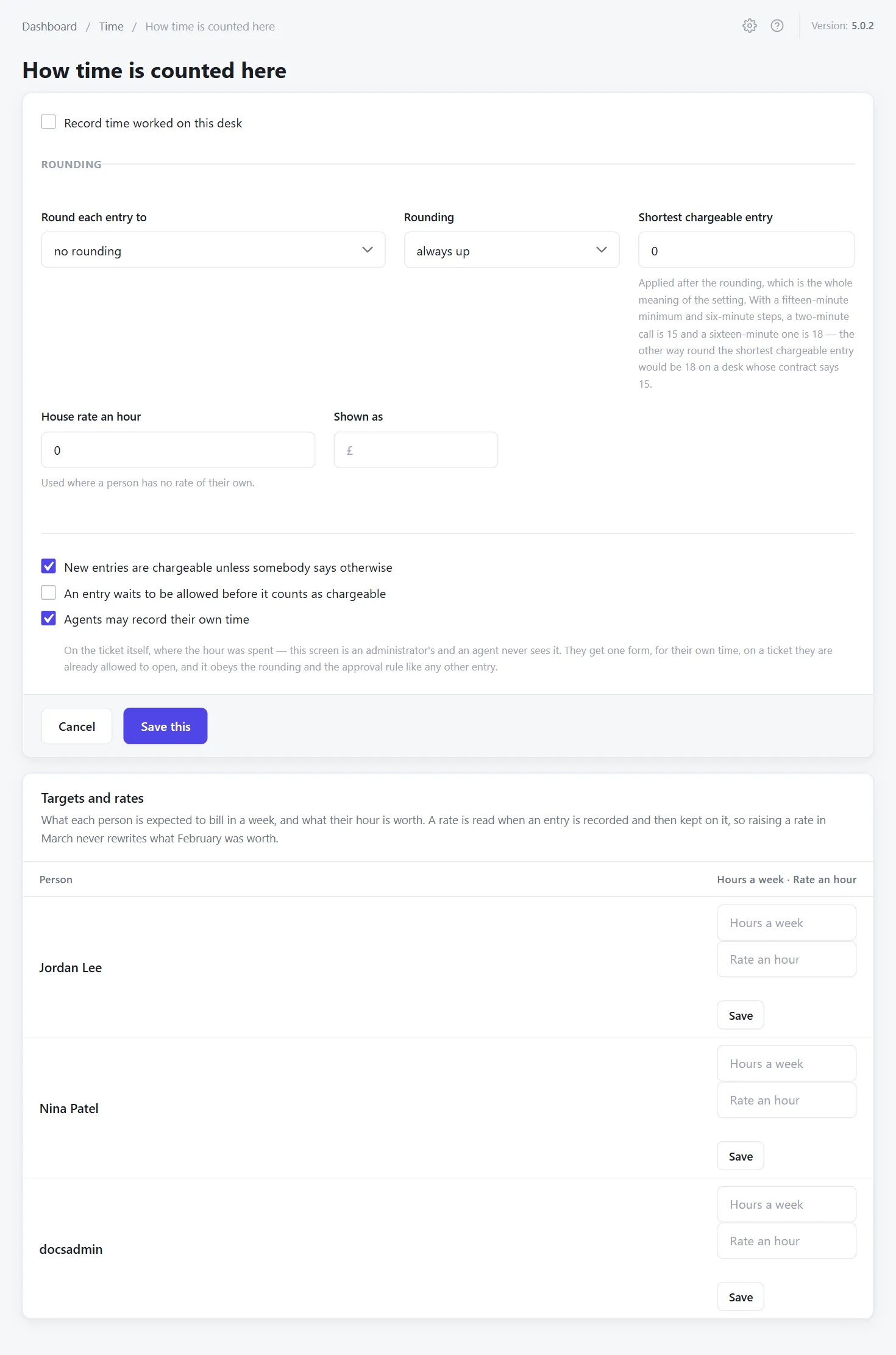
Section titled “Switching it on”- On Time, click How time is counted here.
- Tick Record time worked on this desk.
- Set the options below.
- Click Save this.
| Setting | What it does | Default |
|---|---|---|
| Record time worked on this desk | Turns time recording on. Recording starts from that moment. | Off |
| Round each entry to | no rounding, 5 minutes, 6 minutes (a tenth of an hour), 10 minutes, a quarter of an hour, half an hour or a whole hour. | no rounding |
| Rounding | always up or to the nearest. | always up |
| Shortest chargeable entry | A minimum, in minutes, applied after rounding. With a 15-minute minimum and 6-minute steps, 2 minutes becomes 15 and 16 minutes becomes 18. | 0 (none) |
| House rate an hour | The hourly rate for anyone without a rate of their own. | 0 |
| Shown as | The currency sign shown before amounts, for example £. | Empty |
| New entries are chargeable unless somebody says otherwise | Whether a new entry starts as chargeable. | On |
| An entry waits to be allowed before it counts as chargeable | New entries wait for an administrator to allow or refuse them. | Off |
| Agents may record their own time | Lets agents record their own time on tickets they can open. | On |
Each entry keeps the minutes before rounding next to the rounded figure. The rate is fixed on the entry when it is recorded, so changing rates later doesn’t change past entries.
Targets and rates
Section titled “Targets and rates”The Targets and rates table on the same screen lists each person. Set their Hours a week (what they are expected to bill) and their Rate, then click Save on their row. A person’s own rate overrides the house rate.
If time was recorded with the old Time Tracking add-on, a button Bring the add-on’s timer runs across appears here. Each old record is copied once and the original is left in place.
The Time screen
Section titled “The Time screen”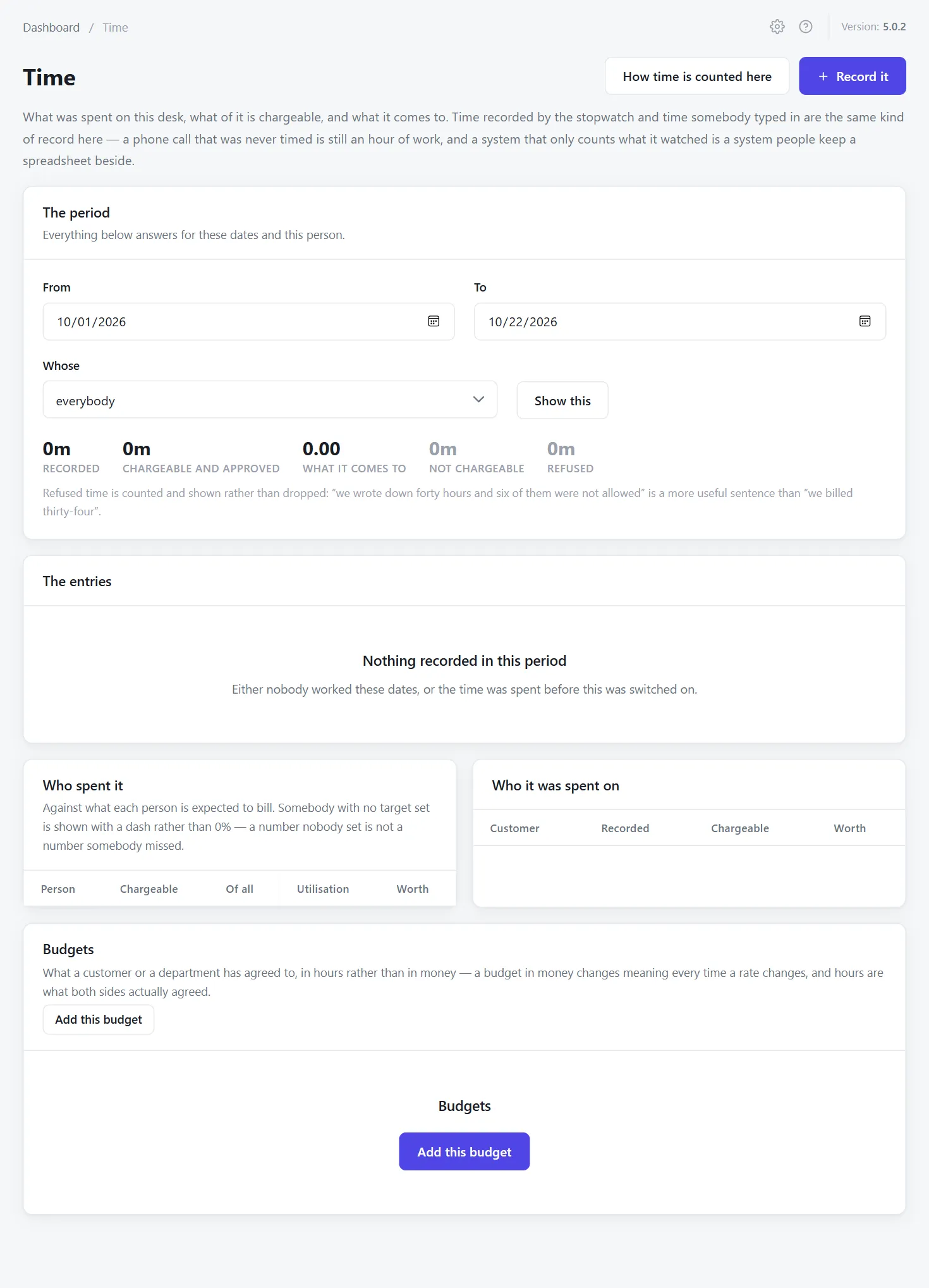
| Section | Shows |
|---|---|
| The period | From, To and a person (or everybody). Click Show this. Everything below answers for these dates and this person. |
| What it comes to | Totals for the period: recorded, chargeable and what it is worth. |
| Waiting for you | Entries waiting to be allowed, when approval is on. Allow it or Refuse it. A refused entry is kept and marked refused, never deleted. |
| The entries | Each entry: When, Who, Ticket, How long (with the figure before rounding), Worth and State (allowed, waiting or refused). Remove deletes an entry. |
| Who spent it | Per person: Chargeable, Of all, Utilisation against their weekly target, and Worth. People with no target show a dash. |
| Who it was spent on | Per customer: Recorded, Chargeable and Worth. |
| Budgets | Each budget’s Agreed, Used and Left hours. |
The Time menu item shows a count when entries are waiting to be allowed.
Recording time that wasn’t timed
Section titled “Recording time that wasn’t timed”Click Record it at the top of the Time screen.
| Field | What it does |
|---|---|
| Ticket number | The ticket the time belongs to. Leave empty for work that belongs to no one ticket. |
| Minutes | How long. Required. Rounded by the same rule as a timer. |
| Spent on | The date. Today by default. |
| Who spent it | The person. |
| What it was | A short note. |
| Chargeable | Whether it can be billed. Starts from your default. |
Click Record it.
Budgets
Section titled “Budgets”A budget is what a customer or a department has agreed to, in hours rather than money. Click Add this budget on the Budgets card.
| Field | What it does |
|---|---|
| For a | customer or department. |
| department / Their id | The department, or the customer’s id (shown on their row under Customers). |
| Hours | The hours agreed. |
| Every | month, quarter, year or altogether, never resetting. Used time is counted from the start of the current period. |
| Notes | Optional. |
Refused entries don’t count against a budget.