

Automation recipes and examples
Start from a recipe on the Automation screen lists ready-made rules. Click Use this and the recipe is written as an ordinary rule of your own, Off and set to rehearse, and opened for you to read and change. A recipe you already have shows You have this one — open it instead.
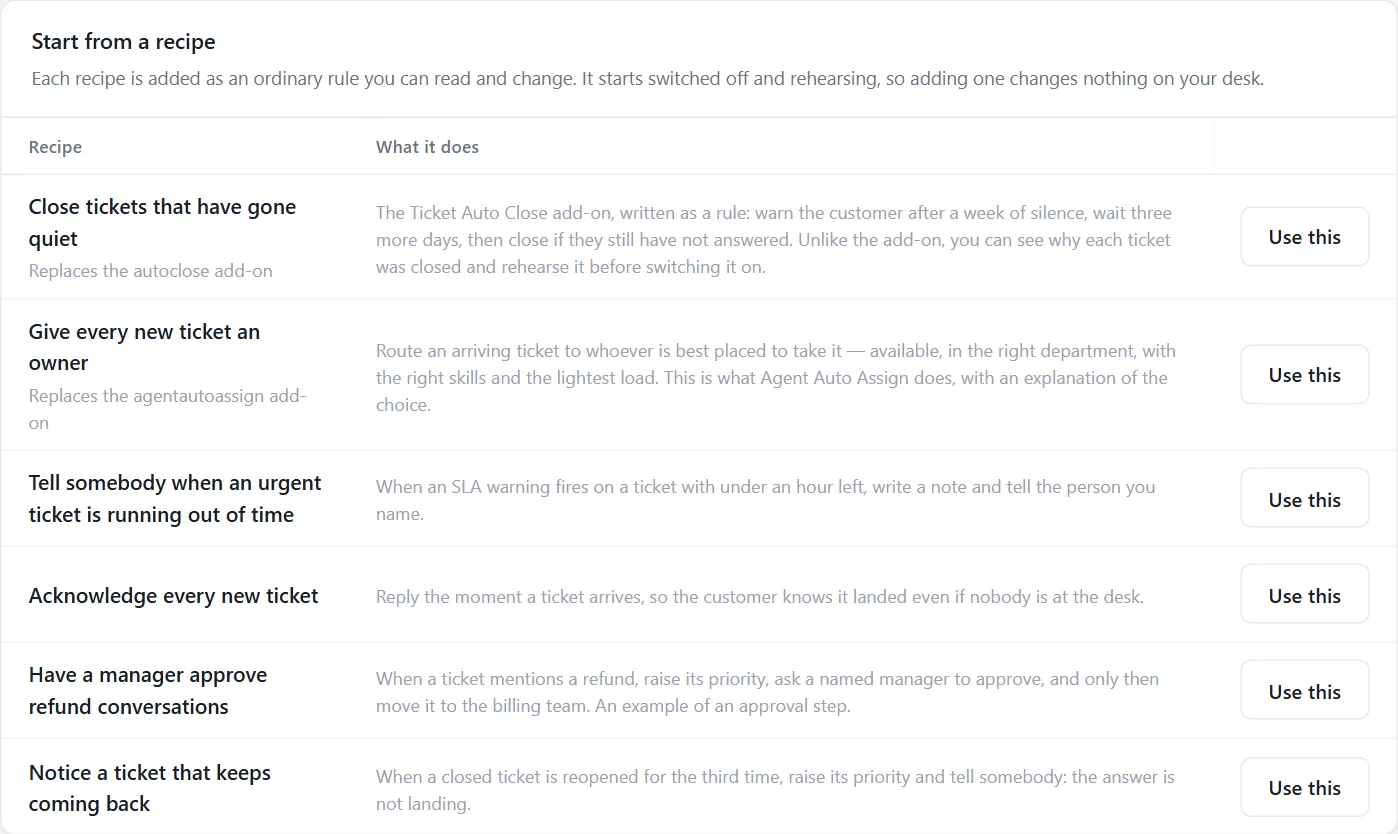
The recipes
Section titled “The recipes”Close tickets that have gone quiet
Section titled “Close tickets that have gone quiet”Replaces the Ticket Auto Close add-on.
- When: On a schedule.
- Which tickets (all): Hours since the customer wrote is more than 168 (a week); Has been answered is Yes.
- Then:
- Reply to the customer: “Hello
{customer}, We have not heard back on{reference}— “{subject}” — for a week, so we will close it in a few days unless you tell us otherwise. Replying to this message keeps it open.” - Wait 4320 minutes (3 days).
- Write an internal note: “Closed automatically after ten days with no answer from the customer.”
- Close it.
- Reply to the customer: “Hello
Give every new ticket an owner
Section titled “Give every new ticket an owner”Replaces the Agent Auto Assign add-on.
- When: A ticket was raised.
- Which tickets: Nobody is assigned is Yes.
- Then: Route it to whoever is best placed (needs Agents & Teams).
Tell somebody when an urgent ticket is running out of time
Section titled “Tell somebody when an urgent ticket is running out of time”- When: A ticket is running out of time.
- Which tickets: Minutes left on the SLA is less than 60.
- Then: Write an internal note “Under an hour left on the
{status}target for{reference}.”, then Tell an agent “{reference}is about to breach its SLA.”
Pick the agent on the Tell an agent step before switching it on; as written
it tells nobody. {status} puts in the ticket’s status, not the name of the
promise, so you may want to reword the note.
Acknowledge every new ticket
Section titled “Acknowledge every new ticket”- When: A ticket was raised.
- Which tickets: no conditions (every ticket).
- Then: Reply to the customer: “Hello
{customer}, Thank you — we have your message about “{subject}” and it is with our{department}team as{reference}. We will be back to you shortly.”
Have a manager approve refund conversations
Section titled “Have a manager approve refund conversations”An example of an approval step.
- When: A ticket was raised, or Somebody answered.
- Which tickets (any): Subject contains
refund; First message containsrefund. - Then: Write an internal note “A refund was mentioned. Waiting for a manager before this moves.”, then Ask somebody to approve the rest “Approve moving this refund request to the billing team.”, then Move it to another department.
Before using it, choose the department (for example Billing) on the last step and the approver on the approval step. Because it also runs on every reply, each new reply on a refund ticket asks for approval again. Untick Somebody answered if you only want it once.
Notice a ticket that keeps coming back
Section titled “Notice a ticket that keeps coming back”- When: A ticket was reopened.
- Which tickets: Number of replies is more than 6.
- Then: Write an internal note “Reopened again after
{replycount}messages. Worth a second pair of eyes.”, then Tell an agent “{reference}has been reopened again.”
{replycount} is not a placeholder, so it appears as written; edit the note.
Pick the agent on the Tell an agent step.
Worked examples
Section titled “Worked examples”Auto-close quiet tickets
Section titled “Auto-close quiet tickets”Close a ticket ten days after your team last wrote, if the customer never came back. Closing takes the ticket out of the open tickets the schedule checks, so it acts once per ticket.
-
On Automation & SLA → Automation, click Add Rule.
-
Name:
Close answered tickets after 10 quiet days. Status: Rehearse: only log what it would do. -
Under 1. When it runs, tick On a schedule — check every open ticket against the conditions.
-
Under 2. Which tickets, keep all and add two conditions:
- Has been answered is Yes
- Hours since anybody wrote on it is more than
240
-
Under 3. Then do this, add:
- Reply to the customer:
Hello \{customer\}, we haven't heard back about "\{subject\}" so we're closing \{reference\}. Reply any time to reopen it. - Close it
- Reply to the customer:
-
Click Save rule, then Edit and read Test against your recent tickets.
-
Make sure Switch rules on has been clicked and Check open tickets hourly for the rules that watch for silence is ticked under Automation settings. After a day or two of rehearsal runs in the log, set Status to Live: really do it.
The older Ticket Auto Close setting under Configurations also closes quiet tickets, once a day. Use one or the other.
Acknowledge new tickets
Section titled “Acknowledge new tickets”-
Under Start from a recipe, click Use this beside Acknowledge every new ticket.
-
Read the reply on the rule’s page and change the wording to suit you. Placeholders such as
{department}and{reference}are filled in per ticket. -
Set Status to Rehearse, save, and raise a test ticket from the portal. The log shows “Would reply to the customer: …”.
-
Set Status to Live: really do it and save.
The acknowledgement is a reply from your team as far as the help desk is concerned, so it meets any First response service level promise.
Route billing words to Billing
Section titled “Route billing words to Billing”Move tickets that mention invoices, VAT or refunds to the Billing department as they arrive.
-
Click Add Rule. Name:
Billing words go to Billing. Status: Rehearse. -
Under 1. When it runs, tick A ticket was raised.
-
Under 2. Which tickets, choose any, then add:
- Subject contains
invoice - Subject contains
VAT - First message contains
invoice - First message contains
refund
- Subject contains
-
Under 3. Then do this, add Move it to another department → Billing, then Write an internal note:
Moved to Billing because it mentions billing words. -
Optionally, open More options, set Order to
1and tick When this rule runs, skip the rules after it, so a later catch-all rule doesn’t move it again. -
Save, then Edit: under Test against your recent tickets, the VAT invoice ticket should show would fire. Switch to Live when happy.
Words are matched anywhere, ignoring capitals: VAT also matches “private”.
Use longer words or phrases where that matters.