

Shortcodes, blocks and the portal menu
Your help content can reach customers in two places: the portal’s dashboard, and any page of your own through a shortcode or a block.
In the portal
Section titled “In the portal”The portal’s dashboard links and panels for this pack are hidden until you switch them on.
-
Go to Help Desk → Configurations → User Menu.
-
Under Dashboard Links, set the ones you want to Show.
-
Click Save Configurations.
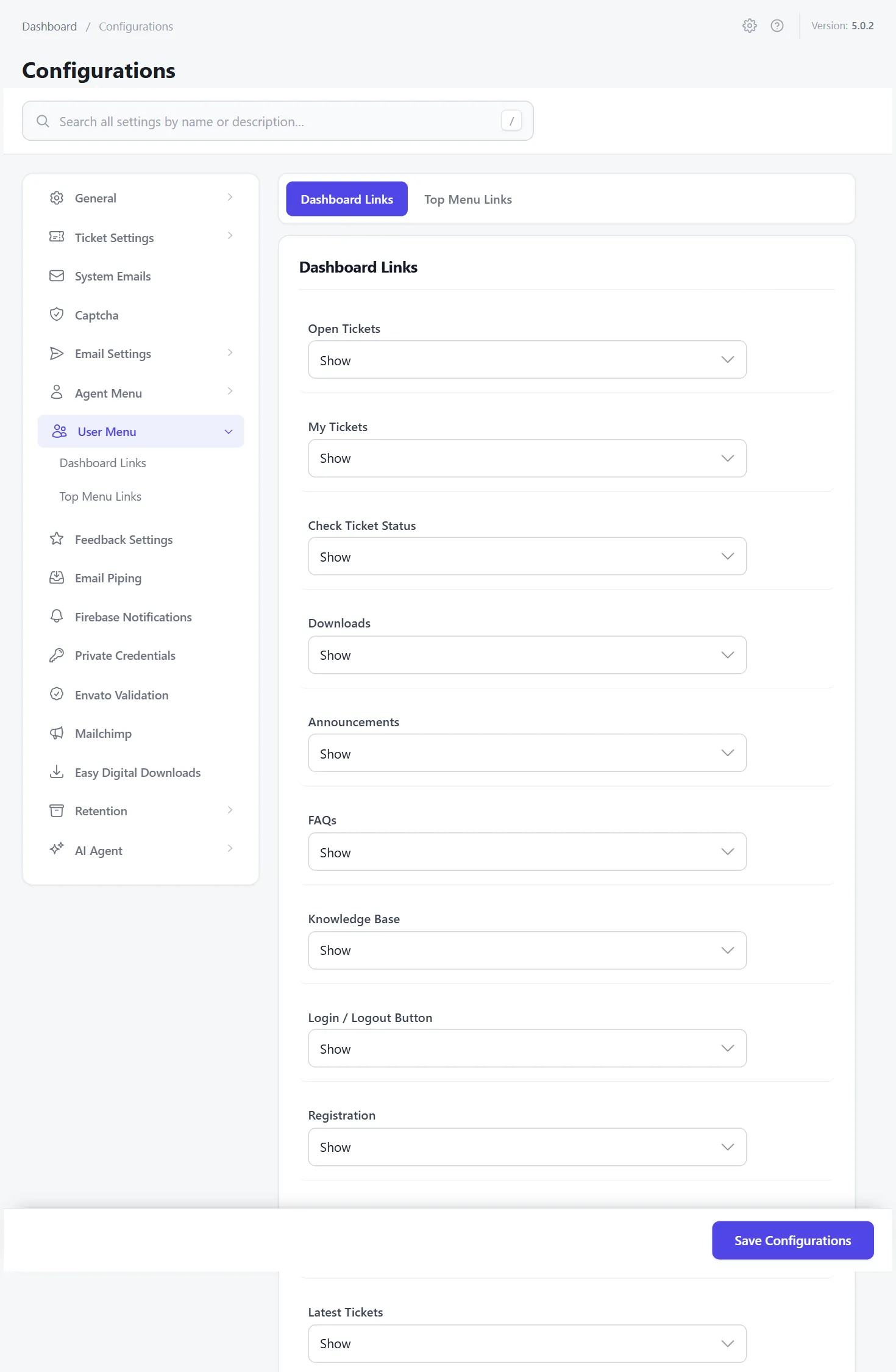
| Setting | What it shows on the dashboard | Default |
|---|---|---|
| Knowledge Base | A Knowledge Base link in the dashboard menu. | Hide |
| FAQs | An FAQs link. | Hide |
| Downloads | A Downloads link. | Hide |
| Announcements | An Announcements link. | Hide |
| Latest Knowledge Base | The four newest published articles, in a tabbed panel. | Hide |
| Latest FAQs | The four newest active FAQs, in the same panel. | Hide |
| Latest Downloads | The four newest active downloads. | Hide |
| Latest Announcements | The four newest active announcements. | Hide |
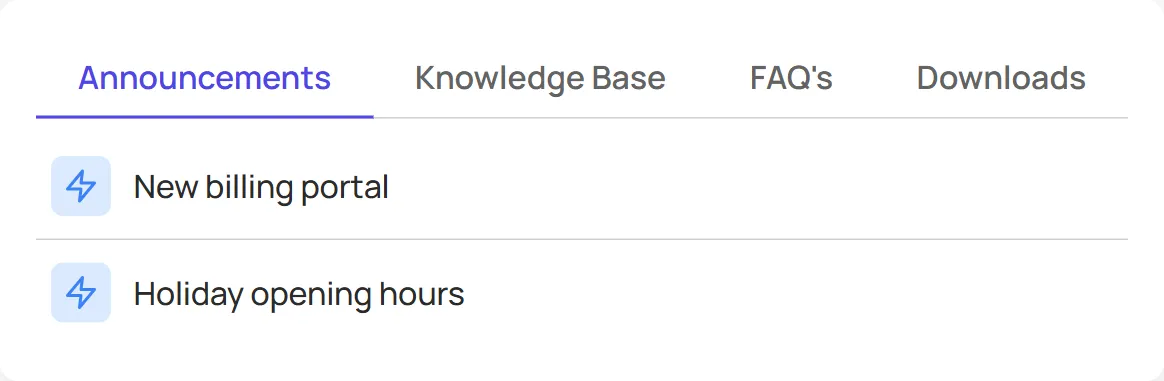
The “latest” settings share one panel, with a tab for each: Announcements, Knowledge Base, FAQ’s and Downloads. Visitors who aren’t logged in see it too.
For the rest of this tab, see Portal menu.
Shortcodes
Section titled “Shortcodes”Paste a shortcode into any page or post. Help Desk → Appearance → Shortcodes lists every shortcode on your site with a Copy button.
| Shortcode | What it puts on the page |
|---|---|
[jssupportticket_knowledgebase] |
The full knowledge base: search, categories and articles. See What customers see. |
[jssupportticket_faqs] |
The full FAQ page. |
[jssupportticket_downloads] |
The full downloads page. |
[jssupportticket_announcements] |
The full announcements page. |
[jssupportticket_knowledgebase_latest] |
A compact list of article titles under a coloured Knowledge Base heading. |
[jssupportticket_faqs_latest] |
The same, for FAQs. |
[jssupportticket_downloads_latest] |
The same, for downloads. |
[jssupportticket_announcements_latest] |
The same, for announcements. |
[jssupportticket_knowledgebase_popular], [jssupportticket_faqs_popular], [jssupportticket_downloads_popular], [jssupportticket_announcements_popular] |
Exactly the same as the _latest versions. |
Clicking an item on any of these opens it in the same page, the way it opens in the portal.
Colours
Section titled “Colours”The _latest and _popular shortcodes take two attributes for the heading bar:
| Attribute | What it sets | Default |
|---|---|---|
background_color |
The heading bar’s background. | The portal’s first theme colour (#4f6df5 if you never set one) |
text_color |
The heading’s text. | The portal’s third theme colour (#f5f2f5 if you never set one) |
For example:
[jssupportticket_faqs_latest background_color="#4f46e5" text_color="#ffffff"]Theme colours are set under Help Desk → Appearance → Themes. See Appearance.
Blocks
Section titled “Blocks”In the block editor, the inserter’s JS Help Desk group has three blocks from this pack:
| Block | Shortcode behind it |
|---|---|
| Knowledge Base | [jssupportticket_knowledgebase] |
| FAQs | [jssupportticket_faqs] |
| Announcements | [jssupportticket_announcements] |
There’s no downloads block; use the shortcode.
Each block has one setting in the sidebar, What to show → Showing:
| Choice | Same as |
|---|---|
| Everything (default) | The full page |
| The latest | The _latest shortcode |
| The most read | The _popular shortcode, which shows the same as The latest |
Blocks use the theme colours; to choose your own, use the shortcode instead. The editor previews the block as visitors will see it.
See also Shortcodes and blocks for the portal’s own shortcodes.