

Notifications and hours
Both of these need the Agents & Teams pack and a place on the Agents list. Notifications and hours are kept against your entry on that list; without one, the screens say “You are not on the agent list” and show nothing.
Notifications
Section titled “Notifications”Open Notifications from the left menu or the portal’s navigation strip.
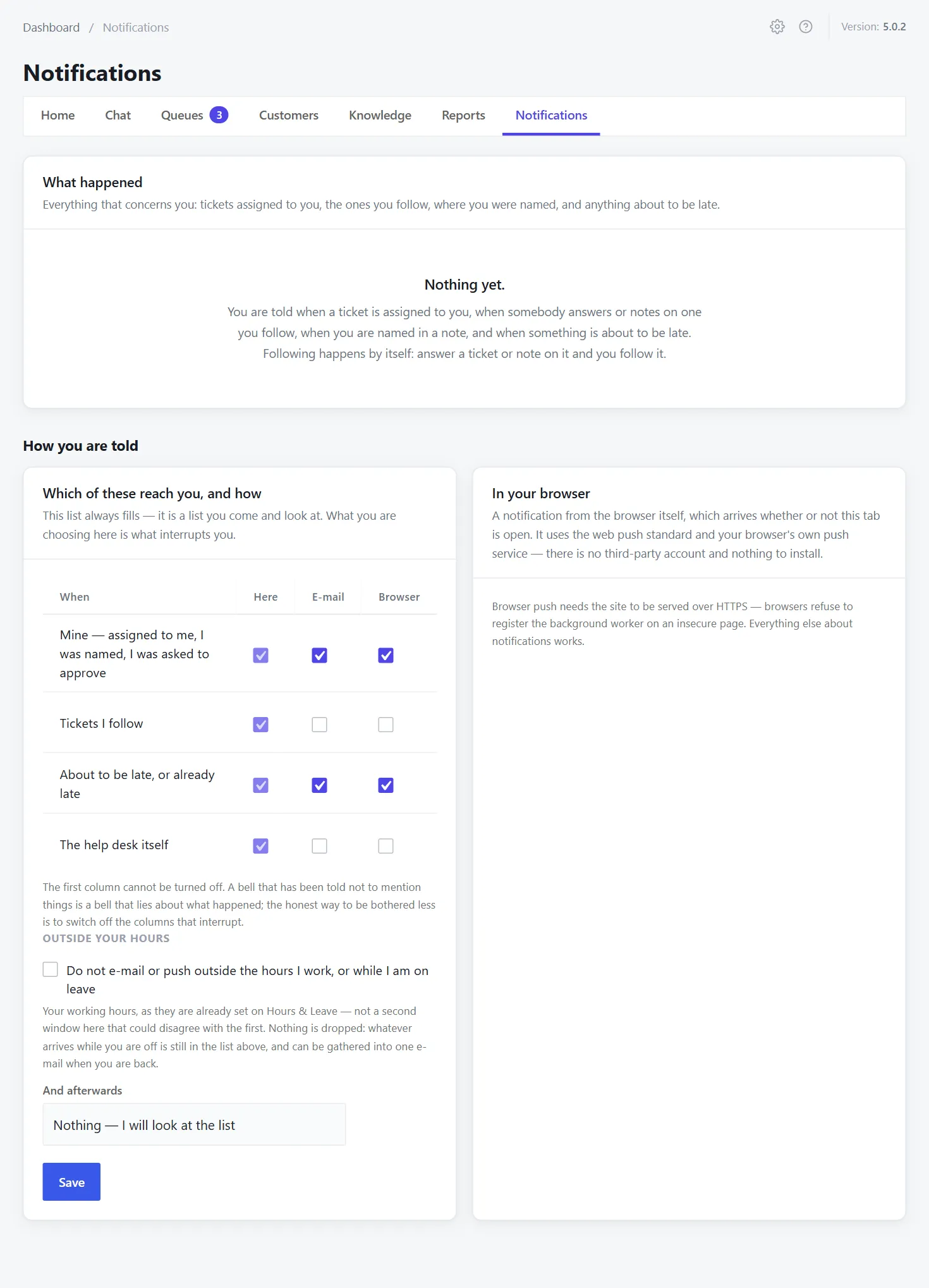
What happened lists everything that concerns you, newest first:
- a ticket was assigned to you
- somebody answered, wrote a note, or changed the status, priority or department of a ticket you are on
- a ticket you are on was closed or reopened
- you were named in an internal note (see Notes and mentions)
- somebody added you to a ticket, or asked you to approve a reply
- your reply was approved or sent back
- a ticket is about to be late, or is late (with Service Levels & Automation)
“A ticket you are on” means one assigned to you or one you follow. You follow a ticket automatically when you reply to it, write a note on it, are assigned it or are named in a note on it. You are never told about something you did yourself.
Each entry has a coloured label (Mine, Tickets I follow, About to be late, or already late, or The help desk itself) and these buttons:
| Button | Does |
|---|---|
| Open it | Opens the ticket, in whichever desk you are using. |
| Assign it to me | Takes the ticket. Offered on assignments and on tickets about to be late or late. |
| Mark read | Clears the dot on that entry. |
| Mark all as read | Clears every entry at once. |
How you are told
Section titled “How you are told”Under How you are told, Which of these reach you, and how is a table: one row for each kind of notification, and a column for each way of hearing about it.
| Here | Browser | ||
|---|---|---|---|
| Mine — assigned to me, I was named, I was asked to approve | On | On | On |
| Tickets I follow | On | Off | Off |
| About to be late, or already late | On | On | On |
| The help desk itself | On | Off | Off |
These are the starting settings. Here (this list) can’t be turned off, so the list is always complete; switch off the other columns to be interrupted less.
Outside your hours. Tick Do not e-mail or push outside the hours I work, or while I am on leave to hold e-mails and browser notifications while you are off. It uses the hours you set under My Hours & Leave (below). Nothing is lost: it all still appears in the list. And afterwards decides what happens to what was held:
- Nothing — I will look at the list
- One e-mail as soon as I am back
- One e-mail a day
Click Save.
In your browser. Click Turn it on in this browser to get notifications from the browser itself, even when the help desk isn’t open. Each browser is registered separately, so do it on each computer you use. If your site can’t send them, the card says so instead.
The help desk’s own e-mails about tickets (for example “a new ticket in your department”) are set up by your administrator, not here.
My Hours & Leave
Section titled “My Hours & Leave”Your hours and time off tell the desk whether to give you new work. They never change what you are allowed to do. My Hours & Leave is on the WordPress desk’s left menu; there is no portal version.
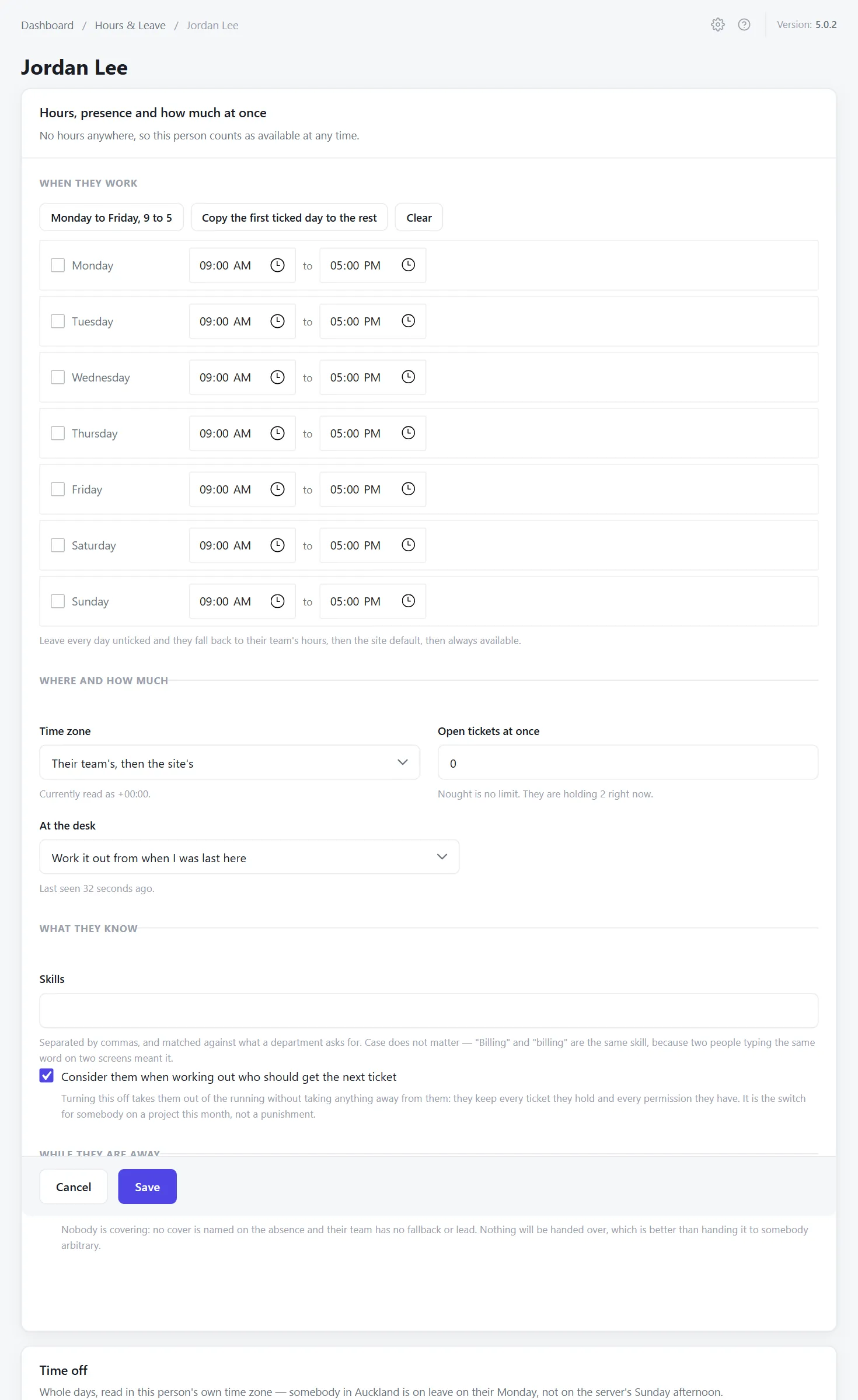
The list shows your status right now (Available, Away, Off hours, Full, Not at the desk), your open work and your next booked absence. Click Edit to change them.
Hours and presence
Section titled “Hours and presence”| Field | What it does |
|---|---|
| When they work | Tick each working day and set its hours. Monday to Friday, 9 to 5 fills a normal week; Copy the first ticked day to the rest copies your times. Leave every day unticked to use your team’s hours, then the site’s. With no hours anywhere you count as always available. |
| Time zone | Your hours are read in this time zone. Leave it to use your team’s, then the site’s. |
| Open tickets at once | Your limit. Once you hold this many, automatic assignment passes you by. 0 is no limit. |
| At the desk | Work it out from when I was last here (the default), At the desk, Away from the desk or Not working. Choosing one overrides the automatic answer until you change it back. |
| Skills | Separated by commas, for example billing, spanish. Matched against the skills a department asks for. |
| Consider them when working out who should get the next ticket | Untick to stop receiving new work automatically. You keep every ticket and permission you have. |
| Hand their open tickets to whoever is covering when an absence starts | Passes your open tickets to your cover when leave begins. The screen tells you who your cover is. |
Click Save.
On automatic, you count as at the desk if you were seen in the last five minutes, and away if you were seen in the last half hour.
Booking time off
Section titled “Booking time off”Under Book time off:
- Pick the First day, and the Last day (leave it empty for a single day).
- Optionally give a Reason. Only other agents see it.
- Choose a Cover: who picks up your tickets, or Whoever their team says.
- Click Book it.
Days are whole days in your own time zone. Booked absences are listed under Time off, and you can Cancel one there. When you have a cover, Hand over now moves your open tickets to them straight away, after asking you first. Use the site default clears your own hours and settings.