

Scheduled exports
Analytics → Scheduled Exports produces files on its own, every day, every Monday or on the first of the month, and keeps them on the screen until you download them. For a one-off export, use Export something now, which opens the ordinary Export screen.
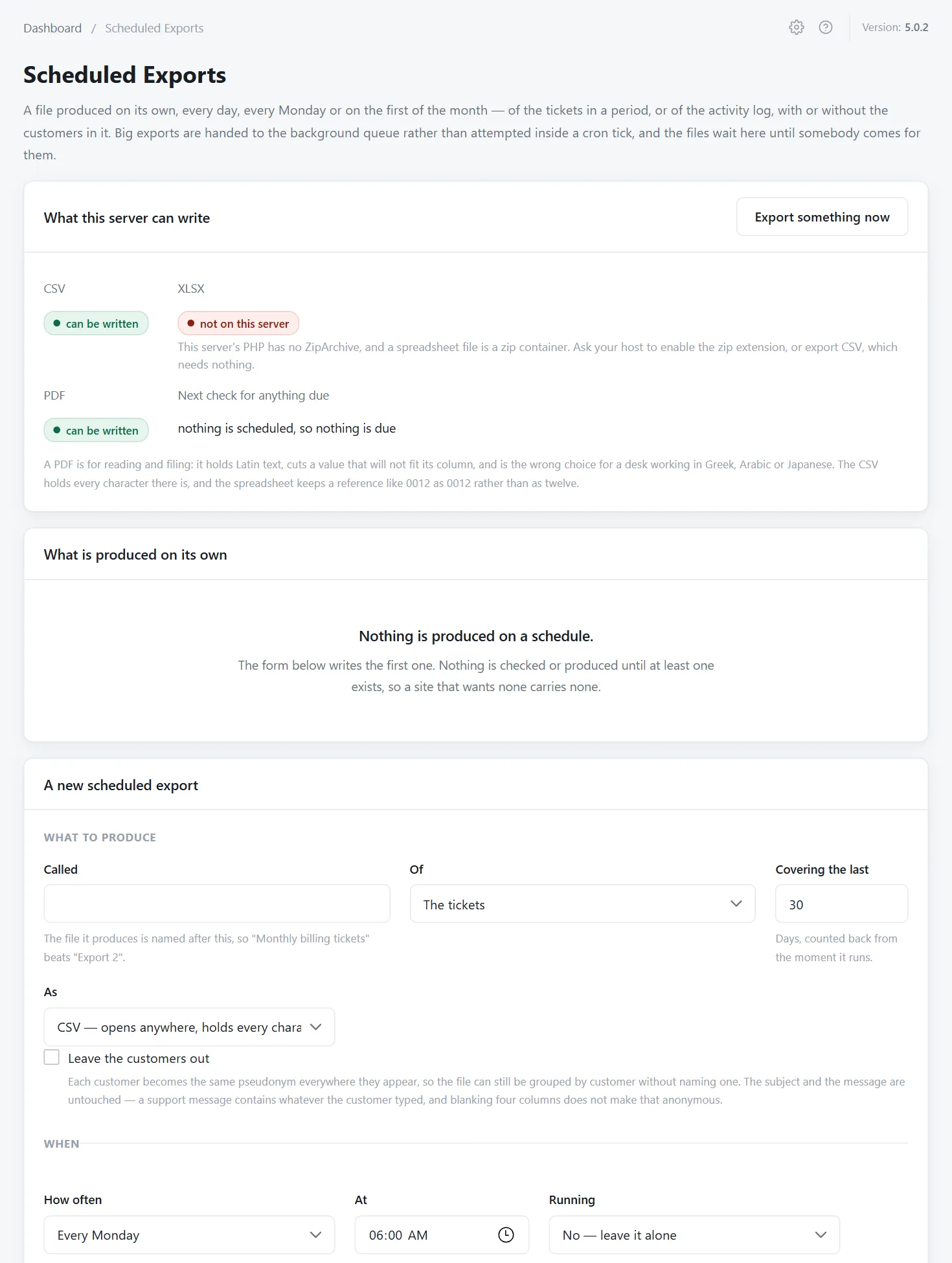
What this server can write
Section titled “What this server can write”The first card lists the three formats and whether your server can produce each one, plus Next check for anything due.
| Format | What it is |
|---|---|
| CSV | Opens anywhere and holds every character. Always available. |
| XLSX | A real Excel workbook. A reference like 0012 stays 0012 instead of becoming twelve. Needs PHP’s zip extension; if your server lacks it, the card says not on this server and the format can’t be chosen. Ask your host to enable it. |
| For reading and filing. It holds Latin text only and cuts off values too long for their column, so it is the wrong choice for a desk working in Greek, Arabic or Japanese. |
Adding a scheduled export
Section titled “Adding a scheduled export”-
Go to Analytics → Scheduled Exports.
-
Under A new scheduled export, fill in What to produce and When (see the tables below).
-
Set Running to Yes. A new export is saved as No — leave it alone unless you change it.
-
Click Save. The export appears under What is produced on its own, with its next run time, and the form stays open on it.
-
To see a file straight away, click Produce one now. The file appears at the bottom of the screen under The files.
What to produce
Section titled “What to produce”| Field | Default | What it does |
|---|---|---|
| Called | Empty | The export’s name, required. Each file is named after it plus the date and time, so “Monthly billing tickets” beats “Export 2”. |
| Of | The tickets | The tickets; The activity log — an audit package; or The time worked — a time sheet, offered only when the Agents & Teams pack’s time tracking is switched on. |
| Covering the last | 30 | How many days back from the day it runs, from 1 to 3650. Tickets are picked by the day they were created. |
| As | CSV | The format: CSV, the spreadsheet (.xlsx) or PDF. A format your server can’t write is greyed out. |
| Leave the customers out | Off | Replace the customers with pseudonyms. See below. |
| Field | Default | What it does |
|---|---|---|
| How often | Every Monday | Every day, Every Monday or On the first of the month. |
| At | 06:00 | The time of day, in your site’s time zone (Settings → General). |
| Running | No — leave it alone | Yes to produce files on schedule. No keeps the export saved but idle. |
The help desk checks for due exports once an hour, so an export set for 06:00 is produced at the first check after six. The hourly check only exists while at least one export is saved.
What each kind of export contains
Section titled “What each kind of export contains”The tickets. Every ticket created in the period, whatever its status, with the same columns as the ordinary Export. A PDF can’t fit twenty columns on a page, so a PDF of tickets keeps eight: Reference, Subject, Status, Priority, Department, Created, Requester Name and Replies. CSV and XLSX keep every column.
The activity log — an audit package. Every entry in the help desk’s activity log in the period: who did what to which ticket, and when. The columns are When, What it was about, Reference, Event, Kind, Who, Field, Was, Became and Said. Who holds the WordPress user ID of the person, not their name. This is what an auditor usually asks for.
The time worked — a time sheet. Time recorded on tickets in the period, with the same columns as the export on the Agents & Teams pack’s Time screen.
Leaving the customers out
Section titled “Leaving the customers out”Tick Leave the customers out when the file is going to someone outside the company, such as a consultant or an analyst. In a ticket export:
- Requester User Name and Requester Name become a pseudonym such as
customer-3fa94c1b. - Requester Email becomes the same pseudonym followed by
@example.invalid. - Requester Phone is emptied.
Each customer gets the same pseudonym on every row, and in every export from your site, so the file can still be grouped by customer. The pseudonym can’t be turned back into an e-mail address by whoever receives the file.
The pseudonyms apply to ticket exports. The audit package and time sheet aren’t changed.
Running, editing and deleting
Section titled “Running, editing and deleting”Click Edit beside an export in What is produced on its own to open it in the form. From there:
- Save stores your changes and works out the next run again.
- Produce one now makes a file immediately, while you wait. Very large exports are better left to their schedule. If nothing is produced, the screen says there was no data or the file couldn’t be written to your uploads folder.
- Delete removes the schedule after you confirm. Files it already produced stay on the list.
- Add another clears the form for a new export.
On schedule, exports run through the help desk’s background queue, so a big export isn’t attempted in a few seconds of page load. You can follow them on Background Work, in the export group.
The list shows each export’s format, whether customers are left out, what it covers, how often and at what time, the Next run, how many files it has Produced, and whether it is Running.
The files
Section titled “The files”The files lists the last 20 files produced, newest first, with the number of Rows, the Size and when it was Made. When a 21st arrives, the oldest is deleted.
- Download gives you the file. Only an administrator can download, and the link is checked against your account each time.
- Delete removes the file straight away. Do this once you’ve used a file, so customer data doesn’t sit on the server.
Where the files are kept
Section titled “Where the files are kept”Files are saved in wp-content/uploads/jsst-exports. The help desk puts a rule
file (.htaccess) in that folder to stop the web server handing them out
directly, but nginx ignores such files, and so does Apache when overrides are
switched off.
So the screen tests it: once there is a file to test with, it asks your own web server for one of the files without logging in, at most once an hour, when you open the screen. If that works, a red card appears at the top: These files can be downloaded by anybody with the address. It gives the line to add to your server’s configuration:
| Server | Line |
|---|---|
| Apache | Require all denied |
| nginx | location ^~ /wp-content/uploads/jsst-exports/ { deny all; } |
Send the line to whoever manages your hosting. Until it is added, the file names carry a long random part, so they are hard to guess, and the Download button still checks who you are. Deleting each file after use removes the risk.
Switching the pack off or deleting it leaves the files where they are.