

Follow and reply to your tickets
My Tickets
Section titled “My Tickets”When you are signed in, My Tickets lists every ticket you have raised.
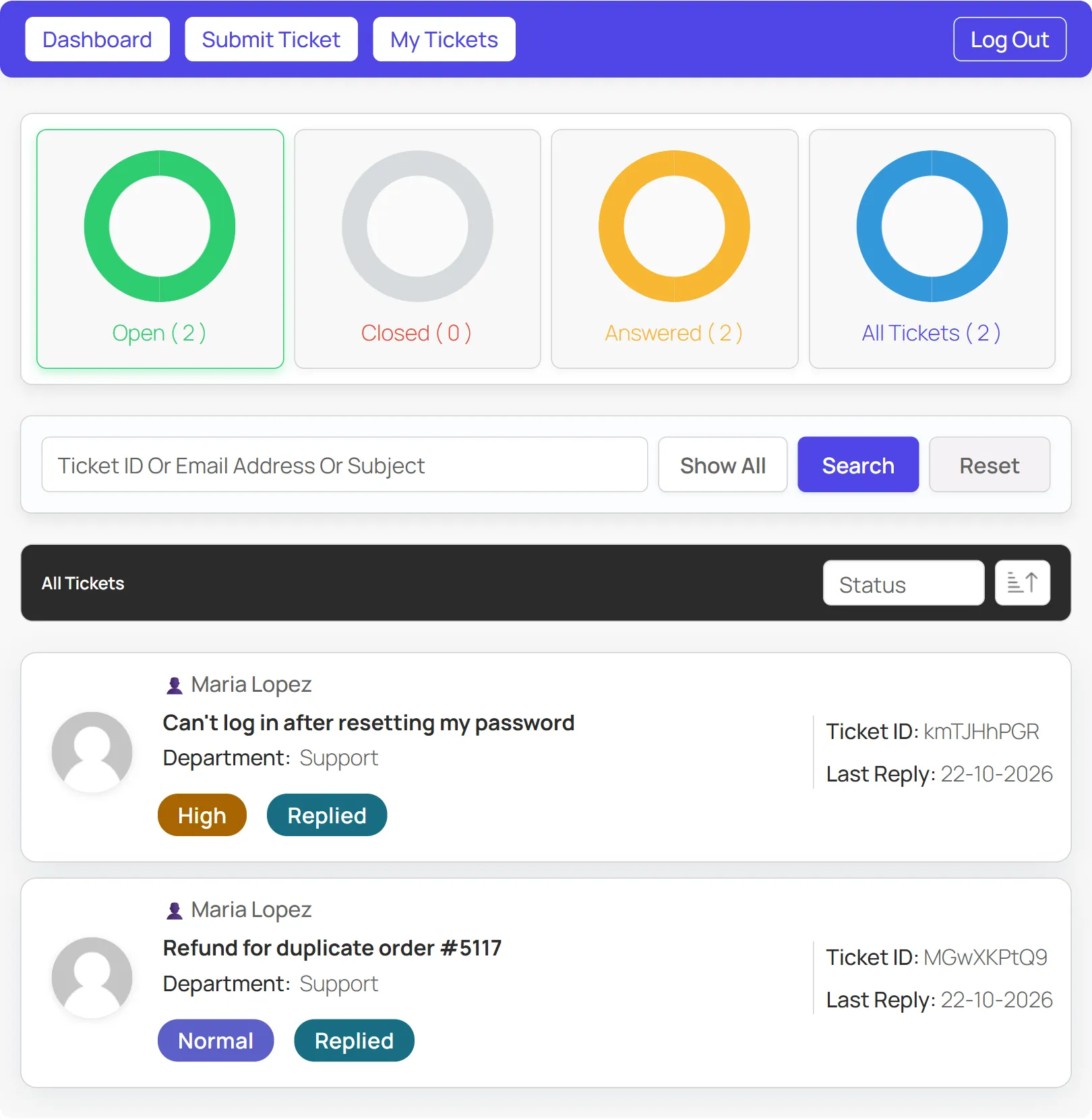
| Tab | Shows |
|---|---|
| Open | Tickets that are not closed yet. |
| Closed | Tickets that have been closed. |
| Answered | Tickets the team has replied to and that are waiting for you. |
| All Tickets | Everything. |
Each ticket shows its subject, status, priority, Ticket ID and the date of the last reply. A lock icon means the ticket is locked.
To find a ticket, type its Ticket ID, your e-mail address or words from the subject in the search box and click Search. Show All opens more filters, such as department, priority, status and dates. Reset clears them. The menu above the list sorts it by subject, priority, Ticket ID, answered, status or date created.
Click a subject to open the ticket.
What the status means
Section titled “What the status means”| Status | Means |
|---|---|
| New | Your ticket has arrived and nobody has answered yet. |
| Waiting Reply | You have replied, and it’s the team’s turn. |
| In Progress | Someone on the team is working on it. |
| Replied | The team has answered. It’s your turn. |
| Closed | The ticket is finished. |
| Close Due To Merge | The ticket was combined with another of your tickets, and the conversation continues there. |
On the ticket page itself, a ticket that is new, waiting for a reply or replied to may show simply as Open.
Reading a ticket
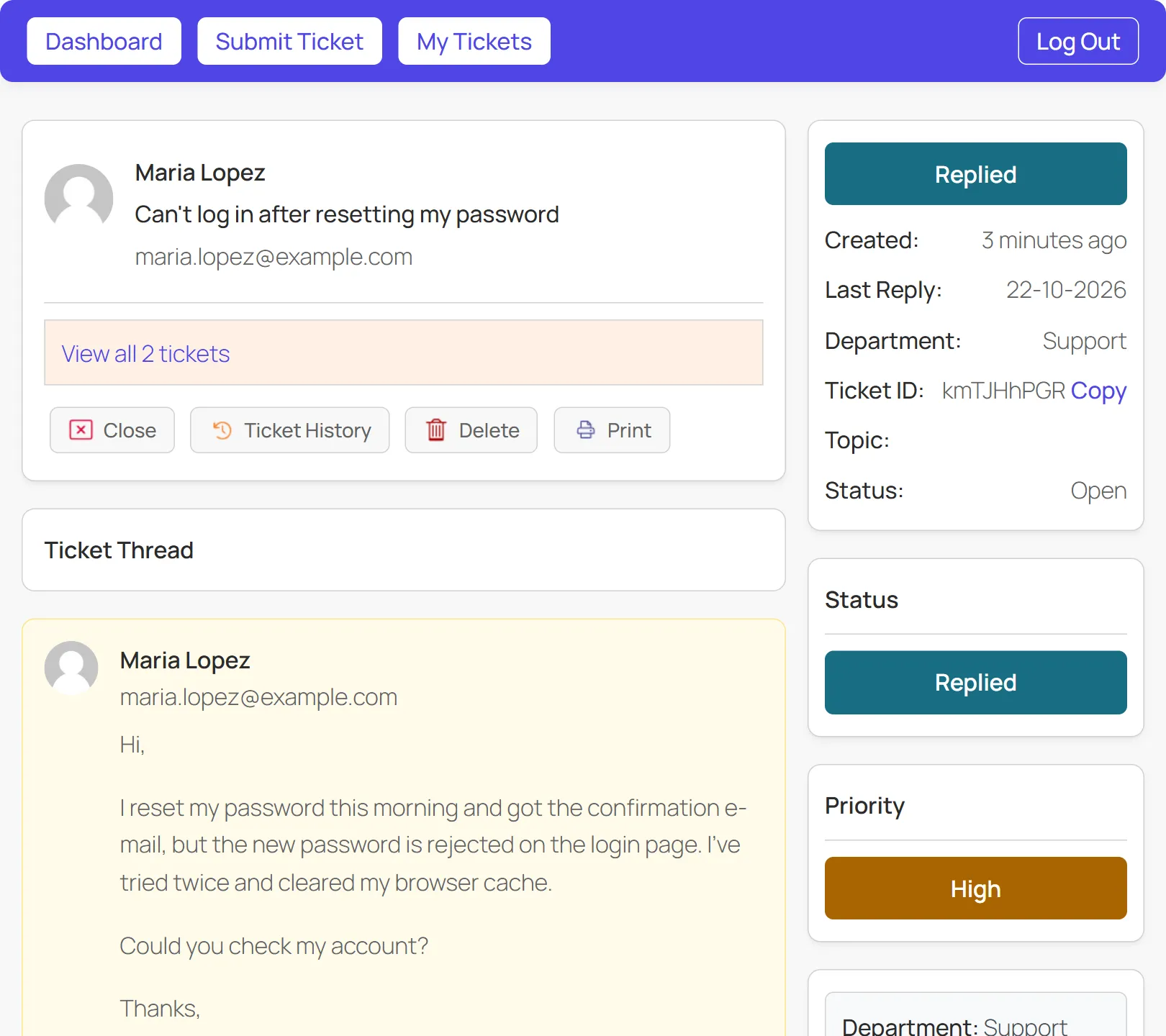
Section titled “Reading a ticket”The ticket page shows your first message at the top and every reply under Ticket Thread, oldest first, each with who wrote it and when. Some sites show the support team’s name on each reply, others the company’s name. Your ticket’s details are down the side: status, when it was created, the last reply, department, priority and Ticket ID (click Copy to copy it).
To download a file, click Download under it, or Download All for every file on a message. Images also have a button to view them. A file the site has removed to save space shows “(Removed automatically to save space)”.
Replying
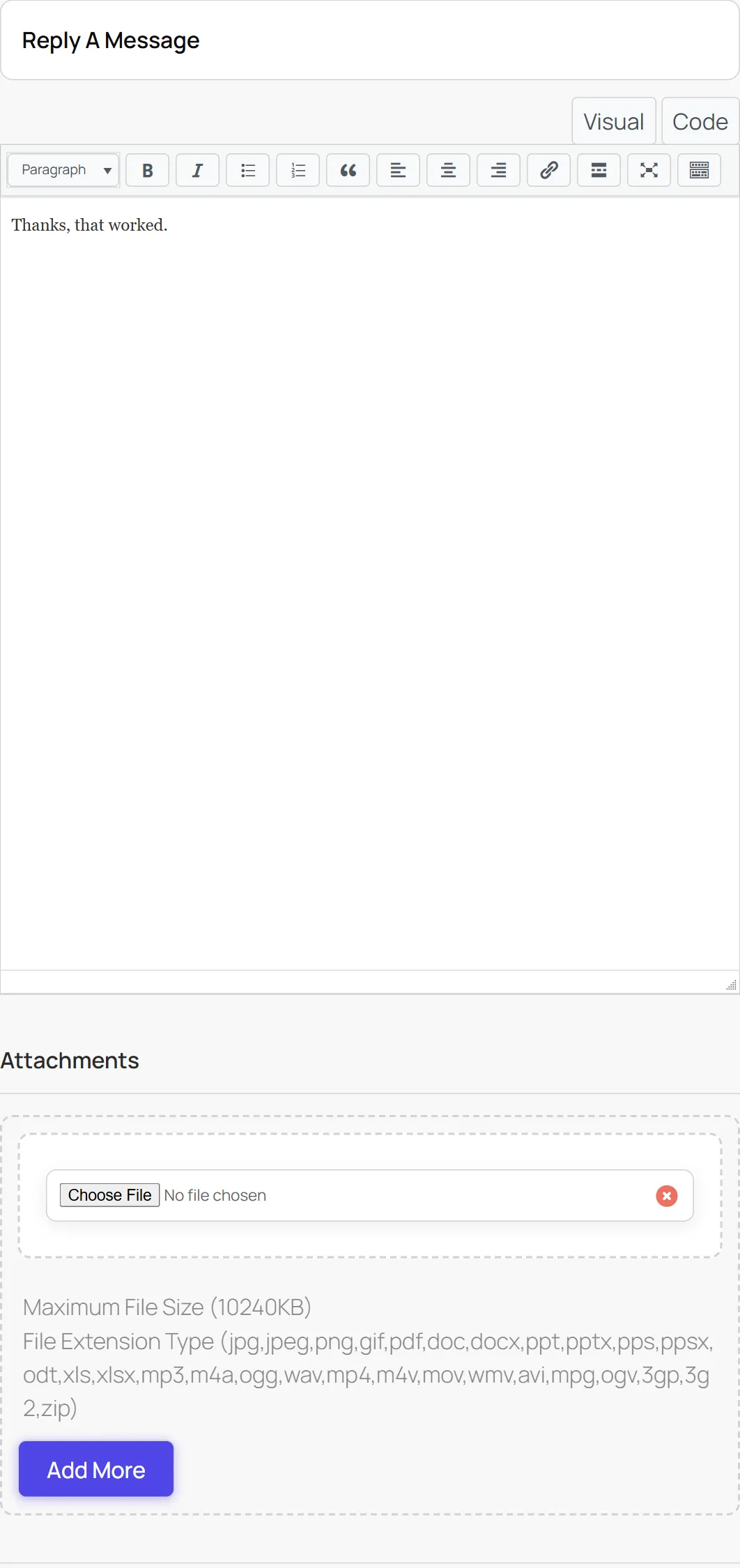
Section titled “Replying”Scroll to Reply A Message at the bottom of the ticket.
- Type your reply.
- Attach any files, as on the new ticket form.
- Tick Close On Reply if your reply means the problem is solved. The ticket is closed as soon as your reply is saved.
- Click Post Reply.
Your reply sets the ticket to Waiting Reply, so the team knows it’s their turn. You get “Reply posted” when it’s saved. Like new tickets, a reply sent twice by accident is only added once.
Reply on the same ticket rather than raising a new one: the team then has the whole story in one place.
Closing a ticket
Section titled “Closing a ticket”Click Close at the top of the ticket and confirm. Close a ticket when your problem is solved. The team may also close it for you once they’ve answered.
The reply box disappears on a closed ticket.
Reopening a ticket
Section titled “Reopening a ticket”If the problem comes back, open the closed ticket and click Reopen. The ticket goes back to New, the reply box returns, and you can explain what’s happened.
Reopen is only offered for a limited time: by default 50 days, counted from the last reply on the ticket (the site can change this). After that, raise a new ticket and mention the old Ticket ID.
Other buttons
Section titled “Other buttons”| Button | What it does |
|---|---|
| Ticket History | Lists what has happened to the ticket, such as replies and status changes. Shown while the ticket is open. |
| Opens a printable copy of the ticket. Some sites turn this off. | |
| Delete | Deletes the ticket, after you confirm. Only a ticket that nobody has replied to yet can be deleted; otherwise you see “Ticket in use cannot be deleted”. Visitors can’t delete tickets. Some sites hide this button. |
Locked tickets
Section titled “Locked tickets”The support team can lock a ticket. A locked ticket shows Lock as its status and a lock icon in My Tickets, and has no reply box. You can still read it. If you need to add something, raise a new ticket and mention the Ticket ID.
What you don’t see
Section titled “What you don’t see”Your support team can add internal notes to a ticket, for example to hand it over to a colleague. These are for the team only: they never appear on your ticket or in your e-mails.