

Topics and products
A topic is what a customer says their ticket is about, such as Login problem or Refund. Picking one can send the ticket to the right department and give it a priority, so customers don’t have to know how your team is organised. A product is simply which of your products the ticket concerns.
Ticket Topics
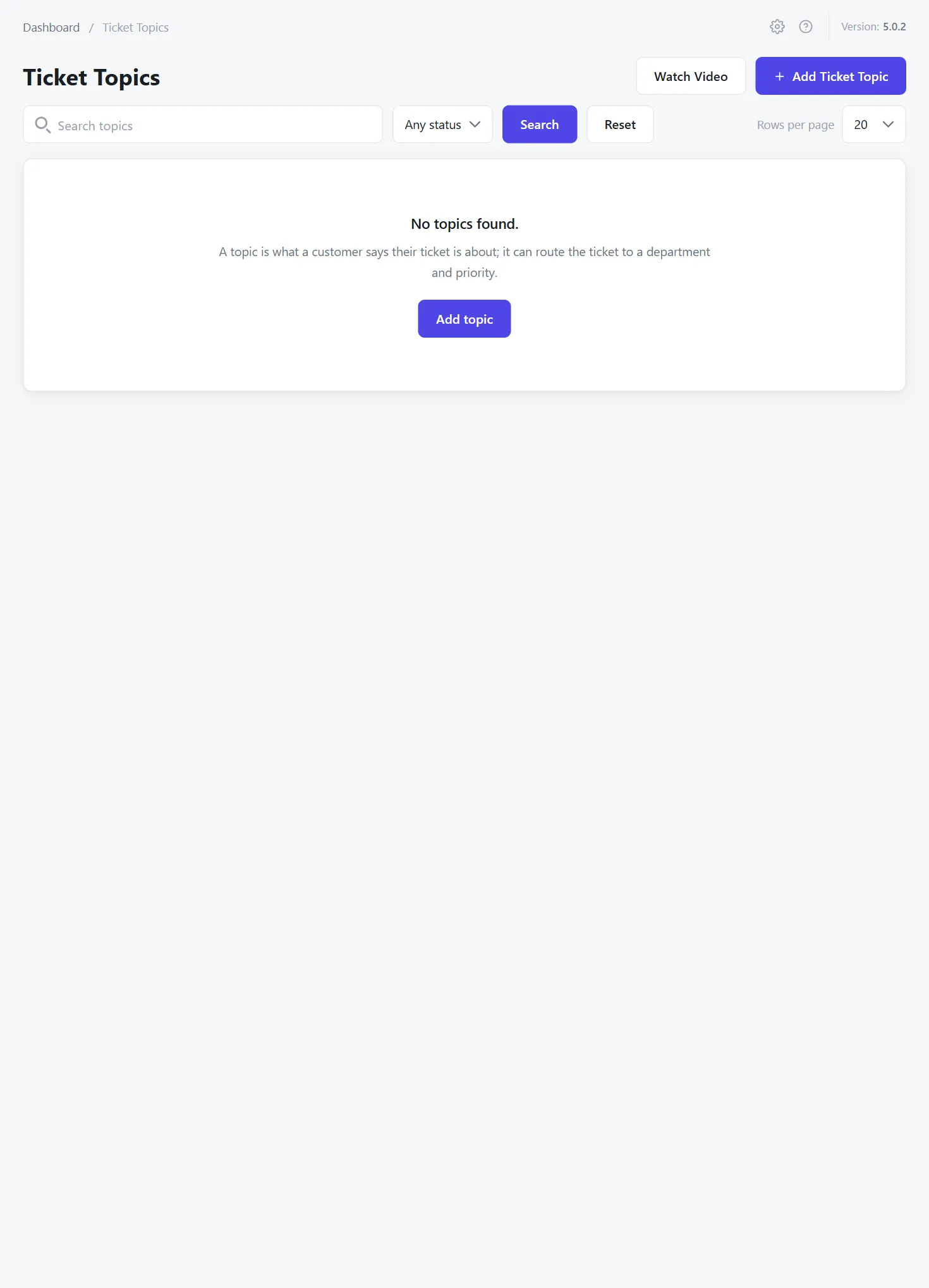
Section titled “Ticket Topics”Ticket Setup → Ticket Topics lists your topics as a tree: a topic placed under another is indented beneath it. Each row shows the topic’s department underneath its name, and a Default label on the default topic.
| Column | Shows |
|---|---|
| Topic | The name (click it to edit), its department, and Default if it’s preselected on the form. |
| Owned By | Who looks after the topic. Only with the Agents & Teams pack. |
| Status | Active or Disabled. Click it to switch. |
| Last Updated | When the topic was last changed, or Not updated. |
Search by name in Search topics, and filter by Any status, Active or Disabled.
To change the order, drag a row by its handle. A bar appears saying “You changed the order of this list.”; click Save Ordering. Customers see the topics in this order.
Adding a topic
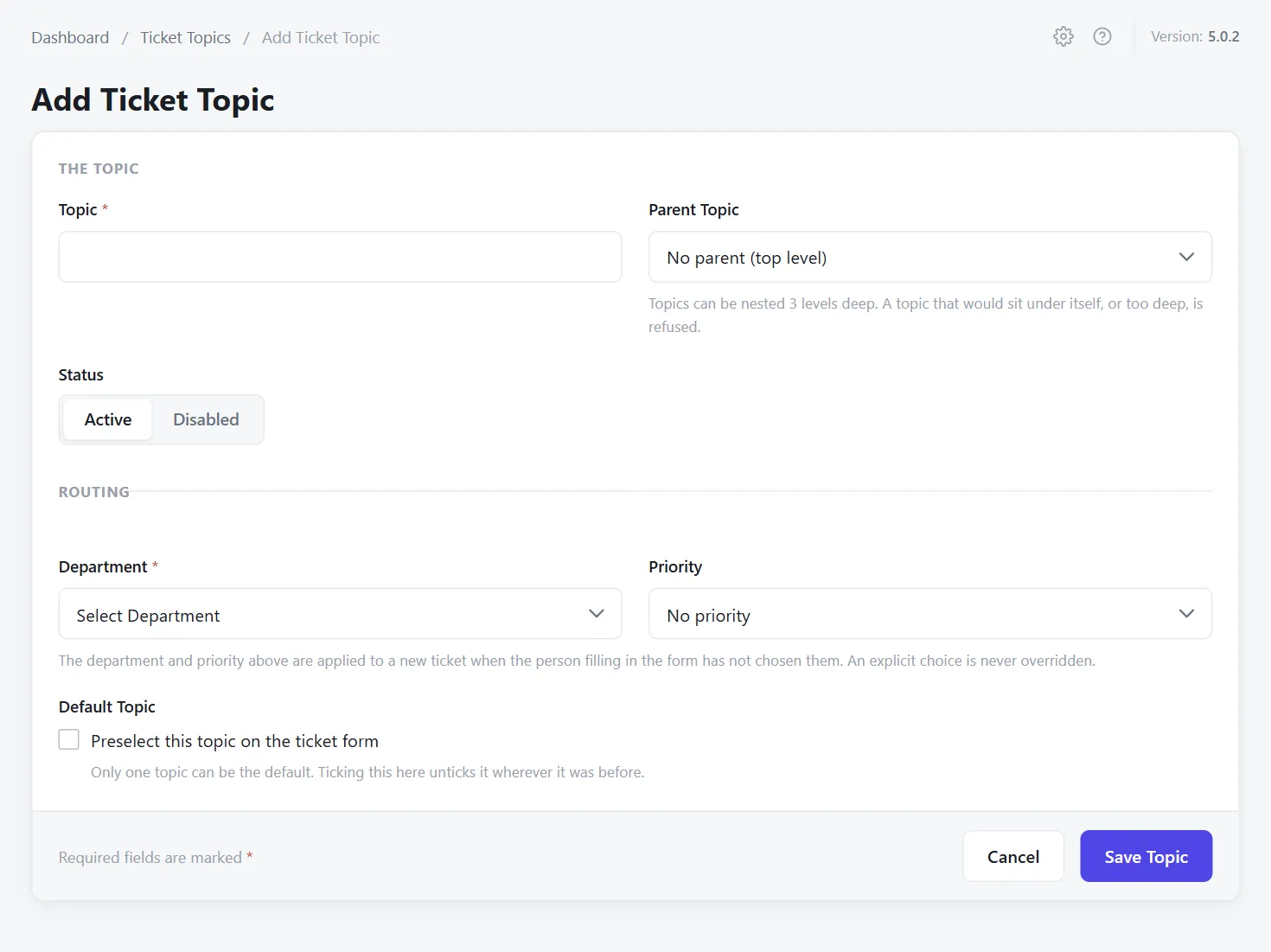
Section titled “Adding a topic”- Click Add Ticket Topic.
- Fill in the fields below.
- Click Save Topic.
The topic
| Field | What it does | Default |
|---|---|---|
| Topic | The name customers see. Required. Keep it short: the name is stored in up to 32 characters. | |
| Parent Topic | Places this topic under another, for example Password reset under Login problem. Topics can be nested three levels deep. A topic can’t be placed under itself, under one of its own sub-topics, or so deep that its branch would go past three levels. | No parent (top level) |
| Status | Disabled hides the topic from the form, the filters and routing. Tickets that already have it keep it. | Active |
Routing
| Field | What it does | Default |
|---|---|---|
| Department | The department a ticket on this topic goes to. Required. | Your default department |
| Priority | The priority a ticket on this topic gets. Leave No priority to use your usual default. | No priority |
| Owned By | The agent who looks after this topic. It’s recorded for reporting and routing, but doesn’t assign tickets by itself. Only with the Agents & Teams pack. | Nobody in particular |
| Default Topic | Preselect this topic on the ticket form. Only one topic can be the default: ticking it here unticks it on the topic that had it. | Off |
If a save is refused you see why, for example “A topic cannot be its own parent.” or “Topics can be nested 3 levels deep. Choose a parent nearer the top.”
How topics route a ticket
Section titled “How topics route a ticket”On the ticket form, the Topic list shows your active topics as a tree.
- When a customer picks a topic, the form fills in Department and Priority from it, but only where the customer hasn’t chosen one. Once the customer changes either by hand, picking another topic doesn’t overwrite it.
- When the ticket is saved, the same rule applies again: the topic fills in a department or priority that is still empty. A choice the customer made is never overridden.
- When a customer picks a department first, the Topic list reloads to show only that department’s topics. If it has none, the list says “No help topic found”.
- The default topic is preselected when the form opens, so its department
and priority are filled in too. A link to the form with
?helptopicid=in the address preselects a different topic.
This means you can hide the Department question from customers and let topics alone decide where tickets go.
Signed-in customers and visitors both see Topic on a new install. Change who sees it, or make it required, under Ticket Setup → Forms; see The ticket form.
The topic then shows on the ticket, as a column and filter on the
Tickets screen and in My Tickets, and in e-mails
through the {HELP_TOPIC} placeholder. See E-mail templates.
Deleting a topic
Section titled “Deleting a topic”Click Delete and confirm. A topic can’t be deleted while:
- it has topics under it: “This topic has topics underneath it. Move or delete those first.”;
- any ticket uses it: “Topic in use cannot be deleted”.
Set a topic you no longer want to Disabled instead. A department can’t be deleted while a topic points to it.
Products
Section titled “Products”Ticket Setup → Products is the list customers choose from when the Product question is on the form.
| Field | What it does | Default |
|---|---|---|
| Product | The product’s name. Required. Two products can’t have the same name. | |
| Status | Disabled hides it from the form. | Active |
Click Add Product, fill in the fields and click Save Product. Drag rows to change the order and click Save Ordering. Only administrators can manage products.
To ask customers which product a ticket is about, switch the Product question on under Ticket Setup → Forms. It is off on a new install, for signed-in customers and visitors alike. A product doesn’t route the ticket; it is recorded on the ticket, you can filter the Tickets screen and My Tickets by it, and the dashboard charts Tickets By Products.
A product used by a ticket can’t be deleted. Disable it instead.