

Approvals, Shadow Mode and Results
Three screens under AI Agent → Automatic answers tell you how the automatic answers are doing. All three need the AI Agent pack.
| Tab | Use it to |
|---|---|
| Approvals | Choose the review mode, and approve, reject or withdraw answers. |
| Shadow Mode | Compare what the AI would have said with what your agent said. |
| Results | See what the AI did with each ticket it looked at, and whether your content is in use. |
Approvals
Section titled “Approvals”AI Agent → Automatic answers → Approvals lists every answer the AI wrote and what happened to it.
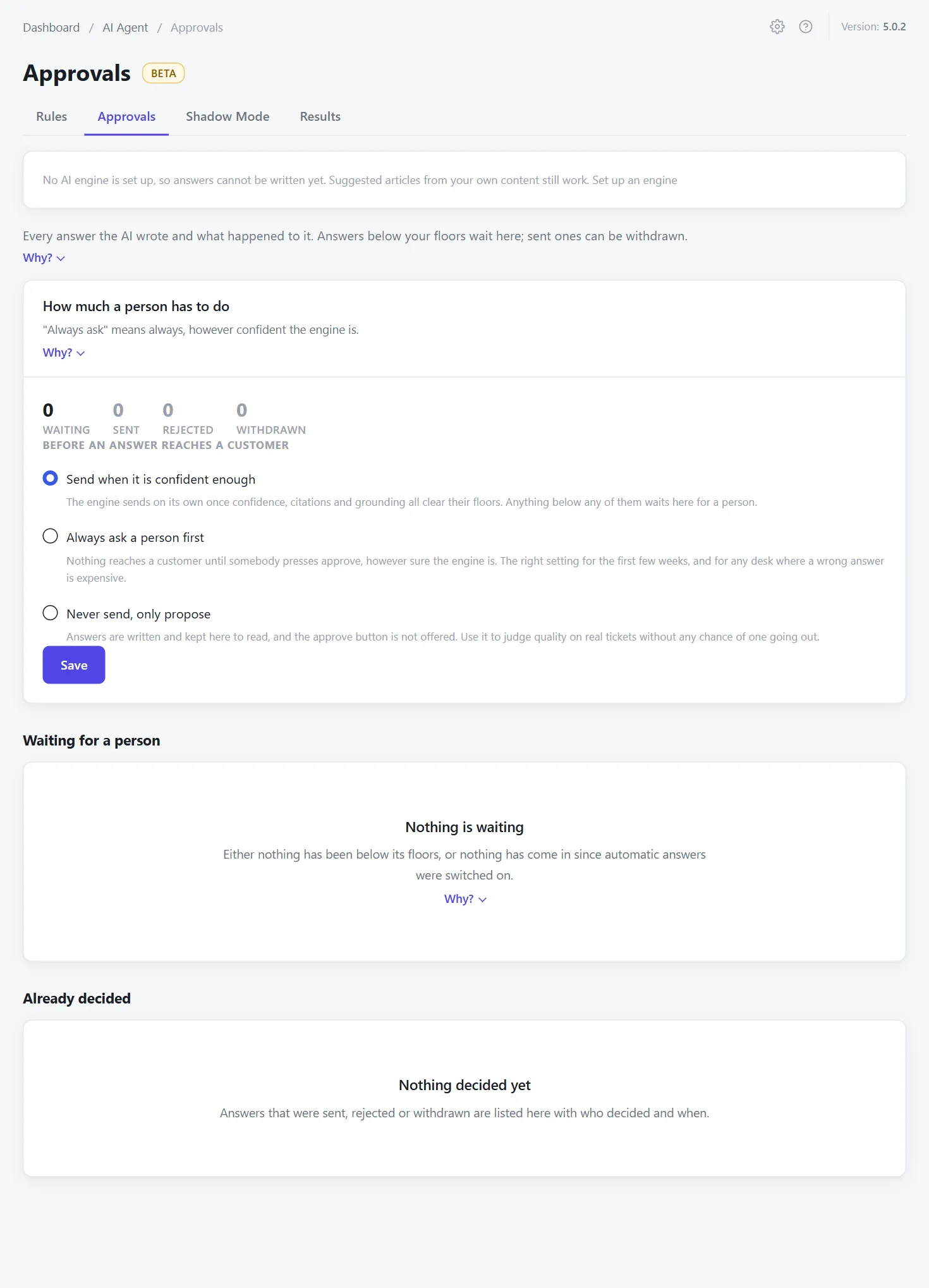
If AI is switched off for the site, a note at the top says so. Answers already waiting stay waiting, and approving one is refused until AI is back on.
How much a person has to do
Section titled “How much a person has to do”Four counts: Waiting, Sent, Rejected and Withdrawn. Below them, Before an answer reaches a customer sets the review mode for the whole site. Click Save after changing it.
| Mode | What happens |
|---|---|
| Send when it is confident enough | An answer is sent on its own once it reaches Minimum confidence to send and passes the source checks. Anything below waits here. |
| Always ask a person first | Nothing reaches a customer until someone clicks Approve and send, however confident the AI is. Use it for the first few weeks, and wherever a wrong answer is expensive. |
| Never send, only propose | Answers are written and kept here to read. Approve and send is not offered. Use it to judge quality on real tickets with no chance of one going out. |
Until the mode is saved, a help desk where AI had never been set up when the plugin was activated (a new install, for example) uses Always ask a person first. A help desk updated from an earlier version keeps Send when it is confident enough.
The mode sits above the confidence floor: “always ask” means always. Under the choices, the card repeats what is set on Rules, for example “Set on Rules: automatic answering is on, and “Send when it is confident enough” needs 85% confidence.“, with a Change them on Rules link.
Waiting for a person
Section titled “Waiting for a person”One row per held answer, oldest first.
| Column | Shows |
|---|---|
| Ticket | The ticket number (a link), how long ago the answer was written, and the engine. |
| What it wants to say | The start of the answer, and the titles of the sources it cited, or “No sources cited.” |
| Evidence | How confident it was, how much of the question your content covered, and how much of the answer its sources support. An answer a safety check held back (no sources cited, or a reply its sources don’t support) shows Held by a safety check instead of a confidence. Then the reason it is waiting, for example “Waiting for a person to approve it.” |
| Action | Approve and send, Reject, Open the ticket. |
Approve and send asks you to confirm, then posts the answer to the customer under the Signed as name, with the same notes underneath as an answer sent automatically, and says “Sent to the customer.” Reject discards it; the rejection is also noted on Unanswered Questions, because it suggests the content behind it was not good enough.
If nothing is waiting you see “Nothing is waiting”. Without the pack: “Nothing arrives here without the AI Agent add-on.”
Already decided
Section titled “Already decided”Answers that were sent, rejected or withdrawn, newest first. What happened shows the state, who decided (or automatically, if it went out on its own) and when. Sent answers have a Withdraw button.
Withdraw asks you to confirm. The reply stays on the ticket, struck through, and the ticket is reopened if the answer had closed it. The record of what was sent is kept. The customer already has the e-mail, so a correction is usually worth sending too.
Shadow Mode
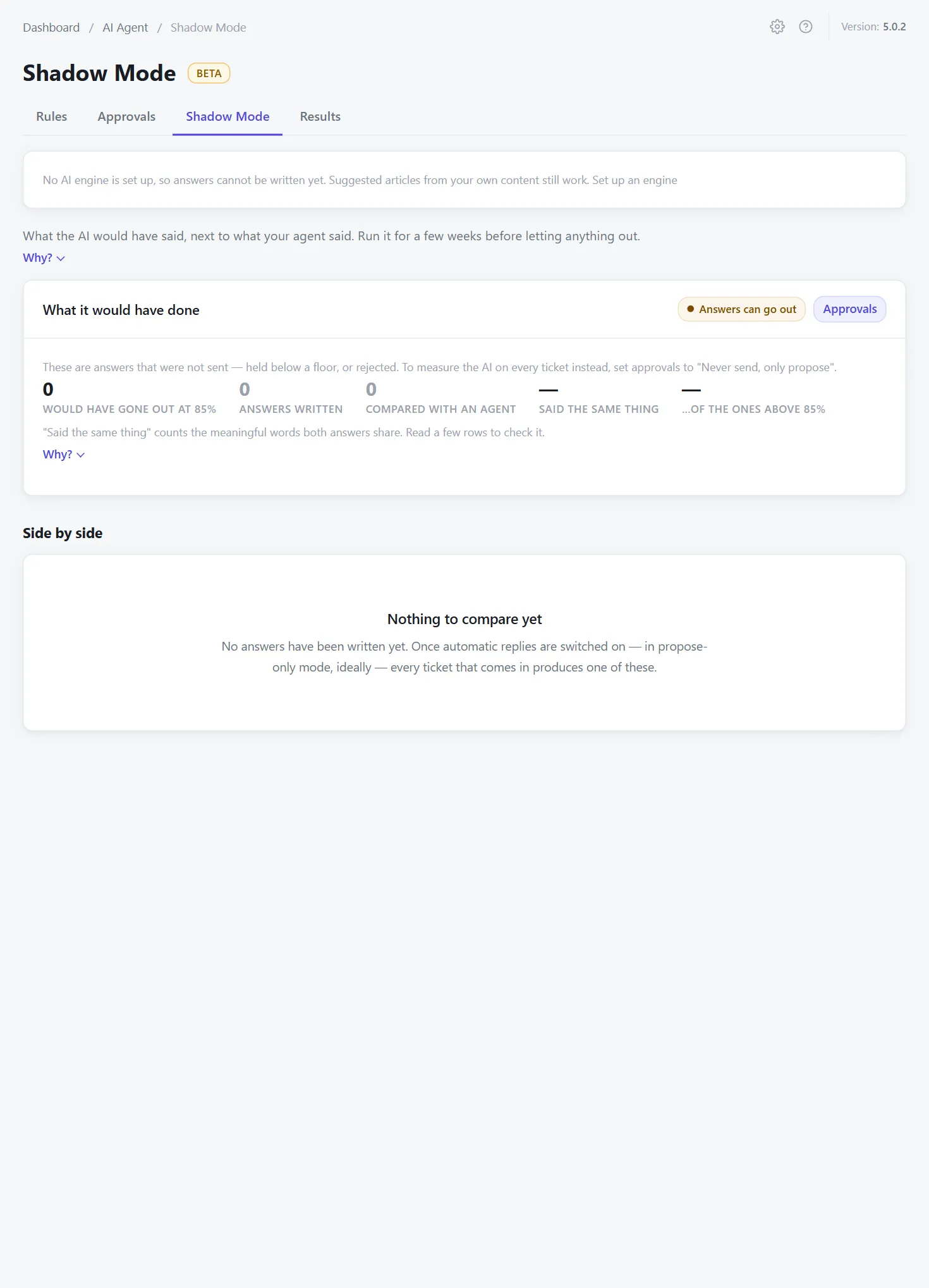
Section titled “Shadow Mode”AI Agent → Automatic answers → Shadow Mode puts the AI’s answer beside what your agent actually wrote on the same ticket. It is the only measure of an AI answer that is not the AI grading itself. Run it for a few weeks before letting anything out.
-
Under Automatic answers → Rules, choose one department under Departments and click Save.
-
On Shadow Mode, click Start shadow mode. This switches on Let the AI work on new tickets and sets Approvals to Never send, only propose; you can also set those two yourself. The top of Shadow Mode then shows Shadowing, and nothing reaches a customer.
-
Let your agents answer those tickets as usual.
-
Come back to Shadow Mode. Each time you open it, answers are matched with the first agent reply written after them.
In any other mode the screen shows Not running with a Start shadow mode button, and compares only the answers that were not sent: held below a floor, or rejected.
What it would have done
Section titled “What it would have done”| Figure | Means |
|---|---|
| Would have gone out at n% | How many of these answers reach your current Minimum confidence to send. Counted against the floor set now, so you can try a floor before using it. |
| Answers written | Answers in the comparison. |
| Compared with an agent | How many have an agent reply to compare with. |
| Said the same thing | Average agreement between the AI and the agent. |
| …of the ones above n% | The same, only for answers confident enough to have gone out. A dash means none was that confident yet. |
“Said the same thing” counts the meaningful words both answers share (words of four letters or more), against the shorter of the two. Read a few rows to check it.
Side by side
Section titled “Side by side”Ticket, What the AI would have said, What your agent said, and Verdict: the agreement, and would have been sent or would have waited. A row the AI would have sent with less than 40% agreement is marked Read this one. Those are the answers that would have gone out and said something different from your agent.
Results
Section titled “Results”AI Agent → Automatic answers → Results (headed Automatic answers: Results) shows what the AI Agent can read and what it did with each ticket.
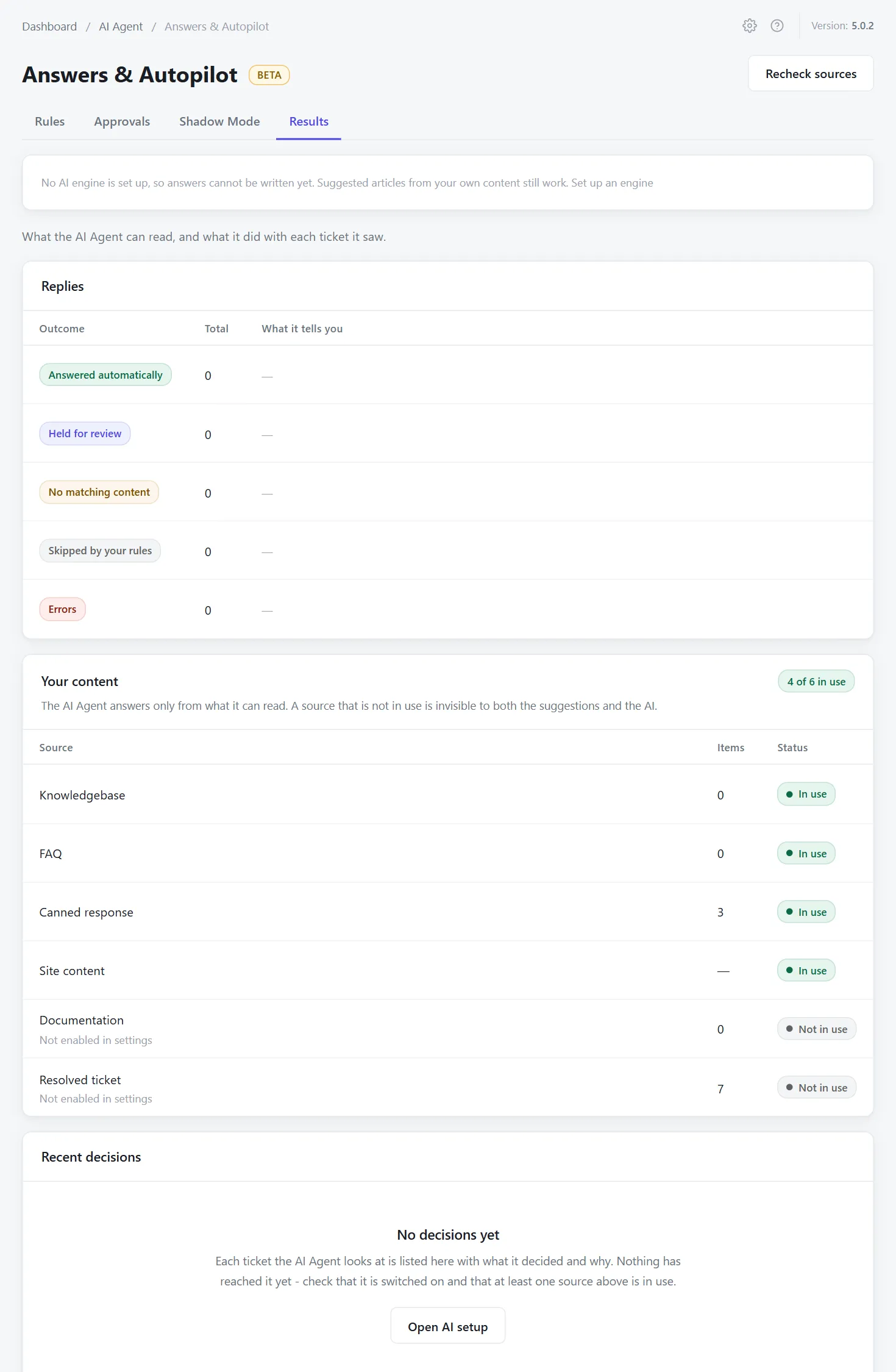
Replies counts every ticket the AI looked at, by outcome:
| Outcome | Meaning |
|---|---|
| Answered automatically | Sent. Shows the average confidence. |
| Held for review | Written but held. |
| No matching content | Nothing in your content was relevant enough. The average best match tells you whether the content is missing or the minimum is set too high. |
| Skipped by your rules | Left out by the rollout rules: audience, department, blocked address, a never-answer word, too short, or the per-ticket limit. |
| Errors | The engine could not be reached or its reply could not be read. |
Where it was measured, Grounding overlap is shown too: how many of a reply’s specifics (button names, menu paths, time limits) appear in the content the AI was shown. Watch it for a while before raising the minimum under Advanced.
Your content is a one-line summary of Knowledge Sources, counted the same way: how many sources are answering (for example 3 of 6 answering) and how many documents the AI can reach, with a Knowledge Sources → link to the full list. Recheck sources at the top checks them again.
Suggestions on the ticket form counts how often a suggested answer was Shown to a customer, Opened, and Answered the question, no ticket filed.
Recent decisions lists each ticket with its Outcome, Confidence, Coverage, Overlap, Why (with the sources used) and When. If nothing has reached the AI yet, Open AI setup takes you to Set up.